This guide explains, step by step and without unnecessary jargon, how to change the domain name of a WordPress site hosted on a cPanel account and managed from your client area. It covers: adding the domain, pointing the domain (DNS), copying files, updating WordPress URLs (via wp‑config.php and the database in phpMyAdmin), replacing serialized URLs, 301 redirects, configuring SSL and final checks.
Before you begin — prerequisites
- Access to the client area (to add or purchase the domain if necessary) and your cPanel credentials.
- The new domain name must be registered or available at your registrar.
- A complete site backup (files + database): JetBackup, a cPanel backup or a reliable plugin. Do not proceed without a backup.
- Access to cPanel’s File Manager and phpMyAdmin. If you can use the command line, WP‑CLI (SSH/Terminal access or the cPanel Terminal) will simplify some replacements.
- DNS propagation time (typically up to 48 hours) and allow time for CDN/plugin caches to update.
Main steps (recommended order)
-
1) Add the domain to the hosting account
In cPanel, open the tool Domains (or “Addon Domains” depending on the version) and add the new name. Choose whether the domain should be:
- an additional domain (separate document root) — for a separate site,
- or an alias (parked) — if you want the domain to point to an existing site.
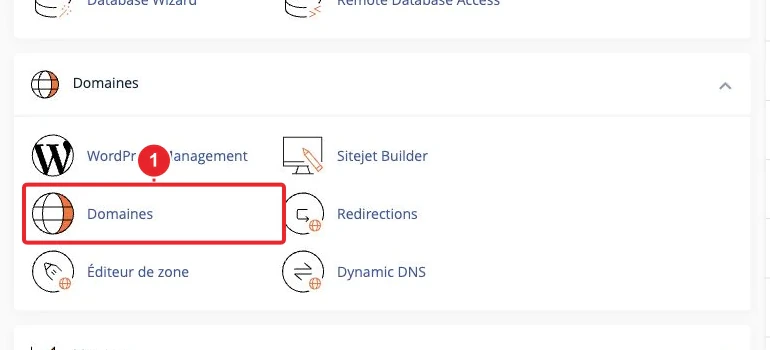
Open Domains in cPanel to add a domain (cPanel screenshot). This action creates the document root directory for the new domain — note its path for copying files. See the cPanel documentation — Domains for details.
-
2) Point the domain to the hosting (DNS)
Two methods:
- Change the nameservers at your registrar so the hosting provider manages the DNS zone,
- or edit the DNS zone (A / CNAME) at your registrar to point the domain to the server IP.
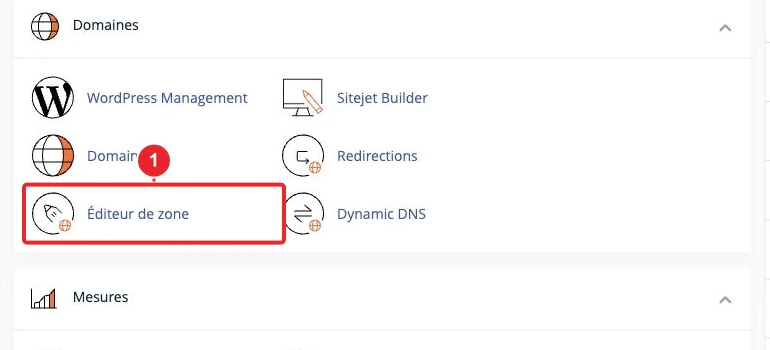
Zone Editor (cPanel): add or modify an A or CNAME record for the new domain. If you manage the DNS zone through cPanel, use Zone Editor. 3) Copy the site files into the new domain's document rootIf the new domain has a separate document root (e.g.
-
):
Open
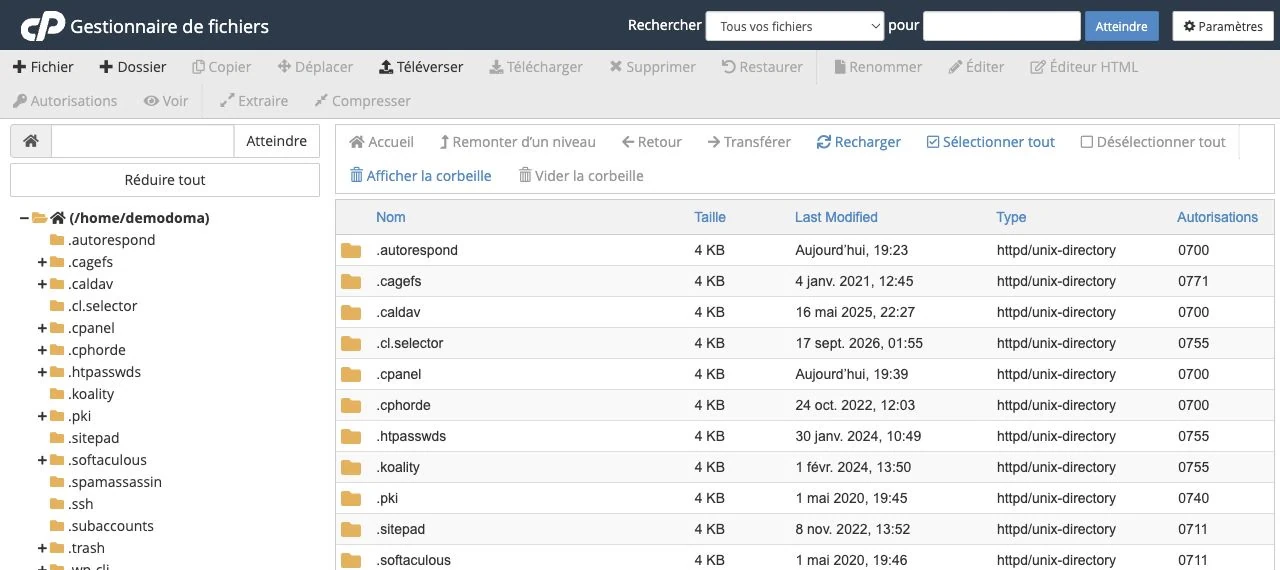
domains/nouveaudomaine.tld/public_htmlFile Manager- in cPanel. Copy all the contents of the old domain's folder (typically or
- ) to the new domain's folder.
public_htmlCheck permissions: files 644 and directories 755 are usually correct; ensure thatdomains/ancien.tld/public_htmlis present and not corrupted. - cPanel File Manager to copy or move the site files
wp‑config.phpFile Manager: copy/move the WordPress files to the new domain's document root.
. 4) Update the WordPress site address (siteurl & home)
wp‑config.phpThree methods depending on the access you have: -
a) Via the WordPress admin
Three methods depending on the access you have:
a) Via the WordPress admin
If you can access the admin area, go to Settings → General and change "WordPress Address (URL)" and "Site Address (URL)" to the new URL, then save.
b) Via
wp‑config.php(if wp-admin is inaccessible)Edit
wp‑config.phpfrom the File Manager and temporarily add:define('WP_HOME','https://nouveaudomaine.tld'); define('WP_SITEURL','https://nouveaudomaine.tld');
Editing the file wp-config.phpfrom cPanel to force the site's URLs.This method forces the site's URL at the code level; remove these lines afterwards if you want to manage the URL from the admin.
c) Via the database (phpMyAdmin)
Open phpMyAdmin in cPanel, select the site's database and open the table
wp_options(variable prefix) and modify the valuessiteurlandhometo the new URL.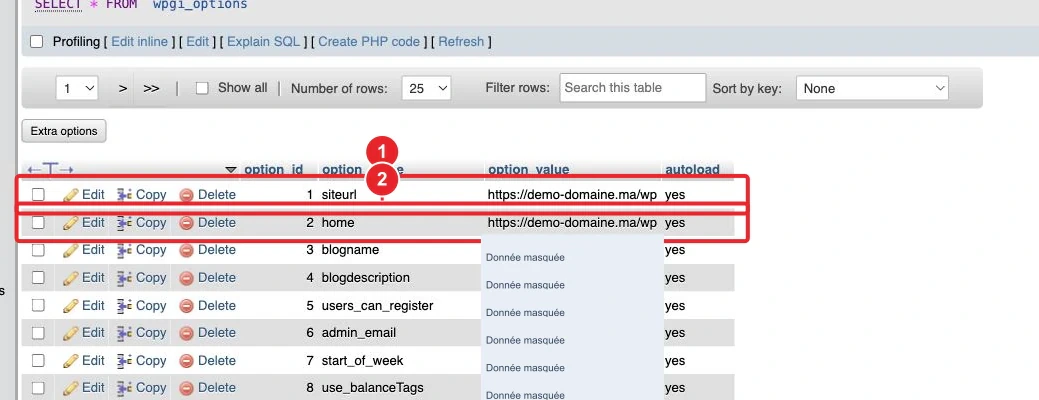
Edit siteurlandhomein phpMyAdmin (cPanel screenshot).phpMyAdmin guide: phpMyAdmin Documentation. If you’re faster with the command line, WP‑CLI can also change these values.
-
5) Replace all internal URLs and handle serialized data
After the change, many entries (links, images, serialized options) may still point to the old domain. To replace them properly:
- Use WP‑CLI if available (correctly handles PHP-serialized data). Example:
wp search-replace 'http://ancien.domaine' 'https://nouveau.domaine' --skip-columns=guid --precise- Or use a reliable plugin (e.g. Better Search Replace): first perform a dry run to verify the changes.
- Avoid raw SQL replacements without a serialization-aware tool: you risk damaging serialized options (widgets, plugin settings).
WP‑CLI documentation: wp search-replace — WP‑CLI.
-
6) Reset permalinks and clear caches
In WordPress: Settings → Permalinks → Save (without changing) to rebuild the rules. Also purge all caches: plugins (WP Super Cache, LiteSpeed, etc.) and CDN (Cloudflare).
In WP‑CLI:
wp rewrite flush. -
7) Create a 301 redirect from the old domain (important for SEO)
On the old domain, add at the top of the
.htaccess(to test first withR=302) :RewriteEngine On RewriteCond %{HTTP_HOST} ^(www\.)?ancien-domaine\.tld$ [NC] RewriteRule ^(.*)$ https://nouveau-domaine.tld/$1 [L,R=301]
Edit .htaccessfrom the File Manager to add the redirect.Use a 301 redirect when you are sure of the migration. For testing, start with
R=302to avoid permanent caching by browsers and search engines.Apache reference: RewriteRule Flags — Apache HTTP Server.
-
8) Install an SSL certificate for the new domain
Enable/install a certificate (Let’s Encrypt / AutoSSL or a third-party certificate) via SSL/TLS in cPanel. Without HTTPS, redirects to a secure URL can generate errors.
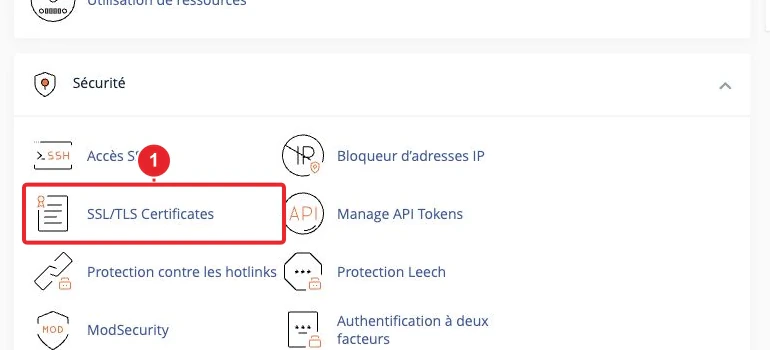
SSL/TLS Wizard: domain selection and certificate installation (cPanel screenshot). Documentation: SSL/TLS Wizard — cPanel. If AutoSSL is enabled, most valid domains automatically receive a certificate; check your host's policy.
-
9) Recreate/migrate email mailboxes and update MX records
If mail management remains with the same host, recreate the mailboxes in cPanel → Email Accounts and migrate messages via IMAP (copy tool or client). Update MX records if routing changes and verify SPF/DKIM/DMARC.
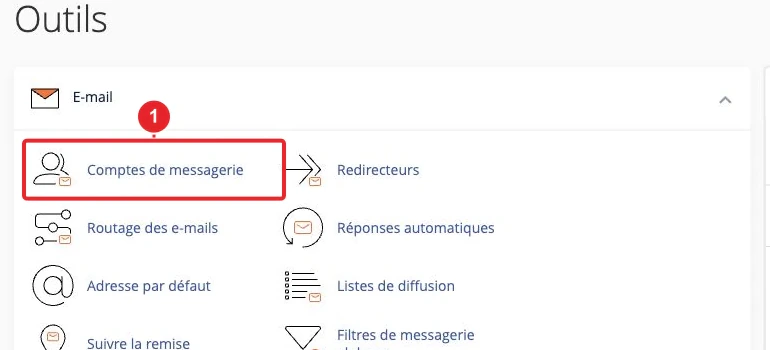
Create and verify email accounts for the new domain (cPanel screenshot). If you use an external service (e.g., Google Workspace), update the DNS records provided by that service.
-
10) Final checks
- Test multiple pages and resources (no 404 errors or missing content).
- Check for mixed content (HTTP resources on HTTPS pages) and fix any remaining URLs.
- Check indexing status (Search Console) and submit a sitemap if necessary.
- Keep the old domain and its redirects active for several months (at least 90 days recommended; ideally 6–12 months depending on traffic).
Troubleshooting — common issues and quick fixes
- 500 error / white screen : temporarily enable
WP_DEBUG(or check the Apache logs) to identify the error; check the DB credentials inwp-config.php. See our internal article on connecting to the database: WordPress: Error Establishing a Database Connection. - Images/links still on the old domain : run a search & replace with WP‑CLI or Better Search Replace (as a dry run first) to correctly handle serialized data.
- Redirection loop : temporarily disable Cloudflare (if active) or switch the redirect to
R=302to test; check for multiple rules in.htaccessand the presence of the SSL certificate on the target. - Invalid SSL certificate : verify that Domain Control Validation (DCV) succeeded in cPanel’s SSL tool and wait a few minutes for issuance.
Limitations & recommendations
- Do not change the domain without a full backup and a rollback plan.
- For WordPress Multisite, reverse proxy setups, complex configurations or advanced CDNs, test the migration on a staging environment before going to production.
- Keep the old domain and its redirects active for at least 3 months; for sites with many backlinks, retain them for 6–12 months.
Useful internal links
- How do I add a domain name to my cPanel Web hosting package?
- How do I modify the DNS zone of my domain in cPanel?
- How do I import or export my database from phpMyAdmin?
- How do I activate my free SSL certificate in cPanel?
- WordPress Toolkit: install and manage your WordPress site (if available)
If you wish, we can:
- prepare the exact WP‑CLI command by replacing your domains and the table prefix,
- verify the cPanel screenshots to include with the guide so they exactly match your cPanel theme (Meridian / Jupiter),
- or generate the .htaccess file
.htaccessready to paste for your redirect.
Reference documentation
- Domains — cPanel & WHM Documentation
- Zone Editor — cPanel & WHM Documentation
- Migrating WordPress — WordPress Developer Resources
- wp search-replace — WP‑CLI Command (WordPress Developer Resources)
- RewriteRule Flags — Apache HTTP Server Documentation
Documentation consulted on 16 October 2026. Tools may vary depending on your hosting.