This guide describes, depending on your goal, the three methods to make a site accessible from another domain name with cPanel: add the domain as an alias (parked domain), create an addon domain, or fully migrate files and the database. For WordPress sites, updating URLs requires special attention. Always back up files and databases before any operation.
Prerequisites
- Access to your cPanel account (login credentials). If you plan to run command‑line operations, have SSH access or use cPanel's Terminal.
- The new domain name is registered with a registrar.
- Control the DNS for the new domain: you can change the nameservers or add A / CNAME records pointing to your server's IP.
- Full prior backup: files + database(s) (Backup Wizard, JetBackup, or export via phpMyAdmin).
- For dynamic sites: access to phpMyAdmin or WP‑CLI to replace old URLs in the database (serialized data require a tool that preserves serialization).
- Allow a test window and DNS propagation time (a few minutes up to 48 hours depending on the TTL).
Which method to choose?
- Alias / parked domain — the new domain displays exactly the same content as the old one (same document root). Simple and quick; useful if you want two domain names to point to the same site.
- Addon domain / clone — the new domain has its own document root (e.g., public_html/newdomain). Allows a separate site (or a copy for testing).
- Full migration — copy the files and import the database to the new location then replace the URLs: recommended for a permanent URL change (expect to set up 301 redirects).
Step-by-step procedures
1) Add the new domain as an alias (parked domain)
Use: when you want the new domain to display exactly the same site as the primary domain.
- Register the domain with your registrar if not already done.
- Point the domain to your hosting: either by configuring the nameservers provided by your host at the registrar, or by creating an A record that points to your server's IP.
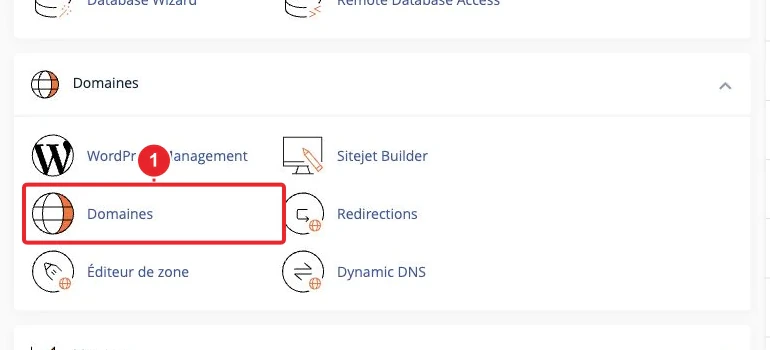
- In cPanel, open the Domains tool (or Aliases/Parked Domains depending on the cPanel version) and add the domain as an alias / parked domain. The new domain will be linked to the same document root as the primary domain.
- Check the DNS zone in Zone Editor: ensure an A record exists for the domain (or that the nameservers are correctly applied).
- Wait for DNS propagation, then test the domain in a browser.
Note: a parked domain does not provide independent space — email and DNS remain managed according to the primary account's configuration.
2) Host the same content under a separate folder (Addon domain / clone)
Use: if you want an independent copy (testing, multilingual version, etc.) or to host a different site in the same account.
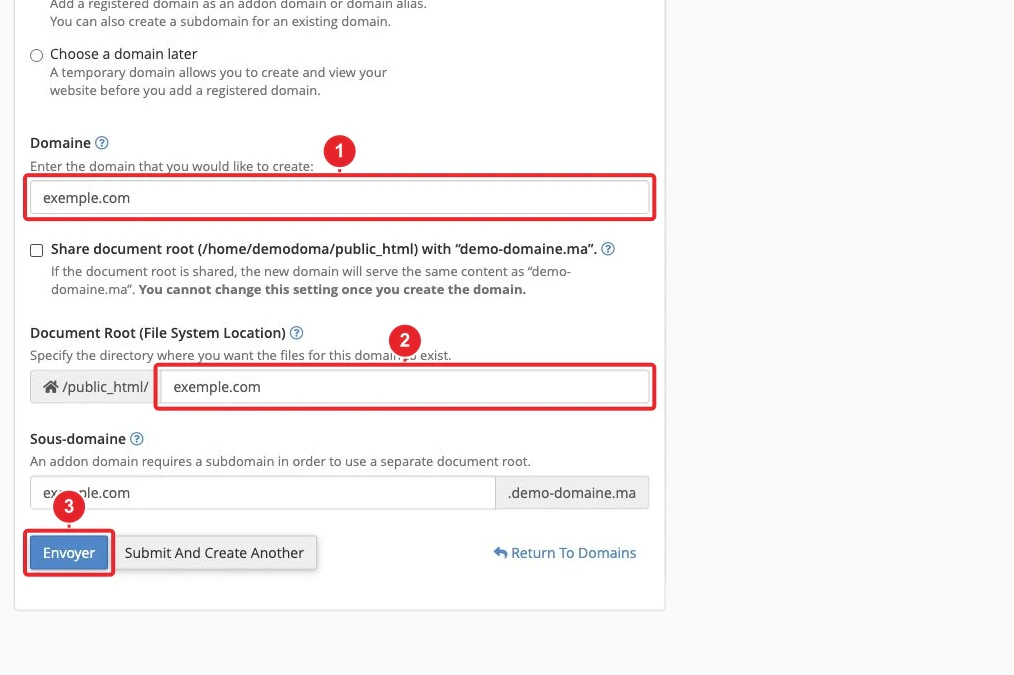
- In cPanel, choose Domains or Addon Domains then Add a domain.Set the desired document root (e.g., public_html/newdomain).
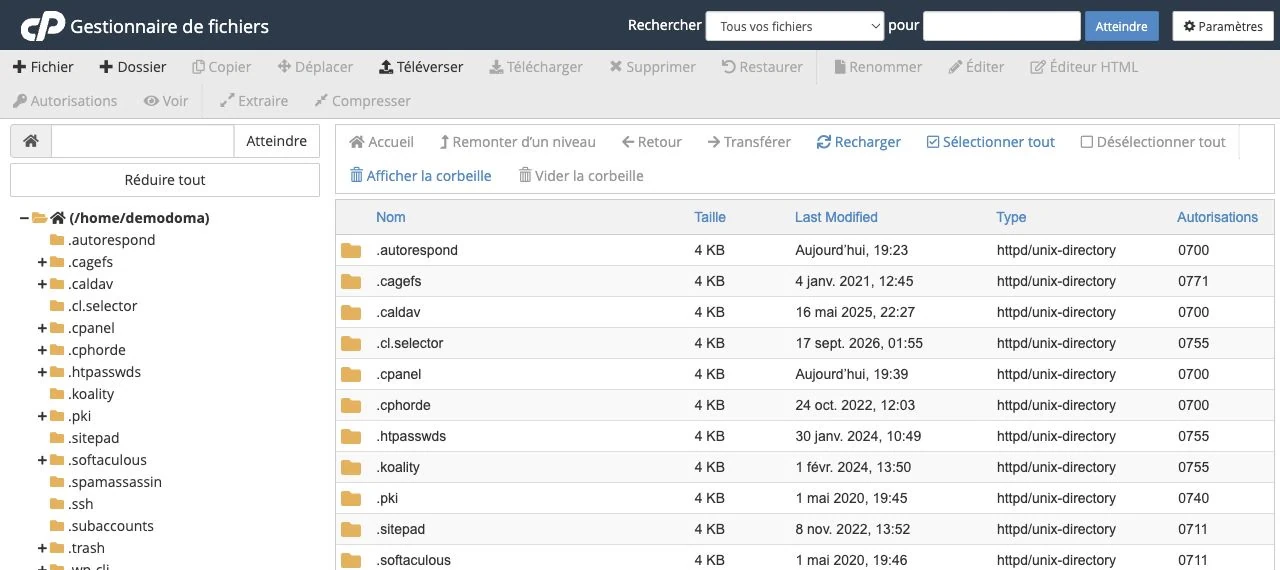
- Copy the source site's files to the new domain's root: use the File Manager (upload a .zip then Extract) or an FTP/SFTP client.
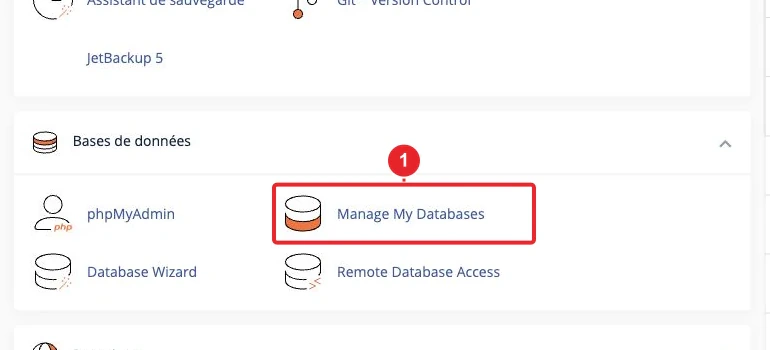
- If the site uses a database: create a new database in MySQL Databases,create a user, assign privileges, then import the SQL dump via phpMyAdmin (Import).
- Edit the CMS configuration file to point to the new database (e.g., wp-config.php for WordPress) or update the database access settings.
- For WordPress: after import, update the entries
siteurlsiteurl and homehome(table wp_options)wp_optionsvia phpMyAdmin or WP‑CLI. Keep a SQL backup before any modification.

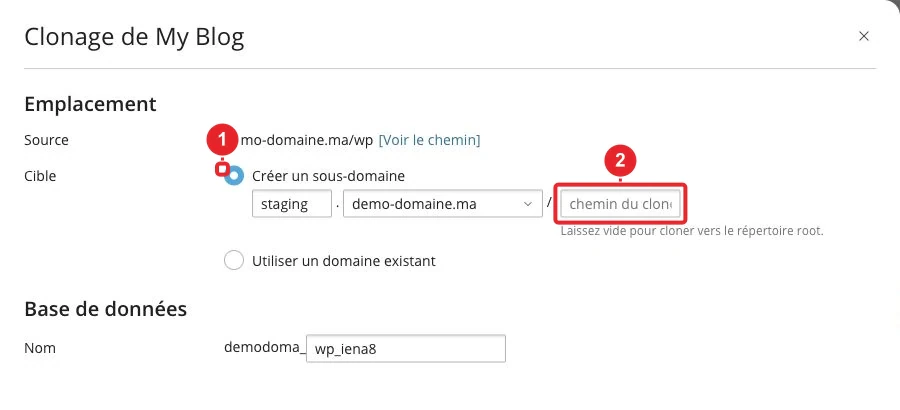
Alternative: if you have WP Toolkit (cPanel), use the cloning tool to automatically duplicate a WordPress installation (database + files).
3) Fully migrate the site to the new domain (permanent move)
Use: you are permanently changing the URL and want to transfer all elements.
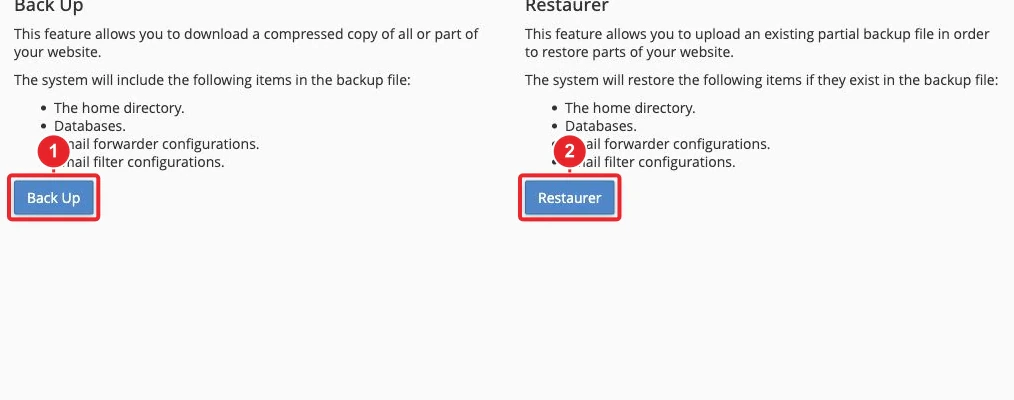
- Backup — files + database. Use Backup Wizard / JetBackup, or export the database via phpMyAdmin and download the files via File Manager/FTP.
- Add the new domain to your account (addon domain or change the primary domain depending on your goal).
- Upload files to the new domain's document root (File Manager or FTP). If you upload a ZIP, use the Extract option to decompress on the server.
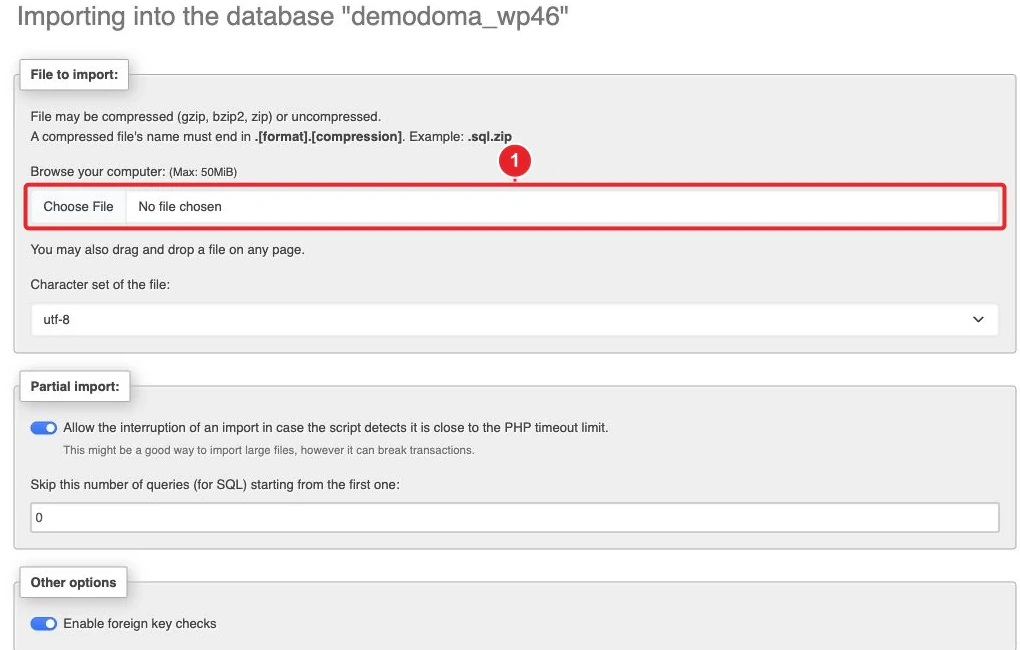
- Create the MySQL database (if necessary) and import the SQL dump via phpMyAdmin (Import).
- Replace the old URLs in the database:
- Prefer WP‑CLI (it handles serialization) if you have SSH/Terminal access — example:
wp cliwp search-replace 'https://anciendomaine.tld' 'https://nouveaudomaine.tld' --skip-columns=guid
wp search-replace 'https://anciendomaine.tld' 'https://nouveaudomaine.tld' --skip-columns=guid - Prefer WP‑CLI (it handles serialization) if you have SSH/Terminal access — example:
- Otherwise, import and then run SQL queries with caution (examples for WordPress): UPDATE wp_options SET option_value = 'https://nouveaudomaine.tld' WHERE option_name IN ('siteurl','home'); UPDATE wp_posts SET post_content = REPLACE(post_content, 'https://anciendomaine.tld', 'https://nouveaudomaine.tld'); UPDATE wp_postmeta SET meta_value = REPLACE(meta_value, 'https://anciendomaine.tld', 'https://nouveaudomaine.tld');
- Important: serialized values (some options/plugins) can be corrupted by a simple search/replace; use WP‑CLI or a tool that handles serialization.
- Check permalinks (in the WordPress admin: Settings → Permalinks, Save) and clear all caches (plugin, server, CDN).
- Install / regenerate the SSL certificate for the new domain from SSL/TLS if necessary.
- If the change is permanent, set up 301 redirects from the old domain to the new one (file .htaccess
.htaccessor the Redirects tool in cPanel) to preserve SEO.
UPDATE wp_options SET option_value = 'https://nouveaudomaine.tld' WHERE option_name IN ('siteurl','home');
UPDATE wp_posts SET post_content = REPLACE(post_content, 'https://anciendomaine.tld', 'https://nouveaudomaine.tld');
UPDATE wp_postmeta SET meta_value = REPLACE(meta_value, 'https://anciendomaine.tld', 'https://nouveaudomaine.tld');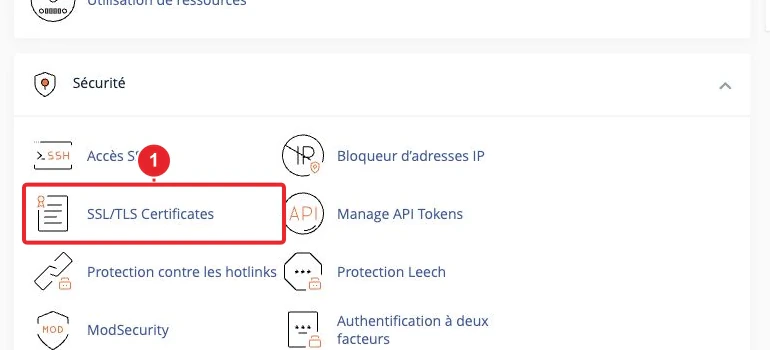
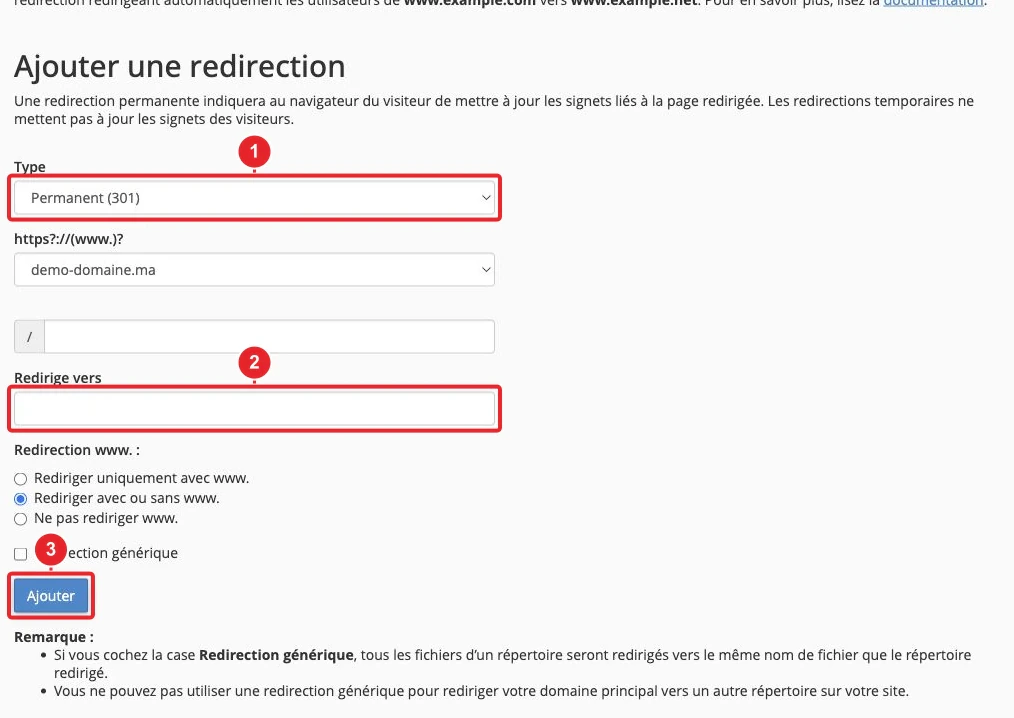
.htaccess to redirect the old domain.4) Change the primary domain of the hosting package (sensitive operation)
Changing a package's primary domain affects email, SSL certificates, and sometimes site paths. If you don't have WHM access or the operation seems complex, contact support: this operation can be irreversible without technical intervention.
Final checks
- DNS: check in Zone Editor that the A / CNAME / MX records are correct.
- SSL: make sure the certificate is active for the new domain.
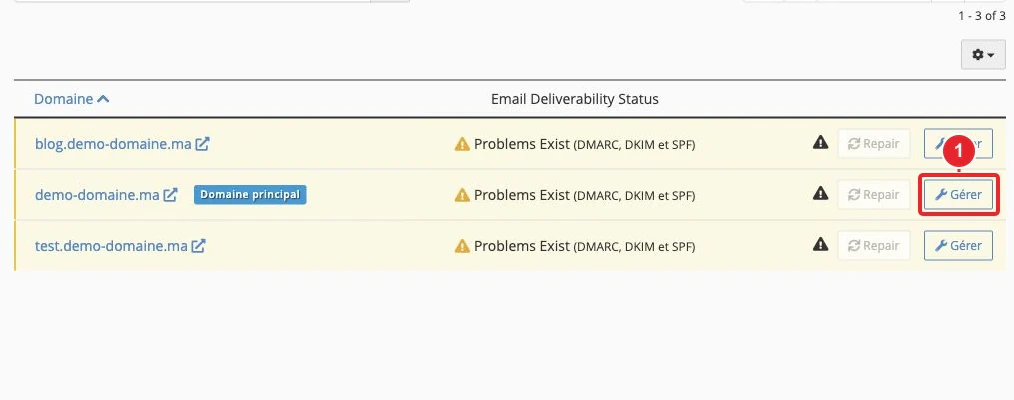
- Email: test sending and receiving if the domain also handles mailboxes; use the Email Deliverability tool in cPanel to diagnose SPF/DKIM/DMARC.
- Public pages and admin: open the site in private/incognito mode and test the back office (admin login).
Quick troubleshooting (common issues)
- Error “Error establishing a database connection”
- Check wp-config.php
wp-config.php(DB_NAME, DB_USER, DB_PASSWORD, DB_HOST) and compare with the database created in > MySQL Databases. - Test the database connection via phpMyAdmin (the interface should open the database and display the tables).
- If necessary, reset the MySQL user's password in cPanel and update
wp-config.phpwp-config.php.
- Check wp-config.php
- 404 / pages returning errors : check the domain's document root, the file
.htaccess.htaccess (rewrite rules), and re-save permalinks in WordPress. - Broken images or links to the old domain : run a search/replace in the database using WP‑CLI (recommended) or a tool that handles serialization; check the URLs in the table
wp_postswp_postswp_postmetaand wp_postmeta. - Invalid SSL certificate : force re-issuance from SSL/TLS in cPanel or enable automatic issuance (depending on the hosting provider's offer).
- DNS propagation too slow : wait for the TTL or check resolution with a DNS diagnostic tool; if the domain still points to the old host, check the nameservers at the registrar.
- Missing features in cPanel (Zone Editor, Backup Wizard, JetBackup, WP Toolkit…): the host may disable them via WHM/Feature Manager — contact support if a required option does not appear.
Limitations and important notes
- A parked domain (alias) shares the document root and does not create independent space: mail and DNS management remain linked to the primary account.
- Changing a primary domain is a sensitive operation that can break services (email, certificates) — prefer contacting support if you are not sure.
- For complex WordPress migrations (multisite, plugins with serialized data, many media files), first test on a staging environment or a separate folder before switching to production.
- If you use a CDN, update the URL in the CDN configuration and purge its cache after migration.
Useful internal links
- How to add a domain name to my cPanel web hosting package?
- How to change the primary domain name of my web hosting package?
- How to import or export my database from phpMyAdmin?
- How to back up or restore my website on cPanel?
- How to force SSL or HTTPS with .htaccess?
- WordPress: How to resolve the 'Error Establishing a Database Connection'
- WordPress Toolkit to install and manage your WordPress site
Summary
Choose alias if you simply want two domains to display the same site. Choose addon domain / clone to create a copy or an independent site within the same account. Choose the full migration if you are permanently changing the URL: back up, copy files & database, replace the URLs (taking serialized data into account), regenerate SSL, and set up 301 redirects from the old domain.
Need assistance? If a cPanel feature is missing (Zone Editor, Backup Wizard, JetBackup, WP Toolkit), or if changing the primary domain worries you, contact technical support and provide your account details and the domain concerned.
Reference documentation
- Park a Domain — cPanel & WHM Documentation
- How Your Server Handles Domains and Virtual Hosts — cPanel & WHM Documentation
- Zone Editor — cPanel & WHM Documentation
- File Manager — cPanel & WHM Documentation
- How to Migrate a WordPress Installation to a cPanel & WHM Server — cPanel Documentation
- Migrating WordPress — Developer WordPress.org
- Import and export — phpMyAdmin documentation
Documentation consulted on 16 October 2026. Tools may vary depending on your hosting.