Introduction
APCu (APC User Cache) is a PHP extension (PECL) that provides an in‑memory cache to store application data — variables, arrays or objects — between requests. It speeds up access to results that are expensive to recompute. APCu complements OPcache (the opcode cache); it does not replace it.
Prerequisites
- Access to your cPanel (user account) or root access to WHM if you manage the server.
- For the method without root access: the panel must provide Select PHP Version (PHP Selector / CloudLinux). If this module is absent, the extension must be installed by the administrator via WHM / EasyApache 4.
- Check the extension's compatibility with your site's PHP version (APCu is available for recent PHP branches; confirm the appropriate version in the official manual).
- APCu is a cache local to the PHP / SAPI instance: in a multi‑node environment, prefer a network cache (Redis/Memcached) if you need a shared cache.
Enable APCu from cPanel (user account)
This method applies if your host has enabled the PHP Selector (Select PHP Version).
- Log in to cPanel. (If needed, consult our guide to accessing cPanel.)
- Open Software → Select PHP Version.
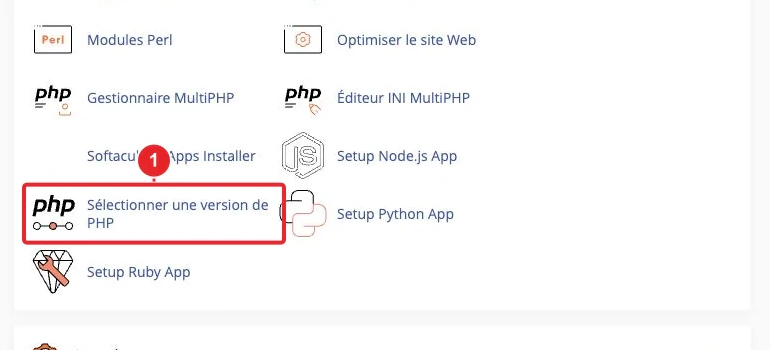
Open Select PHP Version from the cPanel dashboard.
- Verify or select the PHP version used by your domain and apply the change if necessary.
- In the list of extensions, check apcu then save (Save / Apply).
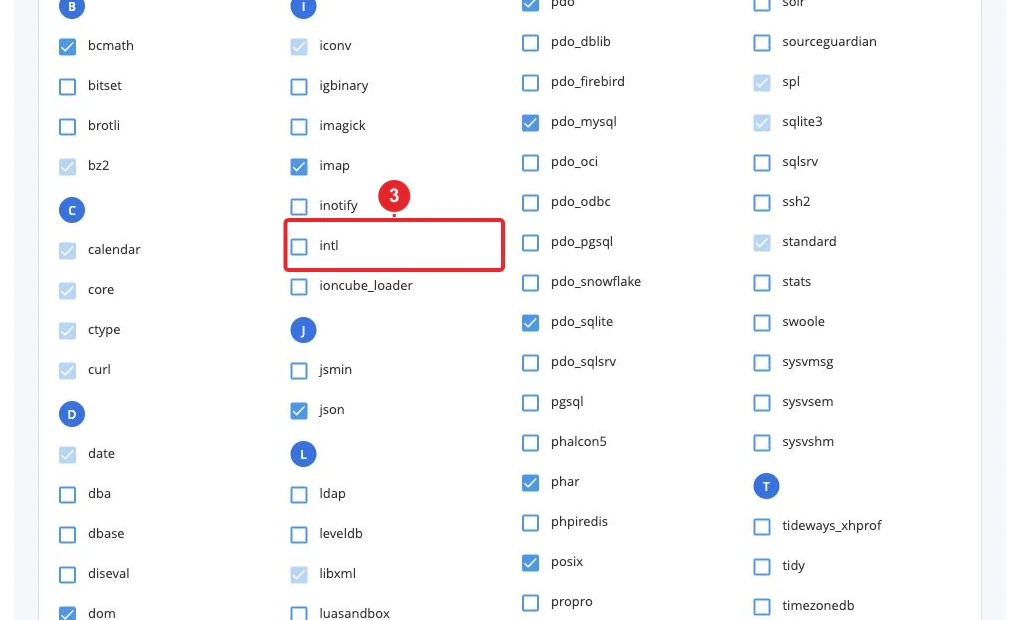
Enable the extension
apcufrom PHP Selector. - Test the site as described in the 'Verify' section below.
Note: if the option apcu does not appear, the extension is not installed on the server; contact support or the administrator to install it.
Install APCu (administrator / WHM — EasyApache 4)
If you have root access to WHM, install the extension for the relevant PHP version(s) via EasyApache 4 or the distribution's package manager.
- Log in to WHM as root.
- Go to Home → Software → EasyApache 4 → Customize → PHP Extensions and search for 'apcu'. Select the extension for the target PHP version and provision the changes. (cPanel Guide — install a PHP version or extension.)
- Alternatively, install the appropriate package via yum/apt following the EasyApache package naming convention (packages named by EA‑PHP version). If you are not sure of the package name, ask the systems team.
- After installation, the extension should be selectable from the PHP Selector (if present) and visible via
phpinfo()for the domain.
Verify and configure after enabling
Quick checks
- phpinfo: create
phpinfo.phpcontaining<?php phpinfo();, open it in a browser and search for 'apcu' to verify the installation and version. - Simple test script:
<?php
if (extension_loaded('apcu')) {
    echo 'APCu chargé — version : '.phpversion('apcu');
} else {
    echo 'APCu non chargé';
}
Modify APCu directives
To adjust options (shared memory size, enabling for CLI...), use Software → MultiPHP INI Editor in cPanel for the relevant PHP version / domain, or edit the central php.ini if you have administrator access.
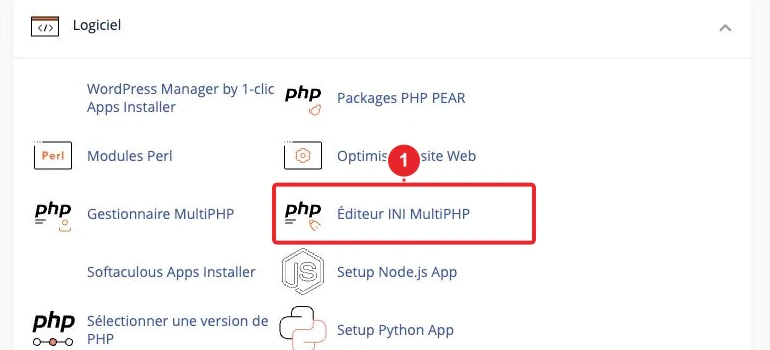
Access the MultiPHP INI Editor to edit PHP directives (e.g. apc.*).
Common settings to check (exact names documented on php.net):
apc.shm_size— shared memory size (adjust according to load, e.g. 32M → 128M as needed).apc.enable_cli— enable APCu for command-line scripts (useful for cron jobs that require APCu).
Limitations & best practices
- APCu stores data in memory local to the PHP process / SAPI: it is not suitable as a shared cache across multiple servers. For a distributed cache, use Redis or Memcached.
- APCu complements OPcache: keep OPcache for opcode caching and use APCu for application caching.
- Avoid storing overly large objects if shared memory is limited; monitor rejected entries and adjust
apc.shm_size. - On managed environments (CloudLinux, CageFS, containers), behavior can vary depending on the SAPI configuration — check with your administrator.
Quick troubleshooting
- The 'apcu' checkbox does not appear in Select PHP Version: the extension is not installed or the PHP Selector is disabled. Contact support with the domain's PHP version and a screenshot.
- APCu appears active but the application reports it as missing: verify that you are testing the same PHP SAPI/version that the site uses (PHP‑FPM vs CLI). If necessary, enable
apc.enable_clifor CLI scripts and restart the PHP‑FPM service on the server. - Cache saturated / entries rejected: increase
apc.shm_sizegradually and monitor memory usage. - If you are on shared hosting and cannot install it yourself: open a support ticket specifying the domain, PHP version and the reason (e.g., to speed up WordPress / for plugin X that requires APCu).
Useful internal links
- How to change the PHP version and extensions on my cPanel hosting?
- How to access my cPanel account?
- Contact support
Need help?
Open a ticket specifying: domain, PHP version used, screenshot of Select PHP Version (if visible) and the extension/plugin that requires APCu. The team can: enable the extension if it is available, install it via EasyApache 4 or propose an alternative (Redis/Memcached) if APCu is not appropriate.
Sources & references
- APCu — Manual (php.net)
- How to locate and install a PHP version or extension — cPanel Documentation
- How to use Alt‑PHP for a site — cPanel Support
Reference documentation
- How to Locate and Install a PHP Version or Extension — cPanel Documentation
- APCu — Manual — PHP.net
- How to use Alt‑PHP for a site — cPanel Support
Documentation consulted on 17 October 2026. Tools may vary depending on your hosting.