Introduction
This guide explains, step by step, how to use the cPanel interface to manage SSH keys (generate or import the public key), authorize a key, retrieve the private key if it was created on the server, and then connect from your workstation (Linux / macOS / Windows). SSH (Secure Shell) is an encrypted protocol used to administer an account/server remotely; it relies on a key pair: the public key (installed on the server) and the private key (kept on your computer).
At a glance
- cPanel provides the Security → SSH Access → Manage SSH Keys to create or import keys and to authorize a key.
- There is also an integrated Terminal (Home → Advanced → Terminal) if your host allows it: useful for quick checks from the interface. See the "cPanel Terminal" section below.
- On Windows, PuTTY uses the .ppk format: convert your private key if necessary with PuTTYgen.
Prerequisites
- Active cPanel account and credentials. If you do not know how to access cPanel, consult our internal guide How do I access my cPanel account?.
- The SSH Access / Manage SSH Keys feature must be enabled by your host. If you cannot find this option, contact support (activation may be managed on the server side).
- An SSH client installed: OpenSSH (Linux/macOS), the built‑in OpenSSH client (Windows 10/11) or PuTTY (Windows). For SFTP, FileZilla or WinSCP can be used.
- Know your cPanel username (often the same as your cPanel login); on shared hosting you generally do not use "root".
Steps — create and use an SSH key from cPanel
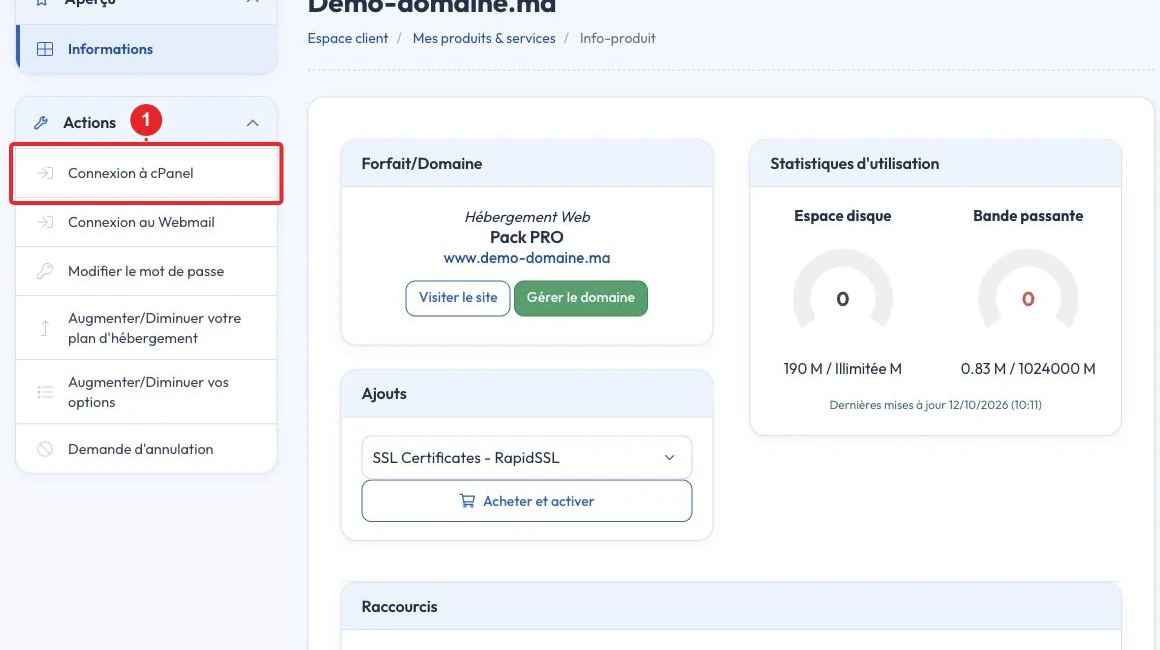
1) Log in to cPanel
- Open cPanel via the URL provided by your host or from your customer area (button "Log in to cPanel").
2) Open SSH Access → Manage SSH Keys
- In cPanel, go to the Security section, then SSH Access and click Manage SSH Keys.This page lists the public and private keys managed by your account.
- If you don't see this interface, SSH/Terminal access may be disabled for your plan — contact support.
3) Generate or import a key
- Option A — Generate the key pair in cPanel (possible depending on the hosting provider):
- Choose the type (Ed25519 recommended for new keys; RSA 4096 for maximum compatibility) and a passphrase if you want to encrypt the private key.
- Advantage: simple. Disadvantage: the private key is created on the server and you will need to download it if you want to use it locally.
- Option B — Generate the key pair on your local machine (recommended): The private key never leaves your machine.
ssh-keygen -t ed25519 -f ~/.ssh/ma_cle_ssh -C "votre-email@example.com"
# ou si vous avez besoin de RSA :
ssh-keygen -t rsa -b 4096 -f ~/.ssh/ma_cle_ssh -C "votre-email@example.com"
Then, in cPanel → Manage SSH Keys → Import Key, paste the contents of
~/.ssh/ma_cle_ssh.pub(the public key). Never import your private key into a public import field.
4) Authorize the key
- After importing or generating it, locate the key in the 'Public Keys' list and click Manage then Authorize (or an equivalent button). The status must indicate "Authorized"; otherwise key‑based authentication will fail.
5) Download the private key (if generated in cPanel)
- If you generated the key pair in cPanel and the private key is available, go to the section Private Keys → View/Download and download it to your computer. Then store it in
~/.sshand restrict its permissions (see the next step). - Security tip: if possible, generate the key locally and import only the public key into cPanel to avoid the private key circulating on a remote server.
6) Prepare the key on your machine (Linux / macOS)
- Move the private key into
~/.sshand set the permissions:mv ~/Downloads/ma_cle_ssh ~/.ssh/ma_cle_ssh chmod 600 ~/.ssh/ma_cle_ssh - SSH connection (example):
ssh -i ~/.ssh/ma_cle_ssh -p 22 utilisateur@votre-domaine.tldReplace 22
22with the SSH port if your host uses a non‑standard port, andutilisateurreplace utilisateur with your cPanel username. - To manage keys in memory (optional):
eval "$(ssh-agent -s)"
ssh-add ~/.ssh/ma_cle_ssh
7) On Windows (OpenSSH or PuTTY)
- Windows 10/11 includes an OpenSSH client usable from PowerShell:
ssh -i C:\Users\Vous\.ssh\ma_cle_ssh utilisateur@votre-domaine.tld -p 22 - PuTTY (graphical interface) requires a .ppk file:
- Open PuTTYgen → Load → choose "All Files (*)" and load your OpenSSH private key (or the key downloaded from cPanel) → then Save private key to create a .ppk.
- Open PuTTY → Session: enter Host Name (or IP) and Port → Connection → SSH → Auth → Private key file for authentication → select the .ppk, then > Open.
8) Use SFTP to transfer files
- The same key/user pair works for SFTP. OpenSSH example:
sftp -i ~/.ssh/ma_cle_ssh utilisateur@votre-domaine.tld - GUI clients: WinSCP and recent versions of FileZilla accept OpenSSH keys or .ppk. If necessary, convert the key for your client.
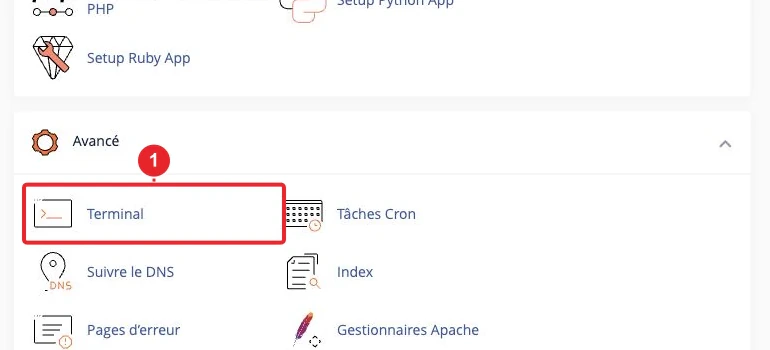
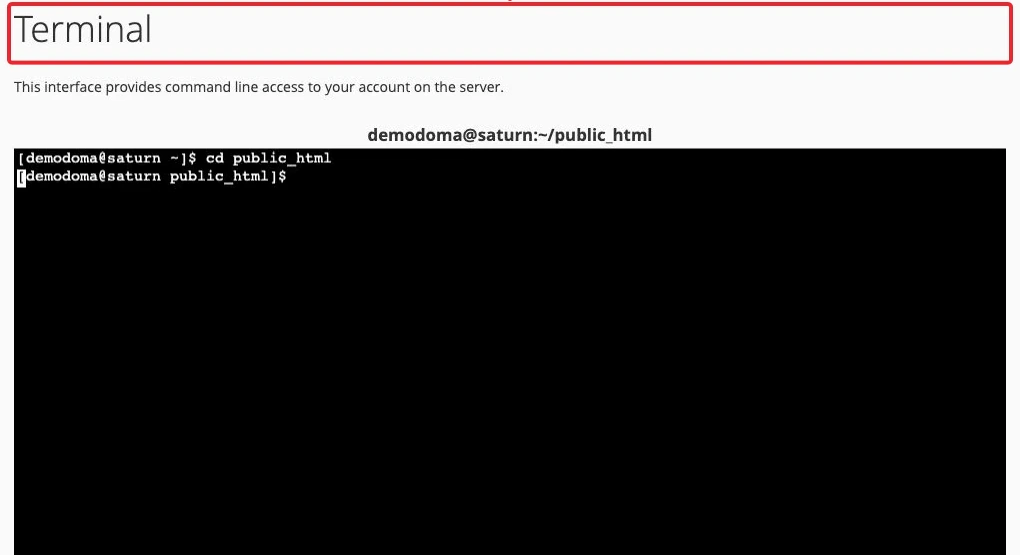
public_html and run server commands.Useful checks and commands
- Verbose mode to diagnose authentication:
ssh -v -i ~/.ssh/ma_cle_ssh -p 22 utilisateur@host # ou pour plus de détails : ssh -vvv -i ~/.ssh/ma_cle_ssh utilisateur@host - Force the use of a specific identity if SSH tries multiple keys:
ssh -o IdentitiesOnly=yes -i ~/.ssh/ma_cle_ssh utilisateur@host - Check the private key permissions:
chmod 600 ~/.ssh/ma_cle_ssh(strict permissions required by OpenSSH). - In cPanel, make sure the public key is Authorized in Manage SSH Keys (Authorization Status column).
Security best practices
- Generate the key pair locally and import only the public key whenever possible.
- Protect your private key with a passphrase and keep it in a secure location (hardware security key or password manager, depending on your needs).
- Never share your private key. Remove or unauthorize unused keys from Manage SSH Keys.
- Use a different key for each device, and regularly rotate or remove inactive keys.
Common limitations
- Some shared hosting plans do not allow shell (SSH) access or restrict access to SFTP only. If you do not see SSH Access or Terminal, contact support to ask whether the feature can be enabled.
- Server-side key generation often involves downloading the private key: prefer generating keys locally for security reasons.
- The SSH port may be non-standard; check with your host if connections on port 22 are refused.
Quick troubleshooting
- Error "Permission denied (publickey)"
- Verify that the public key is Authorized in cPanel → Manage SSH Keys.
- Make sure you are using the correct username (often your cPanel login) and the correct private key (permissions 600).
- Test in verbose mode (ssh -vvv …)
ssh -vvv …and look at the line that explains why authentication fails.
- Connection refused : SSH port blocked or wrong port. Check the port with your host and test from another network if necessary.
- PuTTY: "no supported authentication methods available" : convert the key to .ppk format with PuTTYgen and reload it in PuTTY → Connection → SSH → Auth.
- Host key mismatch / WARNING: REMOTE HOST IDENTIFICATION HAS CHANGED Do not ignore this warning; it indicates a change in the host key fingerprint. Check with support before removing the old entry.
- If you contact support, provide the verbose output (without sharing your private key) and specify exactly the user, the port and the time of the attempts.
Useful internal links
- How to access my cPanel account?
- Manage Git repositories in cPanel — common use case: use an SSH key to clone a private repository.
References
Summary
To secure your connections: prefer generating the key on your workstation, import the public key into cPanel → Manage SSH Keys, authorize the key, then connect with ssh -i ssh -i (Linux/macOS) or use PuTTY after converting to .ppk (Windows). If the SSH/Terminal options do not appear in cPanel, your hosting provider must enable them.
Reference documentation
- SSH Access — cPanel & WHM Documentation
- How to Access the Command Line — cPanel & WHM Documentation
Documentation consulted on October 20, 2026. Tools may vary depending on your hosting.