In cPanel, Git Version Control lets you create an empty repository or clone an existing one, then manage its files and history. Cloning does not automatically publish your website: deployment is a separate step.
Prepare the repository location
Check that the tool is available with your hosting plan. Choose a dedicated folder, for example /home/votrecompte/repositories/mon-site, adapting this path to your account. Avoid placing the entire repository in the site's public directory when only some files should be published.
Keep passwords, SQL backups and private configuration files out of your repository. Git does not automatically back up your databases or email accounts.
Step 1: open Git Version Control
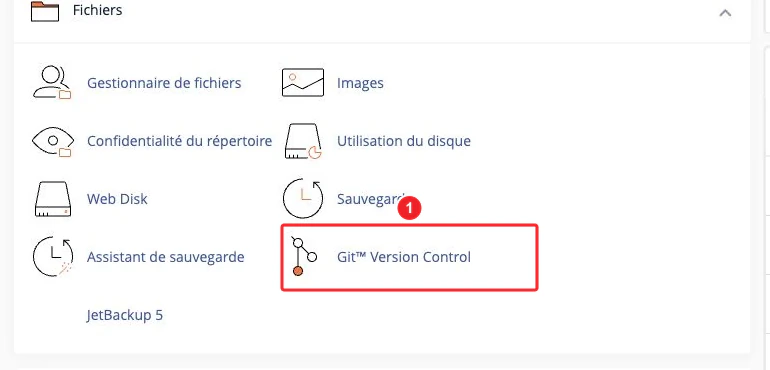
Log in to cPanel and open Files > Git Version Control. The list shows repositories managed by cPanel. A repository created only from the command line may not appear here.
Step 2: create or clone a repository
Create an empty repository
- Click Create.
- Turn off the Clone a Repositoryoption.
- Enter the repository path and its display name.
- Confirm. The folder must be empty unless you are registering an existing repository.
Clone an existing repository
- Enable the cloning option.
- Enter the URL provided by your Git service.
- Check the suggested local path and name.
- Confirm, then wait for cloning to finish before using the management controls.
Prepare access to a private repository first, usually with an SSH key and suitable permissions. Do not put a password or token in the clone URL. Verify a new SSH fingerprint with the relevant service before accepting it.
View history and manage the branch
History opens the repository history. Manage opens the available information and settings. Check the branch before changing it: a test branch must not accidentally replace the branch used by the production site.
Without shell access, the available options are more limited. Advanced operations, especially setting up access to a private repository, may require SSH or assistance from support.
Update the repository, then deploy the site
For a deployment that pulls changes, open Manage > Pull or Deploy, then Update from Remote. This retrieves changes from the remote repository. Publishing with Deploy HEAD Commit requires a version-controlled .cpanel.yml file that defines the deployment tasks.
Check these tasks in a test environment before using them on the live site. Depending on the chosen method, a deployment can also be triggered when changes are pushed to a repository managed by cPanel.
Remove a repository from cPanel management
Remove removes the repository from the list and cPanel management. Its files are not automatically deleted. Manually deleting the folder is a separate operation that should only be performed after taking a backup and checking its contents.
See also
Reference documentation
Documentation checked on 13 October 2026. Tool names and availability may vary with your cPanel version and hosting options.