Introduction
SSH (Secure Shell) is the standard encrypted protocol for administering a server remotely from the command line and for secure transfers (SFTP, scp). In cPanel, you can use SSH in two main ways: the Integrated Terminal (web interface) andremote access via an SSH client (OpenSSH, PuTTY, graphical SFTP clients).
Important note: your hosting plan may restrict or disable SSH access. If you do not see the tools described below, contact support through your client area (link at the bottom).
Prerequisites
- An active cPanel hosting plan and your cPanel credentials. See How to access my cPanel account.
- An SSH client on your workstation for remote access: OpenSSH (macOS / Linux / Windows 10+), PuTTY (Windows), or an SFTP client (FileZilla, WinSCP).
- Know your cPanel username, the host (IP or server name), and the SSH port (default 22). Your hosting provider supplies these details.
- Check whether SSH access is permitted for your plan: on some shared hosting packages, remote shell access is disabled and must be enabled by support.
Before you begin: where to check in cPanel
After logging into cPanel, look for the module Terminal (often under Advanced) and the module SSH Access / Manage SSH Keys (often under Security). If these items do not appear, open a ticket with support.
Method A — Use cPanel's built‑in Terminal (web interface)
The built‑in Terminal lets you run commands from your browser without configuring a key or a local client. It uses your cPanel session and runs with the permissions of the cPanel user.
- Log in to cPanel (see link above).
- In the cPanel dashboard, open Advanced > Terminal.
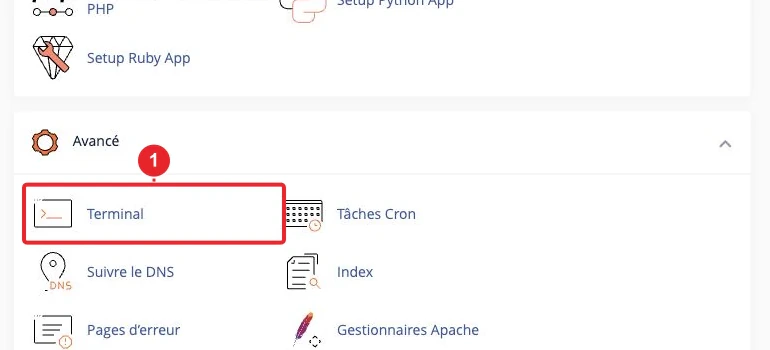
Open Terminal (cPanel > Advanced > Terminal). - On first access, accept the warning to open the console (button text varies depending on the cPanel version).
- Examples of common commands:
cd public_html
ls -la
php -v
composer --version  # si Composer est disponible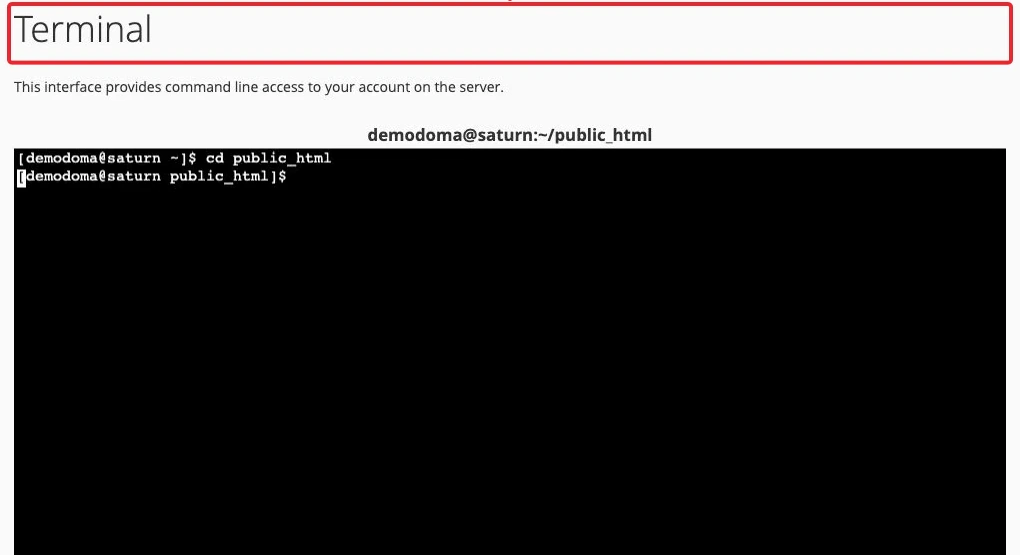
Example: access the public_html directory from the Terminal.
Caution: the Terminal executes real commands on your account. A misused command (rm -rf, recursive chown, etc.) can render your site inoperable. Only run commands you understand and back up before risky operations.
cPanel documentation (Terminal): Terminal for cPanel.
Method B — Connect from your local machine (SSH client)
Two common authentication methods: password (if allowed) or public/private key (recommended).
1) Password authentication
- Open a Terminal (macOS / Linux) or PowerShell / PuTTY (Windows).
- Basic command:
Replacessh -p PORT utilisateur@serveur.example.comPORT,utilisateurandserveur.example.comwith your values. Enter your cPanel password if prompted.
Note: some hosts disable password authentication to improve security. In that case, use SSH keys (below).
2) SSH key authentication (recommended)
Public/private key authentication is more secure than a password. Two main steps: generate the key pair (locally or via cPanel), then authorize the key in cPanel.
- Generate a key pair on your machine (examples):
When generating, choose a passphrase to protect the private key.# Clé Ed25519 (recommandée si supportée) ssh-keygen -t ed25519 -C "votre.email@exemple.com" -f ~/.ssh/id_ed25519 # Ou RSA 4096 (compatibilité maximale) ssh-keygen -t rsa -b 4096 -C "votre.email@exemple.com" -f ~/.ssh/id_rsa - Copy the public key:
On macOS you can copy it directly to the clipboard:cat ~/.ssh/id_ed25519.pub
(on Linux usepbcopy < ~/.ssh/id_ed25519.pubxclipor display and copy it manually). - Import / generate and authorize the key in cPanel:
- In cPanel, open Security > SSH Access then Manage SSH Keys.
- Choose Import Key to paste your public key, or Generate a New Key to let cPanel create a pair.
- After import/generation, click on Manage then Authorize to make the key usable by SSH.
Important: the exact button and label may vary depending on the cPanel version; check the interface and authorize the key after import.
- Connect with the private key:
ssh -i ~/.ssh/id_ed25519 -p PORT utilisateur@serveur.example.com - Windows & PuTTY: PuTTY does not use OpenSSH keys directly. Use PuTTYgen to convert your private key to the
.ppk, then configure PuTTY (Connection → SSH → Auth) to use the file.ppk. See the cPanel documentation for the detailed procedure.
cPanel reference (SSH Access): SSH Access — cPanel.
SFTP and file transfers
SFTP runs over SSH and provides encrypted transfers. Examples:
# envoyer un fichier depuis votre machine (scp)
scp -P PORT /chemin/local/fichier utilisateur@serveur.example.com:/home/utilisateur/public_html/

# se connecter en SFTP interactif
sftp -P PORT -i ~/.ssh/id_ed25519 utilisateur@serveur.example.com
Graphical clients (FileZilla, WinSCP): choose SFTP - SSH File Transfer Protocol, enter the host, the port, the username, then select the private key or use a password according to your configuration.
Useful commands and files
cd public_html— most common web root directory (depending on your configuration).ls -la,cat,nanoorvi— list and edit files.php -v— display the PHP version available for your account (if accessible).scp,sftp— secure file transfers.- SSH files on the client side:
~/.ssh/id_*(private) and~/.ssh/id_*.pub(public). On the server:~/.ssh/authorized_keyscontains the authorized public keys.
Limitations and best practices
- On shared hosting you generally do not have root access and the account is often in a 'jail' (chroot) environment. Some system commands and administrative operations are restricted.
- Always protect your private key: never share it and set a passphrase.
- Apply strict permissions to SSH files on the client and server sides:
chmod 700 ~/.sshthenchmod 600 ~/.ssh/authorized_keysandchmod 600 ~/.ssh/id_*. - Back up your files before running risky commands (rm, recursive chown, etc.).
- Disable password authentication if you control the server (VPS / dedicated) and all authorized keys are configured — on shared hosting, this option depends on your host.
Quick troubleshooting
"Connection refused" Check the server address, the SSH port and that the SSH service is active. On our shared hosting plans, SSH access may be disabled: open a ticket if necessary. "Permission denied (publickey)" Common causes: public key not imported/authorized in cPanel, wrong private key used locally, incorrect permissions on~/.ssh or on the key files. Test in verbose mode: ssh -vvv -p PORT utilisateur@serveur.example.com to see where authentication fails.
"WARNING: REMOTE HOST IDENTIFICATION HAS CHANGED!"
Remove the old local fingerprint and reconnect: ssh-keygen -R serveur.example.com, then reconnect and verify the server fingerprint.
Timeout
The port may be blocked by a local or network firewall. Check your firewall, try from another network, or ask support if the server uses a non-standard port.
PuTTY does not accept the OpenSSH key
Convert your key with PuTTYgen to the format .ppk, then select it in PuTTY (Connection → SSH → Auth).
If you need help
If SSH access is not visible, if the port is non-standard, or if you encounter a server-side problem, open a ticket via your client area: Open a ticket – Technical Support.
Internal resources
Note: the exact labels and location of tools may vary depending on the cPanel version (Meridian/Jupiter theme) and your host's settings. For the official cPanel documentation: Terminal for cPanel and SSH Access — cPanel. For key generation via the command line: How to generate an SSH Key (cPanel Support).
Reference documentation
- Terminal for cPanel — cPanel & WHM Documentation
- SSH Access — cPanel & WHM Documentation
- How to generate an SSH Key using the command line — cPanel Support
Documentation consulted on October 17, 2026. Tools may vary depending on your hosting.