Introduction
Hotlinking (or “inline linking”) occurs when a third‑party site displays an image or file hosted on your account by linking directly to your URL. The result: your bandwidth is used to serve the file, sometimes without permission. cPanel offers a “Hotlink Protection” tool to block these common cases or to redirect unauthorized requests to a replacement image.
Prerequisites
- Access to your cPanel account.
- The feature may be disabled by your host via WHM (Feature Manager). If you do not see the option, contact support from your client area.
- If you plan to edit .htaccess
.htaccess, be sure to show hidden files in the File Manager: Show Hidden Files. - Make a backup of the .htaccess file
.htaccessbefore making any changes.
Before you start (best practices)
- Gather the list of domains that must remain allowed (e.g.
example.com,www.example.com, CDN domain). - Decide which extensions to protect (.jpg, .png, .webp, .gif, etc.).
- If you use a CDN, note its domain: it must be added to the allowed domains, otherwise your own images served via the CDN will be blocked.
Step‑by‑step (cPanel interface)
- Log in to cPanel (see How to access my cPanel account).
- In the cPanel dashboard, locate the 'Security' section and click Hotlink Protection.
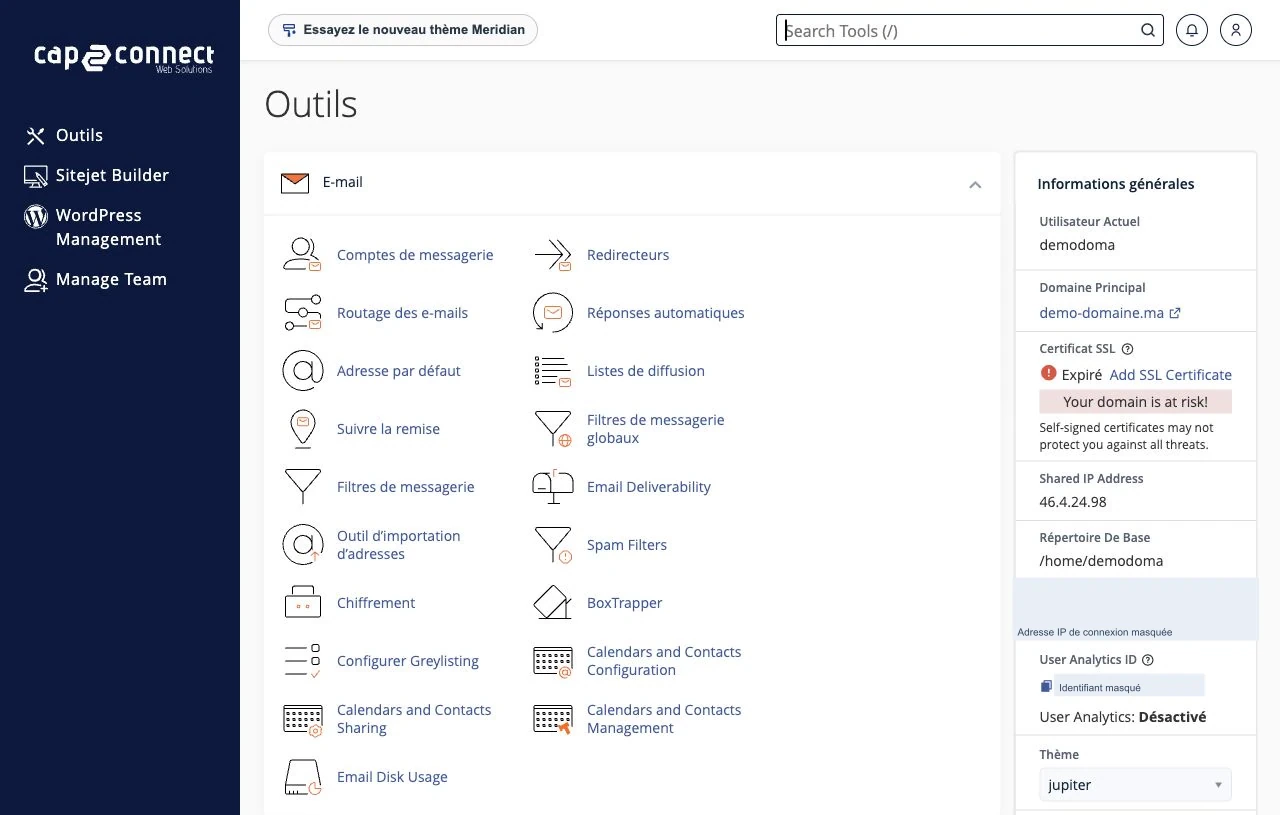
Example: open cPanel and locate the 'Security' section to find Hotlink Protection. - On the Hotlink Protection page, click Enable to open the configuration form.
- Fill in the main fields:
- URLs to allow access — add here the domains allowed to embed your files. Always add the variants
example.comandwww.example.comif both exist, and include your CDN domain if necessary. - Block direct access for the following extensions — list the extensions to protect (e.g.
.jpg .jpeg .png .gif .webp). - Allow direct requests — check this option if you want to allow requests without a Referer header (e.g., direct access via URL or some proxies/clients that strip the Referer).
- Redirect the request to the following URL — (optional) specify the URL of a replacement image to display to hotlinkers.
- URLs to allow access — add here the domains allowed to embed your files. Always add the variants
- Test immediately (see the section Verify & test below) and, if necessary, add any missing domains, then submit again.
Note
Some versions or customizations of cPanel may display labels in English; the fields remain equivalent. If you disable protection, cPanel may clear the list of allowed URLs — keep a copy before disabling.
Options explained and practical tips
- Always add the variants
example.comandwww.example.com, as well as the subdomains that serve your media (e.g.static.example.com). - If you use a CDN, add its domain (or domains) to the allowed referrers to prevent your own images served via the CDN from being blocked.
- The checkbox Allow direct requests controls the behavior when the HTTP header
Refereris empty. Some browsers, privacy extensions or proxies remove this header: check this option if you observe legitimate blocks.
Advanced alternative: manual rules in .htaccess
If the interface is not available or if you prefer a custom rule, you can add directives in the file .htaccess (generally at the root public_htmlpublic_html). Always back up the current file before modifying.
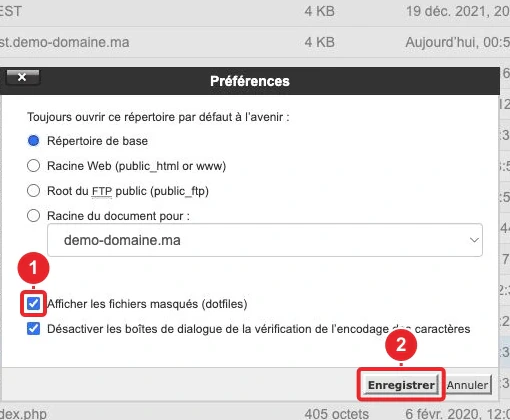
.htaccess.htaccess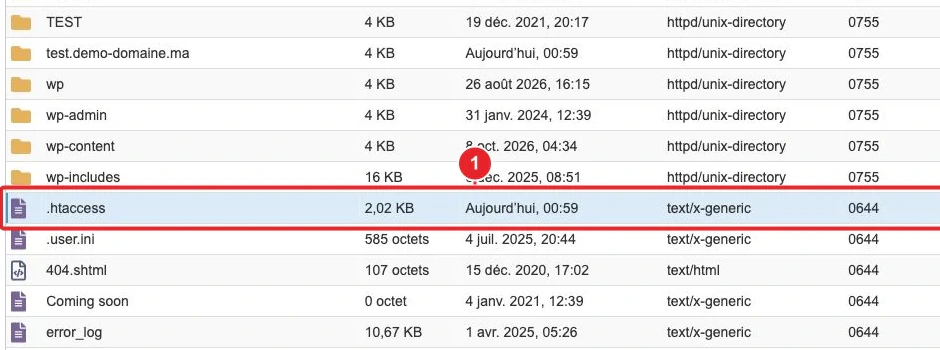
.htaccess via the File Manager or by downloading a local copy.Common examples (adapt example\.com to your domain):
# 1) Autoriser les accès directs (Referer vide) et bloquer les hotlinkeurs
RewriteEngine On
RewriteCond %{HTTP_REFERER} !^$
RewriteCond %{HTTP_REFERER} !^https?://(www\.)?example\.com [NC]
RewriteRule \.(jpe?g|png|gif|webp)$ - [F,NC,L]

# 2) Bloquer aussi les accès directs (aucun Referer autorisé sauf example.com)
RewriteEngine On
RewriteCond %{HTTP_REFERER} !^https?://(www\.)?example\.com [NC]
RewriteRule \.(jpe?g|png|gif|webp)$ - [F,NC,L]

# 3) Variante : rediriger vers une image de remplacement
RewriteEngine On
RewriteCond %{HTTP_REFERER} !^$
RewriteCond %{HTTP_REFERER} !^https?://(www\.)?example\.com [NC]
RewriteRule \.(jpe?g|png|gif|webp)$ https://example.com/images/no-hotlink.jpg [R,NC,L]
Quick explanations:
RewriteCond %{HTTP_REFERER}reads the headerReferersent by the browser.- [F]returns an HTTP 403 (Forbidden) error;[R]forces an HTTP redirect.[NC]ignores case,[L]stops rule processing.
Important: these rules rely on the Referer, which may be missing or forged. They reduce common hotlinking but do not constitute foolproof cryptographic protection.
Verify & test
Simple methods to check whether the protection is working:
- Use curl to simulate a request from another site (here we simulate an external Referer):
An HTTP/1.1 403 Forbidden codecurl -I -e 'http://othersite.example' 'https://votresite.example/path/image.jpg'HTTP/1.1 403 Forbiddenindicates that the protection rejected the request. - Create a test page on another domain containing
<img src="https://votresite.example/path/image.jpg">: if the protection is active, the image should be blocked or replaced. - Open the Network tab of your browser's developer tools to inspect the request and the returned HTTP code.
- Remember to clear your browser cache and, if used, the CDN cache after making changes.
Common issues & troubleshooting
- My own images are blocked — check that you have added all domain variants (with/without
www), your subdomains and the CDN URL. If proxies remove the Referer, check Allow direct requests or adapt the rule.htaccessto accept an empty Referer. - I don't see the Hotlink Protection option — your host may have disabled the tool via WHM Feature Manager. Contact support (open a ticket).
- Conflict with WordPress / plugins — some tools (e.g. WordPress Toolkit or security plugins) can modify the configuration or write rules in
.htaccess. Check the settings of WordPress Toolkit - if you use it. 500 error after modifying .htaccess
.htaccess— restore the backup copy of the file, then fix the syntax. A simple typo in - can cause a server error. The protection blocks some services (CDN, third‑party platforms)
— add their domain to the allowed referrers or configure the rules on the CDN side to avoid blocking.
- Limitations
RefererThe method relies on the HTTP header - For very strict requirements (strong access control), combine multiple measures: server‑side rules, a CDN configured with hotlinking rules, or an authentication solution for file access.
Useful internal links
- How do I access my cPanel account?
- Show hidden files in the File Manager (for .htaccess)
- Force SSL / HTTPS via .htaccess (editing examples)
- WordPress Toolkit for cPanel (if you use this tool)
- Contact support from the client area
References
- cPanel Documentation — Hotlink Protection
- Apache — mod_rewrite and access control (technical references)
Reference documentation
- Hotlink Protection — cPanel & WHM Documentation
- Using mod_rewrite to control access — Apache HTTP Server
Documentation consulted on October 17, 2026. Tools may vary depending on your hosting.