Introduction
Email archiving automatically preserves a copy of messages (incoming, outgoing, and mailing lists) for a period you specify. This is a server-side feature: the option appears in cPanel only if the server administrator (WHM) has enabled it and included it in your package's Feature List.
Prerequisites
- WHM (root) access if you are the server administrator; otherwise, contact your hosting provider's support to enable archiving on your account.
- An active cPanel account to configure archiving per domain (if the option is provided).
- Sufficient disk quota: archiving increases mail disk usage. Plan for available space or a retention policy (e.g., 30–90 days).
1) Enable archiving (WHM administrator)
If you manage the server:
- Log in to WHM as root.
- Open: Home » Server Configuration » Tweak Settings » Mail and enable Enable Email Archiving support. This option allows the archiving module to function on the cPanel side.
- Verify that the feature Email Archiving is included in the Feature List of the package used by the affected accounts (WHM » Packages » Feature Manager). Without this, the Archive interface will not appear for users.
- To deploy the same configuration across multiple accounts, you can automate it via the API (cpapi2). Example (command to run with appropriate privileges):
Note that this is intended for administrators; adapt the options and consult the documentation before execution.cpapi2 --user=<user> Email set_archiving_configuration domains=<domain.tld> outgoing=14 incoming=14 mailman=14
2) Configure archiving from cPanel (user)
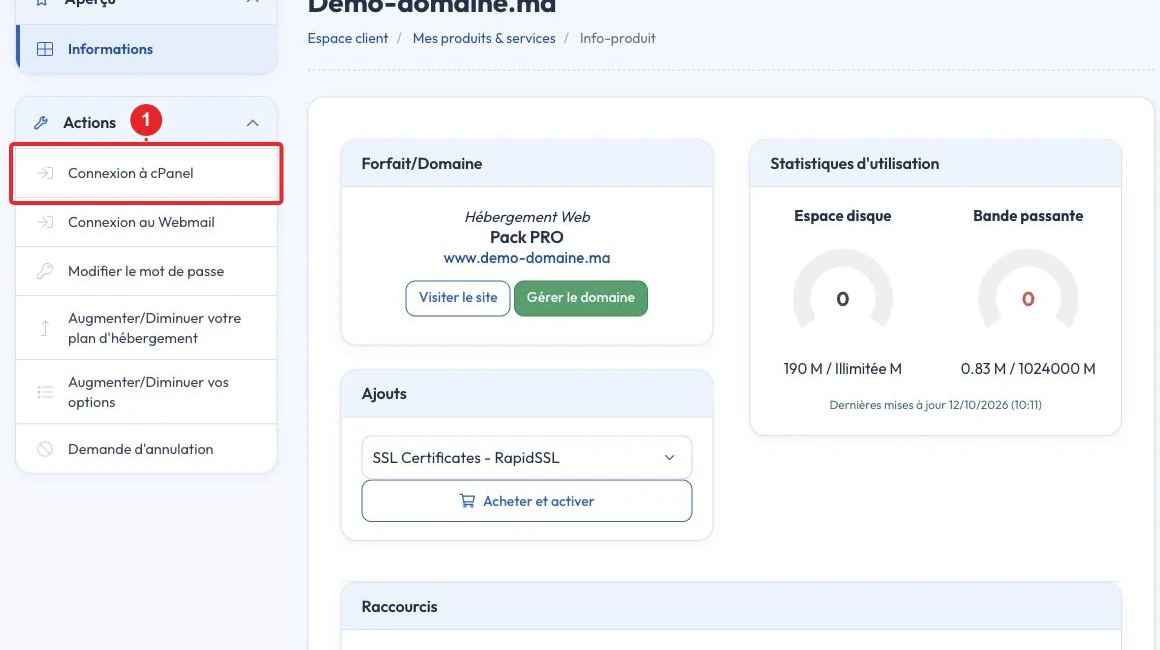
- Log in to your cPanel. (Need help accessing cPanel? See our guide: How to access my cPanel account.)
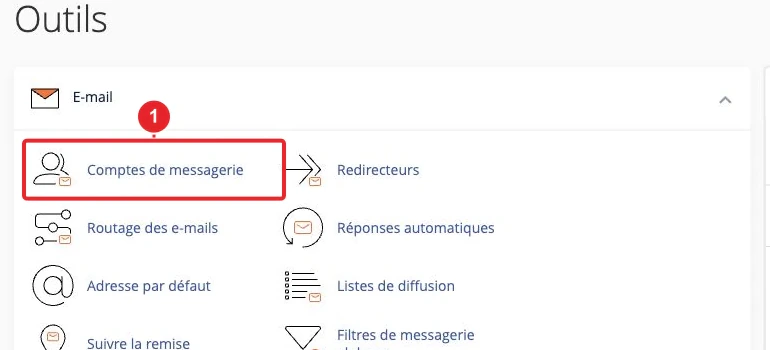
- In cPanel, go to Mail » Archive. If the option does not appear, the server administrator has not enabled archiving or your package's Feature List excludes it.
- In the "Manage Archiving" table, for the desired domain, choose the types to archive: incoming, outgoing and/or mailman, then specify the retention period in days (0 = indefinite retention). Save the change. Depending on the interface, a button Apply to All My Domains allows you to apply the same rule to all your domains.
3) Access and retrieve archived messages
Via the cPanel interface
The Archive interface lets you manage settings and view status. Archives are generated daily into directories in the format archivetype.YYYY-MM-DD archivetype.YYYY-MM-DD located in the mail folder of the user's home directory (e.g., daily directories for incoming/outgoing/mailman). You can download them from cPanel's File Manager if you have the necessary permissions.
Via IMAP (read-only recommended)
cPanel offers an option for IMAP Access To connect to the archive from your mail client (Thunderbird, Outlook, etc.) in read‑only mode, use IMAP over SSL/TLS (port 993) if possible and apply the automatic configuration provided by cPanel. Prefer read‑only access to avoid accidental modifications of the archives.
Via Roundcube webmail
With Roundcube (the webmail), you can export messages in .eml format. .eml (More » Export). Export is often performed message‑by‑message; importing via Roundcube (Mbox/MIME) may be size‑limited (≈ 50 MB depending on the configuration). For large volumes, prefer IMAP or direct download of the archive files.
Via File Manager or SSH
If you have access to the cPanel File Manager or to the server via SSH, you can browse and download the archive directories created on the server. Over SSH, transfer files with SCP/SFTP to keep them locally and open them with a compatible client (mbox/eml).
4) Automation and examples
To apply a configuration to multiple accounts or bulk‑modify retention, use cpapi2 or a WHM‑side script. Example cpapi2 call (adapt as needed):
cpapi2 --user=<user> Email set_archiving_configuration domains=<domain.tld> outgoing=14 incoming=14 mailman=14Run these commands with the necessary privileges and test first on a non‑critical account. Consult the cPanel administration documentation for usage details.
Limitations and best practices
- Archiving is not retroactive: only communications processed by the server after activation are archived.
- Messages marked as spam are archived if archiving is active (archiving occurs before some server filters are applied).
- Set a realistic retention period (e.g., 30–90 days) to control disk usage; keep messages indefinitely only if you have the disk space and a legal obligation.
- Use IMAP read‑only access for viewing: avoid deleting or directly modifying archive files on the server.
- If you have legal obligations (retention, confidentiality), define an internal policy and consult your legal department: we provide technical assistance, not legal advice.
Quick troubleshooting
- I don't see the 'Archive' option in cPanel: Check that the administrator has enabled Enable Email Archiving support in WHM » Tweak Settings and that Email Archiving is present in the package's Feature List. If you are not an administrator, open a ticket with support.
- IMAP won't connect: Check that you are using IMAP over SSL/TLS (port 993), that the automatic configuration provided has been applied, and that your local or network firewall is not blocking the connection.
- Disk space is full: Reduce the retention period, delete old archive directories, or increase the quota. See also: cPanel: resolve the "No Space Left on Device" error.
- I want to archive previous messages: Archiving is not retroactive: export them (e.g., Roundcube → Export) and import them into the archive, or keep them locally.
Useful links
- cPanel Documentation — Email Archive
- WHM Documentation — Tweak Settings (Mail)
- Enable archiving from the command line (cpapi2) — cPanel Support
Would you like us to check whether your package includes archiving or to apply a standard configuration to your domains? Open a ticket from your client area (section Support).
Reference documentation
- Archive — cPanel & WHM Documentation
- Tweak Settings — Mail — cPanel & WHM Documentation
- How‑To Enable Archiving from the command line — cPanel Support
Documentation consulted on October 17, 2026. Tools may vary depending on your hosting.