An autoresponder replies when a message arrives at an address, for example to announce an absence. It is separate from marketing automation triggered by a purchase or subscription.
Prepare the message
Include a return date and an alternative contact if needed. Avoid unnecessary personal or internal details.
Create the autoresponder
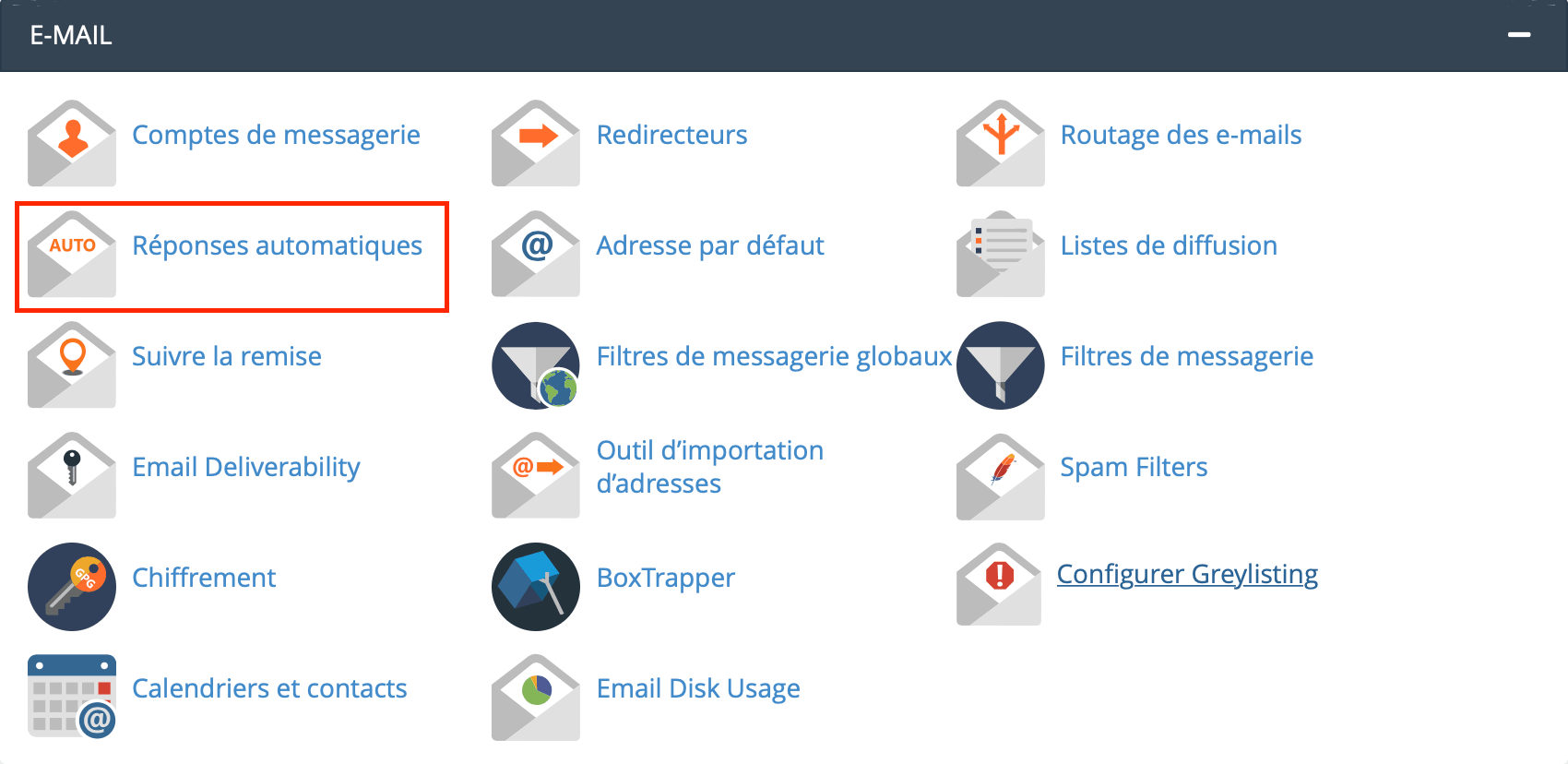
- In cPanel, open Email > Autoresponders.
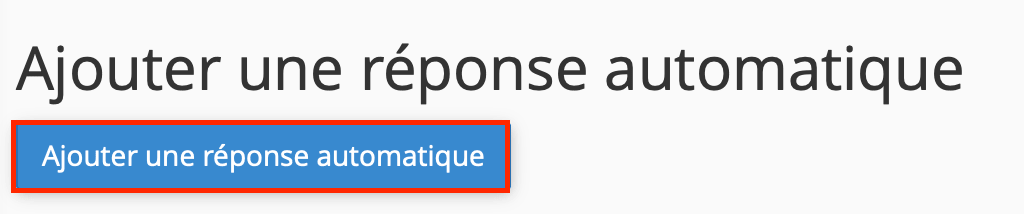
- Choose Add Autoresponder.
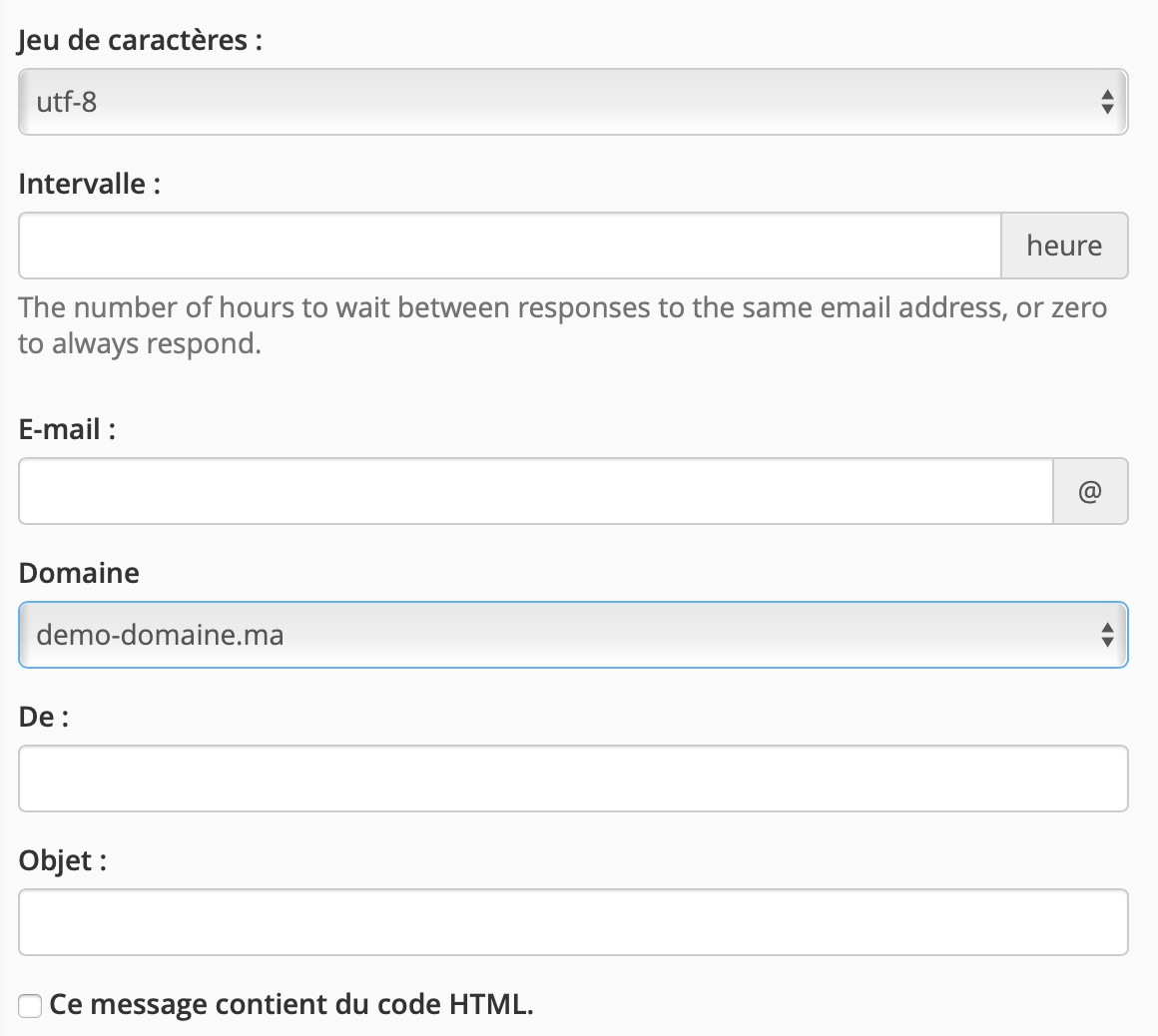
- Select the relevant domain and address.
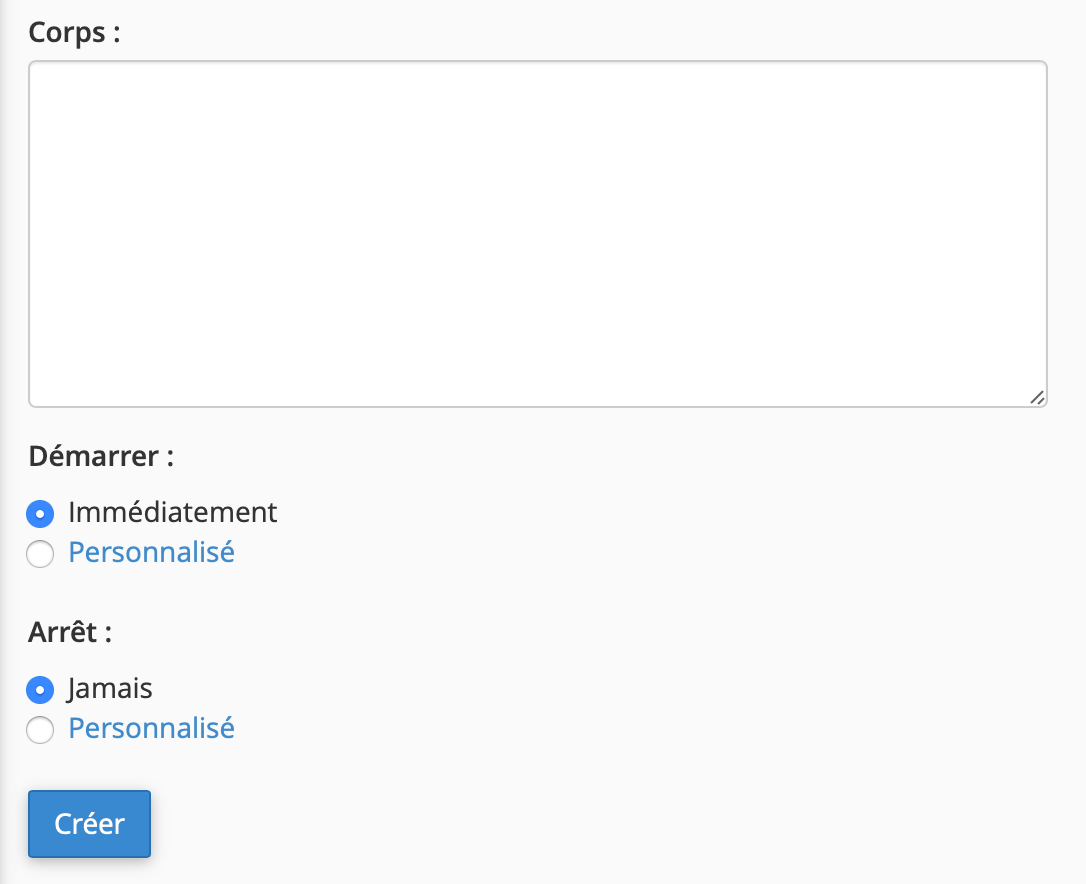
- Enter the displayed sender, subject and reply text.
- Set the interval between replies to the same sender and the start and end dates.
- Save the settings.
Test the behavior
Send from an external address and check the reply. The interval prevents a reply to every message from the same person. An existing mailbox continues to receive messages normally.
After the absence
Check the end date or disable the responder. Some messages marked as spam do not trigger replies. Avoid loops between addresses with autoresponders or forwarding rules.
Interface illustrations
These screenshots show the versions used when the original article was written. Labels may differ in your current version; follow the written procedure and your account settings.
Related guides
Reference documentation:
Sources accessed on October 11, 2026. Available features depend on your hosting version and options.