Introduction
Email headers contain the message’s 'roadmap': the servers that relayed it, relay dates/times, envelope addresses, authentication verdicts (SPF, DKIM, DMARC), and identifiers (Message‑ID). This information is essential for diagnosing a delivery problem or verifying whether a message has been spoofed.
This guide shows how to retrieve the raw headers from cPanel/Webmail (Roundcube) and from common mail clients, and how to quickly extract the elements useful for a technical investigation or to provide to support. See also cPanel's documentation on webmail for the interface (Webmail → Roundcube) and the cPanel help article on finding email headers (cPanel Webmail Interface, How do you find email headers?).
Prerequisites
- Access to cPanel (or directly to the email mailbox);
- Access to the suspicious message in Webmail or in your mail client (Gmail, Outlook, Thunderbird, Apple Mail...);
- If you contact support: provide the exact date/time (specify the time zone), plus the subject and recipient.
1) Retrieve the headers (common methods)
From cPanel → Webmail (Roundcube)
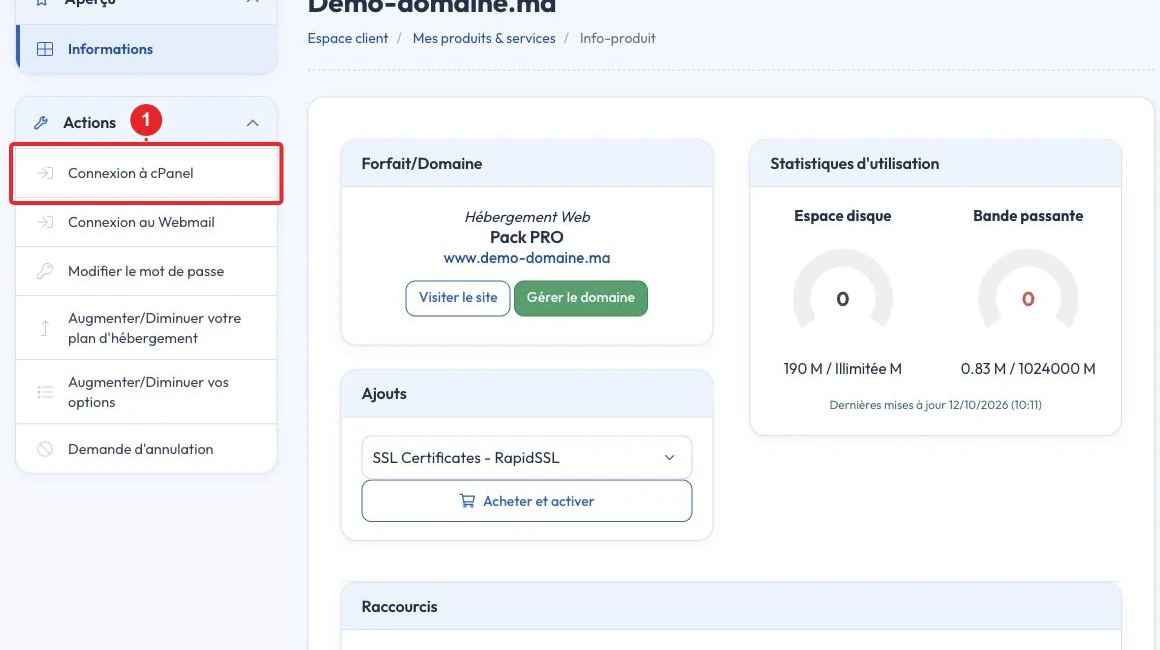
- Log in to cPanel. (See our guide How to access my cPanel account? if necessary.)
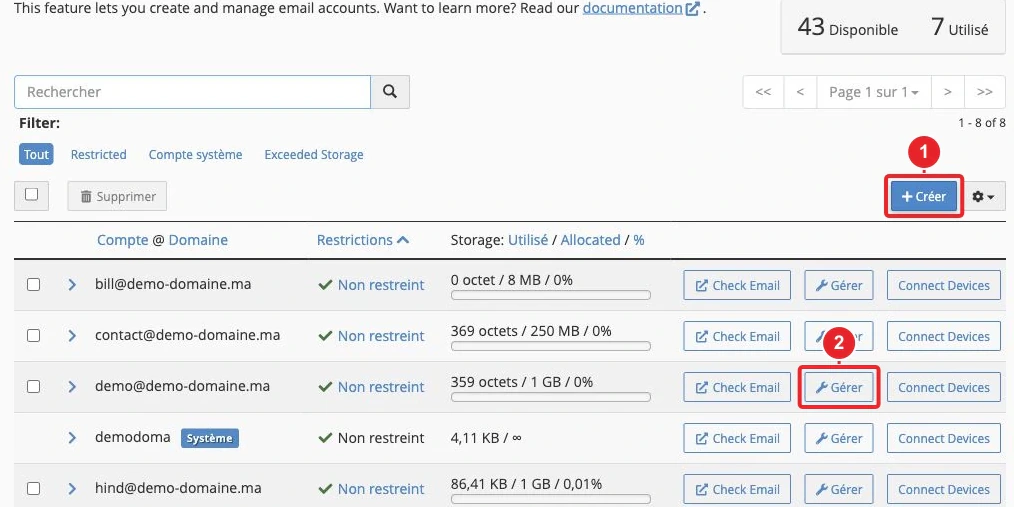
- In the cPanel dashboard, open Email → Email Accounts, then click Check Email to the right of the mailbox in question to launch Webmail.
- Choose Roundcube if the interface offers it and open the inbox.
- In Roundcube: select the message, open the menu (three dots or More) and choose Show Source / Afficher la source. A window opens containing the raw headers followed by the message body; copy the entire block.
Note: we ask the reviewer to provide a Roundcube screenshot explicitly showing the 'Show Source' command (displaying the raw source) with a red marker on the button/menu. This screenshot is required before publication (see the notes at the end of the article).
Other clients / webmails (quick summary)
Wording varies by client, but the action is the same: show the message source/original and copy the headers.
- Roundcube: Select the message → menu (3 dots) → Show Source / Afficher la source.
- Gmail (web): open the message → menu (3 dots) → Show original.
- Thunderbird: open the message → menu More → View Source.
- Outlook (Windows): open the message in a new window → File → Properties → field Internet headers (labels and paths may vary depending on the version).
- Apple Mail: select the message → menu View → Message → All Headers or Raw Source (depending on the version).
2) Copy and save the raw headers
- Display the full source (see previous section).
- Select all (Ctrl/Cmd + A) and copy (Ctrl/Cmd + C). Paste into a text file (.txt), preserving the entirety of the
Received:Received: lines and the headers block. - Do not change the order of the lines: relay analysis relies on their exact sequence.
3) Read and interpret the essential fields
Here are the elements that provide the most useful information for an investigation.
Received
Each SMTP server that relays a message adds a Received: line. Received:To reconstruct the path, read these lines from the bottom up : the lowest line (the first added) is generally the first server that accepted the message. The lines Received typically contain the hostname, the IP address, and the date/time of the relay.
Received: from mail.example.org (mail.example.org [203.0.113.45])
        by mx.example.net (Postfix) with ESMTPS id 123ABC;
        Tue, 13 Oct 2026 09:41:00 +0000 (UTC)
Identifying the first public (non-private) IP address encountered often indicates the initial sending server. Beware of private addresses (10./172.16./192.168.) — they indicate an internal relay.
From / Return-Path / Message-ID
- From : the visible field shown to the recipient (RFC 5322) — it can be spoofed.
- Return-Path (envelope-from): address used for bounces (error returns); for determining the technical origin, often prefer the envelope and the Received headers
Received. - Message-ID : unique identifier of the message, useful for correlating the message with server logs.
Authentication-Results, DKIM, SPF, DMARC
The receiving server may add an Authentication-Results header Authentication‑Results indicating the results of SPF, DKIM and DMARC checks (e.g. dkim=pass, spf=pass, dmarc=permerror). These results are crucial:
- SPF checks whether the IP address that sent the message is authorized by the sending domain's SPF record.
- DKIM checks the cryptographic signature attached to the message: if dkim=pass, the signature matches the domain indicated in the d= field
d=and the content has not been altered since it was signed. - DMARC applies an alignment policy (checks the match between the domain in the From field
Fromand the domain validated by SPF/DKIM) and can return pass / fail.
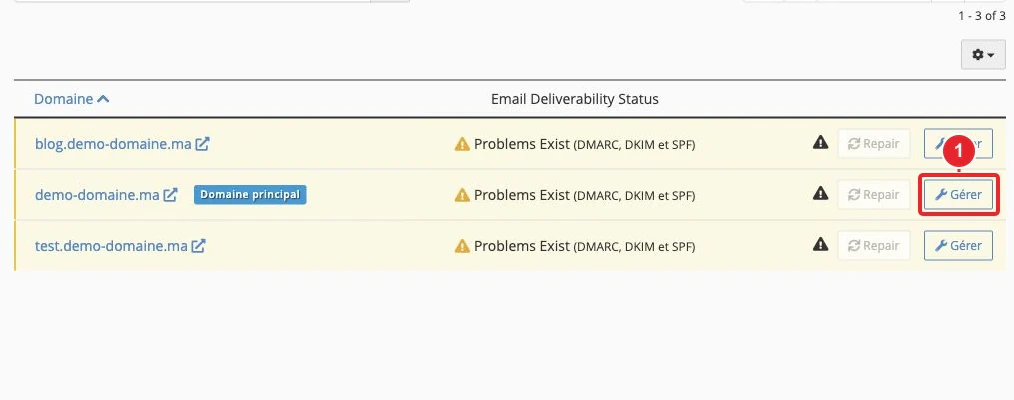
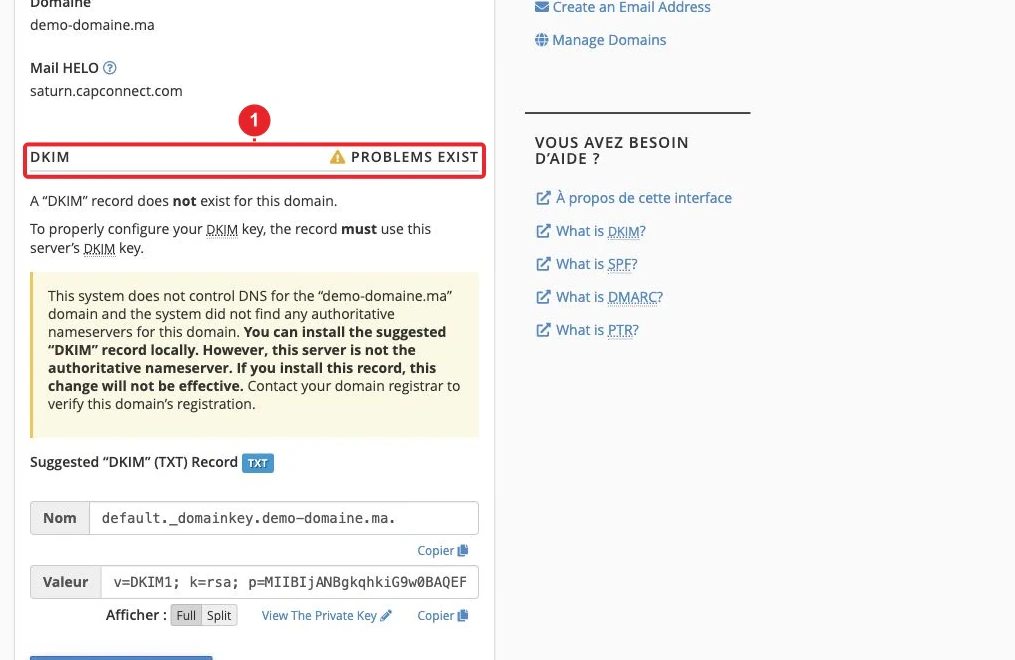
To check the public configuration (DNS DKIM/SPF/DMARC records) use the Email Deliverability in cPanel (Guide Email Deliverability).
Date / time zone
The field Date is provided by the sender; the actual arrival dates often appear in the lines Received. When reporting, always indicate the time and the time zone (or UTC).
4) Brief example of an analysis method
- Identify and isolate all the lines
Received; copy them into a separate file if useful. - Re-read these lines from bottom to top to follow the relay chain; note the first non-local public IP encountered (possible initial sending server).
- Check
Authentication‑Results: if dkim=pass and spf=pass, the message has been authenticated by these checks. In case of failure (fail), be cautious and continue the analysis. - Compare the field
Fromand theReturn‑Path: a notable mismatch combined with failed authentication suggests spoofing. - Note the
Message‑IDand, if necessary, provide it to support for correlation with the server logs.
5) What to provide to support to speed up the investigation
- The complete raw headers (a .txt file or paste the block into the ticket);
- Exact arrival date/time (indicate the time zone), subject, recipient;
- The Message‑ID of the message and the IP address found in the Received
Receivedheaders, if you have identified it; - Screenshot of the source view (optional) and any error displayed in Webmail.
Our team can then correlate these elements with the mail logs to determine the actual origin and recommend an action (IP blocking, DNS record adjustments, or security advice).
Limitations & precautions
- Some headers can be added or tampered with by relays controlled by the sender: prioritize authentication verdicts (DKIM/SPF/DMARC) and the
ReceivedReceived headers added by trusted servers. - Reworked messages (forwarders, lists) sometimes modify the chain of
ReceivedReceived headers; in case of ambiguity, provide the complete message to support for server‑side verification. - Labels and locations of the “Show Source” command vary by client and language: always use the “source/raw/original” view to ensure you capture the entire block.
Quick troubleshooting
- If the “Show Source” command does not appear in your webmail: try opening the message in another client (e.g. Gmail web → Show original).
- If any
ReceivedReceived headers appear to be missing or truncated: attach the complete message to support; our technicians will check the server logs (Track Delivery / mail logs). See also our guide " Track Delivery: How to track your Emails in cPanel ". - If Webmail displays an error such as “Could not load message from server”: report the error with a screenshot — this may indicate a MIME problem on the sender’s side or a server incident.
Need help?
If you would like our team to check a message, open a ticket via our client area (How to contact supportby attaching:
- the raw headers (a .txt file or copy/paste);
- the Message‑ID, the date/time, the subject and the recipient;
- optionally a screenshot of the source or the message.
References: RFC on message format (header fields) and cPanel documentation on webmail and finding headers. For more on DKIM/SPF/DMARC, also consult our guide “ SPF and DKIM: How to improve the reputation of my emails sent from cPanel? ”
Reference documentation
- The Webmail Interface — cPanel & WHM Documentation
- How do you find email headers? — cPanel Support
- RFC 5322 — Internet Message Format (header fields)
Documentation consulted on 16 October 2026. Tools may vary depending on your hosting.