If you’re seeing the error “No space left on device” in cPanel, it usually means your hosting account has run out of disk space or inodes (the number of files and folders your account can hold). This is common on shared hosting and can cause issues like:
- Not receiving or sending emails
- Website not updating
- Backups failing
- Error messages when logging into cPanel
In this guide, we’ll walk you through how to fix this, depending on whether you have terminal (SSH) access or not.
Table of Contents
Step 1: Understand the Problem
You can run out of two things:
- Disk Space: You’ve hit your storage quota (e.g. 5 GB)
- Inodes: You’ve reached the max number of files allowed (e.g. 100,000 files)
For Users WITH Terminal (SSH) Access
If you’re using shared hosting with a Pack PRO or Pack EXTRA , follow these steps in the terminal:
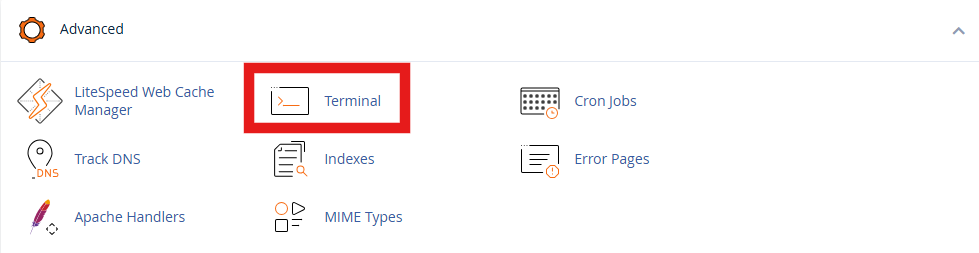
Check Disk Usage
Run:
df -h
This will show your disk usage. Look for lines showing 100% under the “Use%” column.
Check Inode Usage
Run:
df -i
This tells you how many inodes (files) you’re using. If it’s 100%, you’ll need to delete some files.
Find and Delete Large or Old Files
To find the biggest directories:
du -sh * | sort -rh | head -n 20
Then go into folders and remove unnecessary files. Focus on:
Old backups:
rm -rf backup/*
Temporary files:
rm -rf tmp/*
PHP session files:
rm -rf /var/cpanel/php/sessions/ea-php*/sess_*
Large log files:
find ~/ -name "*.log" -size +50M -delete
Empty Trash and Email
Clear files in .trash:
rm -rf ~/.trash/*
Delete old emails in Roundcube or Webmail folders:
rm -rf mail/*/*/.Trash/cur/*
For Users WITHOUT Terminal (SSH) Access
If you don’t have terminal access, don’t worry — cPanel still gives you tools to clean up.
First, log in to cPanel.
Go to Files→ Disk Usage. Scroll down to see which folders are using the most space.
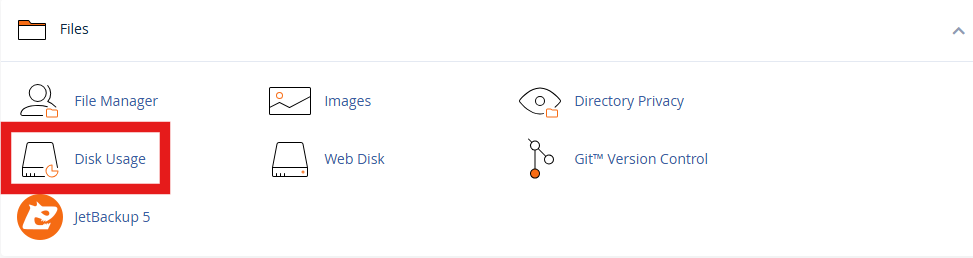
Focus on:
- /mail/
- /public_html/
- /tmp/
- /logs/
Go to File Manager in cPanel:
Navigate to any backup/ folder and delete old or unused files.
Look for large error_log files in your website directories and delete them.
In File Manager, go to the .trash folder (you may need to enable “Show Hidden Files” in settings) and delete everything inside.
If you have old websites, testing folders, or unused WordPress installations, delete them.
Delete Old Emails :
- Go to Email Accounts → Manage.
- Under “Email Disk Usage”, delete emails in Trash, Junk, or Sent folders.
Step 3: Prevent It from Happening Again
Best Practices
- Clean your trash regularly in File Manager and Webmail
- Avoid keeping large backups on your hosting — store them elsewhere (like Google Drive)
- Use email filters to auto-delete spam and junk
- Limit automatic backups to 1–2 copies only
- Uninstall old CMSs or plugins you’re no longer using
- Use external email clients like Outlook or Gmail to offload storage
Still Getting the Error?
If you’re still seeing the “No space left on device” error after following all the cleanup steps, it likely means you’ve outgrown the resources included in your current hosting plan. In that case, it may be time to consider upgrading to a higher shared hosting package or switching to a VPS or dedicated server that offers more disk space and higher inode limits.
Upgrading will give your website more room to grow and help prevent similar issues in the future.