WordPress is a widely used content management system. Like other software, it can encounter technical problems, including the message Error Establishing a Database Connection.

This message means WordPress could not connect to the database needed to serve the site. Several causes are possible. This guide explains how to check configuration and narrow down the cause. Act promptly, but preserve a backup and avoid changing several settings at once.
What does Error Establishing a Database Connection mean?
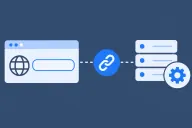
WordPress uses PHP code to access a MySQL or MariaDB database containing content, users and settings. If the connection fails, WordPress cannot retrieve the data needed to display the site. The message does not by itself identify which component caused the failure.
What causes the database connection error?
WordPress needs the database name, database username, password and server hostname. These values are normally configured in wp-config.php. Incorrect credentials, missing user privileges, an unavailable database service, storage problems or damaged database data can cause failures. Check the actual error and hosting status before assuming corruption.
How to resolve the database connection error
Start by checking database credentials, especially after a migration or password change. The site’s database connection settings are stored in wp-config.php, normally in the installation’s root. Check DB_NAME, DB_USER, DB_PASSWORD and DB_HOST. To access it, sign in to cPanel and open Files. Then click File Manager.

Next, open public_html if it is the actual document root of this site

Find wp-config.phpand edit it after keeping a backup. The following example shows the relevant configuration values.

Compare the configured values with your actual database and authorized user. In cPanel, open Databases, click Manage My Databases

Find the database and associated user under Current Databases. Record their complete names, including prefixes, without exposing credentials in shared documents.

Then review Current Users where the option Change Password appears for a database user. Changing it affects every application using that user, so update all related configurations if a reset is necessary.

After verifying names, host and privileges, correct wp-config.php if needed. Test the website and administration. If it still fails, ask support to check service availability and the exact database error rather than repeatedly resetting passwords.
Damaged WordPress core files
If evidence suggests damaged core files, verify and reinstall them while preserving content and configuration. Back up first; replacing core files is not a general database repair. You can reinstall core files using WP Toolkit.
Restore a backup
As a last resort, consider restoring a backup from a known working state. Newer data may be overwritten, so preserve changes and confirm that files and database form a consistent backup.
Reference documentation:
- Common WordPress errors – Advanced Administration Handbook | Developer.WordPress.org
- Debugging in WordPress – Advanced Administration Handbook | Developer.WordPress.org
Sources accessed on October 11, 2026. Available features depend on your hosting version and options.