Introduction — direct answer
Yes: Contact Form 7 (CF7) can send emails from WordPress, but success depends on three things: the From (must belong to the domain), the sending method (PHP function wp_mail() or authenticated SMTP) and the sending DNS configuration (SPF/DKIM/DMARC). This guide walks you through the practical steps — installation, form settings, tests — and how to use cPanel to create a domain email address and improve deliverability.
Prerequisites
- Administrator access to the WordPress dashboard.
- Access to your hosting area / cPanel if you need to create a domain email address or modify the DNS zone (SPF/DKIM/DMARC).
- A valid email address associated with your domain (e.g.
contact@votredomaine.tldcontact@votredomaine.tld) is recommended for the'From' field. - If you use an external email service (Google Workspace, Email PRO, etc.), you will need the SMTP credentials for that service.
Step 1 — Install and activate Contact Form 7
- In WordPress: Plugins → Add NewSearch for 'Contact Form 7', click Install then Activate.
- After activation, a 'Contact' menu appears: Contact → Add New to create your forms. A shortcode is generated after saving; paste it on a page or into a block.
Official resource: Contact Form 7 (official page).
Step 2 — Create a form and insert it
- Contact → Add NewGive it a title then add the desired fields (Name, E‑mail, Message, attachments if needed).
- Save: copy the generated shortcode (e.g.
[contact-form-7 id="123" title="Contact"][contact-form-7 id="123" title="Contact"]) and paste it into the page where the form should appear.
Useful fields and behaviors
- The tag [your-email]
[your-email]captures the visitor's email; do not put it in the From (see next section). - To attach files, add a file field and limit the size/type to reduce rejections by mail servers.
Step 3 — Configure the 'Mail' tab (sending settings)
Open the Mail tab of the form. Check and set at least:
- To : the recipient address (e.g.
contact@votredomaine.tldcontact@votredomaine.tld). - From : use an existing address on your domain (e.g.
site@votredomaine.tldsite@votredomaine.tld ornoreply@...noreply@...). Many servers refuse or mark as spam messages whose From does not belong to the sending domain. - Additional headers : add
Reply-To: [your-email]Reply-To: [your-email] so you can reply to the visitor without putting their address in theFrom.
Quick explanation: WordPress sends using the function wp_mail() wp_mail() (which relies on the server's PHP/MTA configuration). If the server cannot send directly or if the From is not aligned with SPF/DKIM, messages may be rejected or classified as spam.
Developer documentation: wp_mail().
Step 4 — Quick tests
- Open the page containing the form, submit it with a test address (Gmail/Outlook).
- Check the recipient's inbox and the spam folder.
- If nothing arrives, install a logging plugin to confirm that WordPress attempts to send the message (see the troubleshooting section).
Create a domain email address (cPanel)
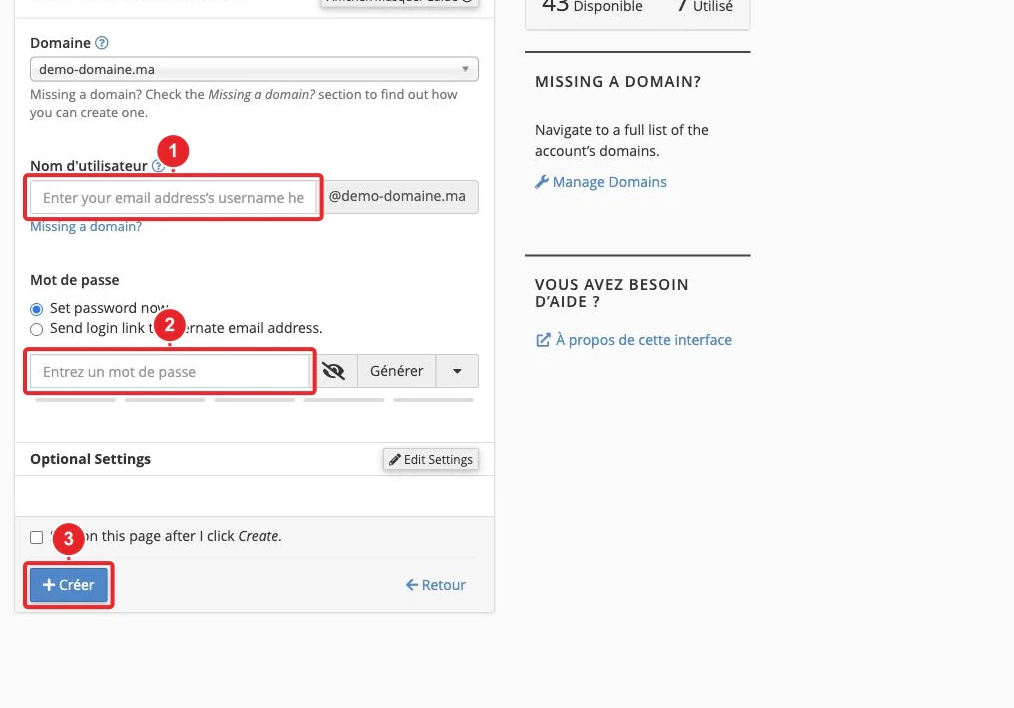
If you don't yet have an address on your domain, create one in cPanel: Email Accounts → Create. Use this address as the From in Contact Form 7.
If emails do not send — step-by-step troubleshooting
Proceed in this order: each step rules out a common cause.
-
Check the CF7 form
- Open the Mail tab of the form: To, From (domain address) and Additional headers (Reply-To: [your-email])
Reply‑To: [your-email]. - If you don't have a domain address, create it from cPanel (see image above) or use an address provided by your email service.
- Open the Mail tab of the form: To, From (domain address) and Additional headers (Reply-To: [your-email])
-
Check that WordPress attempts to send (logging)
- Install a logging plugin (e.g. WP Mail Logging) to confirm that
wp_mail()wp_mail() is called and to see any WordPress-side errors.
- Install a logging plugin (e.g. WP Mail Logging) to confirm that
-
If wp_mail() is called but there is no reception → switch to authenticated SMTP
- Install an SMTP plugin (e.g. WP Mail SMTP.
- In the SMTP settings, enter: SMTP host, port (587 TLS recommended or 465 SSL), encryption, authentication (username = full email address, password). Save and then run a test from the plugin.
- If you use Google Workspace/Gmail and your account has strong authentication, follow the provider's recommended method (OAuth or an app password). If unsure, ask your mail service support.
-
Check SPF / DKIM / DMARC
Without correct SPF/DKIM records, sent messages may be marked as spam or rejected. In cPanel: Email Deliverability (or Zone Editor if the DNS zone is managed elsewhere).
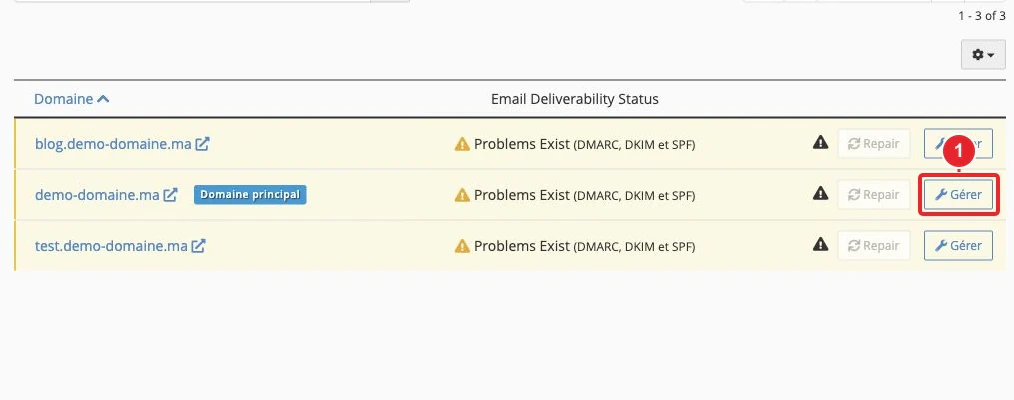
Email Deliverability (cPanel): useful for installing or copying SPF and DKIM records. - Open Email Deliverability in cPanel and click Manage for the relevant domain.
- If the DNS zone is managed by this cPanel, apply the suggested records. If the zone is external, copy the values (TXT) and add them at your registrar or DNS host.
- Add a DMARC policy (TXT _dmarc.votredomaine) to monitor and protect your domain's usage.
-
Check the server-side trace (cPanel)
cPanel provides a tool Track Delivery to see deliveries and errors (rejection, timeout, blocking by the destination's antispam). This helps identify the exact cause.
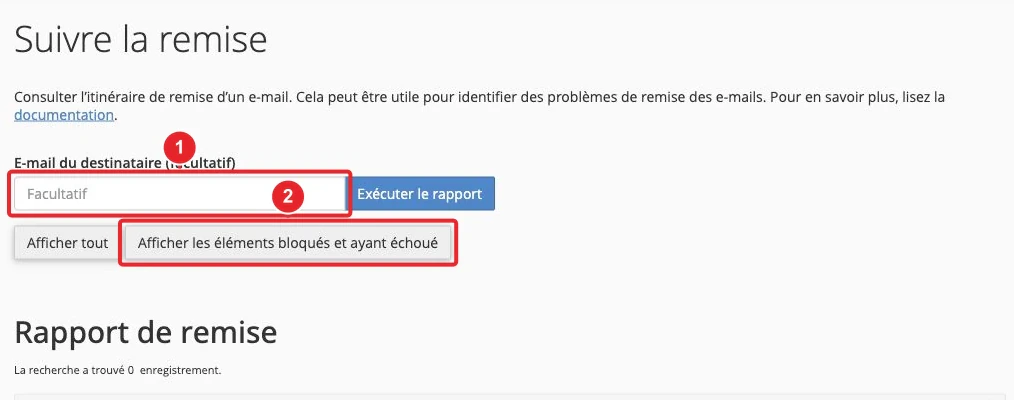
Track Delivery (cPanel): useful to read the sending history and reasons for rejection. -
Conflicts or blocking plugins
- If no sending appears in the logs, try temporarily disabling security/caching plugins and test again (make a backup before any changes).
Configure sending via SMTP — summary instructions
Typical procedure (WP Mail SMTP or equivalent plugin):
- Install and activate the SMTP plugin.
- Open its settings and set: 'From' address (address on your domain), sender name.
- Choose the transport type (authenticated SMTP). Enter: SMTP host, port (587 with TLS recommended, 465 for SSL), encryption method, authentication (yes), username = full email address, password.
- Save, then send a test email from the plugin interface. Check reception (inbox + spam) and the logs.
Note: some services (Gmail/Workspace) require OAuth or an app password if two-factor authentication is enabled.
Anti-spam protection and storage of submissions
- CF7 integrates with anti‑spam solutions (reCAPTCHA, Cloudflare Turnstile, Akismet) or honeypot extensions. Note: some services send data to third parties.
- CF7 does not save messages by default. To retain submissions, install Flamingo (same author) or a storage plugin.
Important limitation
- Contact Form 7 does not provide advanced queuing or internal SMTP authentication: it uses wp_mail(). For reliable deliverability on domains using an external mail service, configure authenticated SMTP.
- On some shared hosting plans, outbound sending may be restricted: if you suspect a server‑level block, contact support with the items requested below.
Quick troubleshooting checklist
- Test submission → check the spam folder.
- Install WP Mail Logging → confirm call to
wp_mail()wp_mail(). - If
wp_mail()wp_mail() is called but there is no reception → configure SMTP (WP Mail SMTP) and retest. - Check SPF/DKIM/DMARC via Email Deliverability in cPanel.
- Consult Track Delivery in cPanel to read server errors.
What to prepare before contacting support
If you request help, include:
- The URL of a page containing the test form.
- A screenshot of the Mail tab of the Contact Form 7 form (values To, From, Additional headers).
- The logs from WP Mail Logging (or the logging plugin used).
- A screenshot of Email Deliverability (cPanel) showing the SPF/DKIM status for the domain.
- The result (or a screenshot) from Track Delivery, if available.
Useful internal links
- Configure sending emails (SMTP) from WordPress — detailed guide for WP Mail SMTP and authenticated sending.
- How to create an email address on cPanel — create the recommended address in the 'From'field.
- How to use Email Deliverability in cPanel? — diagnosis and installation of SPF/DKIM records.
- WordPress Toolkit (cPanel) — manage a WordPress installation from cPanel (if available).
Resources & references
- Contact Form 7 — plugin (WordPress.org)
- wp_mail() — WordPress documentation
- PHP: mail() — PHP manual
- WP Mail SMTP — SMTP plugin
- WP Mail Logging — logging plugin
- Flamingo — message storage (Contact Form 7)
- Email Deliverability — cPanel documentation
If you prefer, our support can check the configuration of your account and domain: prepare the form URL and a screenshot of the Mail tab of the form before opening the ticket.
Reference documentation
- Contact Form 7 – WordPress plugin | WordPress.org
- wp_mail() – Function | Developer.WordPress.org
- PHP: mail - Manual
- Email Deliverability in cPanel | cPanel & WHM Documentation
- WP Mail SMTP by WPForms – WordPress plugin
- WP Mail Logging – WordPress plugin
- Flamingo – WordPress plugin
Documentation consulted on October 16, 2026. Tools may vary depending on your hosting.