Before applying updates (WordPress, themes, plugins), create a test copy — called "staging" — to verify functionality and avoid regressions on the production site. If your hosting provides WP Toolkit (in cPanel), cloning is quick and safe; otherwise use the manual method (copying the files + export/import of the database).
Prerequisites
- Access to your cPanel account (credentials). See: How to access my cPanel account.
- WP Toolkit available on your account if you prefer the automatic method. See: WP Toolkit — internal documentation.
- Access to the File Manager or an FTP/SFTP client to copy the files.
- Access to phpMyAdmin and permission to create a MySQL database / a user. Guides: Create a MySQL database and phpMyAdmin: export / import.
- Sufficient disk space for the copy (files + SQL export) and a recent full backup (JetBackup or cPanel backup): JetBackup 5.
Note: the term 'staging' refers to a temporary copy of the site used only for testing. It must remain private and isolated from the public.
Method A — Automatic cloning with WP Toolkit (recommended if available)
WP Toolkit (available in cPanel) offers a Clone button that copies the files, duplicates the database and automatically updates the copy's URLs. It’s the simplest and least error‑prone method.
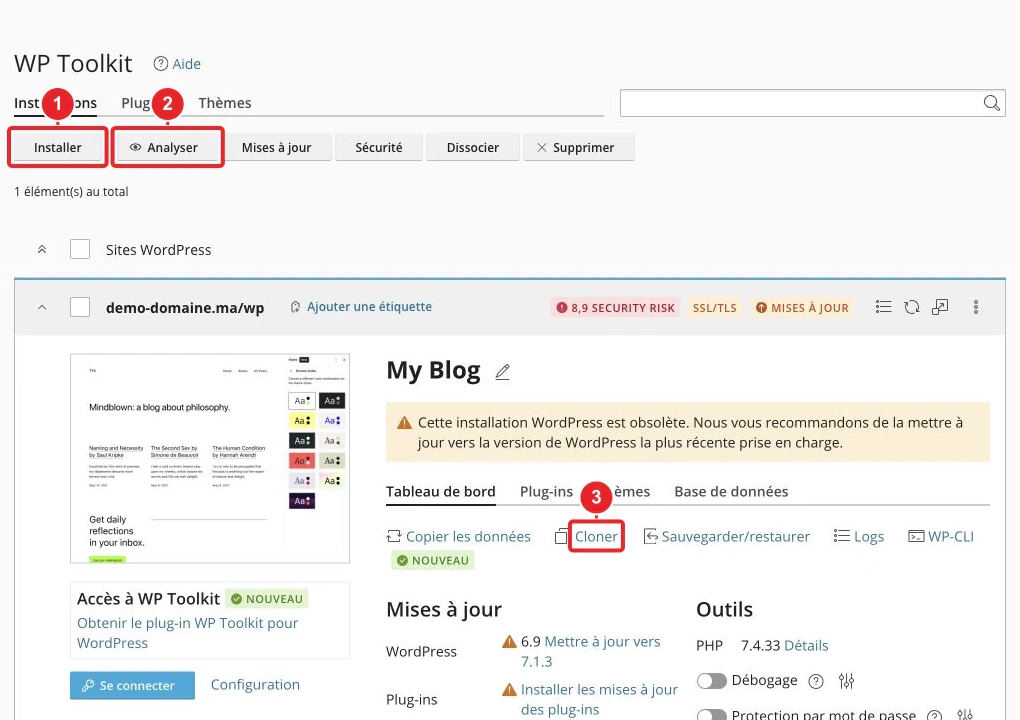
- Log in to cPanel, then open WP Toolkit. (See the WP Toolkit guide).
- In the list of installations, locate your site then click on Clone (or on the equivalent clone icon).
- Choose the destination: prefer a subdomain (e.g.
staging.votredomaine.tld) to isolate the copy. WP Toolkit can automatically create the subdomain and database if you allow it. - Let WP Toolkit create a new database/user (recommended option) or manually specify an empty database. Avoid the "overwrite" option unless you are certain of the target.
- Start the clone and wait for it to complete. Then test the cloned site: public pages, admin login, forms and media uploads.
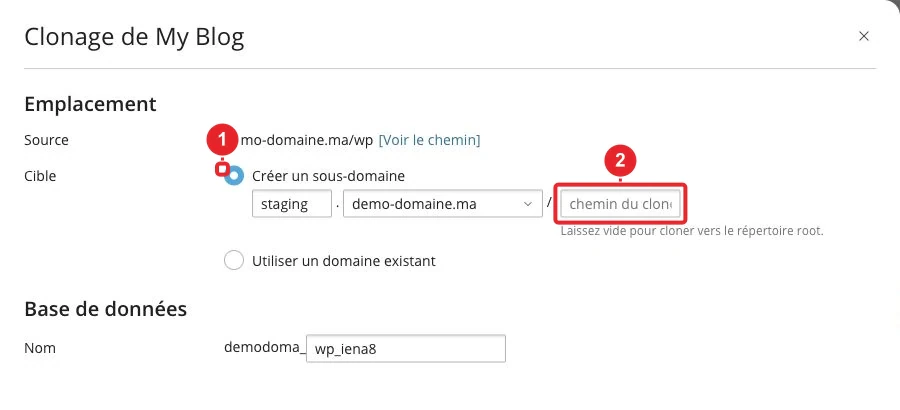
Tip (advanced): WP Toolkit also offers a command‑line interface (CLI) to automate large‑scale cloning. cPanel documentation: WP Toolkit (cPanel).
Method B — Manual cloning (copying files + database)
If WP Toolkit is not available, follow these steps. The actions are performed in cPanel (File Manager / phpMyAdmin) or via FTP/SFTP.
-
Create the destination
- Create a subdomain (e.g. staging.votredomaine.tld
staging.votredomaine.tld) via cPanel → Subdomains and note its document root. (Add a subdomain).
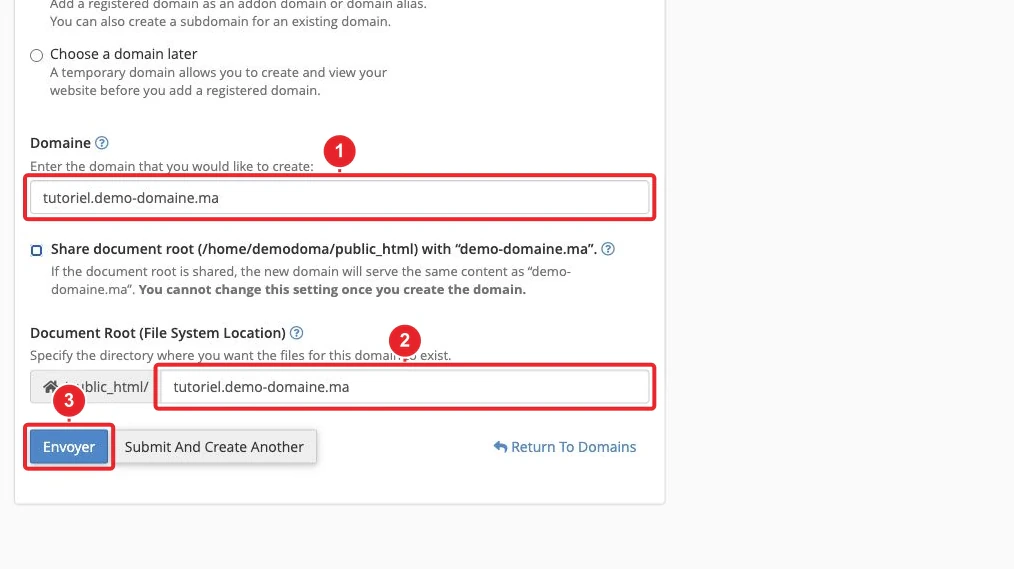
Create a subdomain to isolate the cloned site. - Create a subdomain (e.g. staging.votredomaine.tld
-
Copy the files
- Open the File Manager (or use FTP/SFTP). In the installation folder (usually
public_htmlpublic_html), select all files and folders. - Quick option: compress into a ZIP (button Compress), move or upload the ZIP to the subdomain folder, then extract it. This avoids copying files one by one via the interface.
- Or use the command Copy / FTP to duplicate the content into the subdomain folder.
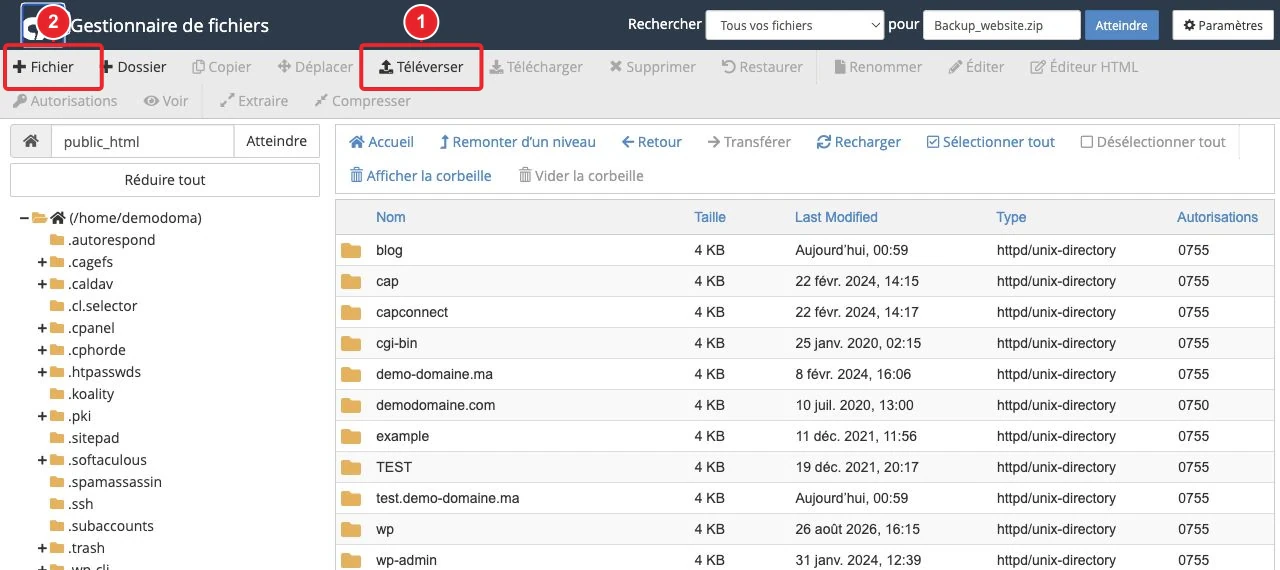
Copy the files from the production location to the subdomain folder (File Manager). - Open the File Manager (or use FTP/SFTP). In the installation folder (usually
-
Export the database (production)
- In cPanel, open phpMyAdmin, select the production database → tab Export → SQL format. For large volumes, choose compression (gzip) before downloading. (See the documentation: phpMyAdmin — Import/Export).
-
Create a new database and a user
- In cPanel → MySQL Databases : create a new database, create a MySQL user and assign it to the database with all privileges.
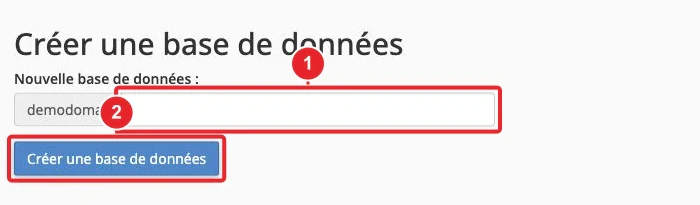
Create the database and the MySQL user for the copy. -
Import the database into the target
- Open phpMyAdmin on the new database → tab Import → choose the exported SQL file → Execute. If the file exceeds the PHP upload limit, use the server-side upload area (Upload directory) or request the import via support.
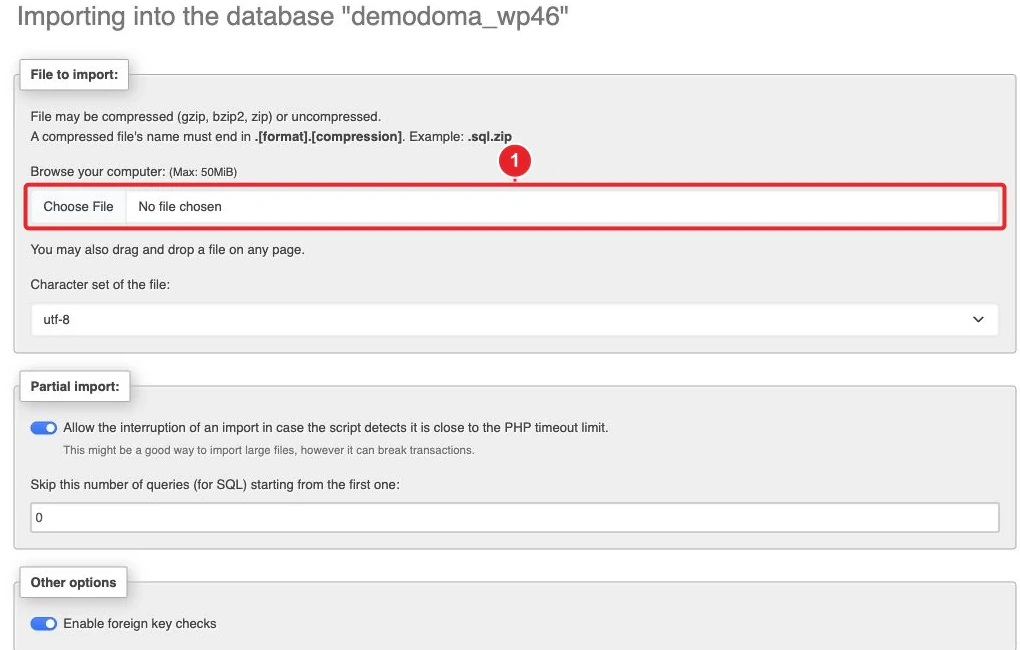
Import the SQL dump into the clone's database via phpMyAdmin (Import → select file). -
Update wp-config.php
wp-config.php- In the clone folder, open wp-config.php
wp-config.php(File Manager) and editDB_NAMEDB_NAME,DB_USERDB_USER and DB_PASSWORDDB_PASSWORDto match the new database. Also checkDB_HOSTDB_HOST if it is different.

Edit the database connection constants in wp-config.phpwp-config.php. - In the clone folder, open wp-config.php
-
Correct the URLs in the database
- In the table
wp_optionswp_options (table prefix varies), updatesiteurlsiteurlhomeand homehttps://staging.votredomaine.tldto the clone URL (e.g. https://staging.votredomaine.tld). - WARNING: WordPress sometimes stores serialized data (plugins, widgets). To safely replace URLs across the entire database, use WP-CLI (the wp search-replace command
wp search-replacewhich handles serialization) or a specialized plugin — avoid a simple SQL search/replace if you are not sure.
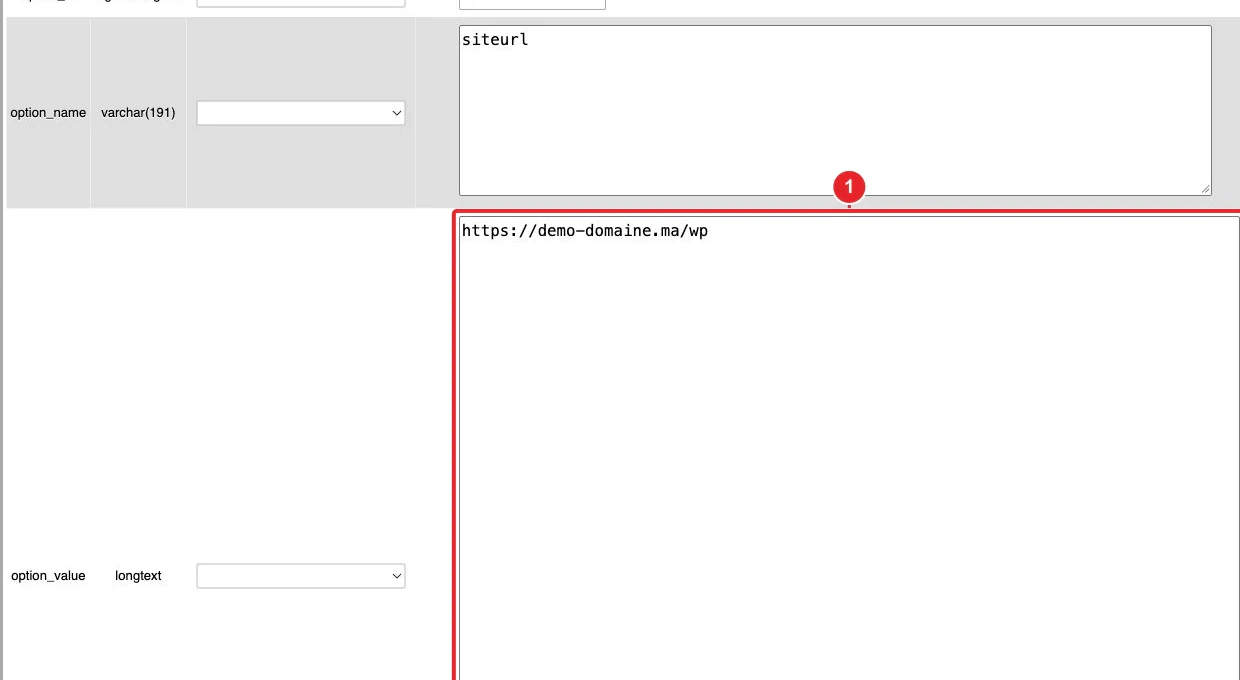
Modify the entries 'siteurl' siteurland 'home'homein phpMyAdmin (beware of serialized data). - In the table
-
Test
- Open the clone URL and test navigation, admin access (wp-admin), forms, image uploads and other critical features.
- Disable caching plugins and enable debugging locally if needed (WP_DEBUG) — log errors instead of displaying them.
Secure the staging copy
- Restrict access Enable password protection on the clone directory (cPanel → Directory Privacy / Password Protect Directories) or restrict access by IP to prevent the site being discovered.
- Discourage indexing In WordPress → Settings → Reading, check 'Discourage search engines from indexing this site'. This isn't a guarantee but it's a simple step.
- Disable emails Prevent the clone from sending emails to real users. Simple solution: install a plugin that blocks outgoing emails on the staging environment or redirect SMTP to a test mailbox. Check the server's sending policy if necessary.
- Disable scheduled tasks If cron jobs are active and could affect external systems (payments, newsletter sending), disable them temporarily on the clone.
Checklist before applying the update to production
- Perform all updates (core, themes, plugins) on the clone.
- Test critical functionality: payments, forms, search, admin login, media uploads.
- Check PHP / WP_DEBUG errors and access/error logs (cPanel → Metrics / Errors if available).
- Measure performance if the update could impact site speed.
- If everything is OK: take a full backup of production (JetBackup or cPanel backup) then schedule a maintenance window for the production update.
Common troubleshooting
- Error "Error establishing a database connection" : check
wp-config.php(database name, user, password, DB_HOST) and that the MySQL user has all privileges on the database. See: Error establishing a database connection. - Missing images : check that the files in the folder
wp-content/uploadshave been copied and that the media URLs have been correctly replaced in the database. - SQL import too large : if phpMyAdmin blocks the import due to PHP limits, use the server-side upload option, import via Terminal/SSH with the support team, or ask technical support for help.
- Error 500 / white screen : temporarily enable WP_DEBUG in
wp-config.phpto see the error, check the PHP version (cPanel → MultiPHP Manager) and the memory limits. - License issues : some plugins or themes verify a license tied to the domain. Expect to need to reactivate/re-license some items on the clone or to test without a license.
Important limitations
- The clone uses disk space and resources on the same hosting account: make sure you have sufficient capacity.
- Tests on a clone do not isolate server-level changes (global PHP configuration, Apache/Nginx modules) if production shares the same server.
- External licenses (SaaS services, API keys) may behave differently on a subdomain — adapt your tests accordingly.
Useful internal links
- WP Toolkit: install and manage WordPress
- Import / export a database from phpMyAdmin
- Add a subdomain in cPanel
- JetBackup 5: backup and restore
Need help? If you do not see the WP Toolkit icon in cPanel or if you prefer that we perform the cloning, open a ticket from your client area specifying the domain to clone and the desired URL for the copy (e.g. staging.votredomaine.tld). Also specify whether you would like us to make the copy private and to disable outgoing e‑mails.
Reference documentation
- WP Toolkit for cPanel — cPanel & WHM Documentation
- How to Clone a WordPress Website using WP Toolkit — cPanel Support
- phpMyAdmin — Import and export (documentation)
Documentation consulted on 16 October 2026. Tools may vary depending on your hosting.