When WordPress tries to access an HTTPS URL (updates, plugin checks, imports...), it may display: "cURL error 60: SSL certificate problem: unable to get local issuer certificate". This message means that the cURL library (used by PHP) could not validate the certificate chain with the local trusted authorities — either because the server does not send the intermediate certificates, or because PHP/cURL does not have an up-to-date CA file.
For reference: cURL — error codes (PHP).
Before you start — prerequisites
- cPanel access (to install the certificate or change PHP settings) — or the ability to open a support ticket if you are on shared hosting.
- Access to the MultiPHP INI Editor, to
php.inior to your hosting PHP settings (if you need to setcurl.cainfo). - SSH/Terminal access or a local workstation to run
curlandopensslfor diagnostics (optional but recommended). - A recent backup (files + database) before any certificate or PHP configuration changes.
1) Quick diagnosis (what to check first)
- Reproduce the error in WordPress (e.g. update or import) and note the full message and the time.
- Test from a terminal (replace
example.comwith your domain):curl -Iv https://example.com
Look particularly for the lines "Server certificate" and "Verify return code". If cURL returns "SSL certificate problem" or "unable to get local issuer certificate", the chain verification failed. - More detailed inspection of the chain sent by the server:
openssl s_client -showcerts -connect example.com:443
The output shows the certificate(s) sent by the server. If the intermediate is missing, the chain is incomplete. - Check the server time: an incorrect system clock prevents TLS validation. (On shared hosting you must ask support.)
If inspection shows an incomplete chain (or a self‑signed certificate), proceed to the next section to fix the installation on the server/cPanel side.
2) Install or repair the certificate chain in cPanel (complete installation)
If the server does not send the complete chain (intermediate certificate missing), many clients — including PHP/cURL — will refuse the connection. cPanel provides a tool to install the CRT, the private key and the CA bundle.
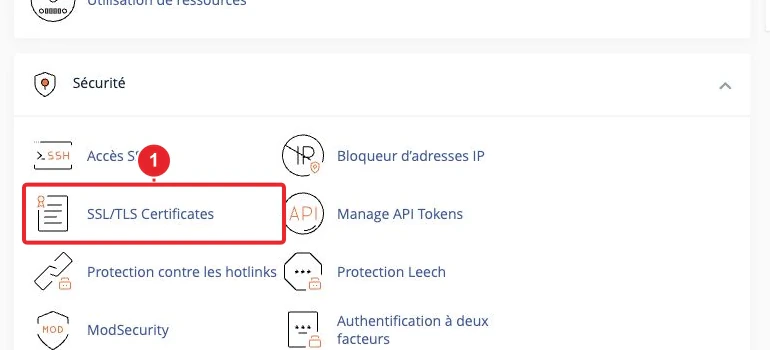
- In cPanel: Security → SSL/TLS → Manage SSL Hosts (or Install an SSL Website depending on the version).
- Select the domain. Use "Autofill by Domain" if your certificate is already present, or paste manually:
Certificate (CRT)— the domain certificate.Private Key (KEY)— the associated private key.Certificate Authority Bundle (CABUNDLE)— the intermediate certificate(s) provided by your CA (complete chain).- Validate the installation. After installation, check the certificate status and retest the TLS connection (command
curl -Iv).
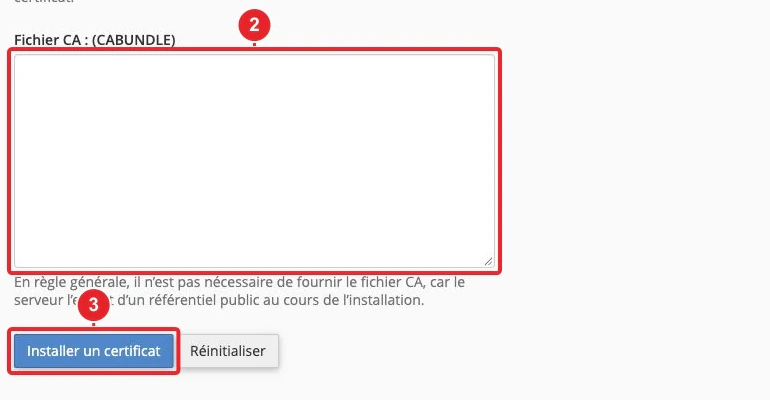
If you use AutoSSL (Let's Encrypt), rerun AutoSSL from your cPanel/WHM or follow our guide: How to install a Let's Encrypt SSL certificate on cPanel?. For the general installation steps via cPanel, also see How to configure my SSL certificate on cPanel?
After correcting the chain, retest immediately with curl -Iv and in WordPress.
3) Update the list of trusted Certificate Authorities (CAs) and configure PHP
Even if the server sends the complete chain, PHP/cURL needs access to a list of trusted authorities (a cacert.pem file cacert.pem or the system store). On some environments (for example a local Windows setup, or PHP configured without access to the system store), you must explicitly point PHP to that file:
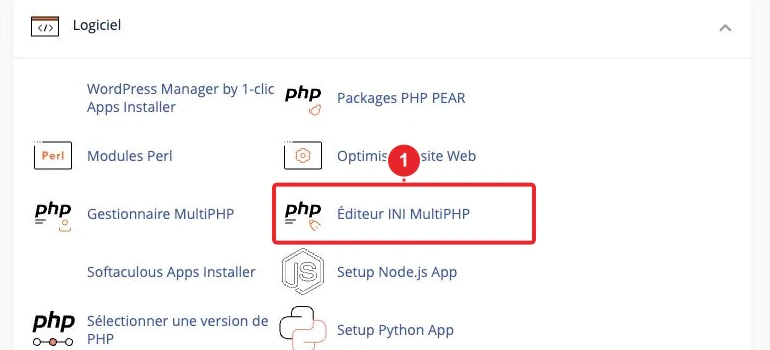
curl.cainfo.- On a VPS/root server: update the system CA store (package ca-certificates
ca-certificateson Debian/Ubuntu/CentOS). This updates the global CA file used by OpenSSL/cURL. - If you need to do this yourself (on hosting where you can modify
php.iniphp.ini): - Upload an up-to-date cacert.pem file
cacert.peminto a secure directory (e.g./home/username/certs/cacert.pem/home/username/certs/cacert.pem on Linux, orC:\php\extras\ssl\cacert.pemC:\\php\\extras\\ssl\\cacert.pem on Windows). Ask support if you doubt the origin of the file. - In php.ini
php.ini(or via MultiPHP INI Editor) add or modify: curl.cainfo = "/home/username/certs/cacert.pem" openssl.cafile = "/home/username/certs/cacert.pem"curl.cainfo = "/home/username/certs/cacert.pem" openssl.cafile = "/home/username/certs/cacert.pem"
The path must be absolute. On Windows, adapt the path (e.g.
C:\php\extras\ssl\cacert.pemC:\\php\\extras\\ssl\\cacert.pem). - Restart the PHP service (PHP-FPM/Apache) or ask your host to do it, then retest WordPress.
- If you do not have the rights to modify php.ini
php.iniask your host’s support to intervene, specifying the path where you want to placecacert.pemcacert.pem and attach the file if necessary.
See the PHP/cURL configuration for curl.cainfo: curl.cainfo : php.net — cURL configuration (curl.cainfo).
4) WordPress-specific cases
- If the error occurs only during WordPress internal operations (updates, plugin checks), start by updating WordPress and your plugins — an outdated version can cause issues.
- Some plugins bypass SSL verification by using
sslverify => falsein their HTTP calls. Do not keep this option in production: it disables certificate chain verification and exposes you to attacks. Prefer fixing the chain on the server side or the PHP configuration. - If a plugin or theme manages its own HTTP connections, check its configuration (custom certificate, SSL-ignore option...).
5) Final checks and tests
- Retest from a terminal:
curl -Iv https://example.com
and check for the absence of error 60 and the line Verify return code: 0 (ok). - In WordPress, rerun the operation that caused the error (update, import) and temporarily enable
WP_DEBUGto collect logs if needed. - If the problem persists, gather: the full output of
curl -Ivoropenssl s_client, a screenshot of the WordPress error, and specify whether your certificate is AutoSSL (Let's Encrypt) or purchased. Then open a support ticket with these items.
Quick troubleshooting — common symptoms and fixes
- Incomplete chain (missing intermediate) — Install the CABUNDLE in cPanel (see §2).
- Self-signed certificate — Replace with a certificate issued by a recognized CA (Let’s Encrypt or another CA).
- File
cacert.pemmissing or outdated — Update the system CA bundle or configurecurl.cainfo(see §3). - Incorrect system time — Correct the system clock (use NTP); on shared hosting, contact support.
- Plugin that disables SSL verification — Re-enable verification and correct the certificate chain rather than disabling it.
Need help?
If you cannot correct the chain yourself (shared hosting) or if you do not have the rights to modify php.ini, open a ticket attaching:
- A screenshot of the WordPress error message.
- The textual output of
curl -Iv https://votredomaineor ofopenssl s_client -showcerts -connect votredomaine:443. - An indication of whether you are using AutoSSL / Let's Encrypt or a purchased certificate.
Our team can, depending on your access: rerun AutoSSL, install the complete chain or update the system CA bundle. To open a ticket, use the Support section of your client area.
Appendix — useful commands
# inspecter la connexion TLS
curl -Iv https://example.com

# afficher les certificats envoyés par le serveur
openssl s_client -showcerts -connect example.com:443

# vérifier la version de cURL utilisée par PHP
php -r "var_dump(curl_version());"
Note: Some fixes require administrator rights (updating the system CA store, restarting PHP/FPM). If you are on shared hosting, ask support to intervene.
Useful internal links: SSL/TLS guide in cPanel — Install Let's Encrypt via cPanel — Modify PHP options (MultiPHP INI).
References
- PHP: curl_errno — description of error codes
- PHP: cURL configuration (curl.cainfo)
- cPanel: SSL/TLS (documentation)
Reference documentation
- PHP: curl_errno - Manual
- PHP: Runtime Configuration — cURL configuration (curl.cainfo)
- cPanel & WHM Documentation — SSL/TLS
Documentation consulted on October 17, 2026. Tools may vary depending on your hosting.