Summary: If some pages (all except the homepage) return a 404 error after enabling a “pretty permalinks” URL structure, the most common causes are: rewrite rules missing or corrupted in .htaccess, Apache module mod_rewrite unavailable, plugin/theme conflicts, site URL misconfigured in the database, or stale caches/CDN. This guide explains the checks and fixes you can perform from WordPress and cPanel.
Prerequisites
- Access to the WordPress admin (wp‑admin) OR access to cPanel (File Manager) and phpMyAdmin.
- A recent backup of files and the database. Use JetBackup or export the database via the JetBackup guide or phpMyAdmin.
- Knowledge of your site's root folder (e.g.
public_htmlor a subfolder). - If the server is managed by your host: you may need to contact support to enable
mod_rewriteor modifyAllowOverride.
Terms explained (once)
- Permalinks : human‑readable URL structure (e.g. /category/post-name) provided by WordPress.
- .htaccess : local configuration file used by Apache to apply rules (redirects, rewrites). It is located at the site's root.
- mod_rewrite : Apache module that applies the rewrite rules contained in .htaccess
.htaccess. Without it, 'pretty permalinks' do not work on Apache.
Quick steps (5‑minute test)
- In WordPress: Settings → Permalinks → click on Save Changes (without changing anything) to force regeneration of the rewrite rules.
- If that is not enough: via cPanel → File Manager, temporarily rename
.htaccess(e.g..htaccess.bak).htaccesswith the default WordPress rules (template below). - Quickly disable plugins by renaming
wp-content/plugins(e.g.plugins.off); if the 404s disappear, reactivate one plugin at a time to isolate the culprit. - Check whether a CDN (e.g. Cloudflare) or a server cache is returning a stale 404 and purge it.
Detailed procedure (numbered actions)
1) Backup — files + database
- Before making any changes, export the database via phpMyAdmin or use JetBackup: JetBackup Guide and phpMyAdmin.
- Download an archive of the site folder (public_html or the installation folder).
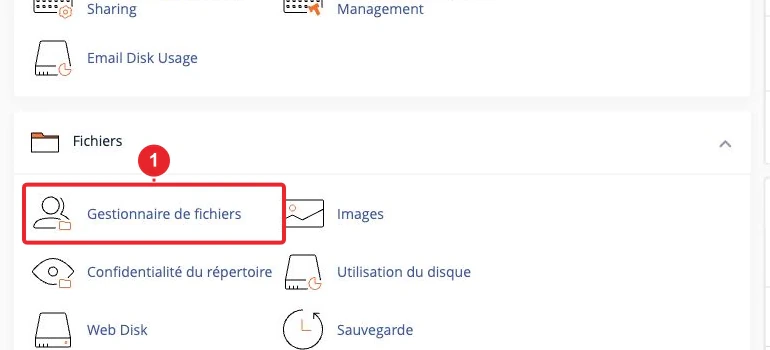
2) Reset permalinks from WordPress (if you have wp‑admin access)
- Log in to /wp‑admin → Settings → Permalinks.
- Click on Save Changes without changing anything. WordPress attempts to write the .htaccess file
.htaccessautomatically and regenerate the rules.
If WordPress cannot write the .htaccess file .htaccess (file permissions), it will display a message and provide the block to paste manually — see the next step.
Reference: the official permalinks help page (opens in a new tab).
Permalinks Settings — WordPress Documentation
3) Check and restore the .htaccess file
- In cPanel → File Manager, enable showing hidden files (files starting with a dot).
- Locate the .htaccess file
.htaccessin the installation root (often public_htmlpublic_html). - Rename it temporarily (e.g. .htaccess.bak
.htaccess.bak) and test: if the 404s disappear after saving the permalinks, recreate the file with the correct content.
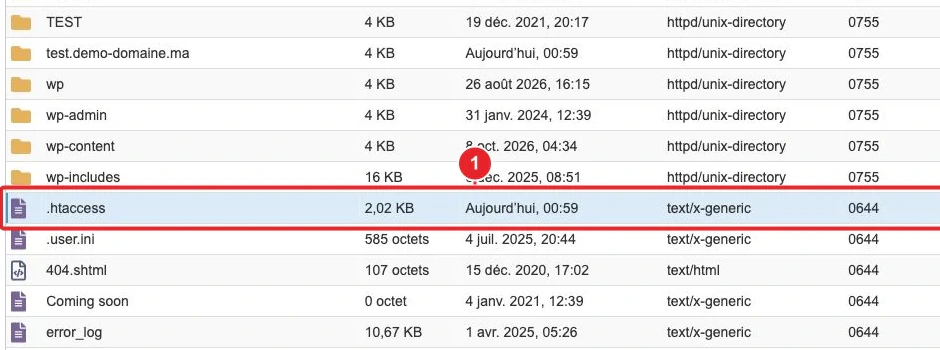
.htaccess .htaccess from the cPanel File Manager.Default WordPress template to place in .htaccess (root):
# BEGIN WordPress
<IfModule mod_rewrite.c>
RewriteEngine On
RewriteBase /
RewriteRule ^index\.php$ - [L]
RewriteCond %{REQUEST_FILENAME} !-f
RewriteCond %{REQUEST_FILENAME} !-d
RewriteRule . /index.php [L]
</IfModule>
# END WordPress
If your site is installed in a subfolder (e.g. /blog/), /blog/adjust RewriteBase and the final rule accordingly. RewriteBase and the final rule:
# Exemple pour site dans /blog/
RewriteBase /blog/
RewriteRule . /blog/index.php [L]
After modification, check the file permissions (644 recommended) and reload the test page.
4) Test without plugins / theme (isolate a conflict)
- If you have access to wp-admin: deactivate all plugins, activate a default theme (Twenty Twenty-Three), then test the permalinks.
- If you do not have wp-admin: in cPanel → File Manager, rename the folder
wp-content/pluginstoplugins.offto disable all plugins instantly. Then test the URLs.
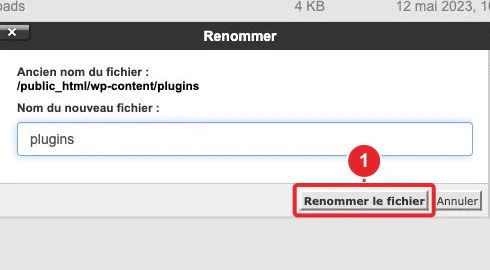
plugins via File Manager to quickly disable plugins.If the 404s disappear: restore the folder name and reactivate the plugins one by one to identify the culprit.
5) Check mod_rewrite and the server type
On an Apache server, permalinks rely on mod_rewriteIf this module is not active, the rules contained in .htaccess are ignored: 'pretty' URLs will return 404s.
- On shared hosting, you cannot enable
mod_rewriteit yourself: contact support, providing them the test URLs and a copy of.htaccess. - Also check that the directive
AllowOverrideallows the use of.htaccess(valueAllrequired in the Apache configuration).
Useful resource (opens in a new tab):
Introduction to mod_rewrite — Apache documentation
Note for Nginx: Nginx does not use .htaccess .htaccess. If your server uses Nginx or a reverse proxy, rewriting is handled in the site's configuration (server block). Common example to provide to support:
location / {
    try_files $uri $uri/ /index.php?$args;
}
6) Fix the site URL (site moved / domain changed)
- Open cPanel → phpMyAdmin → select the database → table
wp_optionswp_options. - Check the values
siteurlsiteurl and homehome. If they point to the old address, correct them (export the SQL first).
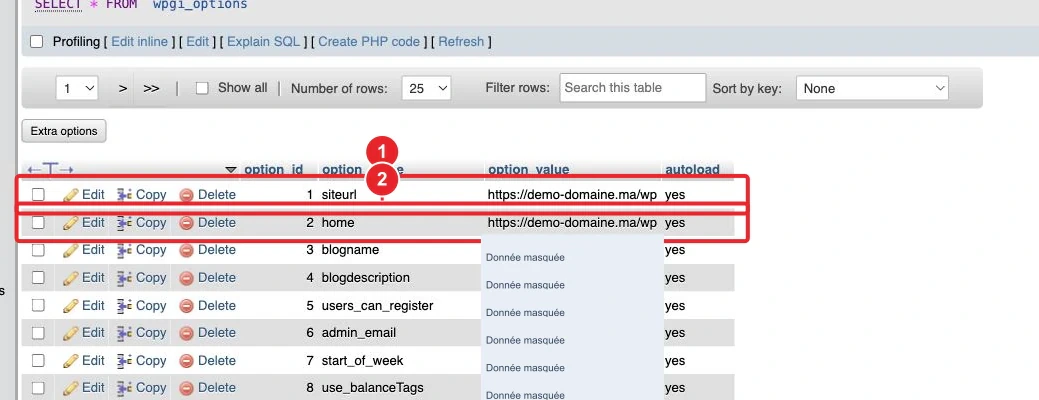
siteurl siteurl and home home in phpMyAdmin if the site address has changed.Internal guide for phpMyAdmin: How to import / export and edit the database (phpMyAdmin).
7) Use WP Toolkit (if present in cPanel)
If your hosting provider offers WP Toolkit in cPanel, it provides integrity checks, repair actions and other utilities (reinstall core files, restore backups, etc.). It can speed up diagnosis if you don't want to make manual changes.
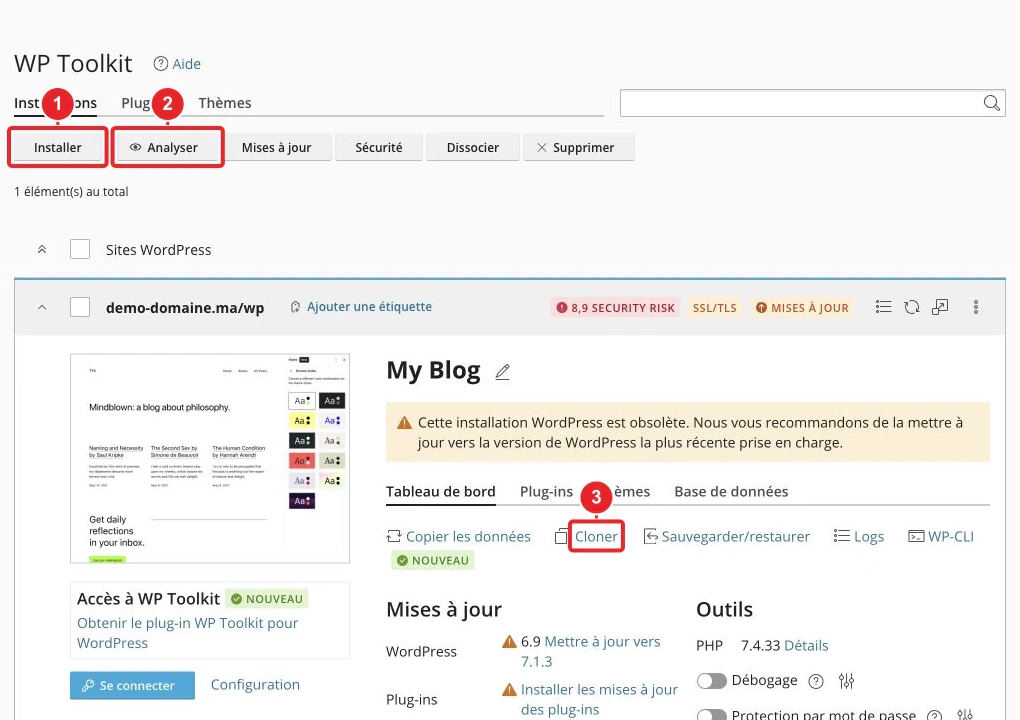
Internal WP Toolkit guide: WP Toolkit (cPanel): manage your WordPress installations.
8) Clear caches and purge the CDN
Remember to clear caches on:
- Cache plugin (WP Super Cache, W3 Total Cache, etc.)
- Server cache (Redis, Varnish) if enabled
- External CDN (Cloudflare or other) — purge the zone
9) Check redirects and custom error pages
A misconfigured redirect (in <code>.htaccess</code> .htaccess or cPanel’s Redirects tool) can cause a 404. Also check Custom Error Pages if you want to display a specific 404 page.
Useful internal guide: Configure rules and redirects via the .htaccess file and Create a custom error page.
Troubleshooting: common causes and quick checks
- .htaccess missing or corrupted — rename and recreate the file (see step 3).
- mod_rewrite not enabled (Apache) or the server runs Nginx — contact support.
- A plugin or theme that alters rewrite rules — test by disabling plugins (see step 4).
- Incorrect permissions (directories <code>755</code>
755, files <code>644</code>644recommended). - Site moved without updating <code>siteurl</code>
siteurl/<code>home</code> in the database — fix via phpMyAdmin.homeSite moved without updating siteurl/home in the database — fix via phpMyAdmin. - Cache / CDN returning a stale 404 — purge all caches.
- Conflicting redirection rules in .htaccess
.htaccess(e.g. general rules placed before the WordPress rules).
When to contact technical support
Contact technical support if, after applying the steps above, the problem persists. Provide:
- Examples of URLs that return 404 (actual URL shown + expected URL).
- Copy (or screenshot) of the .htaccess file
.htaccess— or indicate that it is missing. - Actions already attempted (permalinks reset, plugins disabled, theme changed, cache purged).
- If possible: screenshot of the cPanel File Manager (file
.htaccess.htaccess visible) and a screenshot of phpMyAdmin if you modifiedsiteurlsiteurl. - Mention if the site is behind a CDN or a reverse proxy (Cloudflare, Varnish, Nginx).
Limitations and precautions
- If you do not have cPanel or SFTP access, ask support to perform the checks (activate
mod_rewritemod_rewrite, restore.htaccess.htaccess, and check the server logs). - Only modify the database (phpMyAdmin) if you have previously exported the SQL.
- Changes to Apache (activation of modules,
AllowOverrideAllowOverride) require server administrator rights; contact support. - For Nginx environments, the fix is done via the server configuration and not via .htaccess
.htaccess— provide the try_filestry_filessnippet to support if necessary.
Useful templates
.htaccess — WordPress at the site root
# BEGIN WordPress
<IfModule mod_rewrite.c>
RewriteEngine On
RewriteBase /
RewriteRule ^index\.php$ - [L]
RewriteCond %{REQUEST_FILENAME} !-f
RewriteCond %{REQUEST_FILENAME} !-d
RewriteRule . /index.php [L]
</IfModule>
# END WordPress
.htaccess — WordPress in a subfolder (/blog/)
# BEGIN WordPress
<IfModule mod_rewrite.c>
RewriteEngine On
RewriteBase /blog/
RewriteRule ^index\.php$ - [L]
RewriteCond %{REQUEST_FILENAME} !-f
RewriteCond %{REQUEST_FILENAME} !-d
RewriteRule . /blog/index.php [L]
</IfModule>
# END WordPress
Nginx snippet to provide to support
location / {
    try_files $uri $uri/ /index.php?$args;
}
I can help you
If you wish, I can:
- prepare the .htaccess file
.htaccessadapted to your subfolder (indicate the site's exact path), - or produce a list of items to send to support (example URL, copy of .htaccess,
.htaccessactions attempted) to expedite the support team's intervention.
Internal resources
- phpMyAdmin: import / export and modify the database
- Show hidden files in the cPanel File Manager
- JetBackup 5: backup and restore
- WP Toolkit (cPanel): manage your WordPress installations
- Configure rules and redirects via .htaccess
Public sources consulted
- Permalinks Settings — WordPress Documentation
- Introduction to mod_rewrite — Apache documentation
Reference documentation
- Settings Permalinks screen — WordPress.org (documentation)
- Apache HTTP Server: mod_rewrite Introduction (httpd.apache.org)
- WP Toolkit Command Line Interface — cPanel documentation
Documentation consulted on October 16, 2026. Tools may vary depending on your hosting.