Quick answer
The file .htaccess is a per‑directory configuration file for Apache servers. It takes effect immediately and allows, without restarting the server, implementing password protections, IP blocking rules, custom error pages and redirects (301/302) via mod_rewrite or Redirect.
Before you begin
- These instructions apply if your hosting uses Apache and allows the use of
.htaccess. If your site is served by Nginx or by a front proxy, adapt the rules on the front server (Nginx does not read.htaccess). - Always back up the existing file before making any changes.
- Syntax errors in
.htaccessoften cause a 500 error — plan a quick restore method (SSH, FTP, or cPanel).
Locate and view the .htaccess file (cPanel)
- Open cPanel → File Manager (File Manager).
- In Settings, enable "Show Hidden Files (dotfiles)" to display
.htaccess. - Go to the domain root folder:
public_htmlfor the primary domain orpublic_html/votre-domaine.tldfor an addon/subdomain. - If no
.htaccessexists, create a new one (File → New File → name it « .htaccess »).
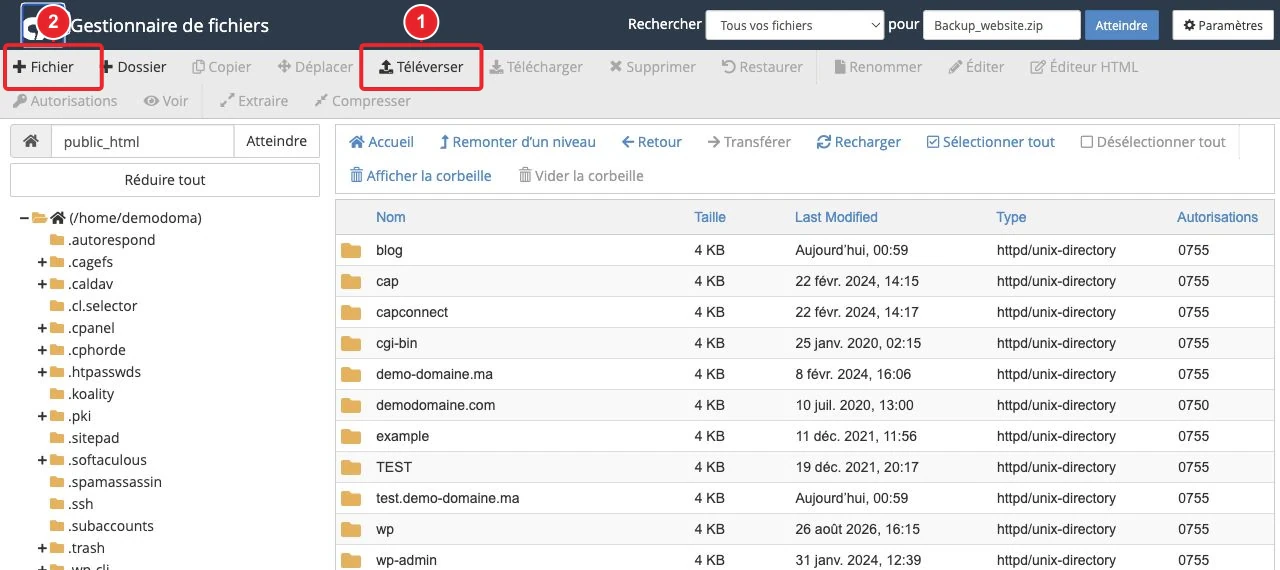
Edit .htaccess safely
- Download a local copy before editing (or rename it to
.htaccess.bakvia SSH/FTP). - Edit from File Manager → Edit, or retrieve the file via FTP, modify locally then upload.
- Apply changes in small steps and test each modification immediately in a private browser window (to avoid cache).
- If you get a 500 error, restore the backup (replace the file with the copy) to restore access.
Practical directives and examples
Keep order: general directives at the top (e.g. force HTTPS), specific rules afterwards.
1) Password protection (Basic Auth)
Process: store hashed credentials outside the web directory and reference the file from .htaccess.
AuthType Basic
AuthName "Zone protégée"
AuthUserFile "/home/votre_utilisateur/.htpasswds/public_html/chemin/passwd"
Require valid-user
Concrete steps:
- Generate the password file (htpasswd format) and place it outside of
public_html. - Verify the absolute path (UNIX path from
/home/). - Test access: the browser should prompt for username/password.
2) Block / allow IPs (Apache 2.4+)
Block an IP:
<RequireAll>
  Require all granted
  Require not ip 1.2.3.4
</RequireAll>
Allow only certain IPs:
<RequireAll>
  Require all denied
  Require ip 1.2.3.4
  Require ip 5.6.7.8
</RequireAll>
Notes:
- Do not mix deprecated directives
Order/Allow/DenywithRequire. - To block a CIDR range:
Require not ip 203.0.113.0/24.
3) Custom error pages
Example: return a 404 page located in the site root:
ErrorDocument 404 /404.html
Tips:
- Specify the path relative to the site root (starting with /).
- Also test codes 403, 500 as needed.
4) Redirects (mod_rewrite and Redirect)
Reminder: use 301 for a permanent redirect (SEO) and 302 for a temporary redirect.
Redirect all example.com to domain.com (301):
RewriteEngine On
RewriteCond %{HTTP_HOST} ^(?:www\.)?example\.com$ [NC]
RewriteRule ^(.*)$ https://domain.com/$1 [R=301,L]
Force HTTPS (simple solution):
RewriteEngine On
RewriteCond %{HTTPS} !=on
RewriteRule .* https://%{HTTP_HOST}%{REQUEST_URI} [R=301,L]
Redirect a single page:
Redirect 301 /ancienne-page.html https://votresite.tld/nouvelle-page/
Practical tips for redirects:
- Avoid redirect chains: prefer a direct redirect to the final destination.
- Test rules with curl (e.g.
curl -I https://votresite.tld/ancienne-page.html) to see the HTTP code and the Location header.
Security and organization best practices
- Never store credential files (passwd) in a publicly accessible directory.
- Place global directives (HTTPS, canonical) at the top of the file, then specific rules.
- Comment (#) blocks instead of deleting them so you can revert easily.
- Limit edit access to the
.htaccessto trusted individuals.
Troubleshooting — common cases
500 Internal Server Error after modification
- Rename or restore the backup of the
.htaccessto return to the previous state. - Check the Apache error log if you have access (detailed error indicates the faulty directive).
- Remove the last added rule and reintroduce rules one by one to isolate the fault.
Redirect loop
- Check interacting rules (e.g. WWW ↔ non‑WWW redirect combined with forcing HTTPS).
- Add explicit
RewriteCondto avoid reapplying the rule on URLs that have already been redirected.
My custom error page does not appear
- Verify that the path indicated in
ErrorDocumentis correct and accessible (e.g./404.html). - Ensure that no redirect rule interferes before the error code is returned.
Tools and alternatives
- For simple redirects, the Redirections tool in cPanel adds the rules automatically without risking syntax errors: it’s safer for basic changes (domain → domain, www ↔ non‑www, HTTP → HTTPS).
- For more advanced and global IP filtering, use the IP Blocker tool in cPanel or an application firewall at the server level (Imunify360, provider firewall).
Quick recap steps (checklist)
- Back up the existing file (
.htaccess.bak). - Enable showing hidden files and open
.htaccessvia File Manager. - Add/modify a rule at the bottom of the file (after considering rule order).
- Save and test in a private browser and with
curl -Iif possible. - If there is a problem, restore the backup and analyze the server error log.
Useful internal links
- Access File Manager
- How to force SSL or HTTPS with .htaccess?
- How to create a custom error page on cPanel?
- How to block an IP address in cPanel
- Use the Redirections tool in cPanel
Limitations and caveats
- The described directives only apply if Apache allows
.htaccess(AllowOverride enabled). On some shared environments, certain directives may be restricted by the host. - If your site is behind a CDN or proxy (Cloudflare, etc.), verify that rules are not overridden by CDN settings (e.g. forcing HTTPS at the CDN).
- Changes affect visitors immediately — schedule changes during low‑traffic periods if possible.
Need help with a specific rule?
If you want us to proofread a rule before saving it, paste it here (mask any password). We can check the syntax and suggest possible improvements.
Reference documentation
- File Manager | cPanel & WHM Documentation
- How to Configure Redirects Manually | cPanel & WHM Documentation
- How to edit files via File Manager – cPanel Support
Documentation consulted on October 13, 2026. Tools may vary depending on your hosting.