To connect an application to MySQL or MariaDB, create a database, a user and the association between them in cPanel.
Create the database
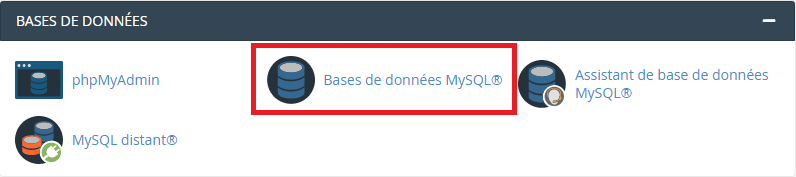
- Open Databases > Manage My Databases, or the Database Wizard.
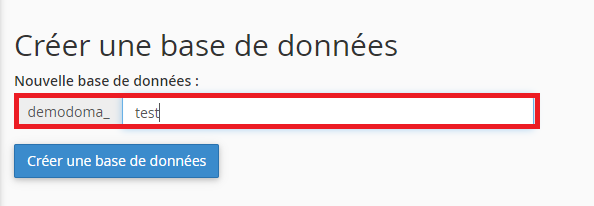
- Enter the desired name and confirm.
- Note the full name displayed, including any account prefix.
Create the user
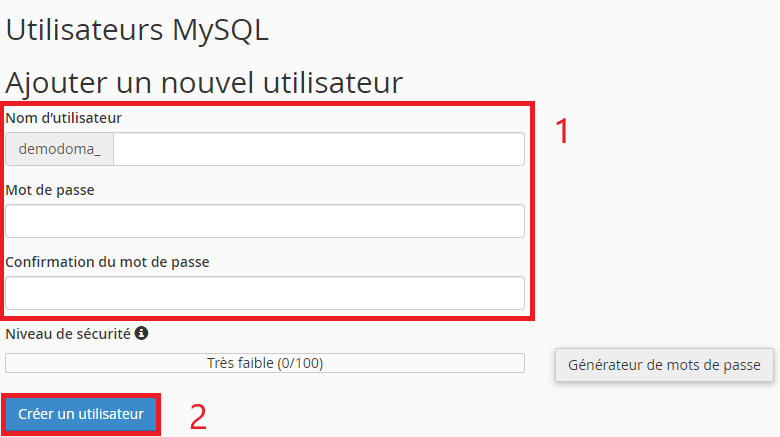
In the users section, choose a username and a unique password. Store the credentials securely. This password is separate from your Client Area or mailbox password.
Assign the user to the database
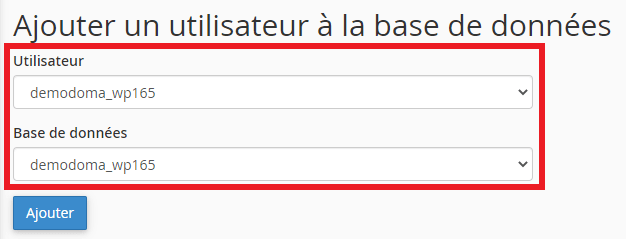
- Select the user and database in the association option.
- Add the user to the database.
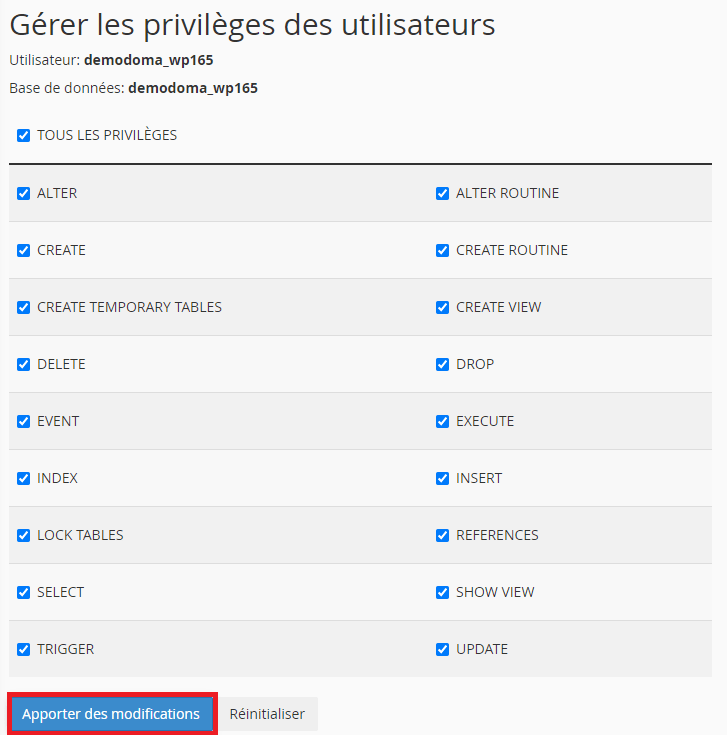
- Grant the privileges required by the application. An installer may need all privileges on its own database, but the user should not receive unnecessary access to other data.
- Save your changes.
Configure and test the application
Enter the database name, username, password and host provided for your hosting account. Test the connection or installer. Creating a database does not automatically create its tables.
If the connection fails
Check the full names, user assignment and privileges before resetting the password. Use cPanel to manage databases and users, and phpMyAdmin to manage their data.
Interface illustrations
These screenshots show the versions used when the original article was written. Labels may differ in your current version; follow the written procedure and your account settings.
Related guides
Reference documentation:
Sources accessed on October 11, 2026. Available features depend on your hosting version and options.