Introduction
IMAP, POP3 and SMTP are the protocols that power your email: IMAP and POP3 retrieve messages (server → client), SMTP sends messages (client → server). This guide briefly compares the protocols, helps you choose the right option for your needs, explains how to fetch the settings from cPanel, and provides practical troubleshooting steps.
Prerequisites
- Access to your cPanel account with your credentials. See: How to access cPanel.
- An active domain name and the ability to edit its DNS zone, or your hosting provider already manages the MX records.
- The email address and password for the mailbox you want to configure.
- An email client (Outlook, Apple Mail, Thunderbird, or a mobile client), or access to webmail.
Protocols — summary and use cases
IMAP (Internet Message Access Protocol)
Purpose: synchronize your messages and folders between the server and multiple devices. IMAP keeps messages on the server and synchronizes states (read/unread), folders and flags.
- Common ports: 143 (STARTTLS possible), 993 (IMAPS — implicit TLS).
- When to choose: accessing mail from multiple devices (PC, smartphone, tablet), or when you want to keep a centralized history on the server.
POP3 (Post Office Protocol v3)
Purpose: download messages to a device. By default, POP3 often removes messages from the server after download (this option can usually be disabled).
- Common ports: 110 (STARTTLS possible), 995 (POP3S — implicit TLS).
- When to choose: single‑device use, local archiving, or limited server storage.
SMTP (Simple Mail Transfer Protocol)
Purpose: send emails from a client or an application. SMTP handles sending and relaying between servers; it is not used to read messages.
- Common ports: 25 (server‑to‑server relay, sometimes blocked by ISPs), 587 (submission with STARTTLS — recommended), 465 (SMTPS, implicit TLS — support varies).
- Recommendation: use SMTP authentication (credentials = email address) and STARTTLS/TLS to encrypt outgoing mail.
Quick selection based on your usage
- Multiple devices / full synchronization: IMAP + SMTP.
- Single device / local archiving: POP3 + SMTP (enable 'Leave a copy on the server' if necessary).
- Sending from a website or an application (e.g., WordPress): Use authenticated SMTP (port 587) for sending, or use a dedicated SMTP service. See: Configure SMTP sending for WordPress.
Common settings and examples (replace with your values)
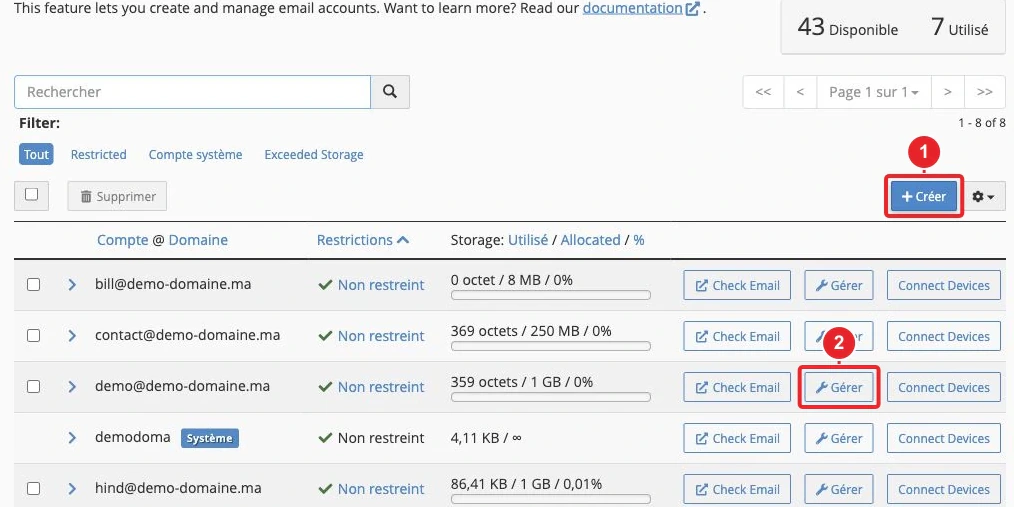
Always retrieve the settings shown in your cPanel (hostname, ports, encryption methods). The easiest way is to click the 'Configure the client' / 'Connect Devices' option on the email account record.
Exemple (valeurs types — adaptez) :
Serveur entrant (IMAP) : mail.votredomaine.tld
Port IMAP (SSL/TLS) : 993
Serveur entrant (POP3) : mail.votredomaine.tld
Port POP3 (SSL/TLS) : 995
Serveur sortant (SMTP) : mail.votredomaine.tld
Port SMTP (STARTTLS) : 587  (souvent recommandé)
Nom d'utilisateur : votreadresse@votredomaine.tld
Mot de passe : le mot de passe de la boîte e‑mail
Authentification SMTP : oui (mêmes identifiants que pour la réception)
Note: some hosts may specify a different hostname (e.g., smtp.exemple.com). Use the values provided by cPanel exactly.
Steps: retrieve the settings and configure (from cPanel)
- Log in to cPanel. See: How to access cPanel.
- Open the 'Email Accounts' section (Email Accounts). If the mailbox doesn't exist, create it: Create an email address.
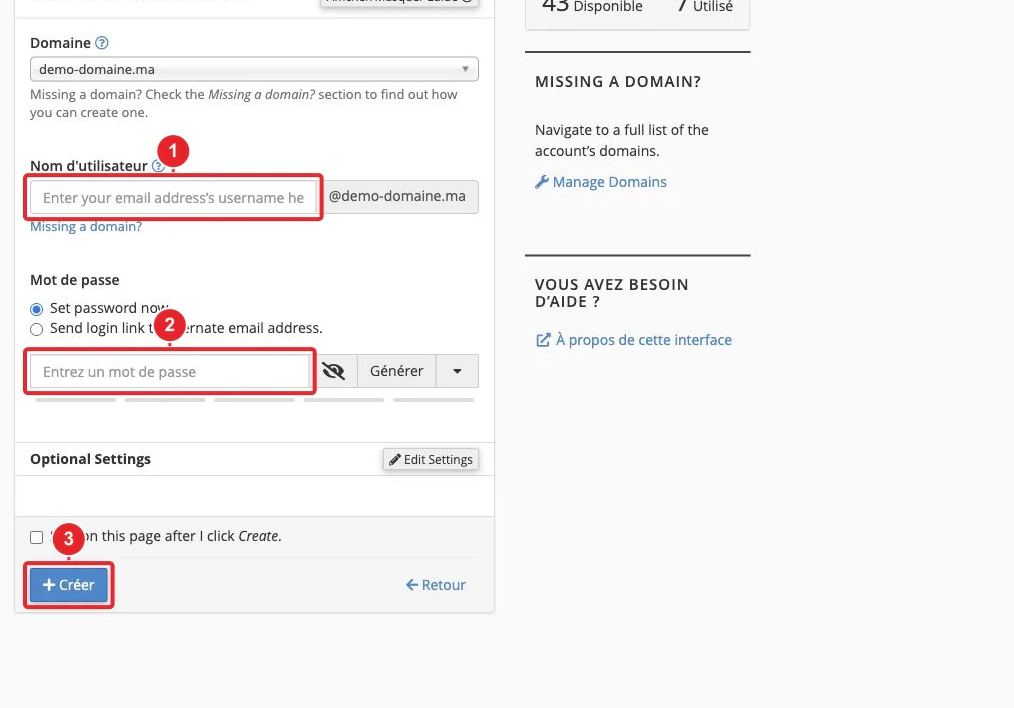
Create an email address in cPanel — set the password and quota. - In the accounts list, click 'Manage' then 'Configure the client / Connect Devices' (or the equivalent): cPanel displays the incoming and outgoing servers, the ports and the recommended encryption method.
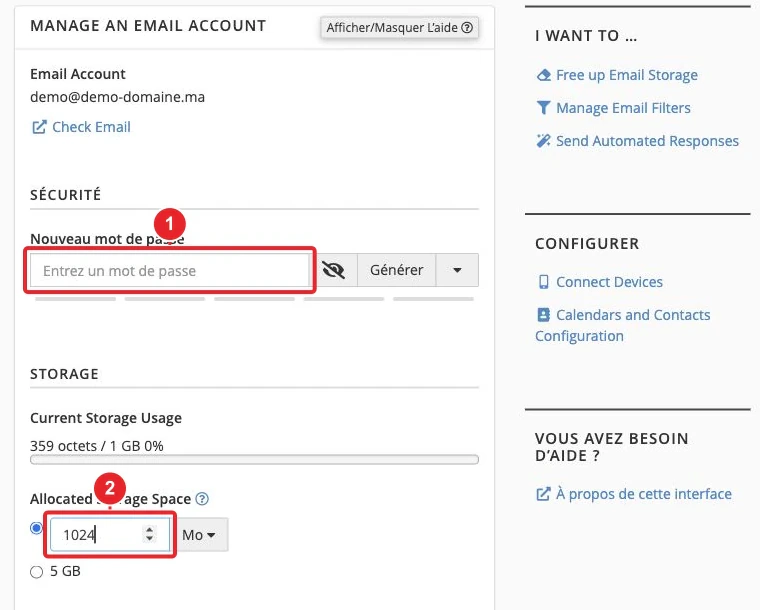
Manage an email account: get the configuration details for your mail client here. - Copy the values (servers and ports) and note whether cPanel recommends SSL/TLS (implicit encryption) or STARTTLS (explicit upgrade).
- Open your mail client and enter: account type (IMAP or POP3); incoming server, port and encryption; outgoing server (SMTP) — port 587 (STARTTLS) is recommended; username = full email address; password.
- Test sending and receiving. If you encounter an error, proceed to the Troubleshooting section below.
Client-side configuration tips (common fields)
- Account type: IMAP (synchronization) or POP3 (download to device).
- Incoming server: the value shown by cPanel (e.g. mail.votredomaine.tld); port 993 (IMAPS) or 995 (POP3S).
- Outgoing server (SMTP): the hostname shown by cPanel; use port 587 (STARTTLS) or 465 (implicit TLS) if supported.
- Authentication: required for sending — use the full email address as the username.
- Encryption: prefer TLS/SSL. STARTTLS is common on port 587; implicit TLS is used on ports 993, 995 and 465.
Examples of client guides already available: Mozilla Thunderbird, Apple Mail (iOS/macOS), Outlook.
Security and best practices
- Always use TLS/SSL (IMAPS/POP3S or STARTTLS on SMTP) to encrypt credentials and messages.
- Username: use the full email address, unless the provider specifies otherwise.
- Choose strong, unique passwords; change them if you suspect unauthorized access.
- Enable two-factor authentication on services that offer it (webmail or customer area). See: Enable 2FA on webmail.
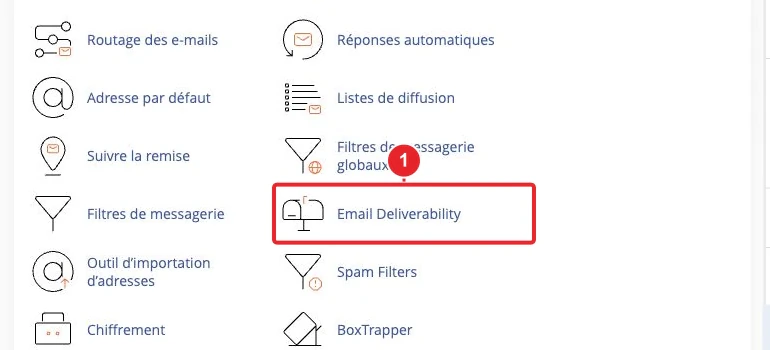
- Improve deliverability by configuring SPF, DKIM and DMARC using cPanel's Email Deliverability tool.
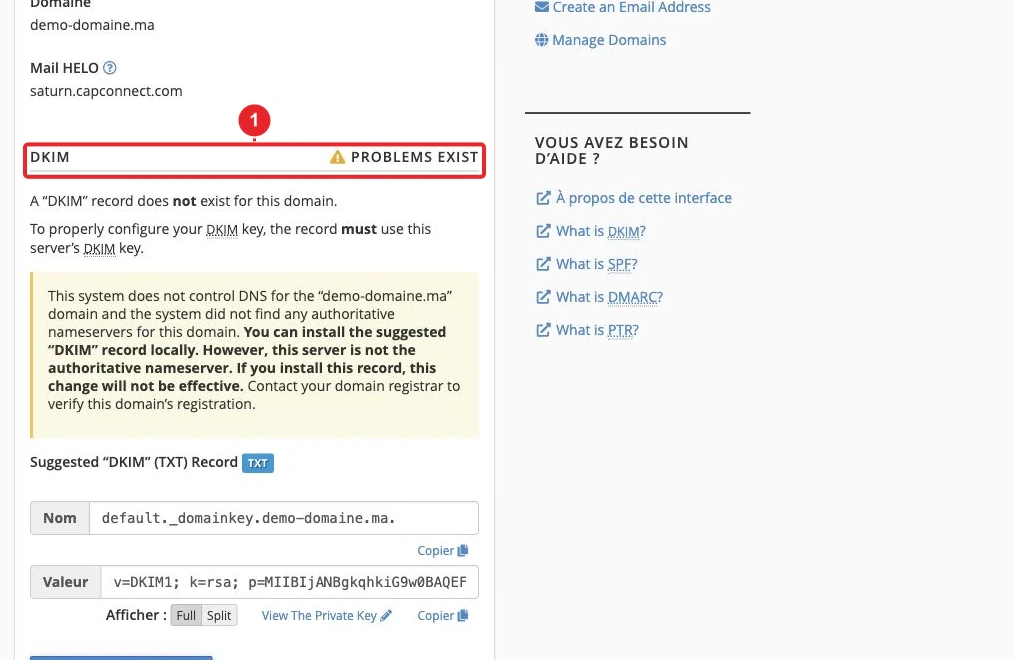
Quick troubleshooting (recommended order)
- Verify your credentials: log in to webmail (Roundcube, Horde or the provided solution) using the same email address and password.
- Check the domain's MX records in cPanel's DNS Zone Editor: they must point to the server that manages the mailbox.
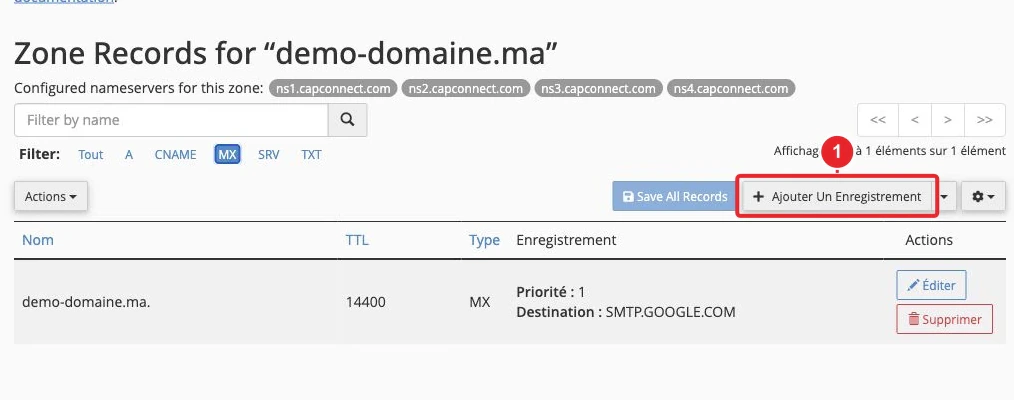
MX records in the DNS Zone Editor — check the target and priority. - Check email routing (local vs remote) in cPanel: if your MX records point to an external provider (e.g., Google Workspace), do not use the local hosting server for sending/receiving. See: MX records and routing.
- Check SPF/DKIM/DMARC in Email Deliverability and correct the necessary TXT records.
- Check Track Delivery for failed deliveries: it shows why a message was not delivered.
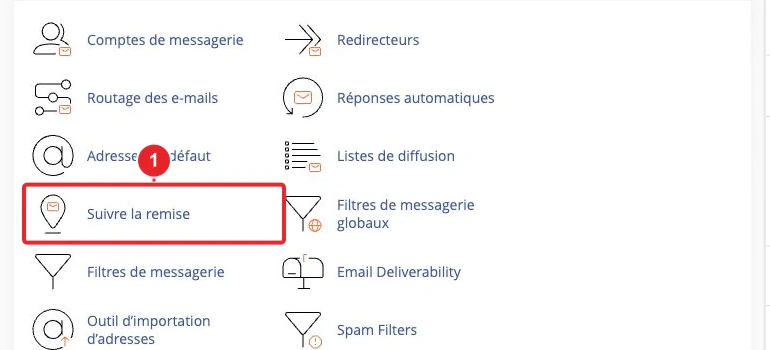
Track Delivery: view errors and delivery tests from cPanel. - Test the TLS/port connection from a workstation (advanced):
- IMAP TLS:
openssl s_client -connect mail.votredomaine.tld:993 -crlf -servername mail.votredomaine.tld - SMTP STARTTLS:
openssl s_client -starttls smtp -connect mail.votredomaine.tld:587 -crlf -servername mail.votredomaine.tld
- IMAP TLS:
- If sending fails: verify that SMTP authentication is enabled, use port 587, and check that your ISP does not block port 25. If you send in bulk, respect the server's sending limits (messages/hour).
- Quota and filters: make sure the mailbox is not full and that server-side filters are not moving or deleting messages.
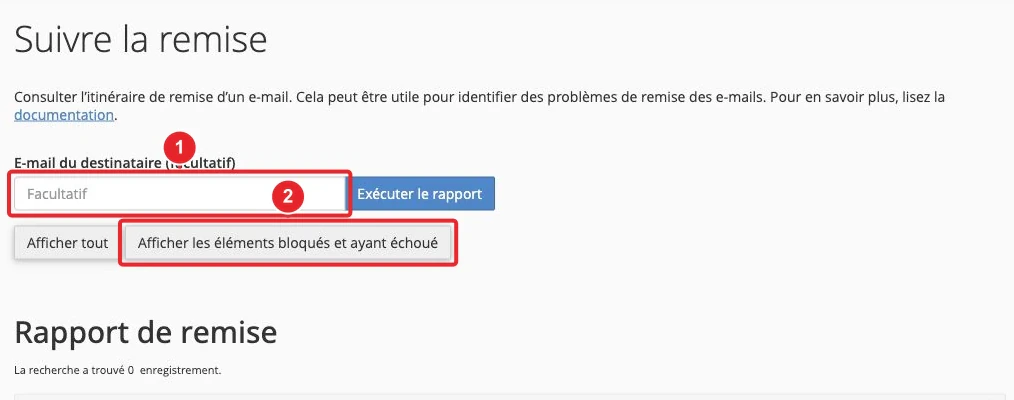
Useful cPanel tools
- Email Deliverability — check and fix SPF/DKIM/DMARC: How to use Email Deliverability.
- Track Delivery — delivery diagnostics: Track email delivery.
- DNS Zone Editor — view/modify MX and TXT records: Manage the DNS zone.
- Email Filters & SpamAssassin — block/allow senders: Enable the anti-spam filter.
Limitations and notes
- cPanel screens and labels may vary depending on the version and theme (Jupiter, Meridian, etc.). The screenshots above show the usual controls — adapt to the panel displayed.
- If your domain uses an external service (Google Workspace, Microsoft 365), the DNS records and settings provided by that service take precedence — do not use the hosting server's settings if your MX records point elsewhere.
- Shared hosting plans sometimes limit the number of outgoing emails per hour/day. If you send newsletters or large volumes, opt for a dedicated professional SMTP service.
- POP3 may delete messages from the server if the "leave a copy" option is not enabled — risk of message loss if you later switch to IMAP.
When to contact support
Before opening a ticket, prepare:
- Affected email address and a screenshot of the error (client or webmail),
- Time and time zone,
- Actions already performed (MX checks, tests
openssl s_client, password change), - Results from Track Delivery if the email was sent but not delivered.
The support team can then check the server logs and recommend the quickest fix.
Useful internal links
- Create an email address in cPanel
- Email PRO configuration settings (email clients)
- MX records and email routing
- SPF and DKIM: improve the reputation of your emails
Documentation consulted on October 16, 2026. Tools may vary depending on your hosting.