Short answer: the safest way is to leave DNS management with your current hosting provider and to change only the A/AAAA records (or the CNAME requested for www) to the site's new address. This keeps the MX records unchanged and avoids most email outages. Only the 'advance' approach (changing the nameservers) requires copying all mail records precisely before the switchover.
Prerequisites
- Access to the current DNS management (cPanel): cPanel credentials. See also our guide to accessing cPanel if necessary.
- IP address(es) (IPv4/IPv6) or the CNAME target provided by the new host.
- Complete list of mail-related records: MX, TXT (SPF), TXT DKIM, TXT DMARC and A/AAAA for mail subdomains (e.g.
mail.example.com). - A quiet time slot (evening or weekend) and allow up to 48 hours for propagation if TTLs are high.
Recommended approach — change only the A / AAAA record (or CNAME for www)
Keeping the DNS zone with your current provider (cPanel) and replacing the IP address of the site's primary name limits the risk to email.
-
Open the DNS Zone Editor in cPanel — Log in to cPanel and open Domains → Zone Editor (or DNS Zone Management).
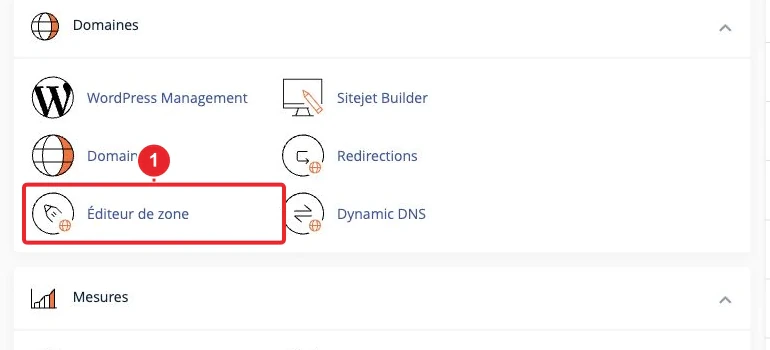
Open the DNS Zone Editor (Zone Editor) in cPanel. -
Locate and modify the A (root) record — In the list, find the A record for the bare domain (e.g.
example.com) and replace the IP with the one provided by the new host (e.g.A example.com → 198.51.100.12). Use the 'Edit' or 'Manage' action for the zone.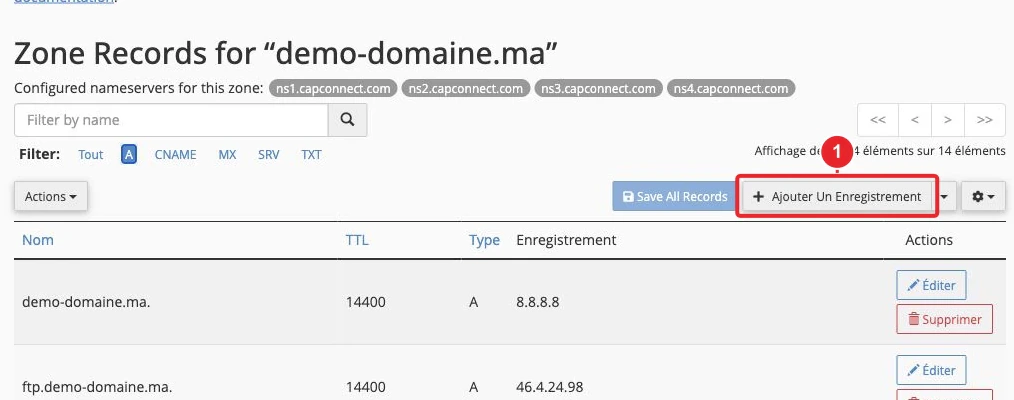
List of A records: modify the root domain entry to point to the new IP. 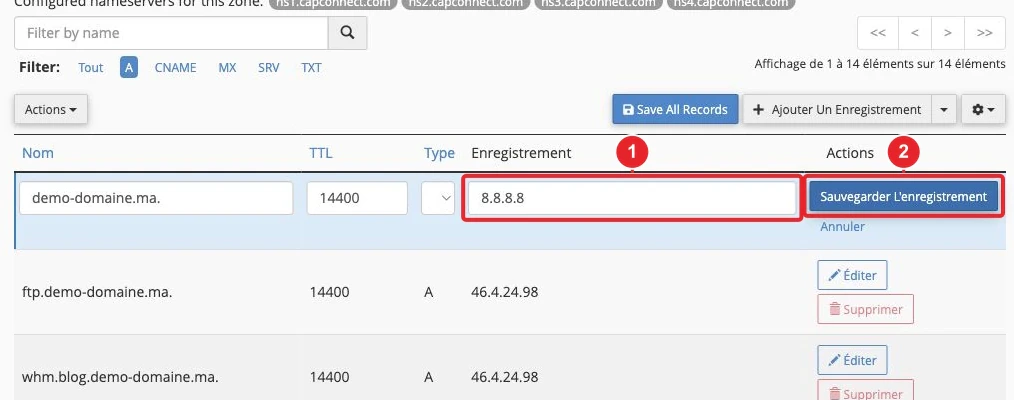
Form to modify the domain's A record (IP address). -
Update
www— the new host may request:- An IP: create/edit an A record for
wwwpointing to the same IP as the root. - An alias: create a CNAME record
www → cible.fournisseur(orwww → example.com). Reminder: you cannot create a CNAME at the root (apex) of the domain according to the DNS standard.
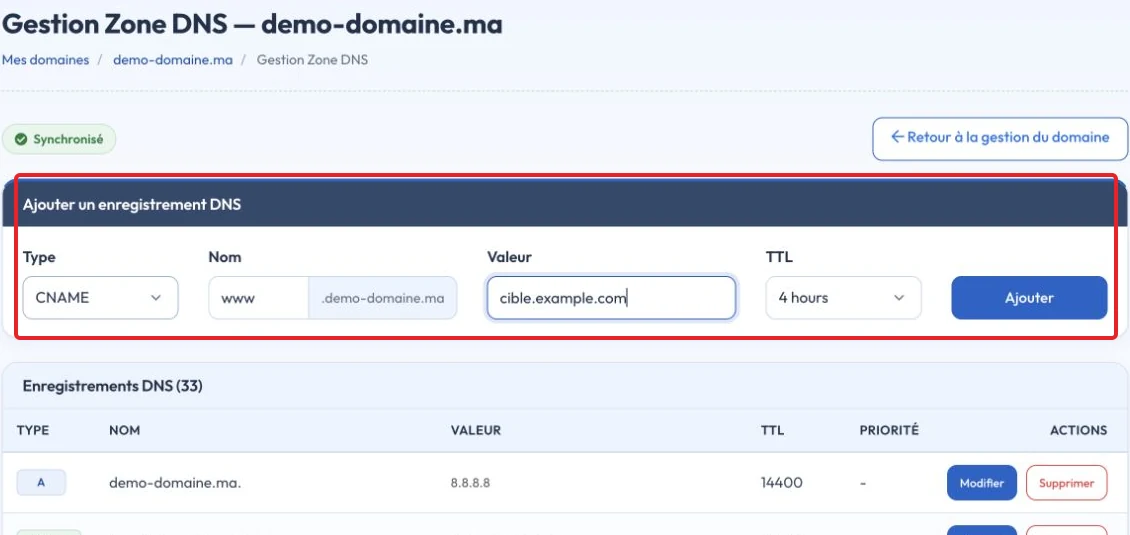
Unsaved example of adding a CNAME record in DNS Zone Management - An IP: create/edit an A record for
-
Do not touch the MX records if you want to keep the email service — MX records define where incoming email is delivered. Verify they have not been changed.
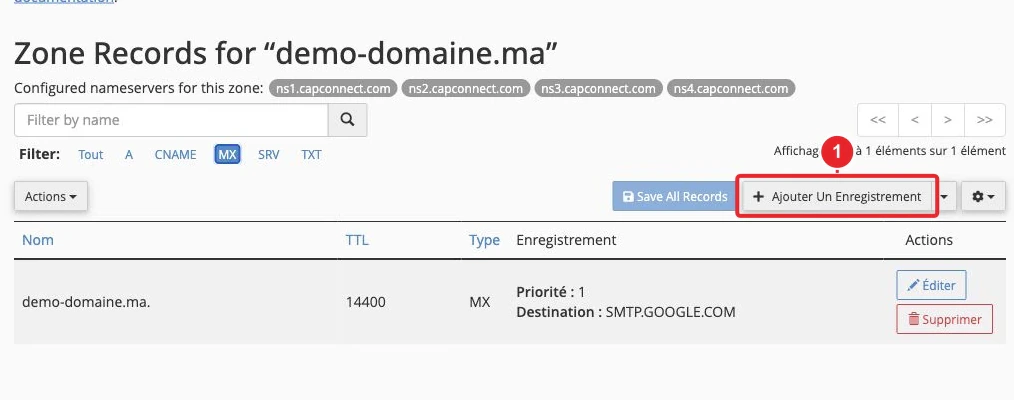
MX records define the servers that receive email: do not modify them if you want to keep email on this server. -
HTTP redirects (optional) — if you want to force
example.com → www.example.com(or the reverse), configure the redirect in cPanel → Redirections. Avoid conflicting rules that create loops.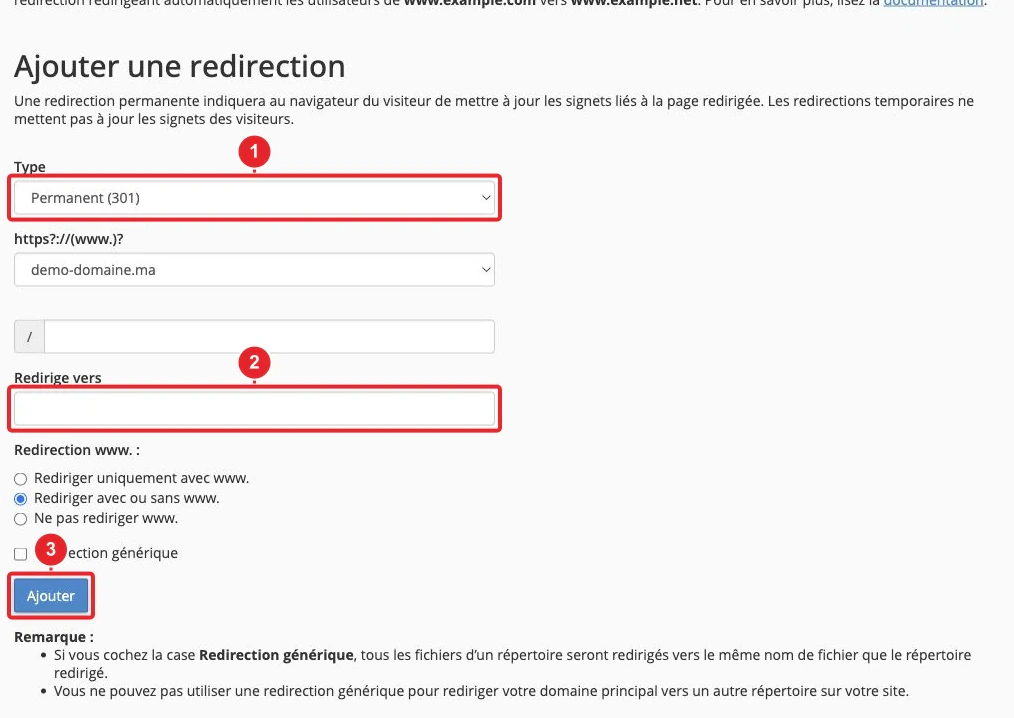
Web redirections configuration page in cPanel. -
Wait for propagation and test — depending on the TTL (Time To Live) of the records, propagation can be almost instantaneous or take up to 48 hours. Simple tests:
- Open the site in a private browser window or from another network (mobile/VPN).
- Test sending and receiving emails (webmail or client) to verify the email service.
- Actions on the new hosting provider’s side — add the domain in their panel (often required to validate the vhost/SSL). If the new provider uses HTTP validation for TLS, wait until the domain points to them before requesting the certificate, or request DNS validation if available.
Advanced approach — transfer DNS management (change the nameservers)
Changing the nameservers means handing the DNS zone over to the new host: it works, but requires copying the entire zone (all records) before proceeding.
-
Export or list all existing records — in the current DNS editor, note precisely:
- The MX records (value and priority).
- The A/AAAA records for
mailmail and other mail-related subdomains (e.g.smtpsmtp, imapimap). - The SPF TXT records, the DKIM keys (TXT) and the DMARC record (TXT).
- SRV, CNAME, or any record required for external services.
-
Recreate these records on the new host — verify accuracy: an error in a DKIM key or a modified SPF record will prevent email delivery.
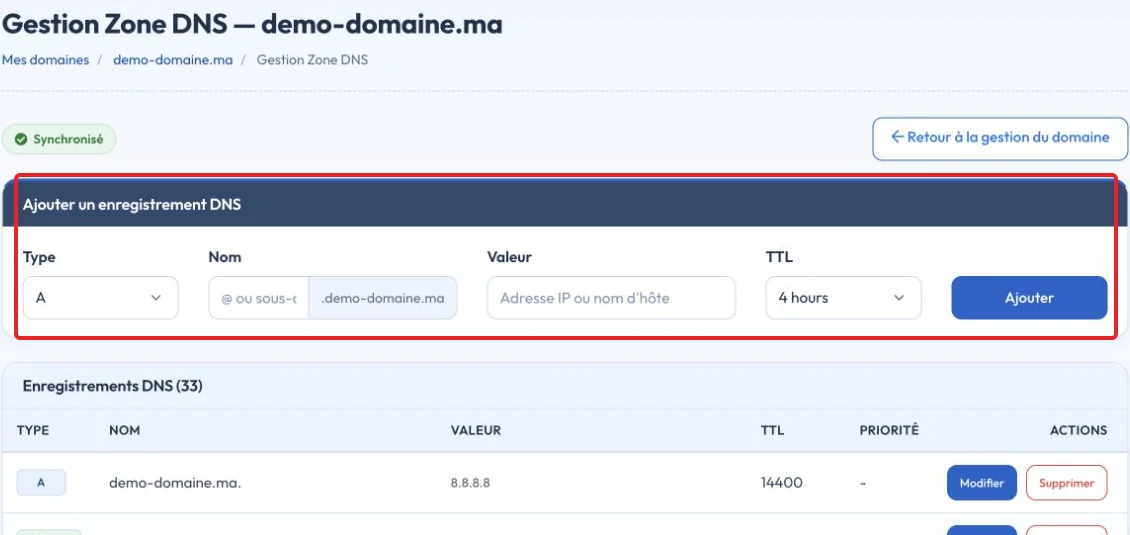
Add a record in the redesigned DNS Zone Management interface - Change the nameservers at the registrar — once the zone is verified on the new DNS, change the nameservers at the domain registrar. Monitor propagation.
-
Test email immediately — if mail stops working after the switch, compare the MX and the TXT (SPF/DKIM) records between the old zone and the new one.
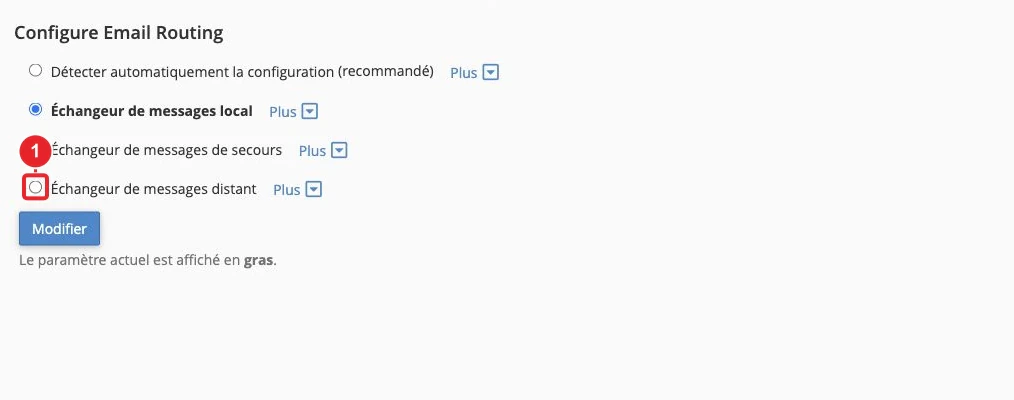
Check email routing in cPanel if mail remains managed on the old server.
Useful checks in cPanel
- Zone Editor (DNS Zone Management): view/edit A, CNAME, MX, TXT.
- Email Deliverability: SPF / DKIM / DMARC diagnostics and instructions to correct the records.
- Email Routing: confirm whether the server handles delivery locally (Local Mail Exchanger) or must send to a remote server (Remote Mail Exchanger).
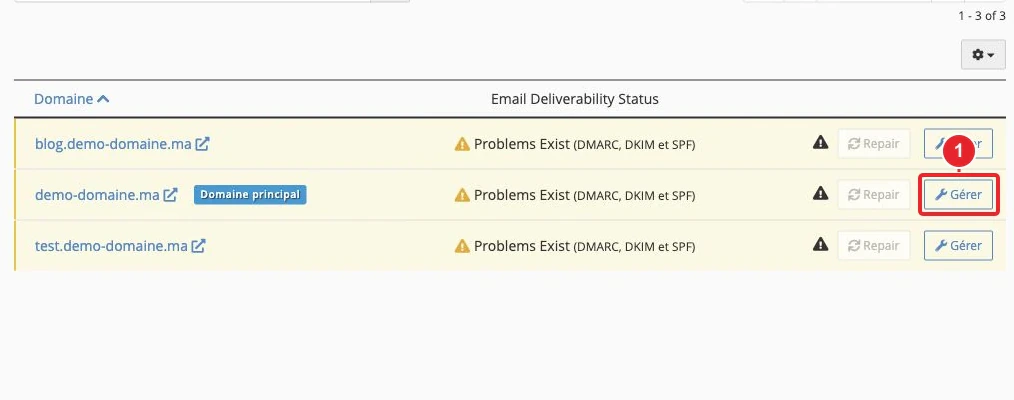
Quick technical points (definitions)
- MX Records that indicate where to deliver email. If you are not moving your email service, do not modify them.
- A / AAAA Point a name to an IPv4/IPv6 address (website, subdomains).
- CNAME Alias of one name to another. Do not create a CNAME at the root (apex) of a domain; some providers offer ALIAS/ANAME to work around this.
- SPF / DKIM / DMARC TXT records that protect deliverability. If you change DNS, copy them exactly.
- TTL (Time To Live): how long a record is cached. Lowering the TTL (e.g. 3600→300) 24 hours before a change speeds propagation, but this depends on resolvers.
- CDN / proxy (e.g. Cloudflare) If you use a service that "proxies" the A record (caches and hides the IP), do not enable the proxy for hosts related to email: MX records must point to direct DNS records (not proxied).
Common pitfalls and limitations
- Changing the nameservers without copying the MX/SPF/DKIM/DMARC causes an immediate interruption of email.
- A CNAME cannot replace an A record at the root; some services require an ALIAS/ANAME (provided by some DNS providers).
- TLS certificates validated by HTTP require the domain to already point to the new host; otherwise use DNS validation if available.
- DNS propagation is not instantaneous: allow time and test from multiple networks if necessary.
Troubleshooting — causes and quick actions
- The site still shows the old content Clear the browser cache, test in private/incognito mode or from another network (mobile). Check the A record in Zone Editor and verify the IP with a DNS diagnostic (for example using an online tool from a different network).
- Unable to send or receive email : ensure the MX records exist and point to the same target/priority as in the previous zone. Also verify that the host named in each MX record has a valid A/AAAA record (if an MX points to a name, that name must resolve).
- SPF/DKIM rejected : copy the TXT values exactly (pay attention to spaces and quotation marks). Use Email Deliverability in cPanel to display common errors.
-
Redirect loop : remove the conflicting redirect in cPanel → Redirects or fix .htaccess; do not redirect the root and
wwwwith contradictory rules. - SSL not issued : if the new host requires HTTP validation, wait until the domain points to their platform or request DNS validation (if supported).
Useful internal links
- Edit the DNS zone in cPanel — cPanel guide for editing DNS records.
- MX records & email routing — explanations and a cPanel screenshot to verify the MX records.
- DNS configuration for Email PRO — record templates if you use our Email PRO service.
When to contact support
If you prefer our team to perform the change, or if email is interrupted after a change, open a ticket from your customer area. Provide:
- The affected domain.
- The actions performed (e.g. 'I replaced the A record for example.com with 198.51.100.12').
- Screenshots of the DNS zone before/after or of the new host's configuration.
See: How to contact support.
Summary: To host your site elsewhere without disrupting email, the safest method is to keep your current DNS management and change only the A/AAAA record (or the CNAME requested for www). wwwDo not touch the MX records until you migrate your email.
Documentation consulted on 16 October 2026. Tools may vary depending on your hosting.