Yes — you can point your domain to Squarespace without transferring the registration: simply edit the DNS zone. This guide explains the steps to follow using cPanel, the precautions (impact on email), and the checks to perform.
Before you begin — prerequisites
- Access to your cPanel account (credentials) for the relevant domain. See: How do I access my cPanel account?.
- Access to the Squarespace admin to retrieve the exact DNS records required by Squarespace (verification string, CNAME target for www
www, and IPv4 addresses for the root). - Verify where the DNS zone is managed: if the domain's nameservers do not point to your hosting, edit the zone at the registrar or at the third‑party DNS provider.
- Backup the current DNS zone (screenshot or export) and note the MX records if you use an external email service. See: MX records and email routing in cPanel.
Quick reminders (terms)
- A record : associates a domain name with an IPv4 address (e.g. 198.185.159.144
198.185.159.144). - CNAME record : makes a name an alias of another hostname (e.g. www → ext‑custom.squarespace.com
www → ext‑custom.squarespace.com). - MX : records that indicate your mail servers — do not modify them if you host your email elsewhere.
- TTL (Time To Live): the length of time a DNS record is cached by resolvers; affects propagation speed.
Step-by-step (recommended method: modify the DNS zone from cPanel)
-
Request the connection of a third‑party domain in Squarespace — In the Squarespace admin, choose the option to connect a third‑party domain. Squarespace will list the DNS records you need to create:
- a verification CNAME (a unique string),
- a CNAME for
wwwpointing to the target specified by Squarespace, - one or more A records for the domain root (examples below).
Important : copy exactly the values shown in your Squarespace interface — do not reuse the example IP addresses without verification.
-
Open the DNS Zone Editor (Zone Editor) in cPanel — Log in to cPanel and click on Zone Editor.
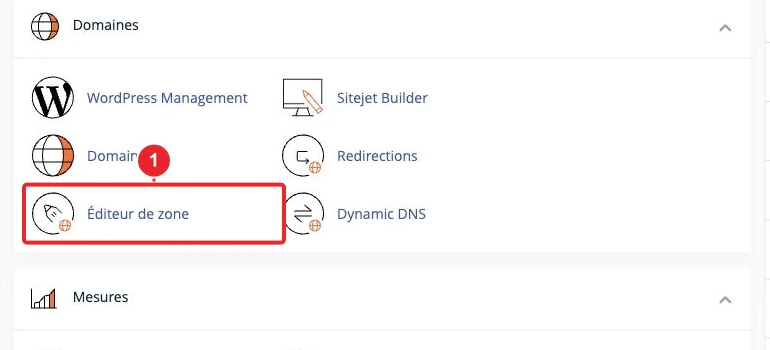
Open Zone Editor in cPanel. -
Choose the domain to modify (if there are multiple domains in the account) then click on Manage to open the list of records.
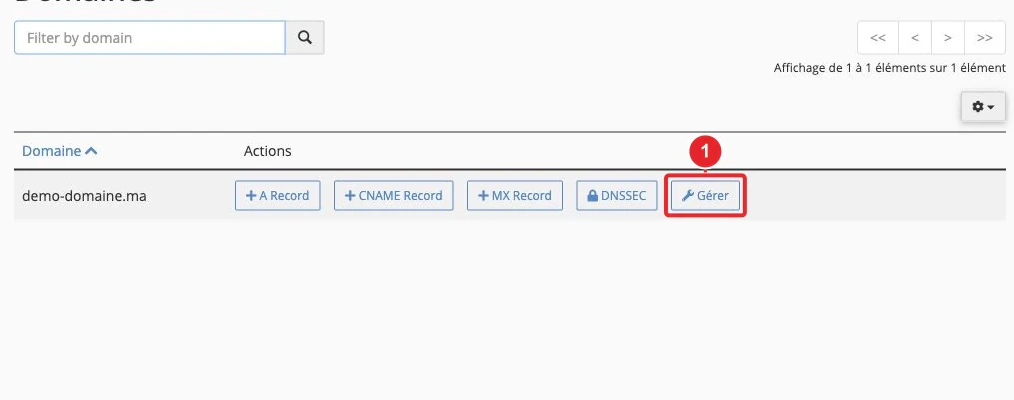
Select the domain in the Zone Editor. -
Add the requested CNAME records :
-
Verification CNAME : create a CNAME record with the name and value provided by Squarespace (the destination value is often
verify.squarespace.comverify.squarespace.com or an identical value provided by Squarespace). -
CNAME for
www: add a CNAME withwwwas the name and the target provided by Squarespace (e.g.ext‑custom.squarespace.com).Warning : if
wwwalready has an A record, remove it before adding the CNAME (you cannot have an A and a CNAME for the same name).
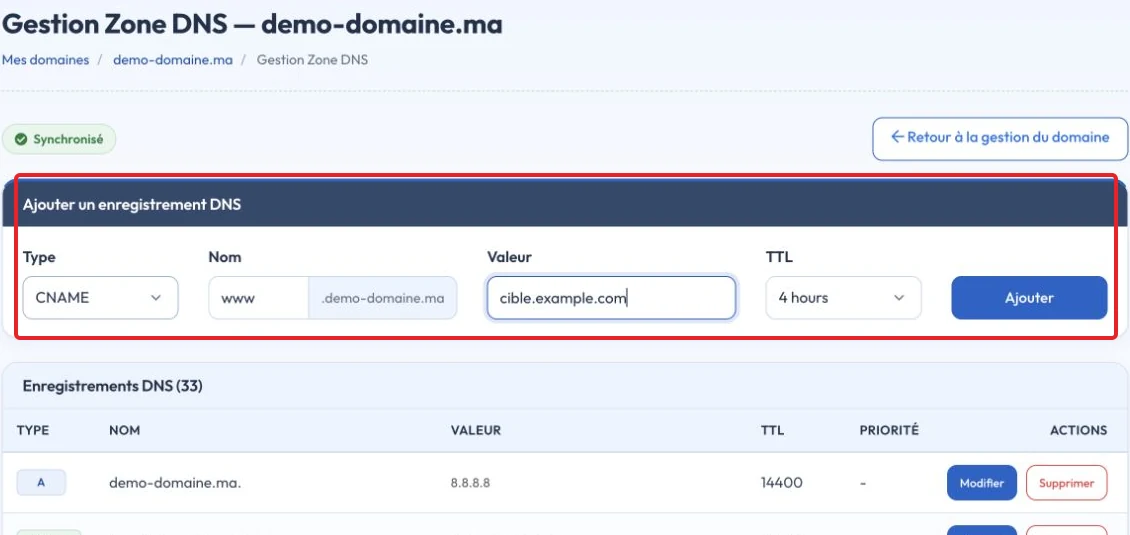
Unsaved example of adding a CNAME record in DNS Zone Management -
Verification CNAME : create a CNAME record with the name and value provided by Squarespace (the destination value is often
-
Add the A records for the root (if Squarespace requests them) : create as many A records as Squarespace specifies. Commonly requested examples:
198.185.159.144
198.185.159.145
198.49.23.144
198.49.23.145
In cPanel, for the field Name use
@, leave it blank depending on the interface, or enter your domain name withoutwww. Always verify the exact values shown in your Squarespace account before saving.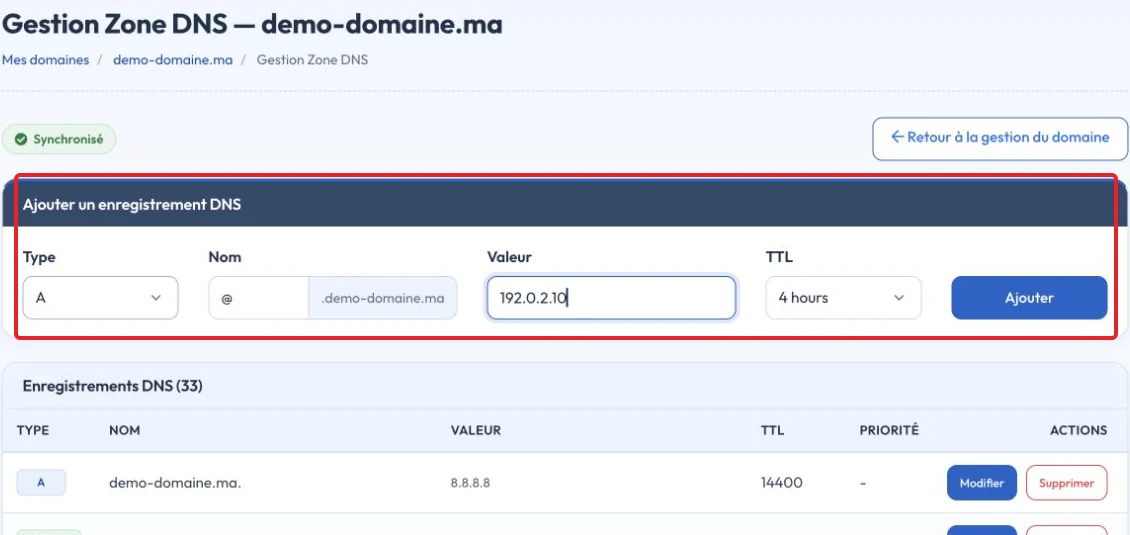
Unsaved example of adding a A record in DNS Zone Management - Save and wait for propagation — DNS changes can propagate in a few minutes but sometimes take up to 24–48 hours depending on the TTL and ISPs' caches. After propagation, return to the Squarespace interface and start the domain verification/connection.
- Check TLS/SSL activation — Squarespace automatically issues an SSL certificate once the records are correct; HTTPS activation can take from a few minutes to a few hours.
If the DNS zone is managed elsewhere (registrar or DNS provider)
If the domain's nameservers do not point to your cPanel hosting, apply exactly the same changes (CNAME/A) from the registrar's or third‑party DNS provider's DNS panel. If you use a third‑party service that proxies/accelerates DNS (CDN/proxy), temporarily disable the proxy so the records are visible during verification.
Important precautions
- Do not delete or modify MX records if you use an external email service (Gmail, Exchange, Email PRO, etc.). Back them up before making any changes.
- Do not create an A record and a CNAME for the same name (technical conflict).
- Squarespace IP addresses can change: always copy the values shown in your Squarespace account at the time of configuration.
- Keep a copy (export or screenshot) of the DNS zone before making changes so you can revert quickly.
Checks and tests
- Online tools: use a DNS checker (A/CNAME lookup) if you prefer a graphical interface.
- Command line (for advanced users):
dig +short example.com A

dig +short www.example.com CNAME
These commands query public DNS servers directly. - After propagation, Squarespace should confirm the connection and automatically enable HTTPS.
Troubleshooting — common situations and actions
- Squarespace reports 'incorrect records' : check for typing errors and verify the presence of the verification CNAME and the CNAME for www
www, as well as the A records for the root. Remove any conflicting record (A/AAAA onwwwwww). - The site works on www
wwwbut not on example.comexample.com: check that the A records (for the root) exist and point to the IPs provided by Squarespace. - The SSL certificate does not appear : wait for full DNS propagation, then an additional 1–2 hours for Squarespace to create the certificate.
- Emails are no longer received : restore your MX records immediately from the backup and contact support if necessary.
- Unable to add a CNAME for www
www: locate and delete the existing A/AAAA record for www first.www(see the record management interface in cPanel to Edit or Delete). - I cannot modify the zone in cPanel : the domain may not be added to your cPanel account, or DNS management may be centralized in the client area. See: How to add a domain name to my cPanel Web Hosting package? or modify the zone from your client area if DNS management is available there.

Final checklist
- You have created the verification CNAME and the CNAME
www(without typos). - You have added the A records for the root, if requested.
- MX records remain unchanged if you use an external mail service.
- You have waited for DNS propagation (up to 48 hours) and verified the connection in Squarespace.
Useful internal links
- How to modify my domain's DNS zone on cPanel (Zone Editor and adding records).
- How to access my cPanel account? (login and access to tools).
- MX records configuration and email routing (if you host your email on this domain).
Need help? If you'd like us to review or apply the changes for you, open a support ticket and include the domain name and the exact DNS records provided by Squarespace.
Documentation consulted on October 17, 2026. Tools may vary depending on your hosting.