Introduction — direct answer
In short: to have private nameservers (for example ns1.votredomaine.tld ns1.votredomaine.tld and ns2.votredomaine.tld ns2.votredomaine.tld), first create the A/AAAA records in the domain's DNS zone, then register these "hosts" with the registrar (an operation commonly called "register nameserver", "create host" or creating Glue Records). Glue Records are published by the parent zone (the registrar/TLD) and prevent a resolution loop when the nameserver belongs to the same domain.
Before you begin — prerequisites
- A registered domain name and access to the registrar's control panel (or contact with the person who manages the domain).
- At least one static public IPv4 address (two addresses recommended for resilience). IPv6 is optional: if you use it, also create an AAAA record.
- Access to the domain's DNS management: either via cPanel (Zone Editor) or via the registrar's interface if the zone is managed there.
- If you host your own DNS server (VPS/dedicated): access to WHM to verify that the nameserver service is listening and that the A records are present on the server.
- Verification tools (e.g. access to a terminal to run
digdig or an online utility).
Terminology note: a Glue Record is an A/AAAA record placed in the parent zone (e.g. the TLD zone) that associates a nameserver name with an IP. Without glue, a resolver could not find the IP of a nameserver defined under the same domain it must delegate.
Overview (in 4 steps)
- Choose the prefixes (e.g. ns1
ns1, ns2ns2) and prepare the public IPs. - Add A records (and AAAA if needed) to the domain's DNS zone (via cPanel Zone Editor or the registrar's DNS management).
- Register these hosts with the registrar (operation "register nameserver" / "create host"): this creates the Glue Records on the parent side.
- Change the domain's nameservers to use your new nameservers and verify propagation.
Step 1 — choose the names and prepare the IPs
- Recommended prefixes: ns1
ns1and ns2ns2(or ns1/ns2ns1/ns2followed by a number if you have multiple IPs). - Ensure that the IP addresses are public and stable (avoid dynamic IPs provided by consumer‑grade home routers).
- Note: it is possible to use the same IP for
ns1andns2, but this reduces fault tolerance.
Step 2 — add A/AAAA records in cPanel (domain's DNS zone)
If the domain's DNS zone is managed in cPanel, follow these steps:
- Log in to your cPanel account.
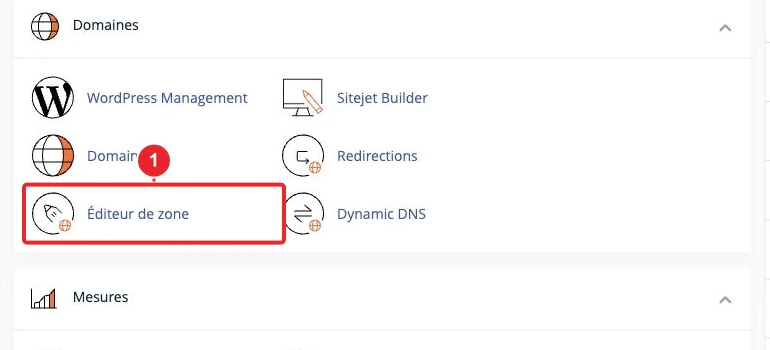
Open the Zone Editor (Domains → Zone Editor) in cPanel. - In the Zone Editor, click Manage for the relevant domain.
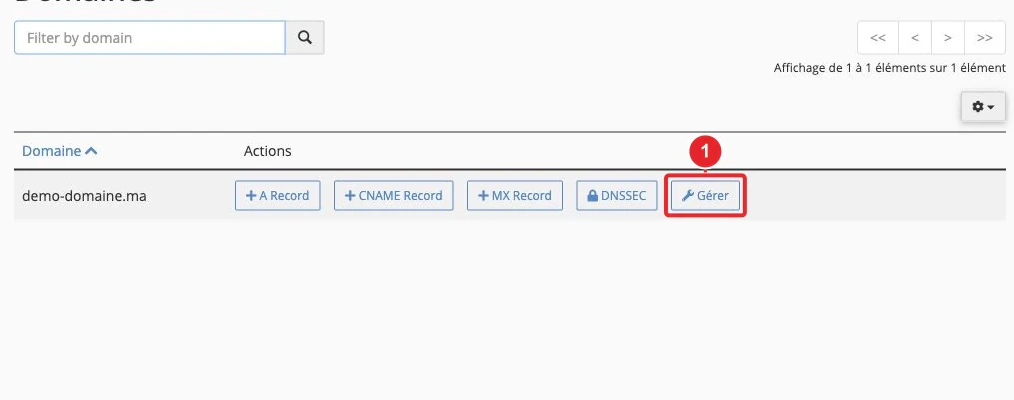
Select Manage for the domain's zone. - Add an entry of type A for
ns1.votredomaine.tld→ IPv4 address (e.g.203.0.113.10). Repeat forns2If you have IPv6, also create AAAA.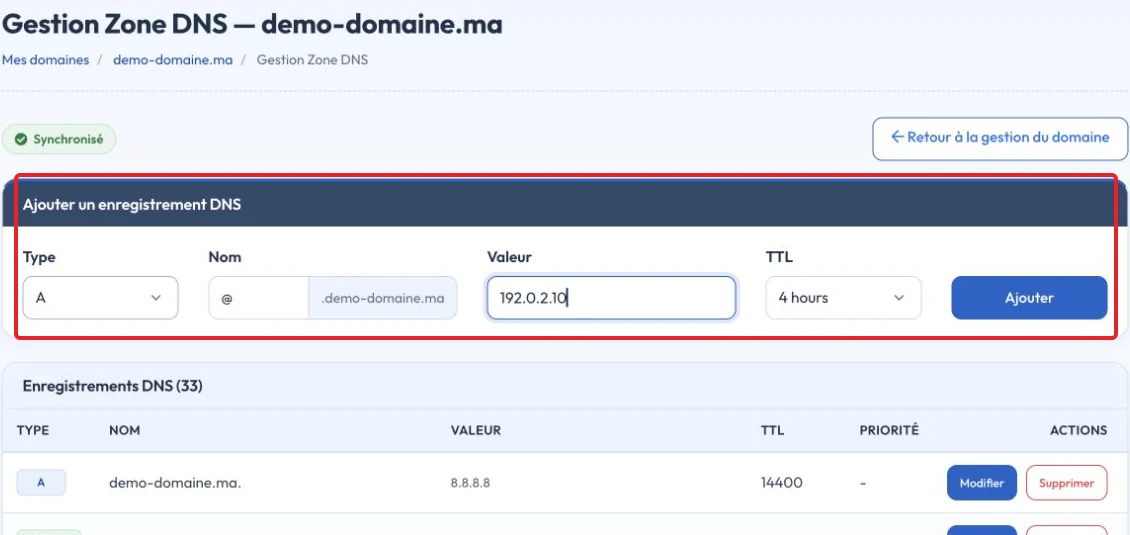
Unsaved example of adding a A record in DNS Zone Management - Verify that the record list correctly shows
ns1.votredomaine.tldandns2.votredomaine.tldpointing to the correct IPs.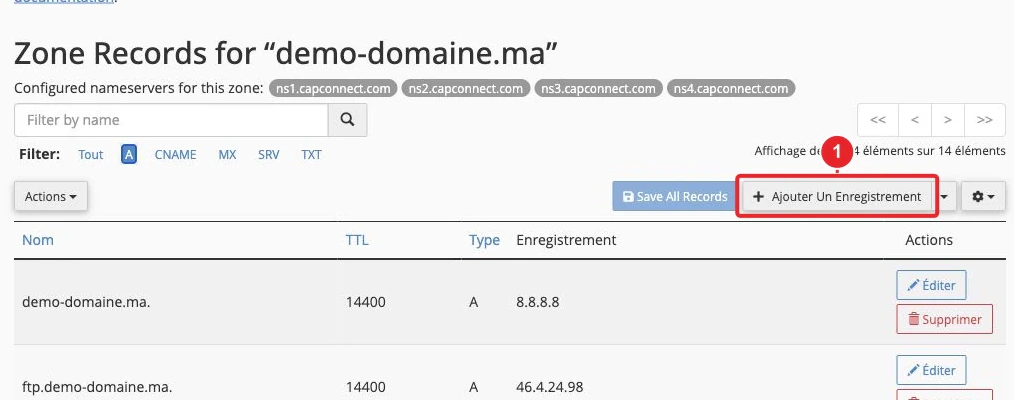
Verify the presence of the A records created for the nameservers.
If your provider has disabled zone management in cPanel, create the same records directly in the registrar's interface (see the next step) or ask your hosting support.
Step 3 — register the nameservers (create the Glue Records) at the registrar
Creating Glue Records is done at the registrar (it's the parent zone of the TLD). Menus are often called "Register nameserver", "Create host", "Host records", "Child name servers" or equivalent. This step is distinct from changing the domain's nameservers.
- Log in to your registrar's management interface for
votredomaine.tld. - Look for the option "Register nameserver / Create host / Create child name server". If you can't find it, contact the registrar's support and provide the names (
ns1.votredomaine.tld,ns2.votredomaine.tldand the corresponding IPs. - For each nameserver, create the entry: name =
ns1(orns1.votredomaine.tlddepending on the UI) → IP = IPv4 address (and AAAA if applicable). Save. - The registrar will then publish these addresses in the parent zone: these are the Glue Records.
Important: Glue creation is done at the registrar. Adding an A record in your zone does not automatically register the Glue at the TLD level.
Step 4 — select your new nameservers for the domain
- In the registrar interface, change the domain's nameservers to
ns1.votredomaine.tldandns2.votredomaine.tld(or the names you chose). - Save; wait for DNS propagation. Changes may be visible within minutes, but plan for 24–48 hours (depending on the TLD and DNS caches).
Dedicated server / VPS option — recommended WHM actions
If you manage the server (VPS/dedicated) with WHM:
- WHM → Basic WebHost Manager Setup : enter the server's default nameservers.
- WHM → DNS Functions → Add an A Entry for Your Hostname or use the DNS Zone Manager to ensure the master zone contains the A entries for
ns1andns2The DNS server must respond to queries to be considered authoritative. - Verify that the name service (e.g., the selected nameserver service) is running and that the firewall allows traffic on port 53 (UDP and TCP).
Verify that everything is working
Useful checks from a terminal:
dig NS votredomaine.tld +short
dig A ns1.votredomaine.tld +short
dig @a.gtld-servers.net votredomaine.tld NS +short
Expected results:
dig NSshould return your nameservers (e.g.ns1.votredomaine.tld.andns2.votredomaine.tld.).dig A ns1.votredomaine.tldmust return the IP address published as the Glue at the registrar and match the A record in your zone. If these IPs differ, the delegation will fail.
Troubleshooting — common problems and solutions
I cannot find the option to register hosts (Glue) with my registrar
- Some registrars call the feature differently or do not provide a public interface. Contact their support and ask them to create the hosts, providing the names and IPs.
- Some TLDs impose specific rules (e.g., restrictions or a required form). Check with the registrar.
External resolvers do not see my new nameservers
- Be patient: typical propagation is 24–48 hours depending on DNS caches.
- Check consistency: the IP registered at the registrar (Glue) must be identical to the A record in the master zone. If they differ, delegation will be problematic.
Definition: 'lame' delegation
A delegation is called 'lame' when the parent zone lists nameservers that, when queried, are not configured as authoritative for the domain or do not respond. Common causes: missing A record on the server side, nameserver not running, firewall blocking port 53, or DNS service misconfiguration.
DNSSEC
- If DNSSEC is enabled, any change to the nameservers or keys may require updating the DS records at the registrar. Verify signature consistency to avoid interruptions.
My website or incoming email (MX) stopped working after the change
- If you transferred DNS management to a new server/zone, make sure you have recreated all necessary records: A (site), MX (mail), SPF/DKIM/DMARC, CNAME, etc. Import a copy of the old zone if possible.
Quick checklist (before publishing the nameservers)
- A/AAAA records added in the domain zone (cPanel Zone Editor or registrar).
- Hosts (Glue Records) created at the registrar and exactly matching the A/AAAA records in the zone.
- Domain nameservers updated to point to your
ns1ns1 / ns2ns2. - Verification:
dig NSdig NS, dig Adig Aand check authoritative responses.
Internal resources
- How do I manage the DNS zone for my domain?
- How do I change the nameservers for my domain?
- How do I access my cPanel account?
If you prefer our support to register the hosts (Glue) for you, open a ticket from your client area and attach the host names and their IPs. If you are unsure of the registrar’s procedure, explicitly ask them to create “child name servers” / “register nameserver”.
Last updated: October 17, 2026.
Official sources
- How to Set Up Nameservers in a cPanel & WHM Environment — cPanel Documentation
- Zone Editor — cPanel Documentation
- RFC 9471 — DNS Glue Requirements in Referral Responses
Reference documentation
- How to Set Up Nameservers in a cPanel & WHM Environment — cPanel & WHM Documentation
- Zone Editor — cPanel & WHM Documentation
- RFC 9471 — DNS Glue Requirements in Referral Responses
Documentation consulted on October 17, 2026. Tools may vary depending on your hosting.