Introduction
Messages such as 'Connection timed out after 20 seconds of inactivity', 'MLSD Error: Connection timed out' or '425 Can't open data connection' indicate that FileZilla was unable to establish (or maintain) the control connection or the data connection. Common causes include incorrect credentials or protocol, a misconfigured active/passive mode, passive ports not open on the server, or blocking by a firewall/NAT. This guide provides a simple checklist, precise FileZilla settings, and the list of items to provide to support if necessary.
Prerequisites
- Access to your cPanel to verify or recreate the FTP account: How to access my cPanel account?.
- A valid FTP account (username, password, host) — if you need to create one, follow: How to create an FTP account.
- FileZilla installed (recent version recommended) on your computer.
- If you are behind a router/modem: be able to access its settings or contact your network administrator (NAT/firewall can block FTP data connections).
Quick checks (diagnosis — 2 minutes)
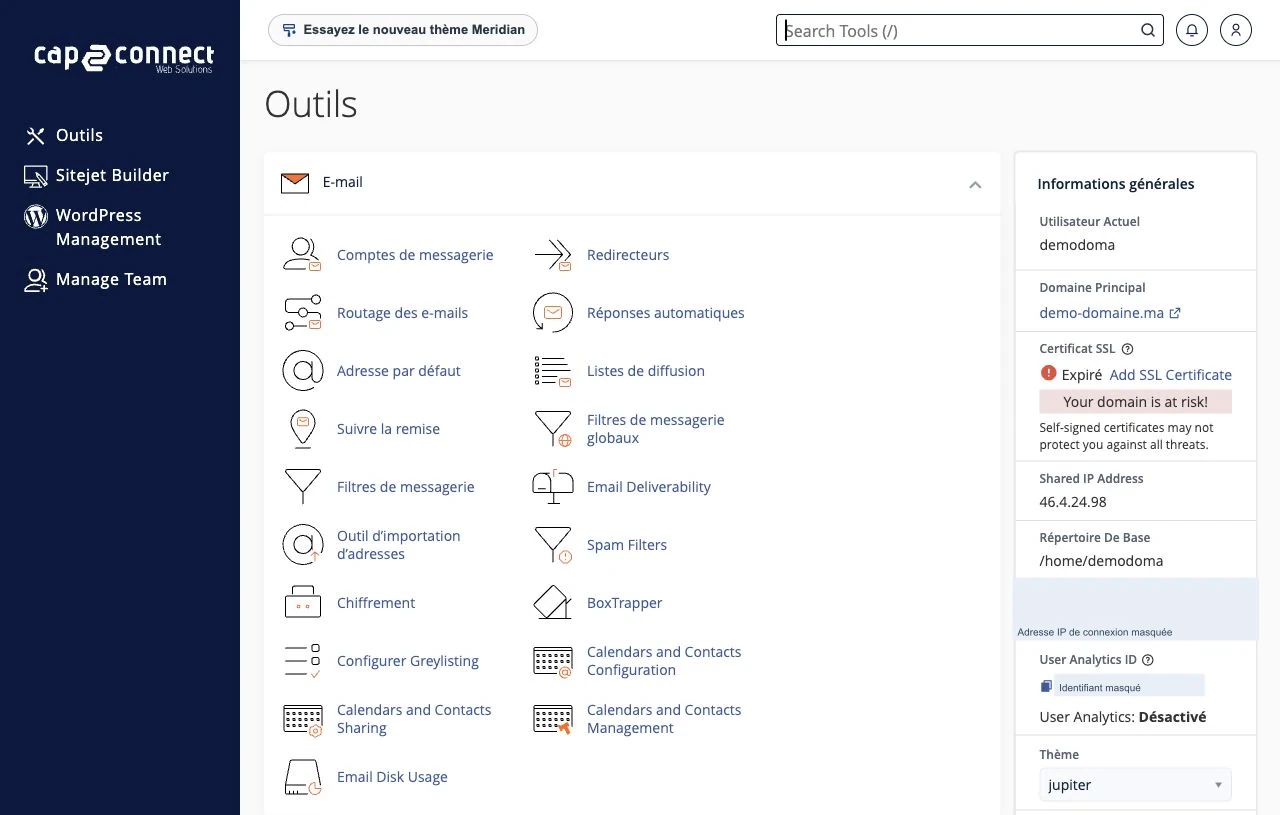
- Copy the host, username and port from cPanel → Files → FTP Accounts → Configure FTP Client → 'Manual Settings' to avoid typing errors (see Official Resources).
- Try SFTP (port 22) if your hosting provider offers it — SFTP uses SSH and often works when FTP/FTPS fails.
- If the connection establishes but the directory listing fails (MLSD/Listing): set FileZilla to passive mode and contact support to verify the server's passive port range.
- If the message specifies a timeout (20 s, 30 s…): increase the timeout in FileZilla (see FileZilla Settings).
Step-by-step procedure (recommended order)
-
Verify and copy the server-side settings (cPanel)
- Open cPanel → Files → FTP Accounts then click Configure FTP Client to display the 'Manual Settings'. Copy Host, Port and the protocol recommended by the server.
-
Set up the site in FileZilla (Site Manager)
- Open FileZilla → File → Site Manager (or Ctrl+S) → New Site.
- Enter:
- Host : paste the host provided by cPanel (domain or server).
- Port : 22 for SFTP; 21 for FTP or explicit FTPS (unless your provider specifies otherwise).
- Protocol : prefer SFTP — SSH File Transfer Protocol if the server supports it. Otherwise choose FTP and, for Encryption, select 'explicit FTP over TLS' / explicit FTPS if recommended.
- Logon Type : Normal → Username and Password (or the option provided by your hosting provider).
- Tab Transfer Settings → select Passive (recommended mode if you are behind a router/NAT). Save and test the connection.
-
Increase the timeout and enable keep‑alive on the client side.
- FileZilla → Edit → Settings → Connection → increase the Timeout to 60–120 s (or more depending on latency).
- If available, enable the option to send periodic 'keep‑alive' commands (preserves the control connection during long operations).
-
If the file listing fails (MLSD / data connection error)
- Make sure FileZilla is set to Passive and ask support to open the passive port range on the server side (see Official Resources). Without these ports open, the data connection cannot be established.
- Tell support if your server is behind a NAT: the FTP server must return its public IP (parameter 'MasqueradeAddress' or equivalent) so the client can reach the data connection.
-
If FTPS fails (TLS / certificate)
- Verify that you are using the exact host provided by cPanel (using an IP can cause TLS errors if the certificate is issued for a hostname).
- If explicit FTPS (AUTH TLS on port 21) does not work, try SFTP (port 22) if allowed by your hosting provider.
-
Workaround
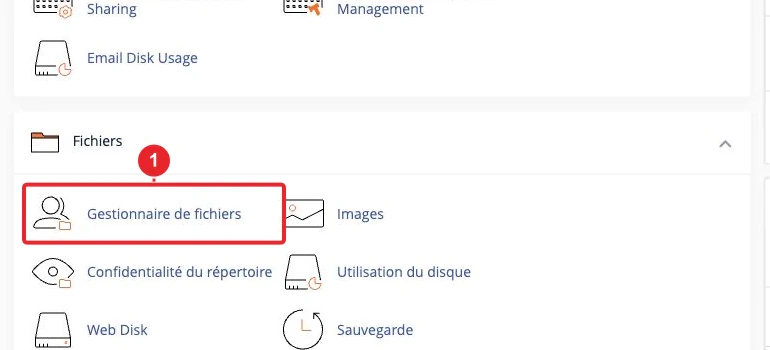
- If FTP access is disabled by the hosting provider or cannot be stabilized, use the File Manager in cPanel to upload your files: How to add files to my web hosting space on cPanel?.
Detailed checklist for FileZilla (recap to follow)
- File → Site Manager → New Site: Host (paste from cPanel), Port (22 for SFTP, 21 for FTP), Protocol (SFTP if possible), Encryption (explicit FTPS if using FTP).
- Logon Type = Normal → Username / Password (paste from cPanel → Configure FTP Client → Manual Settings).
- Transfer Settings → Transfer mode = Passive.
- Edit → Settings → Connection → Timeout = 60–120 s; enable keep‑alive if necessary.
Technical explanation (brief)
FTP uses two channels: a command (control) connection and, for directory and file transfers, a data connection. In active mode the server opens the data connection to the client (often blocked by a NAT/firewall). passive mode the server opens a port in a passive port range and the client connects to that port: this is the recommended configuration for clients behind a router. If that range is not open in the server's firewall, the data connection will fail.
Common errors and recommended actions
- Connection timed out after XX seconds of inactivity — increase the timeout in FileZilla; check network latency; switch to passive mode if necessary.
- MLSD Error / Could not read the contents of the folder — data connection problem (PASV): enable passive mode and ask support to open the passive port range on the server.
- 425 Can't open data connection — passive ports closed or MasqueradeAddress not configured; ask support to open the range and check the NAT configuration.
- ECONNREFUSED / Connection refused — incorrect port (check 21/22), the FTP/SFTP service is not listening, or the firewall is blocking the connection.
- TLS failure / certificate problem — use the exact host indicated by cPanel (avoid using an IP if the certificate is for a domain name) or switch to SFTP if possible.
What to provide to support if the error persists
- Exact time of the attempt (including time zone), the host tested (name or IP), and the FTP username.
- Complete FileZilla log: open the message log pane, copy its contents and paste them into the support ticket.
- Screenshot of the Site Manager settings (Host, Protocol, Port, Transfer settings).
- State whether SFTP (port 22) works; if possible, attach the result of a basic network test (for example, a connection check to port 21/22 from your machine) and indicate whether you are behind a NAT/router (box).
Limitations and notes
- Some shared hosting providers disable FTP (or restrict the passive port range) for security reasons: in that case access is provided only via SFTP or through the cPanel File Manager.
- The passive port range depends on the server configuration (e.g., 49152–65534 is a common range); do not change any server settings without the support team's approval.
- Never share passwords or access tokens in a ticket: provide only the items listed above.
Official resources (recommended reading)
- How to Enable FTP Passive Mode — cPanel Documentation (opens in a new tab).
- FTP Accounts — cPanel Documentation (manual settings for the FTP client).
- RFC 959 — File Transfer Protocol (specification of the FTP protocol).
If you wish, we can check your Site Manager settings and the FileZilla log: attach a screenshot of the relevant settings area and the complete log to the support ticket.
Reference documentation
- How to Enable FTP Passive Mode — cPanel Documentation
- FTP Accounts — cPanel Documentation
Documentation consulted on October 17, 2026. Tools may vary depending on your hosting.