Introduction
This guide describes a reliable method to deploy a Laravel application on shared hosting running cPanel. It covers local preparation, uploading (File Manager or Git/SSH), managing the Document Root so that only the public/ directory is served public/, creating the database, running Artisan/Composer commands and setting up the scheduler. If your plan does not provide access to the Terminal/SSH, alternatives are provided.
Before you begin — prerequisites
- Access to the account’s cPanel.
- PHP version required by the Laravel release you are using — check the official Laravel documentation. (E.g.: Laravel 10 requires PHP ≥ 8.1.)
- Common PHP extensions required by Laravel: OpenSSL, PDO, Mbstring, Tokenizer, Ctype, JSON, BCMath, Fileinfo, XML, ZIP — check and enable them if necessary.
- Composer available on the server OR the ability to run Composer locally and then upload the vendor/ directory
vendor/. - Access to the MySQL Databases tool in cPanel to create the database and the user.
- Ability to modify the Document Root (domain/subdomain root) to point it to /.../projet/public
/.../projet/public, or the ability to copy/adapt the contents of public/public/into public_htmlpublic_html. - Access to the Terminal/SSH (recommended) or the ability to use cPanel’s Git Version Control tool.
- Prepare a .env file
.envfor production:APP_ENV=productionAPP_ENV=production,APP_DEBUG=falseAPP_DEBUG=false,APP_KEYAPP_KEY, and DB settings. - Sufficient disk quota and PHP limits (memory_limit, max_execution_time) to install dependencies and run tasks.
Summary of the method
- Prepare the production version locally (dependencies, APP_KEY, build the assets).
- Upload the project to the server (File Manager or Git/SSH).
- Point the domain/subdomain to
/chemin/vers/projet/publicor adaptpublic/index.phpif the root cannot be changed. - Create the MySQL database and update
.env. - Run the migrations, set permissions and configure the scheduler (cron).
Detailed steps
1) Prepare your project locally
On your development machine:
- Install dependencies in production mode:
composer install --no-dev --optimize-autoloader - Generate the application key and copy it into
.env:php artisan key:generate --show - Build the assets (Vite / Mix) according to the project:
npm ci npm run build - Remove unnecessary files (e.g.
node_modules/) before archiving if you use ZIP upload.
Tip: if your hosting does not provide Composer, run composer install locally then upload the folder vendor/. It's less convenient for updates but functional.
2) Choose the server-side structure (Document Root)
Two strategies:
A — Clean method (recommended when possible)
Create a folder for your project (e.g. /home/username/monprojet) and point the domain or subdomain root directly to /home/username/monprojet/public. This avoids exposing application files.
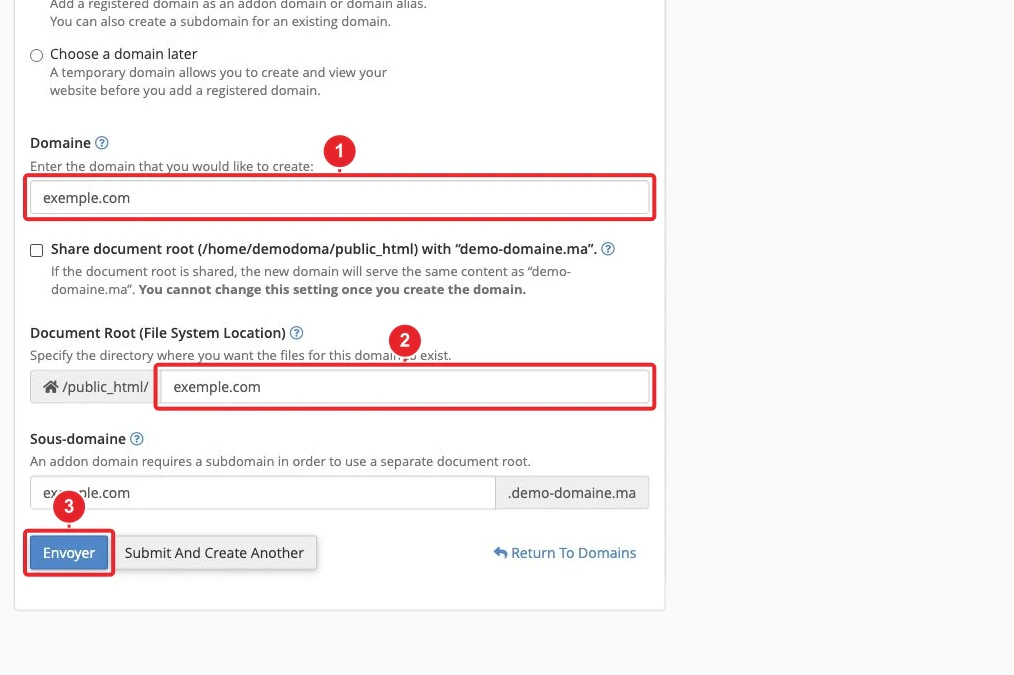
Example: in cPanel, choose a distinct document root for an addon domain or a subdomain, then place your files in that folder.
If you need help creating a subdomain or changing the document root, see: How to add a subdomain in cPanel.
B — If you cannot change the document root
Copy the contents of public/ public/ into public_html/ public_html/ and modify the paths in index.php index.php to point to the application folder located outside of public_html. public_htmlExample (placeholders):
// public_html/index.php (exemple si le projet est dans ../monprojet)
require __DIR__ . '/../monprojet/vendor/autoload.php';
$app = require_once __DIR__ . '/../monprojet/bootstrap/app.php';
Important — protect the .env file: .env it must remain outside of public_html. public_htmlTo prevent direct access to the file, add, if necessary, an Apache rule:
<Files ".env">
    Require all denied
</Files>
(on very old servers: use Deny from all Deny from all according to the Apache configuration.)
3) Upload the files
Option A — File Manager
Create a ZIP archive of the project (without node_modules/), then: node_modules/cPanel → File Manager → navigate to the destination folder and Upload → Extract.
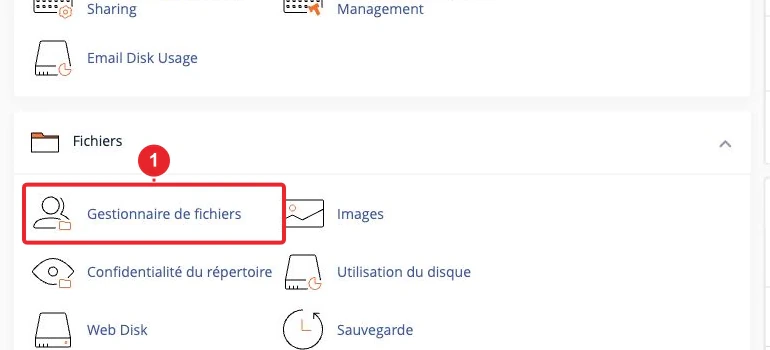
Upload and extract a ZIP archive via the File Manager.
Option B — SSH / Git (recommended if available)
If your plan offers SSH or the cPanel Terminal, clone your repository and use Composer on the server:
git clone git@repo.exemple:monprojet.git /home/username/monprojet
cd /home/username/monprojet
composer install --no-dev --optimize-autoloader
npm ci && npm run build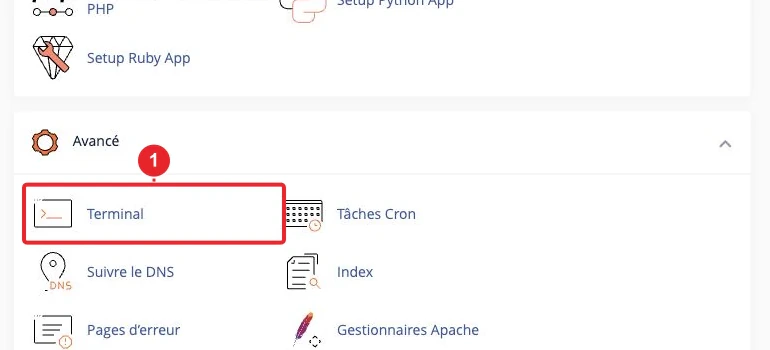
Integrated Terminal: available only if your hosting provider has enabled it. If you prefer Git via the interface, see Manage Git repositories in cPanel.
4) Create the database and configure .env
In cPanel → MySQL Databases : create the database, create the user and Add User To Database (ALL privileges). Note the full names (cPanel prefix) and the password.
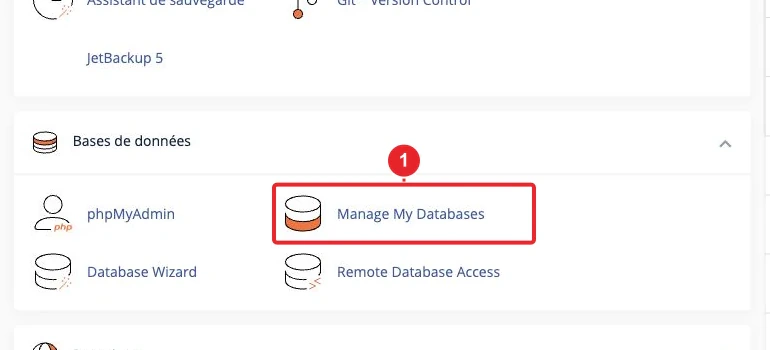
Create a MySQL database and user from the cPanel interface.
Edit the file .env (at the project root, outside of public_html)
DB_CONNECTION=mysql
DB_HOST=127.0.0.1
DB_PORT=3306
DB_DATABASE=nom_de_votre_base
DB_USERNAME=nom_utilisateur
DB_PASSWORD=mot_de_passe
APP_ENV=production
APP_DEBUG=false
APP_KEY=base64:...
5) Run the migrations and optimize
If you have SSH/Terminal, run from the project root:
composer install --no-dev --optimize-autoloader
php artisan migrate --force
php artisan config:cache
php artisan route:cache
php artisan view:cache
If you don't have SSH:
- Run
composer installlocally and upload the foldervendor/. - To run Artisan commands occasionally without SSH, you can create a small PHP script that executes the command on the server — this is a last‑resort, temporary measure: delete the script immediately after use and restrict access to it.
6) Permissions
The following directories must be writable by PHP: storage storage and bootstrap/cachebootstrap/cache. Via Terminal:
chmod -R 775 storage bootstrap/cache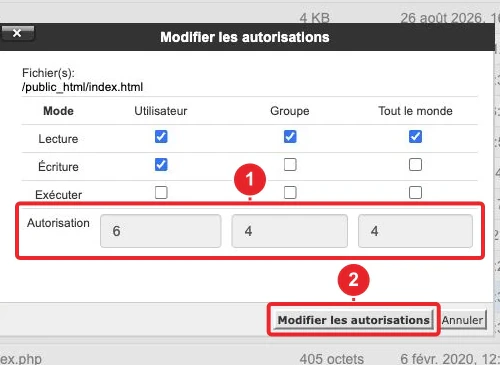
7) Configure the PHP version and limits
In cPanel → MultiPHP Manager (or PHP Selector), set the PHP version required by your Laravel installation (e.g. PHP 8.1+ for Laravel 10). If needed, adjust memory_limit memory_limit and max_execution_time max_execution_time via the MultiPHP INI Editor.
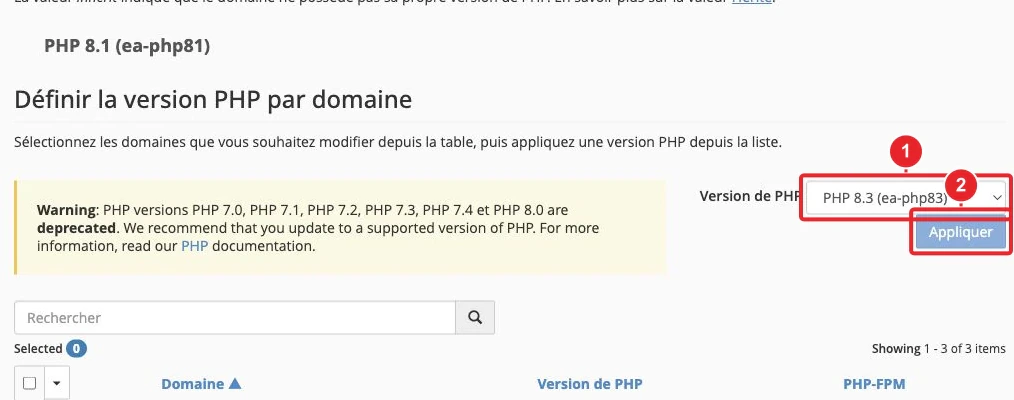
Choose the appropriate PHP version and, if needed, modify the options in the INI editor.
Also verify that the extensions listed at the beginning of this guide are enabled. For instructions on changing the PHP version: How to change the PHP version and extensions on my cPanel hosting?
8) Scheduler and scheduled tasks (cron)
To run the Laravel scheduler, create a cron job (cPanel → Cron Jobs) that runs php artisan schedule:run every minute:
* * * * * /usr/bin/php /home/username/chemin/vers/projet/artisan schedule:run >> /dev/null 2>&1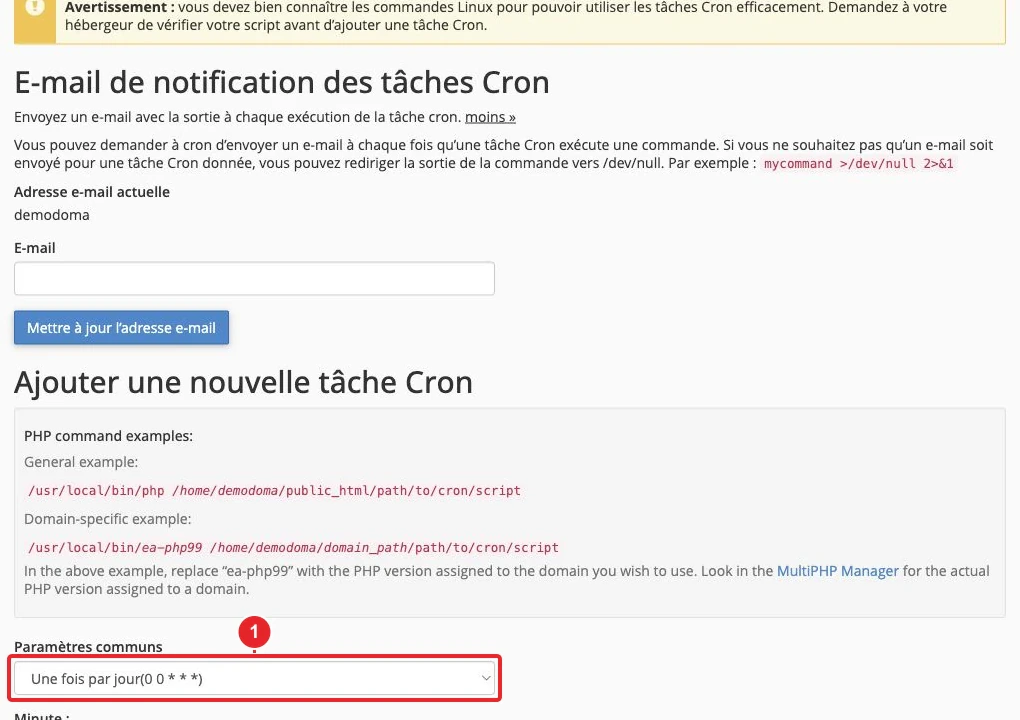
Create a cron job to run the Laravel scheduler.
Queue tip: on shared hosting, Supervisor (a persistent process) is often not available. An alternative is to run the queue regularly via cron:
* * * * * /usr/bin/php /home/username/chemin/vers/projet/artisan queue:work --once --tries=3 >> /dev/null 2>&1This starts a worker that processes jobs and then exits; suitable if the job volume is low.
Final checks
- Visit your domain: the Laravel home page should confirm that the deployment is working.
- Error 500: first check storage/logs/laravel.log.
storage/logs/laravel.logThen check the cPanel error logs (Errors / Raw Access). See: How to view my site's access logs in cPanel? - PHP code displayed instead of the page: the server is not executing PHP for this Document Root — check the PHP version/handler and the Document Root.
- If the database connection fails: check the database and username prefixes (cPanel often adds a prefix).
Common limitations on shared hosting
- No (or few) persistent processes: Supervisor and long‑running workers are generally unavailable.
- WebSockets and real‑time services are rarely supported on shared hosting.
- Limited CPU/RAM resources: monitor usage and optimize caches and asset compilation.
- Root access and server configuration are restricted — for advanced needs (dedicated Redis, intensive queues, WebSockets), a VPS or a managed solution is preferable.
Quick troubleshooting
Error 500: check storage/logs/laravel.log.storage/logs/laravel.logCheck permissions (storage, bootstrap/cache), PHP version and missing extensions.
Composer missing
Run Composer locally then upload the vendor/ directory. vendor/Or ask support to enable Composer/Terminal for your account.
404 page / wrong content
Check the Document Root of the domain/subdomain and ensure it points to /.../public /.../public or that public_html/index.php public_html/index.php correctly references the autoload and the bootstrap.
Missing APP_KEY
Generate the key locally (php artisan key:generate --show)php artisan key:generate --showand place it in your .env file .env as APP_KEY=base64:...APP_KEY=base64:...
Useful internal links
- How to add files to my web hosting space on cPanel?
- How do I create a MySQL database in cPanel?
- How do I manage Git repositories in cPanel?
- How do I create a cron job in cPanel?
- cPanel: How do I change file and directory permissions?
- How do I change the PHP version and extensions on my cPanel hosting?
- How do I view my site's access logs in cPanel?
Summary
Deploying a Laravel application on cPanel shared hosting is possible by following a few rules: serve only the public/ directory public/, check the PHP version and extensions, install dependencies (Composer) and protect the .env file .env. SSH/Terminal access and the ability to change the Document Root greatly simplify the operation. For needs requiring persistent processes (workers, WebSockets), consider a VPS or a managed plan.
Sources: official Laravel documentation for the system requirements (see “Sources” below) and cPanel documentation/KB for the referenced tools.
Reference documentation
- MultiPHP Manager for cPanel — cPanel & WHM Documentation
- File Manager — cPanel & WHM Documentation
- MySQL® Databases — cPanel & WHM Documentation
Documentation consulted on October 28, 2026. Tools may vary depending on your hosting.