To view your site's access logs, open Raw Access in cPanel and download the log for the relevant domain. These files let you read requested URLs, IP addresses and HTTP status codes; they complement the error logs and statistics.
Step 1: open Raw Access
- Log in to your cPanel account.
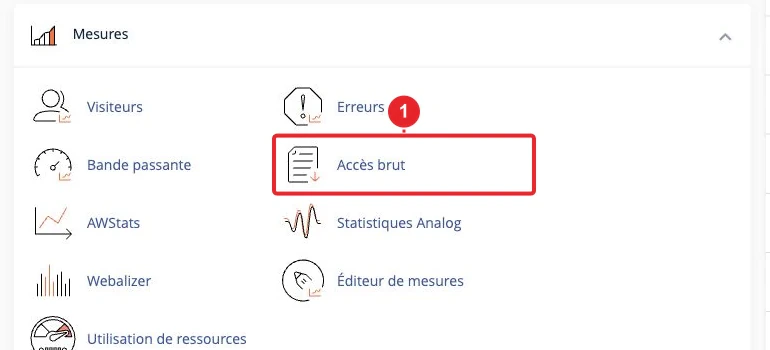
- In Metrics, open Raw Access.
- Find the relevant domain and the last updated date of its log.
Step 2: download and read the file
Click the domain link or the offered download icon. The log is usually provided inside an archive .gz. Decompress it on your computer with a compatible tool, then open the text file with an editor suitable for its size.
When the interface shows several logs, check which one corresponds to the HTTP or HTTPS accesses you are looking for. An empty file may simply cover a period with no recorded requests; check its date and domain before concluding there was an outage.
Understanding a log line
Here is a fictional example in a common format:
192.0.2.10 - - [13/Oct/2026:10:15:00 +0100] "GET /contact HTTP/1.1" 404 512- 192.0.2.10 : the IP address recorded for the request.
- The date and +0100 : the time and the log's timezone offset.
- GET /contact : the method and the requested path.
- 404 : the HTTP response code.
- 512 : the response size in this format.
Other formats add the declared browser or the referrer page. A request can come from a visitor, a bot or a monitoring service. The number of lines therefore does not equal the number of people.
Searching for relevant entries
Reproduce the problem, note the time, then search for the requested path around that period. Status codes 200 indicate a successful response, 301 or 302 a redirection, 403 a client refusal and 404 a resource not found. Codes 5xx indicate a server-side error to compare with the error logs.
If the site goes through a proxy or a CDN, the recorded address depends on the server configuration. It does not always directly identify the visitor: avoid blocking an address without verifying this point.
Keeping archives and requesting help
The Raw Access configuration section allows, depending on available options, archiving logs and setting their retention. Monitor the disk space used. For an older incident, also check the archives already offered.
To open a ticket with CAP CONNECT, attach a few lines corresponding to the issue, with the domain, time and URL. Mask personal data and sensitive parameters before sharing these excerpts.
See also
Reference documentation
Documentation consulted on 13 October 2026. Labels and tools may vary depending on your cPanel version and your hosting options.