This guide explains how to locate and download an invoice from your client area, and how to identify the payment information (status, method, date, reference, tax details). It applies to both individuals and businesses.
Before you begin
- Access to the client area: email address and password.
- Make sure your billing details (company name, address, ICE/TVA) are entered if you expect tax information to appear.
- Prepare proof of payment (screenshot of the transfer, bank statement) if you need to dispute a status or request a verification.
- Use a recent browser (Chrome, Edge, Firefox, Safari) or the client area mobile app if available.
Step-by-step procedure
-
Log in to the client area.
Enter your email address and password. If you forget them, use the password reset procedure on the login page.
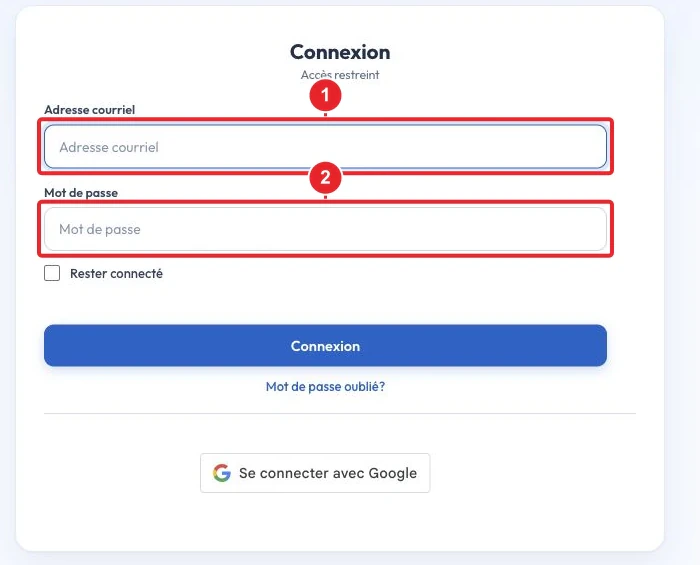
Login: enter your email address and password to access the client area. -
Open the 'My invoices' section.
From the client area main menu, open the billing section—labelled 'My invoices', 'Invoices' or 'Billing' depending on the interface. The page lists the invoices issued to your account.
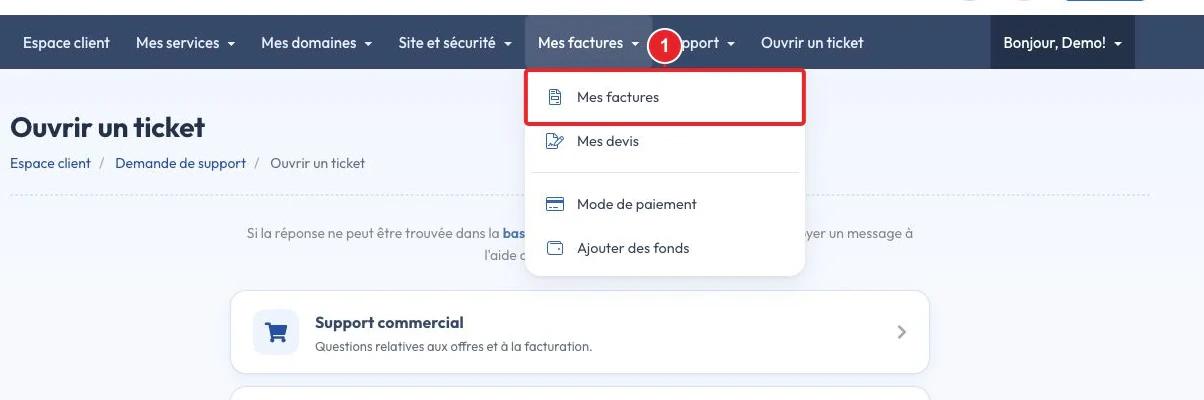
Access to 'My invoices' from the client area menu. -
Filter or search for the invoice you want.
Use filters (period, status, service) or the search bar to look up an invoice by number. If you manage multiple contacts, make sure you're logged in with the account that received the invoice.
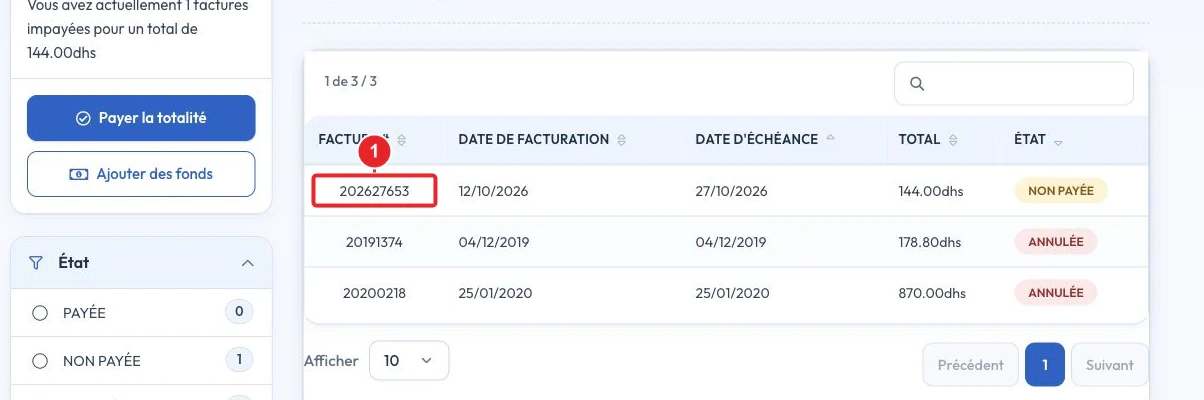
Select the invoice by its date, number or status. -
Open the invoice details page.
The details page displays the amount, date, status and payment/download options.
-
Download the proforma invoice as a PDF.
Look for a 'Download', 'Export as PDF' button or a print icon. If the interface doesn't offer a direct export, use your browser's print function (Ctrl/Cmd + P) and choose 'Save as PDF' (or equivalent).
- Windows / macOS: Ctrl (Windows) / Cmd (macOS) + P → Destination 'Save as PDF'.
- Android: menu → Print → Save as PDF.
- iOS: Share → Print → enlarge the preview (pinch-out) → share/save the PDF.
-
Pay an unpaid invoice (summary).
If the invoice is unpaid, a “Pay” or “Pay now” button is often visible on the invoice detail page. Choose the offered payment method and follow the procedure. After payment, the invoice is usually marked as PAID and a receipt is available.
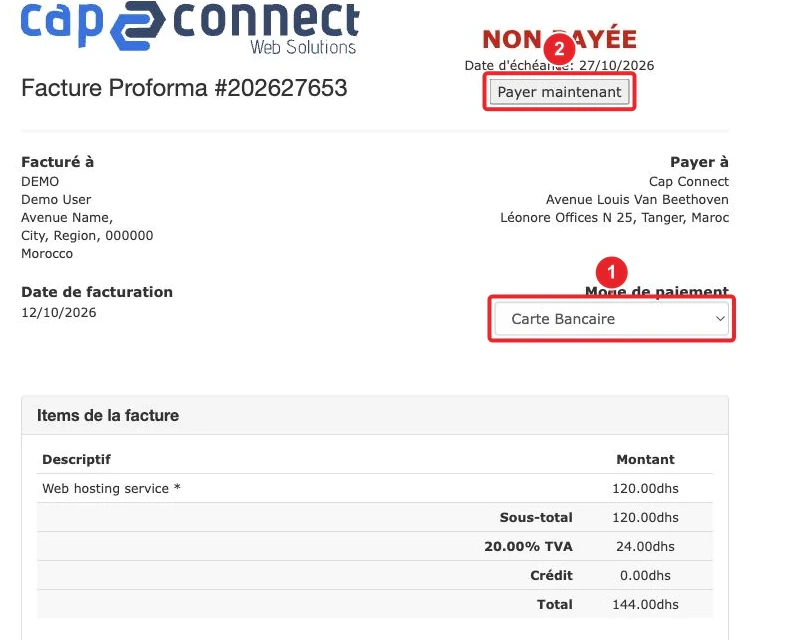
Example: selecting a payment method (card) from the invoice detail page.
Locate the payment information on the invoice
- Invoice number : to provide to support for any request.
- Status : PAID / UNPAID / PENDING.
- Issue date and billing period.
- Amount and currency.
- Payment method (card, bank transfer, direct debit) and, if present, the transaction reference (identifier returned by the payment gateway).
- Tax details (company name, ICE / VAT number): visible if provided in your profile.
- Bank account details (RIB / IBAN): displayed only if bank transfer is offered as a payment method.
Update your tax information (ICE / VAT)
To ensure your future invoices correctly display the ICE or VAT number, update your billing details in your client profile (company name, address, tax identifiers). Already issued invoices are not always editable automatically: you may need to contact support to request a credit note (avoir) or an amended invoice.
See: How do I modify my client account information?
Troubleshooting & common issues
- Invoice not found — check the filters (period, status), try searching by invoice number and verify the email address used. If the invoice relates to a service attached to another contact, check “My products & services” in your client area.
- Invoice shown as 'Unpaid' even though I paid — bank transfers can take 1 to 5 business days to be recorded depending on the bank. If the status does not change after this period, open a ticket attaching proof of payment (screenshot of the statement, transfer confirmation) and the invoice number.
- Unable to download as PDF — use your browser’s print option (Ctrl/Cmd + P) and select “Save as PDF”. Try a different browser if necessary; temporarily disable extensions that block pop‑ups.
- I want a corrected invoice — contact support, specifying the invoice number and the changes requested (company name, ICE/VAT). Depending on local regulations, the provider may issue a credit note (avoir) and then a new invoice.
- Payment declined — check the card details, 3D‑Secure authentication and any bank limits. If the bank confirms the rejection, open a ticket so we can check the payment status with the provider.
Open a support ticket — what to attach
To speed up verification, attach to the ticket:
- The invoice number in question.
- Proof of payment (screenshot of the transfer, bank statement extract or a screenshot of the payment confirmation).
- Your name and the email address linked to the account.
- A brief explanation (date and time of the payment, reference provided by your bank if available).
Open a ticket: Contact support from the client area.
Limitations & remarks
- The labels on buttons and the page layout can vary by version of the client area: if you can't find the 'Download' option, look for similar labels (Print, Export).
- Payment processing times depend on the chosen method: online payments and card transactions are generally instantaneous; bank transfers can take several business days.
- Reissuing or retroactively modifying an invoice depends on internal procedures and local tax rules; it may require intervention from the billing department.
Useful internal links
- How do I pay my invoice online?
- What payment methods do you accept?
- How do I modify my client account information?
- Contact support from the client area
If you cannot find the invoice or if any information is incorrect, open a ticket via the client area attaching proof of payment — this speeds up processing.
Documentation consulted on 17 October 2026. Tools may vary depending on your hosting.