Before you begin
Sign in to your Client Area and check the selected service or domain before changing its settings.
To update personal information in your client account, follow these steps: 1. Sign in to your Client Area using your email address and password.

Change client account information
2. In the Hello, Your Name menu, click Edit Your Details.
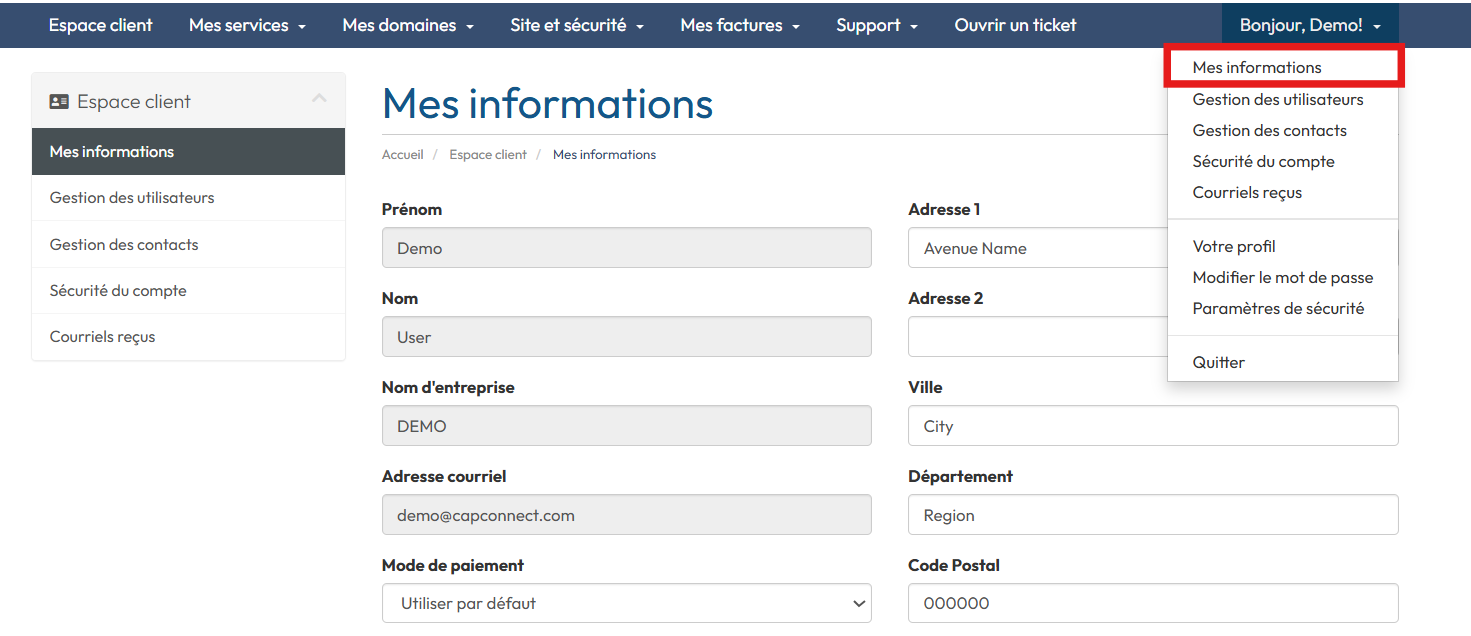
3. Enter the updated details and click Save Changes. Your information is updated. Note:Some fields may not be editable:
Country, because of tax-related settings
Company name, because of billing records
Your first name, surname and email address, because of account-security controls.
To request a change to one of these fields, open a ticket explaining the requested change.
Check the result and troubleshoot
After confirming, check the service status or confirmation message. If the option is unavailable, open a ticket identifying the service and expected result, without sending a password.