Introduction
With IMAP, your messages remain on the server: webmail and your clients (Thunderbird, Outlook, mobile apps, etc.) display the folders that exist on the server. When the Sent, Spam/Junk or Trash 'disappear', the most common causes are: an unsubscribed folder (subscribe), incorrect mapping of special folders (Sent/Drafts/Trash/Junk), or an incorrect IMAP prefix. This guide shows the checks to perform from cPanel → webmail (Roundcube) and simple client-side actions.
Prerequisites
- Access to your client area and then to cPanel, or direct access to the account's webmail.
- The account must be configured for IMAP on the client you are using (not POP).
- The name of the mail client in use (e.g., Thunderbird, Outlook, Gmail, Apple Mail) and, if possible, screenshots of the folder list from the client.
Open cPanel and access the webmail
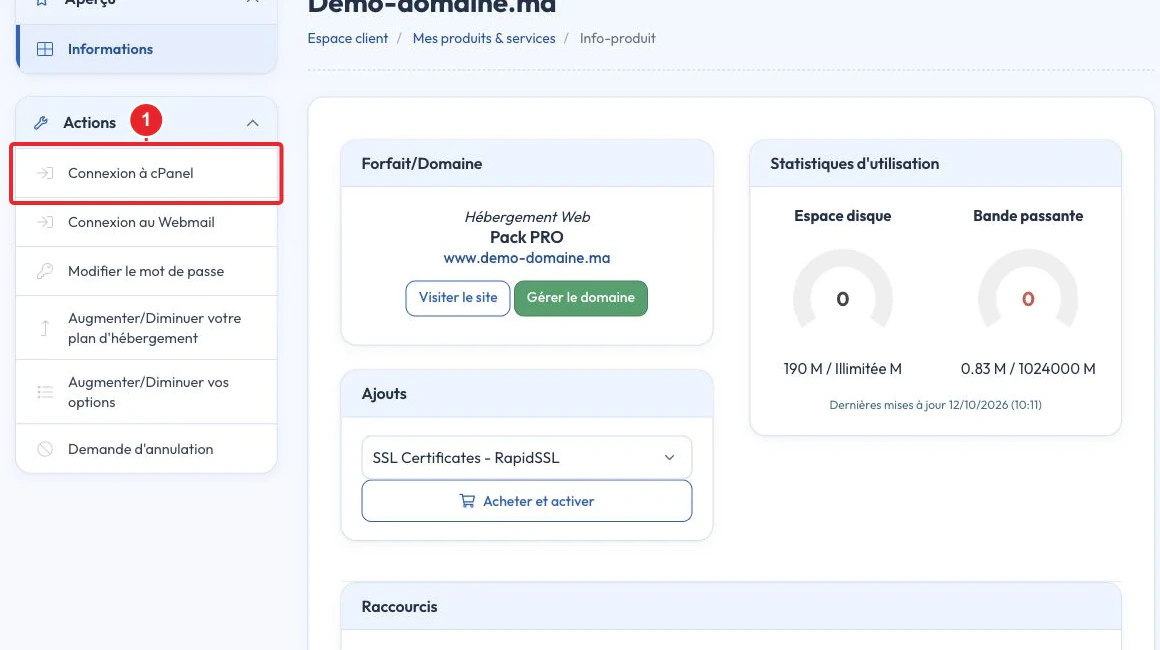
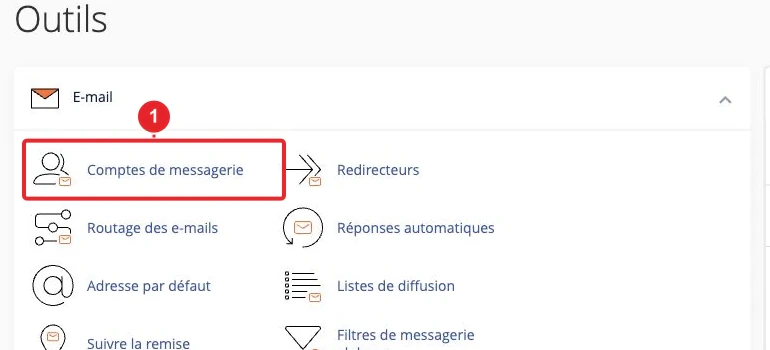
Steps — verify and (re)display folders from the webmail (Roundcube)
-
Open Roundcube from cPanel:
In cPanel → Email → Email Accounts, click Check Email and choose Roundcube if prompted. Roundcube lets you manage folders and their subscriptions (subscribe).
-
Verify folder subscriptions:
In Roundcube, go to Settings → Folders (Folders). Verify that the folders Sent / Envoyés, Drafts / Brouillons, Trash / Corbeille and Junk / Spam are present and subscribed. If a folder exists on the server but is not subscribed, it will not appear in your IMAP client.
-
Create a folder on the server if necessary:
If a folder is missing on the server, create it from Roundcube (Settings → Folders → Create) or from your client (use the "New folder" / "Create folder" option while selecting the IMAP account). After creating it, subscribe to the folder so it becomes visible.
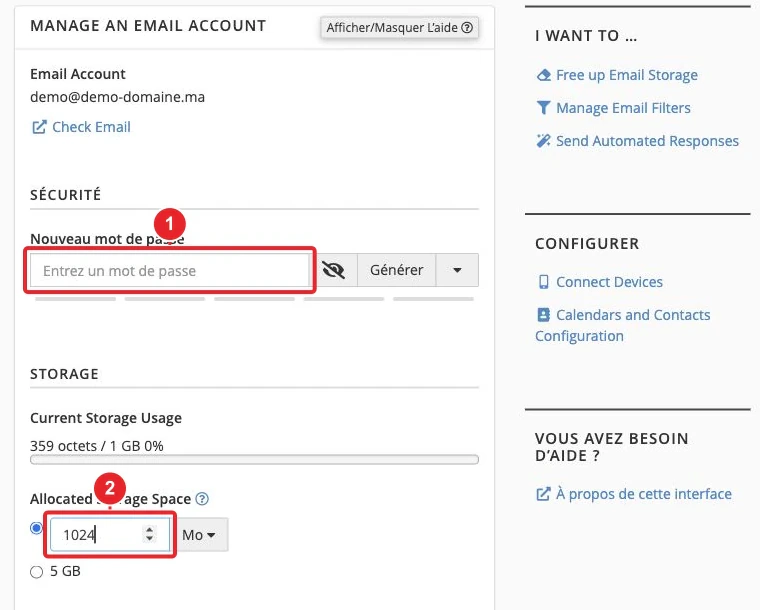
Useful cPanel screenshots
Steps — verify and correct on the client side
Each client has its commands for: (A) subscribing to IMAP folders and (B) mapping special folders (where to place sent messages, drafts, trash). Start with the following checks according to your client:
-
Thunderbird (desktop) — quick checks:
- Account menu → right-click on the account name → Subscribe : select the folders Sent, Drafts, Trash, Junk then refresh.
- Account Settings → Copies & Folders : enable "Save sent messages on the server" and choose the folder Sent on the server (or Other… → select the server folder).
See our detailed guide: How to configure Thunderbird.
-
Gmail (web interface / application) — common issue:
In Gmail (web): Settings → Labels — check that the labels Sent Mail, Drafts, Spam and Trash have Show in IMAP enabled; otherwise your IMAP client will not see these folders.
For a detailed procedure, consult Gmail Help (see Sources).
-
Outlook (Windows/macOS) — how it works:
Set Outlook to use the Sent folder on the server as the destination for sent messages (account settings → advanced settings / folders). The exact procedure depends on the version: if you have a duplicate Sent, choose a single 'Sent' folder on the server to avoid fragmentation. See our Outlook guide: Configure Outlook.
-
Apple Mail (iOS / macOS) — mailbox mapping:
On macOS: select a folder in the IMAP account then in Mailbox → Use This Mailbox For choose Sent, Drafts or Trash. On iOS: Settings → Mail → Accounts → select the account → Account Settings / Mailbox Behaviors, then map the corresponding server-side folders. Our Apple guide: Configure Apple Mail.
Gmail-specific note for IMAP
If you use Gmail as an IMAP client to another server (or vice versa), be sure to enable the Show in IMAP on the labels. Without it, Gmail will not expose those folders via IMAP.
IMAP root prefix (IMAP root folder)
If your client displays only part of the folder tree (some folders hidden), check the field IMAP root folder or IMAP server directory in the account's server settings. Depending on the client, leave this field empty or enter INBOX INBOX. Account Settings → Server Settings → Advanced → IMAP server directory.
Understanding special folder mapping (brief)
IMAP servers can announce to the client which folders are intended for sent messages, drafts, trash or spam using the SPECIAL-USE (attributes \Sent, \Drafts, \Trash, \Junk). A compatible client will automatically use those folders; otherwise you must select them manually in the client.
Practical tips and common cases
- Refresh the folder list : in the IMAP client, use Subscribe / Refresh / Get folders to force the server-side folder list to be read.
- IMAP root prefix : if subfolders are invisible, try emptying the "IMAP root folder" field or enter INBOX
INBOX, then restart synchronization. - Duplicate folders (two "Sent") : choose a single Sent folder on the server in the client settings to prevent sent items from being scattered.
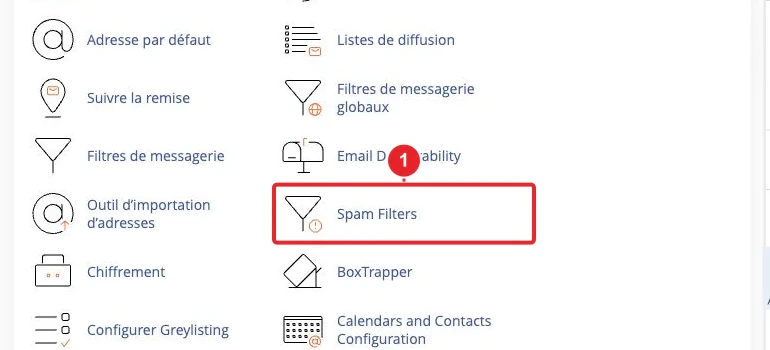
- Spam / Junk : if the server automatically moves spam (e.g. via SpamAssassin), the folder may have a different name (
spamspam , Junk , Spam). Check the antispam filters in cPanel.
Troubleshooting: quick checklist (recommended order)
- Open Roundcube via cPanel and verify that the folders exist and are subscribed (Settings → Folders).
- In your client, refresh the folder list (Subscribe / Refresh) and subscribe to any missing folders.
- Check the mapping of special folders (Copies & Folders / Mailbox Behaviors): set the client to use the Sent folder on the server.
- If some folders remain invisible: check/remove the IMAP root folder prefix (IMAP root folder) and restart synchronization.
- Practical test: send a test message and observe where it is stored (webmail and client). This helps identify the folder actually used.
- If spam does not appear: check server-side antispam filters (SpamAssassin) in cPanel or your hosting provider's configuration.
When to contact our support
Open a ticket if you have followed the checklist and the problem persists. Include:
- The affected email address.
- The name of the client used (e.g. Thunderbird, Outlook, Gmail app) and its version if possible.
- Screenshots: (1) the folder list in the client, (2) the folder list in webmail (Roundcube → Settings → Folders), (3) the Email Accounts page of cPanel if useful.
- Test result: a screenshot showing which folder contains the sent message (client and webmail).
We can check the server configuration and IMAP attributes without ever asking you for your password.
Limitations & remarks
- Some very old clients do not implement the extension SPECIAL-USE : in that case the mapping is manual.
- If the provider applies aggressive server-side filtering (automatically moving spam into an internal directory), only server support can modify this behavior.
- The availability of commands and the interface depend on the version of cPanel and the installed modules.
Useful internal links
- How do I access the Webmail for my Email PRO account?
- How do I set up my email address in Mozilla Thunderbird?
- How do I configure my Email PRO account on Android using Gmail?
- How do I configure my email account in Microsoft Outlook?
- How do I configure my email account on Apple devices (iOS/macOS)?
- SpamAssassin — How to enable or disable SpamAssassin in cPanel
- Contact support / open a ticket
Public sources (recommended reading)
- How to Manage Webmail Folders — cPanel & WHM Documentation
- RFC 6154 — IMAP LIST Extension for Special‑Use Mailboxes
- Gmail Help — Choosing IMAP settings
Reference documentation
Documentation consulted on October 16, 2026. Tools may vary depending on your hosting.