This guide explains, step by step and in plain language, what to do if you notice suspicious email activity on a cPanel account (unauthorized sending, deleted mailboxes, spam complaints, missing messages). It lists the priority checks, how to limit the damage, and options to restore mailboxes without reinstalling the entire hosting account.
In brief — priority actions to take (10–30 minutes)
- Immediately change the passwords of the affected mailboxes and the cPanel account password if you suspect a full compromise.
- If sending activity is high, quickly cut off the ability to send: change passwords, temporarily disable site scripts (rename a plugin or theme folder), or contact support to block outgoing mail.
- Check cPanel > Email > Track Delivery to identify the origin (mailbox, script, server).
- If messages have been deleted, restore only the mail directory from your backup (JetBackup or a cPanel archive) to avoid overwriting other data.
- After recovery: enable 2FA and configure SPF/DKIM/DMARC and SpamAssassin.
Before you begin — prerequisites
- Access to the cPanel account (username/password) or the ability to open a ticket with support.
- Access to the tools: File Manager, Track Delivery, Email Accounts; and JetBackup or another backup solution if available.
- Local copies of your emails (if available) or backup files (.tar.gz).
- If you are not comfortable with technical operations (Terminal, file restoration), ask support for help: some server tasks require their privileges.
1 — Secure access immediately
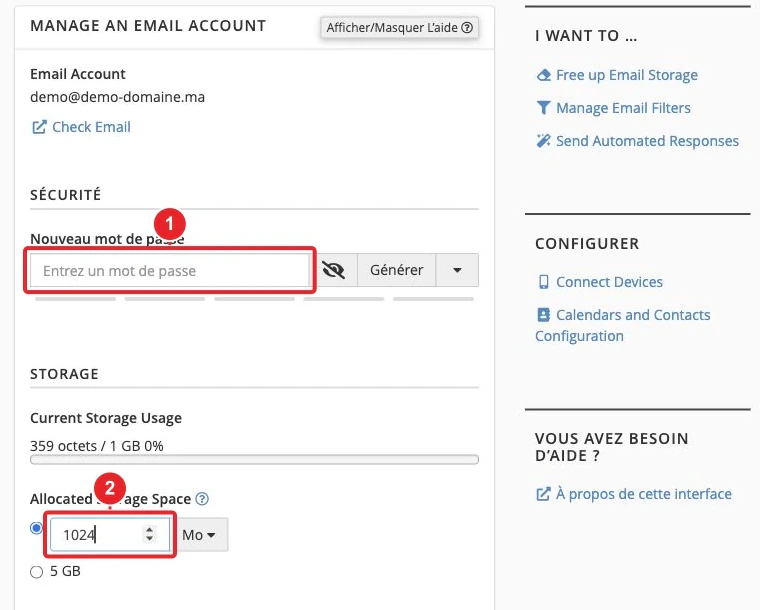
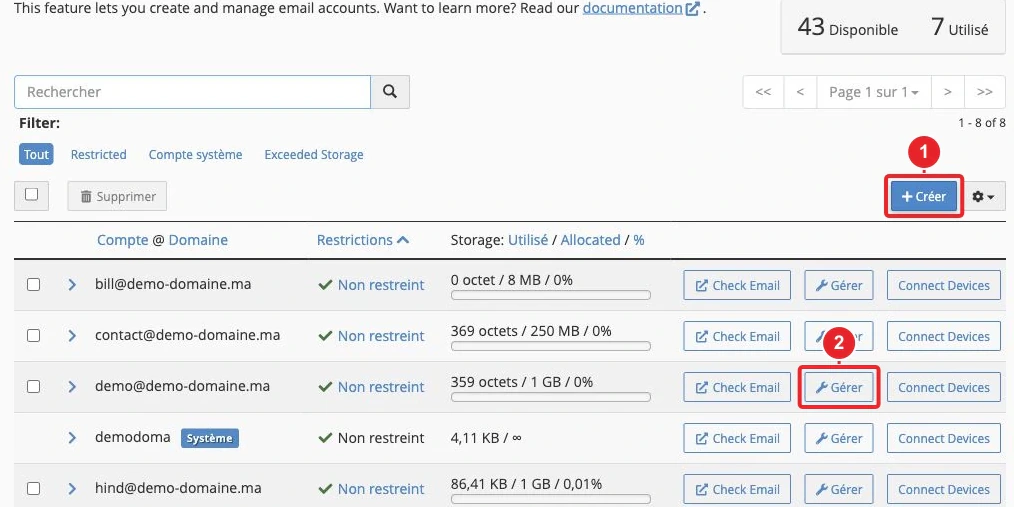
- Change the password of the affected mailbox(es): cPanel > Email > Email Accounts > Manage > Password. Update this password in all mail clients (Outlook, mobile…). cPanel — create / connect an email account.
- If you suspect the account is compromised (unknown accounts, modified web files, accounts that reappear), also change the main cPanel account password and associated passwords (FTP, databases). Change cPanel password.
- Enable two‑factor authentication (2FA) for the cPanel account: cPanel > Security > Two‑Factor Authentication. cPanel — 2FA.
- Before reusing devices, scan the machines that access the mailbox (antivirus/antimalware). If you need to stop outgoing mail immediately and cannot do it yourself, open a support ticket providing examples of times/recipients — they can temporarily suspend outgoing mail on the server side.
2 — Quickly identify the source of outgoing messages (logs)
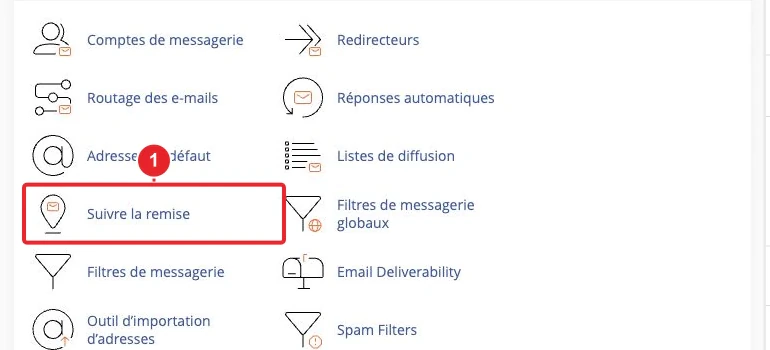
Open cPanel > Email > Track Delivery and filter by the affected address to identify who is sending (volume, recipients, error codes). Track Delivery — cPanel.
What to look for:
- Mass or repeated sends within a short period; unknown recipients; numerous delivery failures.
- If the sender is the mailbox address (e.g. [email protected])
[email protected]: the origin is often Webmail or an authenticated SMTP client. - If the sender appears as cpanel_user@server_hostname
cpanel_user@server_hostname: it is generally a script/site (PHP mail(), cron) that generates the messages.
If Track Delivery is empty or incomplete, provide example times and recipients to your support team so they can check the server-side Exim logs.
3 — Check whether the mailbox or its files exist on the server
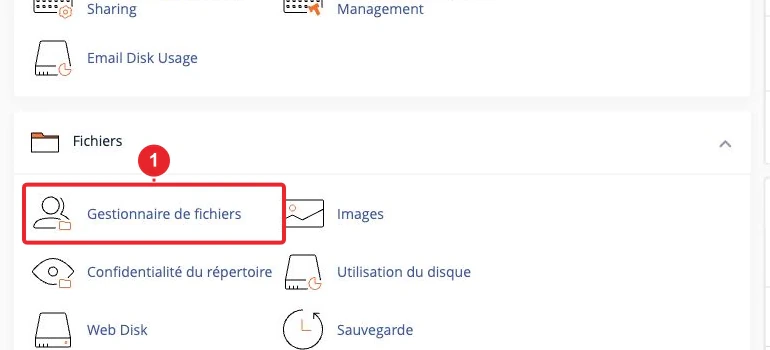
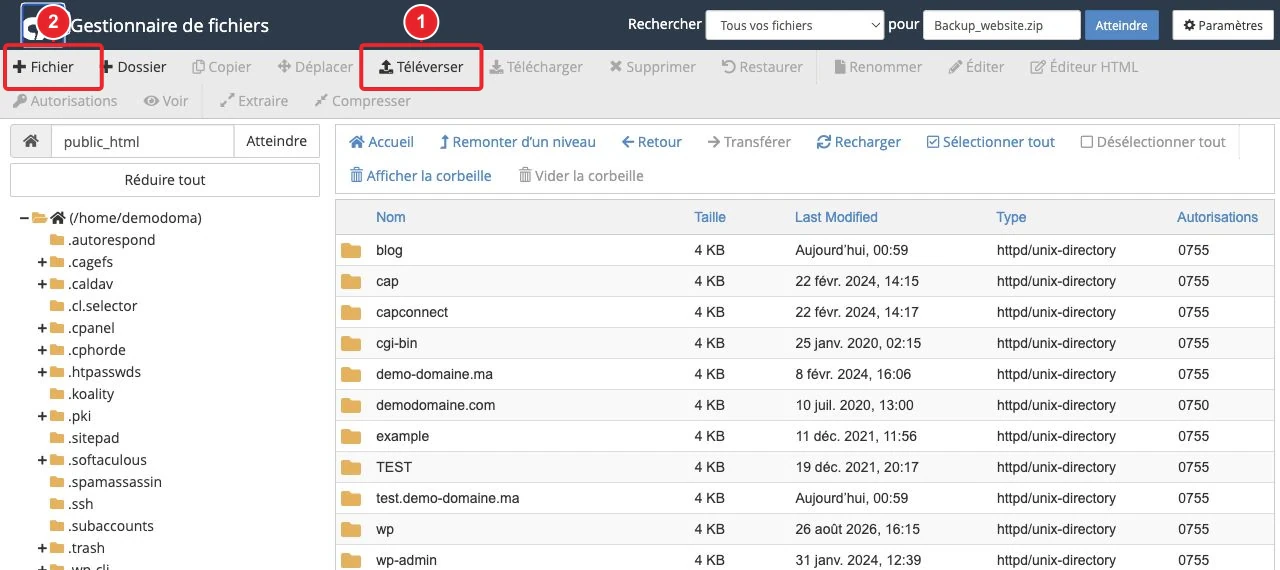
On a cPanel account, email data is typically stored under /home/$user/mail/$domaine/$compte_mail//home/$user/mail/$domaine/$compte_mail/. Check for the presence of this folder from cPanel > File Manager. If the folder exists but the mailbox was deleted in the interface, recreate the mailbox with exactly the same identifier — the contents should become accessible again. Where is email data stored — cPanel Support.
4 — Common scenarios and recommended actions
4.1 Email account deleted but folder present
- Check /home/$user/mail/$domain/$email-user in the File Manager; if the files exist, recreate the email account with exactly the same identifier (same name). The content should become accessible again.
- If, after recreating the account, you encounter permission errors or corrupted files, attach a screenshot to your support ticket and request a selective restore if necessary.
4.2 Unknown email accounts or accounts that reappear
- In cPanel > Email > Email Accounts, delete any unauthorized accounts (Manage > Delete). Manage Email Accounts — cPanel.
- If the accounts reappear: change all passwords (cPanel, FTP, databases), enable 2FA and request an investigation from support (probable account compromise).
4.3 Emails sent from the site (forms, plugins, scripts)
- If Track Delivery reports a local sender (cpanel_user@server_hostname), inspect the site's files: forms, plugins, themes and files recently modified in public_html (or
wp-contentwp-content for WordPress). - On WordPress: temporarily disable plugins (rename wp-content/plugins
wp-content/plugins), check themes and restore clean versions. Follow our cleanup procedure: WordPress: clean and secure a hacked site. - Check scheduled tasks (cPanel > Cron Jobs) and remove any unknown commands that run sending scripts.
- To reduce recurrence, configure the site to send via authenticated SMTP (plugin or library configuration) and protect forms with CAPTCHA.
4.4 Emails visible in a client but not in Webmail
Often caused by POP3 removing messages from the server after download. Use IMAP for multi‑device synchronization. Reconfigure devices to use IMAP and, if needed, restore local messages to the server by moving them from the mail client into the account’s IMAP folder. Set up a mail client — cPanel.
5 — Restore deleted messages (backups)
The options depend on the backups in place:
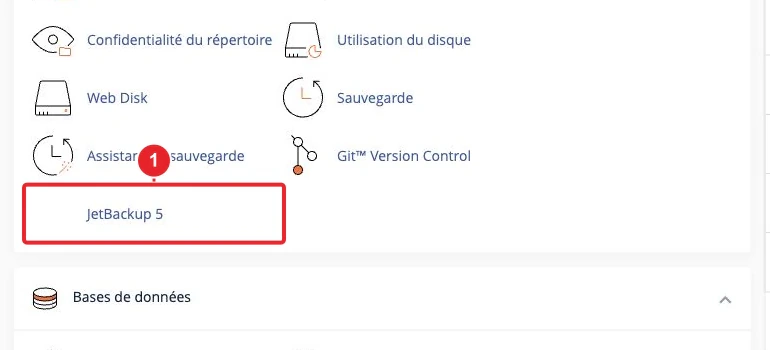
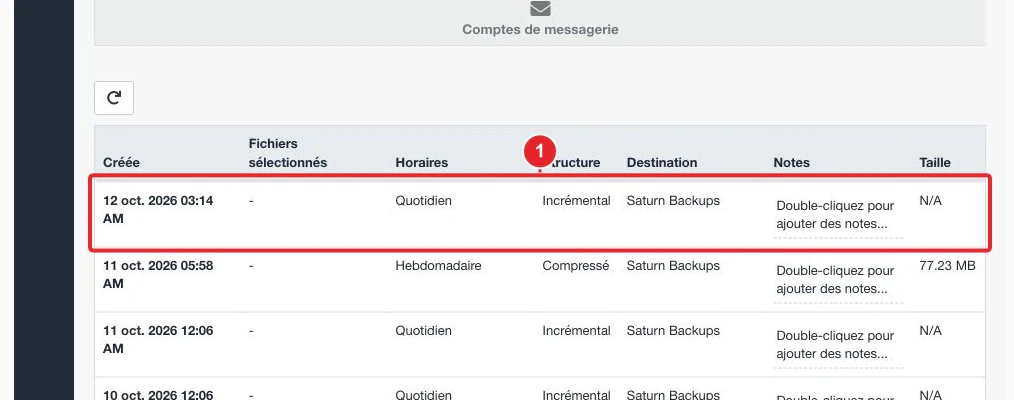
- If JetBackup is available, selectively restore the folder
mail/$domain/$userusing JetBackup rather than restoring the entire account. - If you have a cPanel backup (.tar.gz): extract only the directory
/home/$user/mail/...and restore those files, then recreate the mailbox if necessary. - If you do not have access to JetBackup, contact support to check for a server backup and request a selective restore.
6 — Protect the domain from spoofing and improve deliverability
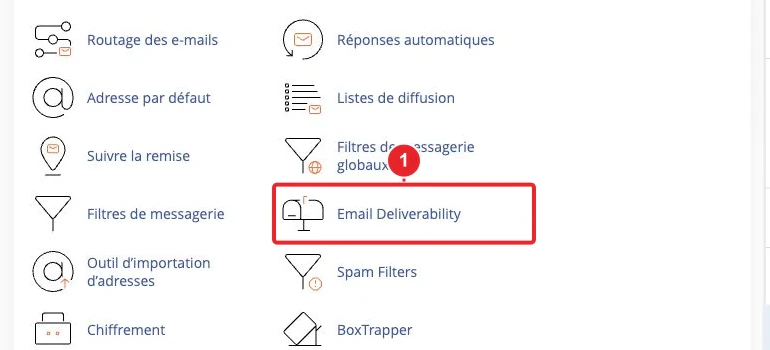
Configure SPF, DKIM and DMARC from cPanel > Email > Email Deliverability to reduce spoofing. cPanel provides diagnostics and can install the records if your DNS is managed locally on the server. Do not enable an overly strict policy (-all / reject) before you have included all legitimate servers that send on behalf of your domain. Email Deliverability — cPanel.
7 — Anti‑spam settings and prevention
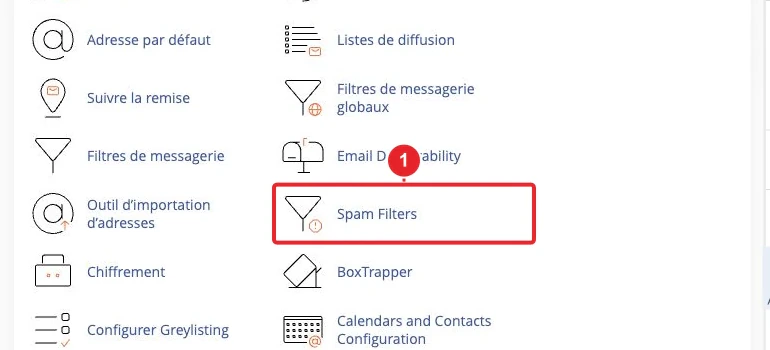
- Enable and configure SpamAssassin (cPanel > Email > Spam Filters); adjust the threshold and the whitelist according to your needs. Spam Filters — cPanel.
- Block suspicious IP addresses via cPanel > IP Blocker if you see repeated connection attempts.
- Configure SMTP authentication for site scripts instead of using PHP mail().
Quick troubleshooting (if something is blocking)
- Track Delivery shows no entries: this feature may be disabled by your host. Contact support and provide example timestamps and recipients so they can review the server logs.
- Cannot restore without a server backup: check whether you have a local backup (.tar.gz) or ask support for a selective restore of the /home/$user/mail/... folder.
- If accounts reappear after deletion: change all passwords (cPanel + FTP + databases), enable 2FA, review cPanel users and request an investigation from support (probable compromise).
- If bulk sending originates from a script: disable suspicious plugins/themes, remove unknown cron jobs, and force sending via authenticated SMTP.
Limitations and final recommendations
- Some actions (full examination of Exim logs, server restoration, removal of server‑side backdoors) require the host's intervention. If you don't have access to these, open a technical ticket attaching your analysis (email examples, time ranges, Track Delivery screenshots).
- Avoid a full account restore if you can restore only the mail folder: a full restore will overwrite any newer data.
- If the website is compromised, remediate the breach first (clean the site, remove the sending script) and then restore the mailboxes; otherwise the attack will recur.
Useful internal links
- Enable two‑factor authentication (2FA) in cPanel
- Create or modify an email address in cPanel
- Use Email Deliverability (SPF/DKIM/DMARC)
- Track sent emails (Track Delivery)
- JetBackup 5: Backup and restore (if available)
- WordPress: clean and secure a hacked site
Short template to attach to support (copy/adapt)
Subject: 'Suspicious email activity on the cPanel account — request for analysis'
Résumé court : j’observe des envois non autorisés / des boîtes supprimées / des plaintes spam depuis mon domaine.
Comptes concernés : [liste des adresses]
Exemples (date/heure/destinataire) : [exemples précis]
Captures : Track Delivery (filtre sur l’adresse), liste des comptes e‑mail, dossier /home/$user/mail/…
Sauvegardes disponibles : JetBackup / backup_cpanel_YYYYMMDD.tar.gz (oui/non)
Action souhaitée : analyse des logs Exim et restauration sélective du dossier mail si disponible.
If you wish, I can: 1) draft the full text to send to support; 2) review your cPanel screenshots before sending; or 3) prepare a printable checklist in FR/EN/AR. Tell me what you need.
Reference documentation
- Track Delivery — cPanel & WHM Documentation
- Email Deliverability in cPanel — cPanel & WHM Documentation
- Where is email data stored on my cPanel server? — cPanel Support
- Two‑Factor Authentication for cPanel — cPanel & WHM Documentation
- Set Up Mail Client — cPanel & WHM Documentation
- Spam Filters (Apache SpamAssassin) — cPanel & WHM Documentation
- Backup Tarball Contents — cPanel & WHM Documentation
- How do you find email headers? — cPanel Support
Documentation consulted on October 16, 2026. Tools may vary depending on your hosting.