To connect an application to MySQL, provide the host, the database name, the MySQL user and its password, as well as the port if the application requires it. In cPanel, also verify this user’s privileges on the database. The Client Area password does not replace these credentials.
Parameters to prepare
| Parameter | Value to use |
|---|---|
| Host | The MySQL server of your hosting; usually localhost for an application on the same server, unless configured otherwise. |
| Database name | The full name shown in cPanel, including any prefix. |
| User | A MySQL user associated with that database. |
| Password | The password for that MySQL user. |
| Port and character set | The port applicable for a TCP connection and the character set expected by the application. |
The standard MySQL TCP port is 3306, but use the one communicated for your service if it differs. Do not automatically enter the site domain as the MySQL host.
Find the database and user in cPanel
- Open the MySQL Databases management.
- Note the exact name of the database and the authorized user.
- If the association is missing, add the user to the database and grant the rights required by the application.
- Enter these values in its configuration, then test a connection.
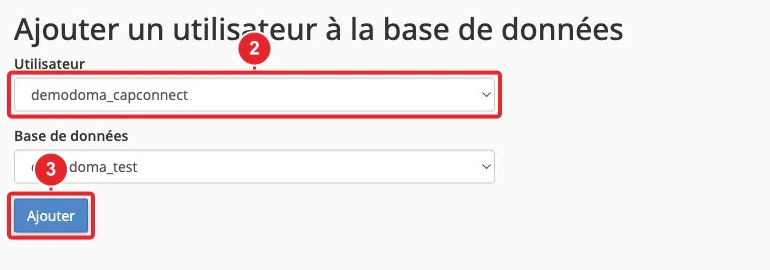
Copy the full names, do not invent the prefix or truncate the user. The length limit depends on the MySQL or MariaDB server and its configuration: there is no universal eight-character limit.
localhost or 127.0.0.1: what’s the difference?
Depending on the client used, localhost may establish a connection via a local socket, whereas 127.0.0.1 denotes a TCP connection to the local server. The two methods can use different parameters or permissions. Randomly replacing one with the other therefore does not resolve all errors.
For WordPress, first check the value DB_HOST in wp-config.php. For another application, use the service information or ask support to confirm.
Connection from your computer or another server
External access requires a reachable MySQL address, authorization for your IP address and compatible network configuration. The tool Remote Database Access, when offered, is used to declare the allowed host. It does not by itself open all server firewalls.
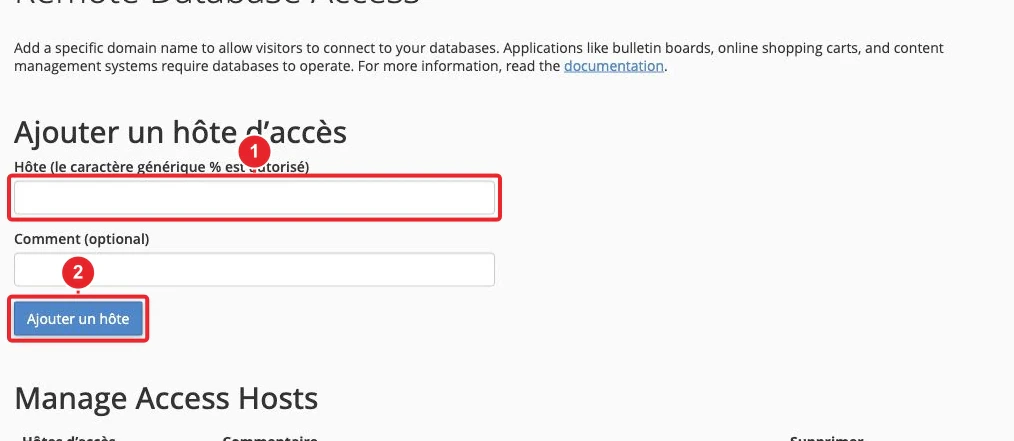
Authorize a specific address and check the availability of an encrypted connection. Remote access may be limited depending on the service. Do not replace the authorized address with a wildcard to test faster.
Understanding a connection error
- Access denied : check the user, its password, its privileges and the authorized host.
- Unknown database : check the full database name.
- Unable to reach the server : check the host, the port and network access.
A password change must be propagated to all affected applications. To open a ticket with CAP CONNECT, provide the exact message and the connection context while masking secrets.
See also
Reference documentation
- cPanel — Manage My Databases
- cPanel — remote database access
- cPanel — user and privileges configuration
Documentation consulted on October 13, 2026. Titles and tools may vary depending on your cPanel version and your hosting options.