Summary — An 'accented' domain name (IDN, Internationalized Domain Name) can contain non‑ASCII characters (accented letters, Arabic script, etc.). In DNS it is represented in a standard ASCII form called Punycode (prefixed with 'xn--'). This guide describes the checks to perform with the .ma registry and provides concrete steps to add, publish and secure an accented .ma domain from cPanel.
Prerequisites
- Be the registrant (or administrator) of the .ma domain or have access to the account at the registrar.
- Prepare the documents required by the .ma registry (identity verification): consult the registry's official page to see the requested documents and the procedure. Registry .ma — Registration.
- Access to your client area (for registration / supporting documents) and access to cPanel for hosting (adding the domain, editing the DNS zone). See also: How to add a domain name to my cPanel Web hosting package?.
- Know who manages your DNS: if your nameservers are at the registrar, you will need to create the DNS records in the registrar's interface; if DNS is managed by the hosting provider, use cPanel's Zone Editor.
Key concepts: IDN, U‑label and A‑label (Punycode)
An IDN domain has two representations:
- U‑label — the human‑readable form (Unicode), for example a label containing 'é' or Arabic characters;
- A‑label — the ASCII form used by the DNS, obtained by Punycode encoding and prefixed with 'xn--'. DNS exchanges and stores only the A‑labels; interfaces (browsers, control panels) may display the Unicode form to users.
The encoding standard is Punycode (RFC 3492). If a DNS form does not accept non‑ASCII characters, you must use the A‑label version (starting with 'xn--').
1) Verify the .ma registration and local requirements
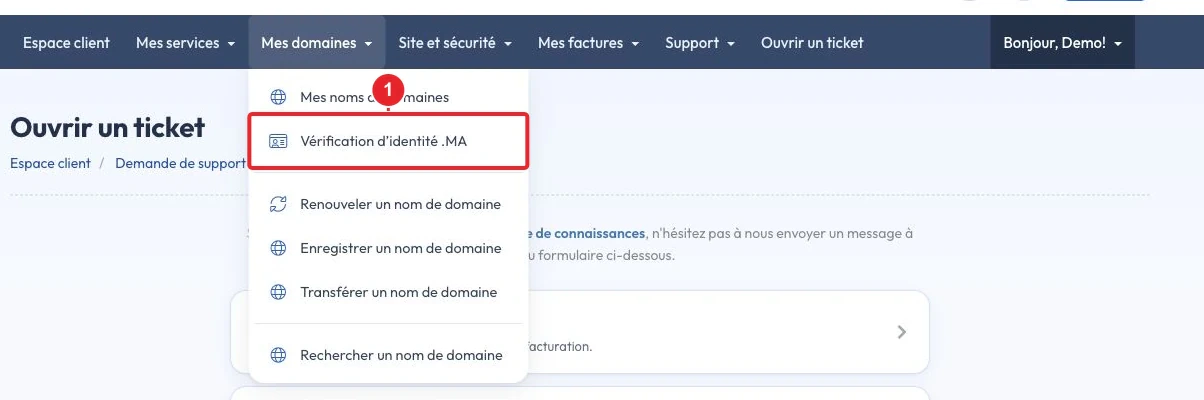
- Check availability and .ma‑specific rules with the official registry. Some .ma procedures require identity verification or administrative documents; prepare them before placing the order.
- If you purchase the domain through a registrar, follow its instructions for submitting the documents. Wait for registration confirmation and for any status to be lifted (e.g., ServerHold) before publishing your DNS records.
- If your domain is subject to a procedure (status 'PendingCreate' / 'ServerHold'), it will block DNS resolution until verification is complete — follow the procedure indicated by your registrar or consult our article: My .ma domain has status 'PendingCreate' and 'ServerHold'.
2) Convert (if necessary): when to use the Punycode form (“xn--”)
Many modern interfaces accept the Unicode form (U‑label) and automatically convert it to the A‑label. However, some older DNS interfaces or third‑party tools reject non‑ASCII characters and explicitly require the Punycode (A‑label) form.
Practical procedure:
- First paste the name as‑is (U‑label) into the cPanel or registrar form. If the interface accepts it and displays it correctly, allow it to convert automatically.
- If the form rejects non‑ASCII characters, replace the label with its A‑label version (prefixed by “xn--”). To obtain that version, use the conversion provided by your registrar or cPanel, a standard utility (for example the idn command on Linux), or a trusted converter.
- Do not mix multiple scripts in the same label (for example Latin letters and Arabic characters): this complicates management and may be blocked by some registries.
3) Add and configure the domain in cPanel (step‑by‑step)
The steps below outline the usual sequence of actions in cPanel to publish a website and enable email:
Step A — Add the domain in cPanel
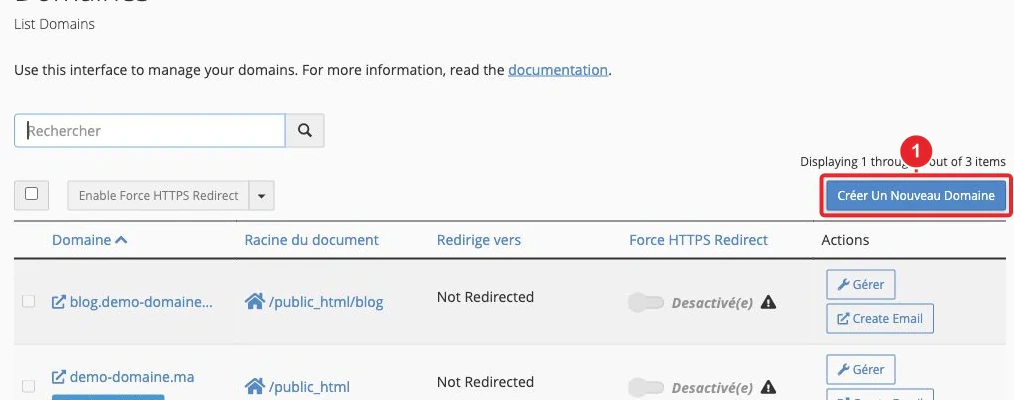
- Log in to cPanel (if you need help: How do I access my cPanel account?).
- Open Domains (or the equivalent) then click “Create a New Domain” / “Add Domain”.
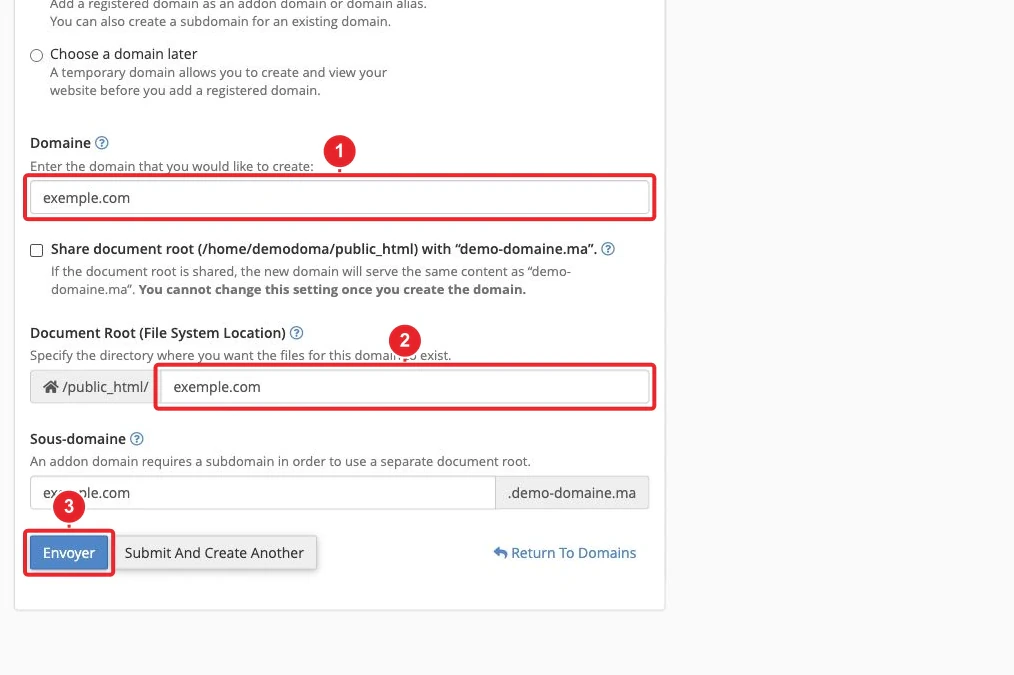
- Enter your domain name. You can paste the Unicode form (U‑label): if cPanel converts it automatically to an A‑label, let it do so; otherwise paste the Punycode version (xn--...) obtained earlier.
- Choose the type: add‑on domain (additional domain with a separate root folder), alias (redirect to another domain) or subdomain. Set the Document Root if necessary.
- Confirm: cPanel will create the web folder and, depending on the server configuration, will either create the DNS records automatically or prompt you to add them via the Zone Editor.
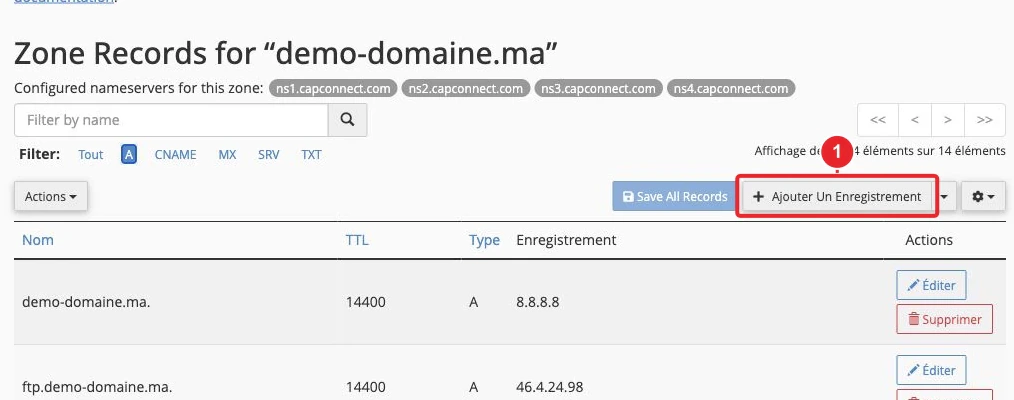
Step B — Create / verify DNS records (Zone Editor)
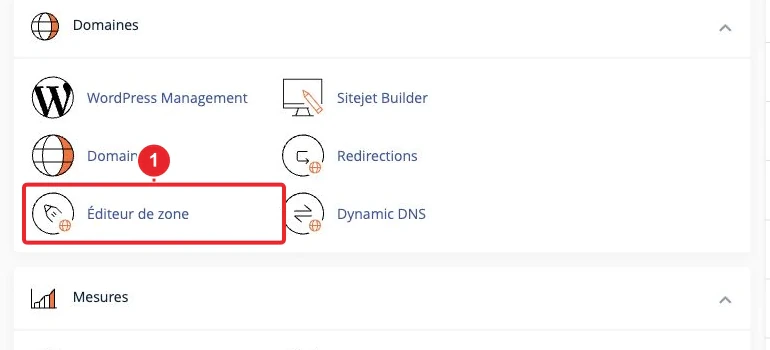
- Open Zone Editor (or Manage DNS) and select the newly added domain.
- Add an A record pointing the apex (naked) domain (e.g. votredomaine.ma) and the subdomain www to the server's IPv4 address; if you use IPv6, add an AAAA record.
- Add the MX records required for email as well as the TXT records (SPF, DMARC) recommended to improve deliverability. Use cPanel's Email Deliverability interface to verify DKIM/SPF if needed: Email Deliverability in cPanel.
- If your DNS are still managed by the registrar (external nameservers), make these changes in the registrar's interface, not in cPanel.
4) SSL / AutoSSL
Once the A/AAAA (and www) records point to your server and DNS resolution has propagated, cPanel will generally attempt to issue a certificate via AutoSSL if that feature is enabled on the server.
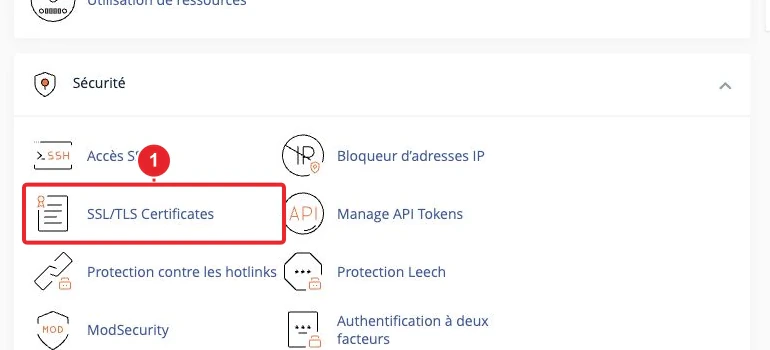
If AutoSSL fails, check in the following order:
- the A/AAAA records (do they correctly point to the server?);
- DNS propagation (from a few minutes to 48 hours depending on the case);
- that there is no blocking registry status (ServerHold/PendingCreate);
- the AutoSSL log in cPanel, or contact support if the failure persists.
Best practices and limitations
- Avoid names that are visually too similar to another (risk of homograph attacks). Prefer a clear, easily identifiable spelling.
- Do not mix multiple character sets within the same label (e.g. Latin + Arabic) — some interfaces or registries block this for security reasons.
- If a DNS form rejects Unicode, provide the A‑label (xn--...) — it’s the format the DNS understands.
- Visibility in browsers may vary: some show the Unicode form, others the A‑label.
Quick troubleshooting
- Site unreachable after adding: check that the domain’s nameservers point to your host; check the A record in Zone Editor; wait for DNS propagation.
- SSL certificate not installed: check DNS resolution (A/AAAA) and rerun AutoSSL; if AutoSSL fails, capture the error and contact support with this information.
- Emails not received: check MX records and SPF/DKIM records; use Email Deliverability in cPanel to diagnose issues.
- Domain blocked by the registry (ServerHold / PendingCreate): follow the procedure indicated by your registrar/registry and provide the requested supporting documents. See the internal article on this status: My .Ma domain has the status 'PendingCreate' and 'ServerHold'.
Resources & references
- Registry .ma — registration information and procedures.
- RFC 3492 — Punycode (technical specification).
- cPanel — Create a New Domain (official documentation).
Useful internal articles:
- How do I add a domain name to my cPanel Web Hosting package?
- How do I manage the DNS zone for my domain?
- How do I use Email Deliverability in cPanel?
Note — Some rules specific to .ma (reserved terms, required documents) may change. If you have a particular case (reserved term, dispute concerning the registrant), contact support for verification before making any public DNS changes.
Reference documentation
Documentation consulted on 17 October 2026. Tools may vary depending on your hosting.