Introduction
A mailbox that reaches its quota is usually due to large attachments, old message threads, or a surge of spam. In short: back up first, then locate the largest folders/mailboxes using Disk Usage and Email Disk Usage, delete or archive large messages, then empty Spam/Trash. Screens and options may vary depending on your cPanel version and the modules provided by your host (e.g., JetBackup).
Prerequisites
- Login credentials for your cPanel account. (See How to access my cPanel account.)
- The email address in question and, if possible, an IMAP client (Thunderbird, Outlook) to sort and archive locally. IMAP means the client synchronizes with the server; deleting via IMAP reduces server disk usage.
- Plan a backup before deleting: JetBackup (if available) or cPanel’s Backup Wizard. (See JetBackup 5: backup and restore.)
- If you’re hosted on a reseller/WHM account, some actions (quota changes, mass deletions) may be restricted: contact support if needed.
Quick summary (if you're in a hurry)
- Make a full backup (JetBackup or Backup Wizard).
- Open cPanel → Files → Disk Usage to identify large directories (notably
/mailand local backups). - Open cPanel → Email → Email Disk Usage and use Manage to delete old messages or > X MB (or a custom query).
- Empty the folders Spam and Trash in Webmail; enable Auto‑Delete with caution if needed.
- If necessary, increase the email account quota (or delete the account if it’s no longer used) from Email Accounts → Manage.
Detailed procedure
1) Back up (mandatory before deletion)
Before any mass deletion, keep a copy:
- In cPanel, search for JetBackup 5 (if available) and create a full backup or an account snapshot; download it if you want to keep it locally.
- If JetBackup is not installed, use Files → Backup Wizard → Full Backup or ask support to generate a backup. Without a backup, deletion is irreversible.
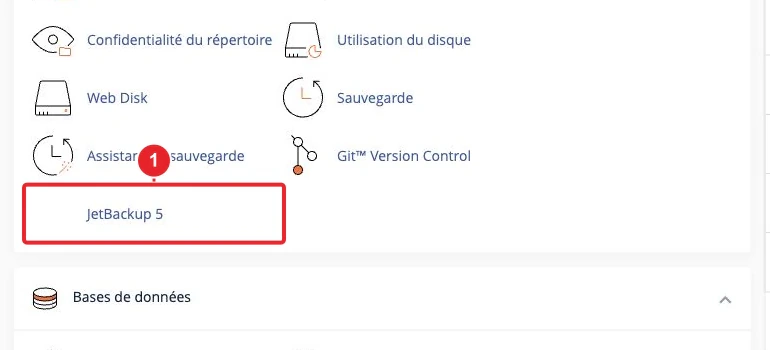
If JetBackup is present on the server, use it to create a restore point.
2) Identify the largest consumers — Disk Usage
Open Files → Disk Usage in cPanel: the tool shows disk usage per directory. Focus primarily on:
/home/username/mail(mailboxes, webmail folders);/home/username/backupsor other archives stored in the home directory;/public_html(large images or archives).
- Expand the hierarchy to view subfolders and note the largest folders.
- If a backup folder is consuming a lot of space, delete it only after verification (or remove it via JetBackup if the backup is listed there).
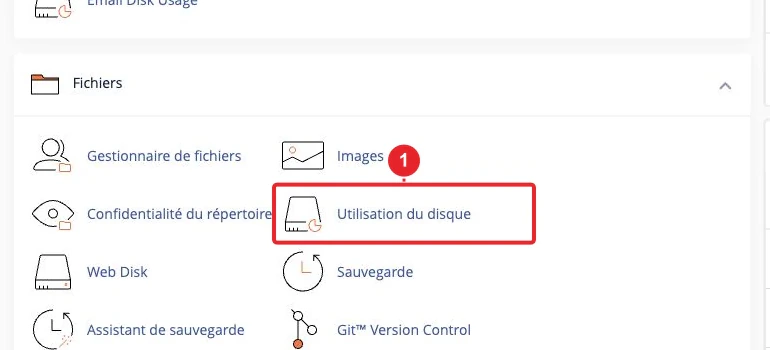
Disk Usage helps quickly identify where disk usage is concentrated.
3) Clean mailboxes with Email Disk Usage (safe method)
Use the specialized tool: cPanel → Email → Email Disk Usage (or from Email Accounts -> Manage / Free up Email Storage depending on your interface). This screen lists the accounts and the space used; the management function allows targeted deletions.
- Select the mailbox in question then choose Manage (or the equivalent action) to open the cleanup options.
- Use predefined filters (messages older than a date, messages larger than X MB) or a Custom query (dovecot/doveadm query) to target precisely.
- Run the query first on a small range (e.g., the Inbox folder) to verify the result before applying it globally.
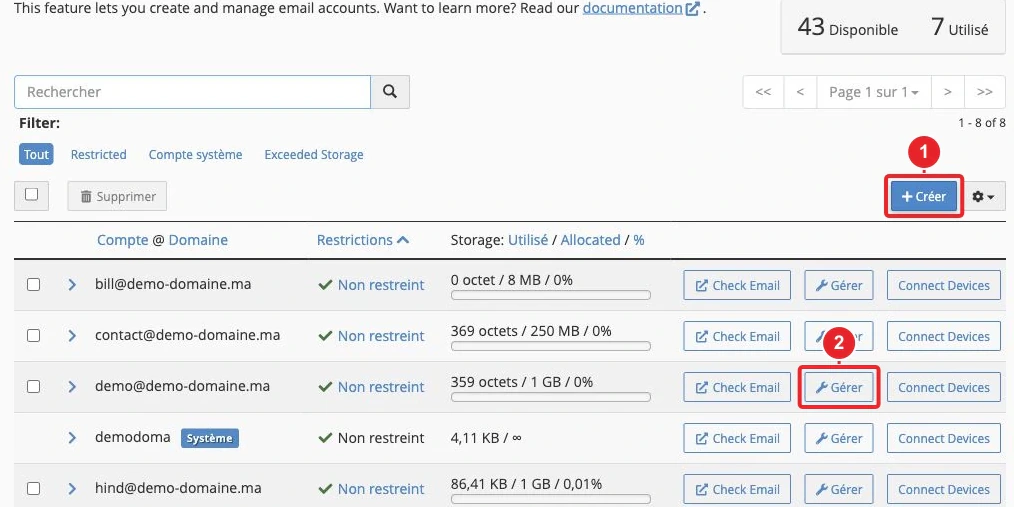
Open the management screen for an email account from the Accounts page (then use the 'Free up Email Storage' tool).
Tips for custom queries
- Delete large messages:
LARGER 10M(selects >10M). - Delete messages before a date (format required by the tool): example
BEFORE 04-Nov-2024BEFORE 04-Nov-2024 - Always test the query on a small folder before permanent deletion.
Note: the interface uses dovecot/doveadm syntax — it is an advanced tool; if you are unsure, contact support.
4) Empty Trash and Spam — Webmail & Spam Filters
After any deletion, remember to empty the Trash and the Spam folder from the Webmail (Roundcube/Horde): messages remain physically on the server as long as they are in the Trash.
- Access Webmail from cPanel or via the direct link, open the folders Trash and Spamthen delete them permanently.
- In cPanel → Email → Spam Filters (SpamAssassin), enable the Spam Box to store spam separately or configure theAuto‑Delete (automatic deletion of spam messages older than X days) with caution.
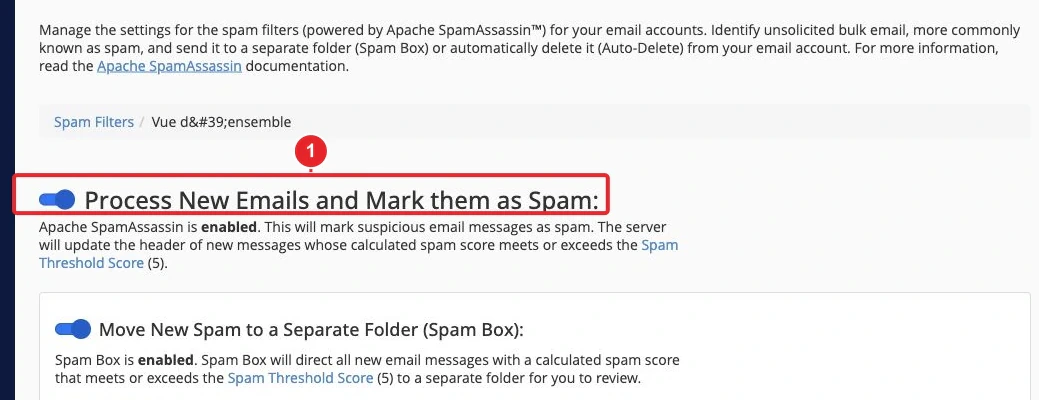
Enable and adjust SpamAssassin; automatic deletion frees up space but can cause false positives.
5) Retrieve or delete large attachments
If space is mainly consumed by attachments:
- Connect the mailbox via IMAP with a client (e.g., Thunderbird). Sort or filter by size, download/archive important messages locally, then delete them from the server.
- Or use theEmail Disk Usage → Custom query (e.g.
LARGER 10M) to identify and automatically delete messages that are too large. - Another option: move messages/attachments to an IMAP archive folder or to a cloud account to keep a copy without using server space.
Practical tip: archive into an IMAP folder named "Archive-Local", then delete only the originals on the server after verification.
6) Clean other sources (public_html, backups, logs)
Sometimes the disk space issue is not the mailbox itself but backups or web files:
- In cPanel → File Manager, check
/public_htmlfor old images or archives and delete what is unnecessary. - Check the backup folders in your home (or via JetBackup): delete or move old archives only if you have a valid copy.
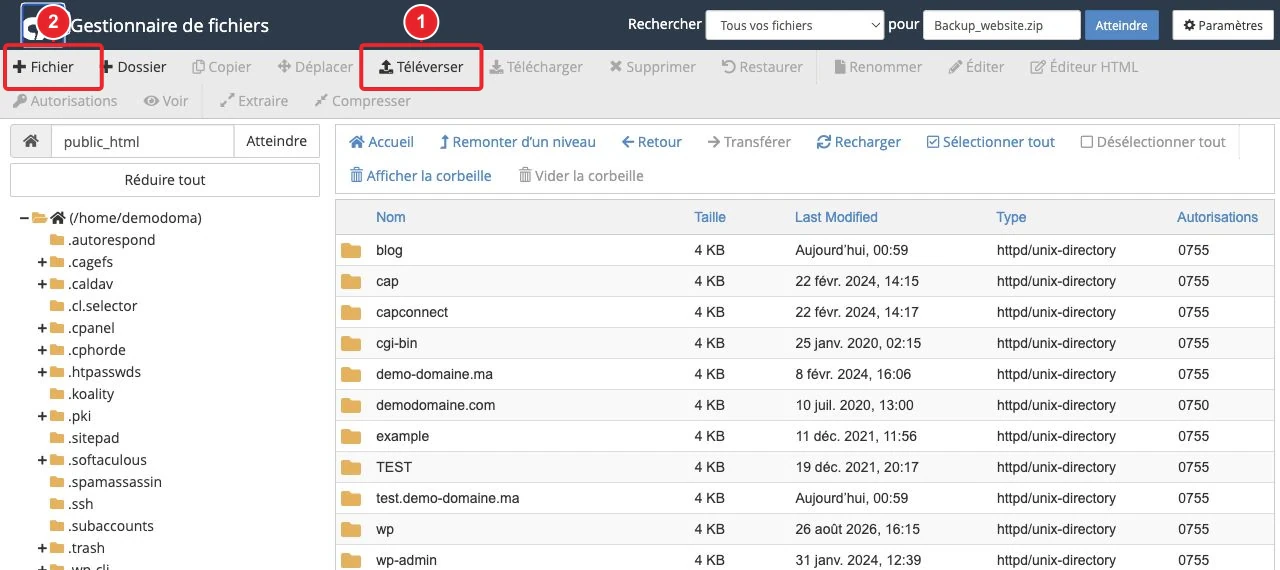
Delete large web files from the File Manager only if you understand what they’re used for.
7) Adjust the quota or delete an email account
If a mailbox is consistently full, increase its quota or delete it if it’s no longer in use:
- cPanel → Email Accounts → locate the mailbox → Manage : edit the Storage (quota) or delete the account.
- If you’re on a reseller/WHM account, quota management may be restricted to the administrator; contact support if you can’t modify the quota.
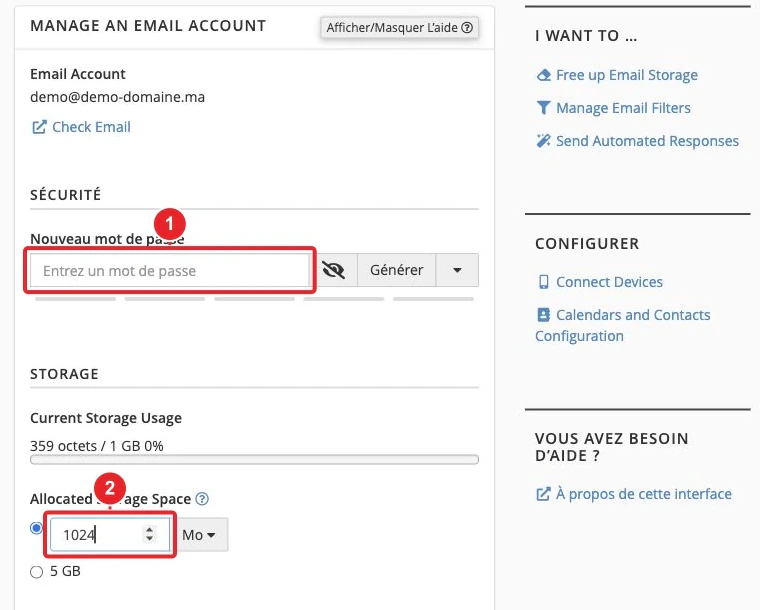
Temporarily increase the quota to allow cleanup from an IMAP client, then reduce it if needed.
Troubleshooting & important points
- Changes may not take effect immediately: wait a few minutes, reconnect your IMAP client, or close and reopen the Disk Usage interface to force a recalculation.
- Do not manually delete files in /home/username/mail/
/home/username/mail/without knowing: direct deletion can corrupt a mailbox. Use the Email Disk Usage interface or an IMAP client instead. - If Email Disk Usage shows incorrect sizes, consult the cPanel documentation or open a ticket specifying the actions and timestamps; our team can check server‑side consistency.
- Always test deletion / Auto‑Delete rules on a test account to avoid accidental loss.
Useful internal links
- How to access my cPanel account?
- How to access Webmail
- JetBackup 5: backup and restore
- Create or manage an email account in cPanel
- Contact support / open a ticket
Summary & best practices
- Make a backup before any major deletion.
- Start with Email Disk Usage to target large or old messages.
- Always empty Spam and Trash after deletion to free up space on the server.
- Use an IMAP client to archive important attachments locally before deleting them.
- Automate sorting with filters (Email Filters / Global Email Filters) and configure automatic spam deletion only after testing.
Selected sources
- Email Disk Usage — cPanel & WHM Documentation
- Disk Usage — cPanel & WHM Documentation
- Spam Filters (Apache SpamAssassin) — cPanel & WHM Documentation
Reference documentation
- Email Disk Usage — cPanel & WHM Documentation
- Disk Usage — cPanel & WHM Documentation
- Spam Filters — cPanel & WHM Documentation
Documentation consulted on October 16, 2026. Tools may vary depending on your hosting.