Introduction
Softaculous (the application installer available from cPanel) lets you remove a WordPress installation cleanly in a few clicks. This process deletes the files and, depending on your choices, the database and the MySQL user. Always back up before deleting: restoring will be much easier and faster if you have a copy of both the files and the database.
Prerequisites
- Access to your cPanel account (login credentials).
- Softaculous installed and accessible from cPanel.
- Know the domain (or subdomain) and the root folder of the WordPress installation to remove (for example public_html/mon-site).
- Sufficient permissions to delete files and databases (account holder).
- Have at least a full backup (files + database) ready before deleting anything.
Before you start — back up your site
At a minimum, make a copy of the files and export the database. Tools mentioned below: JetBackup is a backup manager and phpMyAdmin is a web interface for managing MySQL databases.
-
Automatic backup (Softaculous / JetBackup) — recommended
If Softaculous offers a backup function for the installation, use it. Otherwise, use JetBackup (if available) to create a full backup of your hosting account.
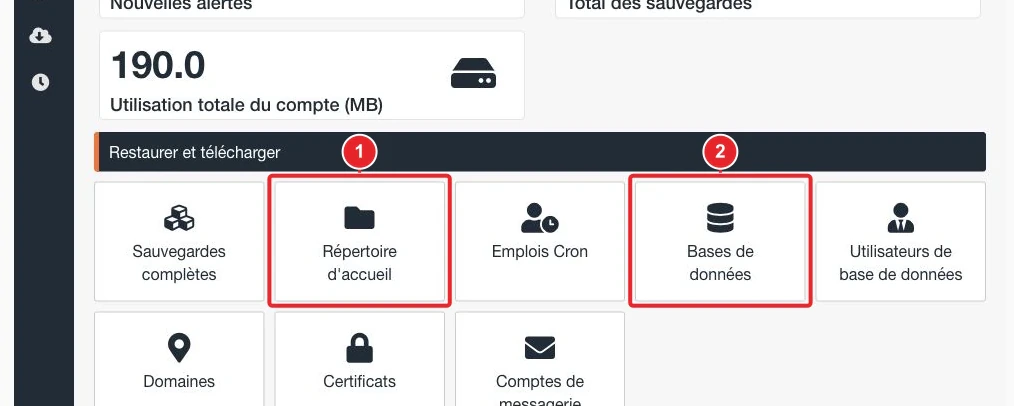
Example: JetBackup dashboard (if available on your account). -
Manual backup — files
Open the cPanel File Manager and download the site's root folder (usually
public_htmlpublic_html or a subfolder). To keep only the media files, downloadwp-content/uploadswp-content/uploads.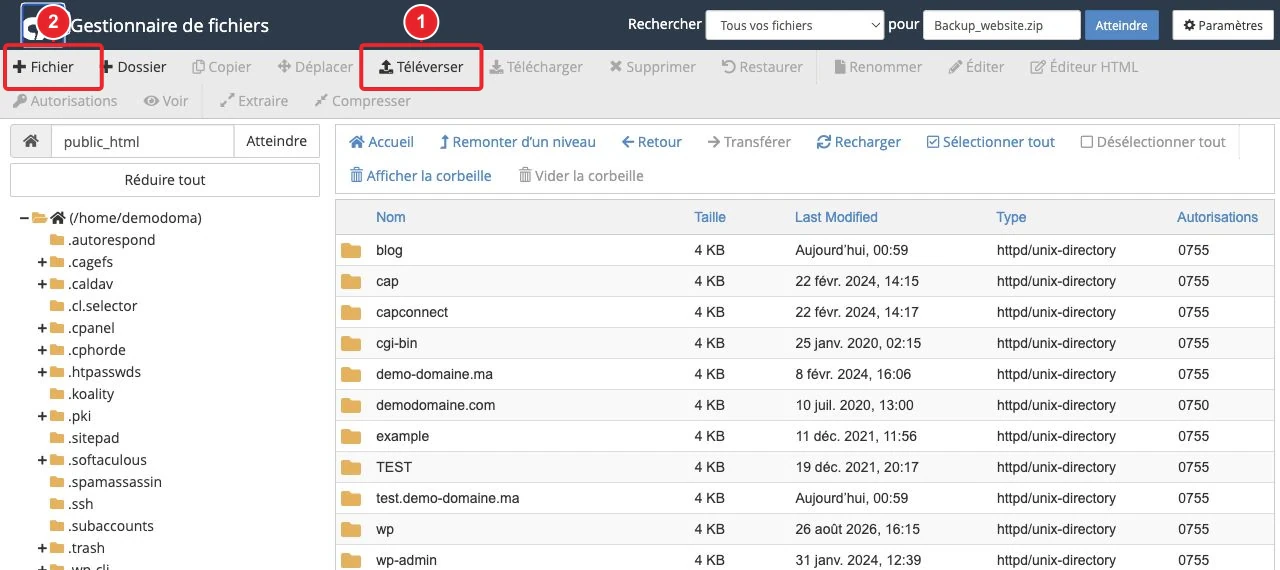
Download the public_html folder (or the site folder). -
Manual backup — database
In cPanel, open phpMyAdmin and export the database used by WordPress in SQL format. Store the exported file outside your hosting account (on your computer or in secure cloud storage).
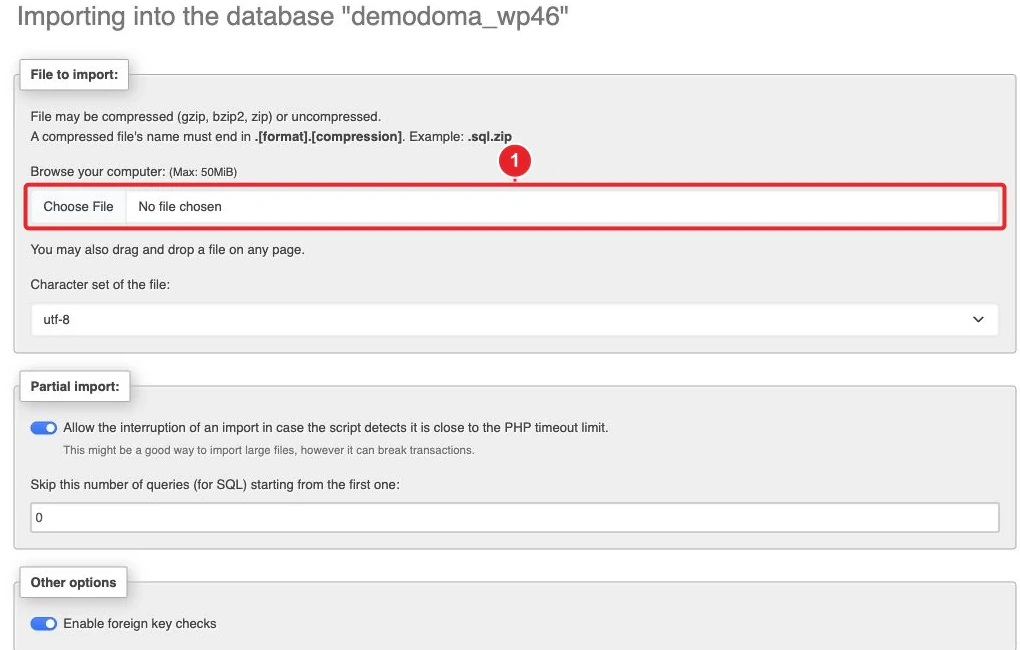
Export the database with phpMyAdmin (Export tab). Export).
Uninstall via Softaculous — step-by-step
-
Log in to cPanel.
Log in from your client area or via the cPanel URL provided by your hosting provider.
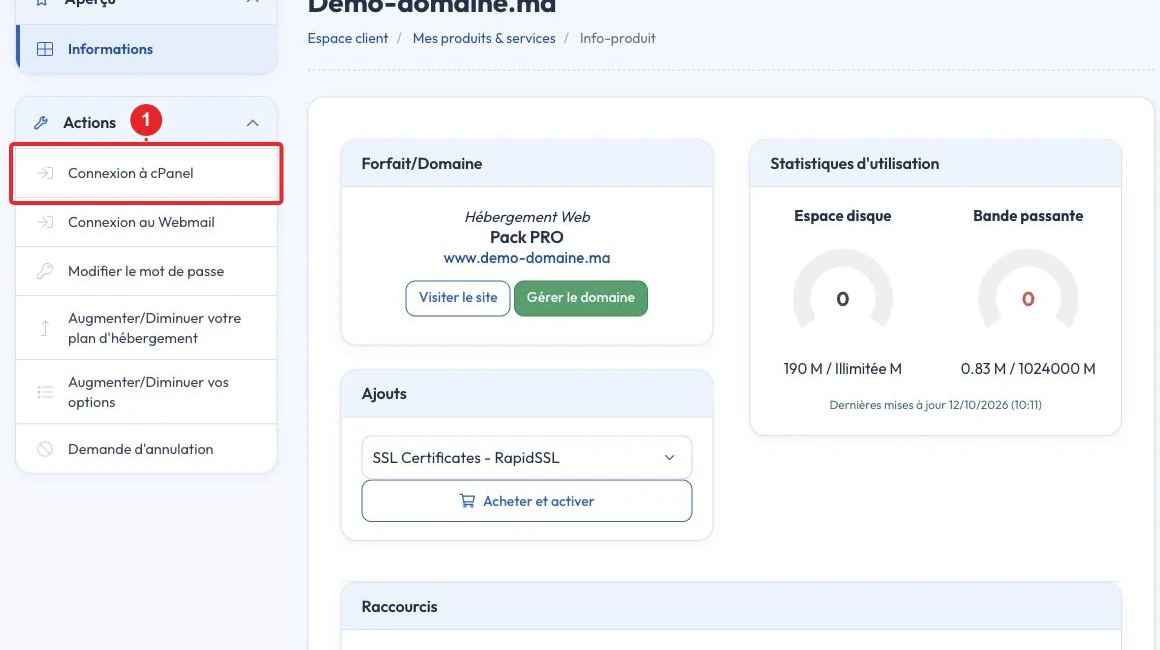
Access the cPanel dashboard from the client area. -
Open Softaculous (WordPress).
In the cPanel dashboard, locate the tile Softaculous or the section Softaculous Apps Installer > WordPress and open it.
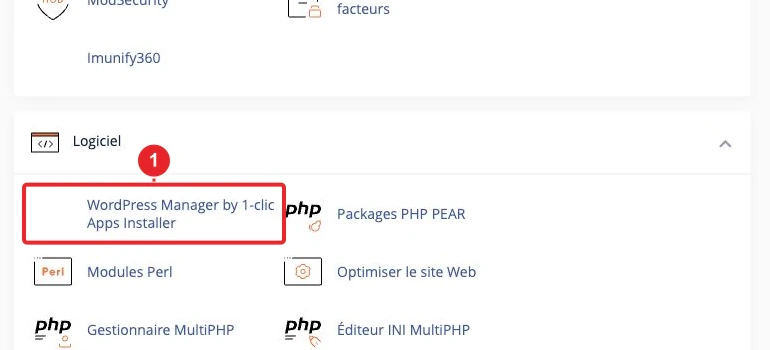
Open Softaculous → WordPress to view the list of installations. -
Locate the installation to remove.
On the WordPress page in Softaculous, identify the correct installation by checking the domain, the root folder and the version. If you have multiple installations, verify the exact URL.
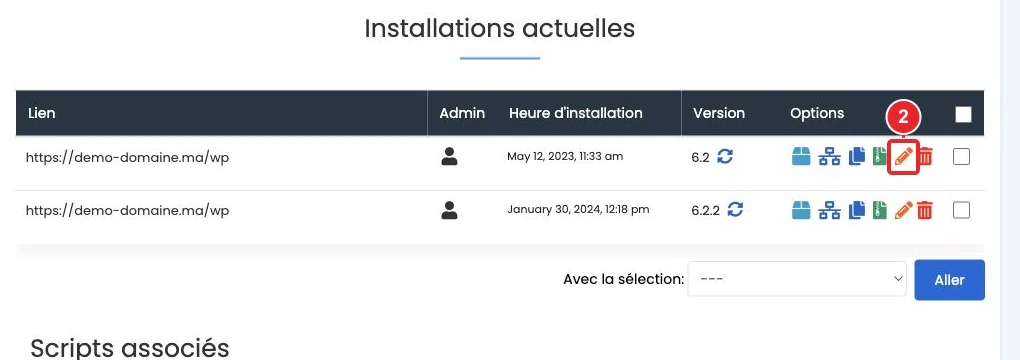
List of WordPress installations displayed by Softaculous. -
Click the installation removal icon.
In the row corresponding to the chosen installation, click the Remove icon (often marked in red). Softaculous will then open a page offering removal options.
Common options : keep or remove the installation directory, the database and the MySQL user. Uncheck the boxes for the items you want to keep.
-
Confirm and start the deletion.
After choosing the options (delete files, database, user), confirm the deletion (usual button Remove/Delete Installation). If a warning appears, read it: the deletion is irreversible without a backup.
-
Verify the result.
Softaculous displays a success message at the end of the operation. Then check via the File Manager that the web folder has been emptied or removed (depending on your choices) and verify in phpMyAdmin that the database has been deleted.
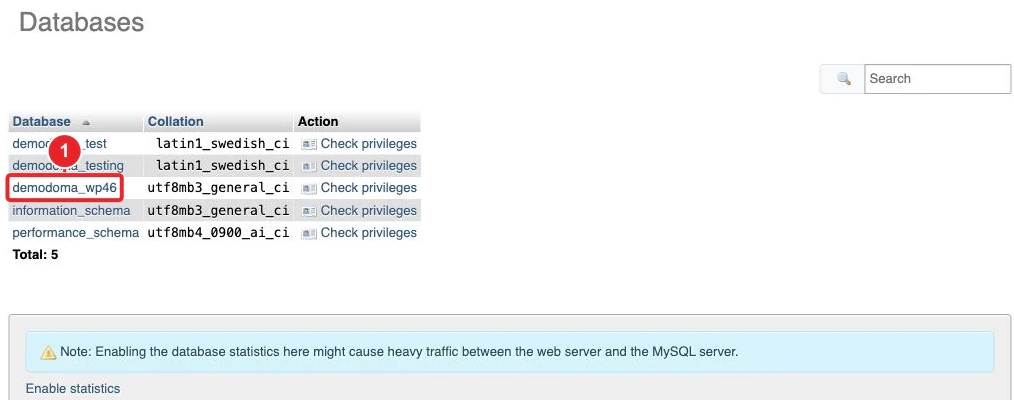
Check whether the database is present or has been removed in phpMyAdmin.
Note
Exact labels (button text and options) may vary depending on the Softaculous version. If you do not see an option, make a full backup before attempting to delete the installation.
After deletion — practical checks
- Check the web folder (public_html or a subfolder): remove any residual files (
.htaccess,wp-config.php, folderwp-contentif you chose to delete everything). - If you kept the database, consider renaming it or deleting it manually if it is no longer used.
- Check cron jobs (scheduled tasks) or custom redirects that may reference the deleted site.
Manual procedure (if Softaculous is not available)
If Softaculous is not installed or the installation does not appear, here are the actions to perform manually:
- Delete the WordPress files: via the File Manager, delete the site folder (e.g.
public_html/mon-site) or delete the WordPress files inside. - Delete (or empty) the database: in phpMyAdmin, select the database then Drop (or export it first). Example SQL command (to be used only if you understand it):
DROP DATABASE `nom_de_votre_base`; - Delete the MySQL user if necessary: use the MySQL Databases tool in cPanel to remove the associated user if it is no longer used by other sites.
Useful links: see How to import or export my database from phpMyAdmin? and How to create a MySQL database in cPanel? if you need step-by-step instructions.
Troubleshooting
- The installation does not appear in Softaculous — check the root directory; the installation may have been performed manually or via another tool (WP Toolkit). In that case, follow the manual procedure above.
- Deletion interrupted or failed — check file permissions, retry the operation, or restore from backup, then contact support if the server is preventing deletion.
- You deleted the wrong installation — restore immediately from your backup (JetBackup, Softaculous backup, or SQL import + file upload).
- Shared databases — if multiple sites use the same database or the same MySQL user, do not delete the database or user without checking dependencies.
Limitations and precautions
- Softaculous only removes what it manages: if WordPress files were moved after installation, they may remain on disk.
- If WordPress is connected to external services (CDN, external backup plugins, payment gateways), remove or disable those connections separately.
- Deletion is irreversible without a backup. Always make at least one full backup before any permanent deletion.
Internal resources
- How to install WordPress with Softaculous on cPanel? — for comparison and to locate installations.
- How do I back up or restore my website on cPanel? — restoration after accidental deletion.
- JetBackup 5: How do I back up and restore my hosting? — if JetBackup is available.
- How do I import or export my database from phpMyAdmin? — export/import SQL.
Need help?
If you are unsure (deletion blocked, missing backup, unknown installation), open a support ticket and provide the domain, the site folder and the approximate installation date. Do not delete anything until you have a valid backup or confirmation from support.
Last verification of the instructions: 17 October 2026.
Documentation consulted on 17 October 2026. Tools may vary depending on your hosting.