This guide explains why cPanel may temporarily block outgoing email for a domain and provides a clear three-step procedure: (1) identify the rule in effect, (2) fix the root cause, (3) test and/or request support intervention if necessary. It covers both the “defers/failures” rule and the global hourly sending limit (hourly quota), which are two distinct mechanisms.
What does this message mean?
Domain example.com has exceeded the max defers and failures per hour (10/10 (100%)) allowed. Message discarded.
This message indicates that, during the last hour, the domain has met both: (a) a minimum number of rejected or deferred messages, and (b) a proportion of defers/failures relative to the total messages sent that exceeds the configured threshold. In this case cPanel (Exim) temporarily blocks sending to protect the server’s reputation.
What do the numbers (e.g. 10/10 (100%)) mean?
- First number (here 10): the number of emails rejected or deferred observed during the previous hour.
- Second number (here 10): the configured minimum threshold that triggers the protection (the rule applies only if this threshold is reached or exceeded).
- Percentage (here 100%): the proportion of defers/failures compared with the total messages sent during the hour; if this percentage is ≥ the configured threshold, the percentage condition is satisfied.
Prerequisites
- Access to cPanel (user account) and the affected domain.
- Examples of errors to collect from Track Delivery : recipient, date/time, the "Result" message.
- If you are on shared hosting: contact support if you do not have WHM (server administrator access).
Useful cPanel tools (screenshots)
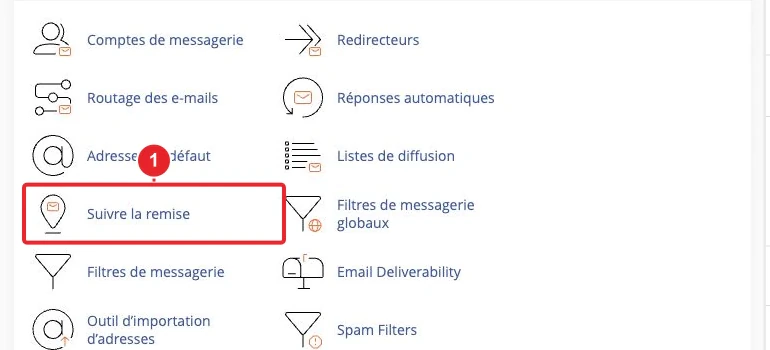
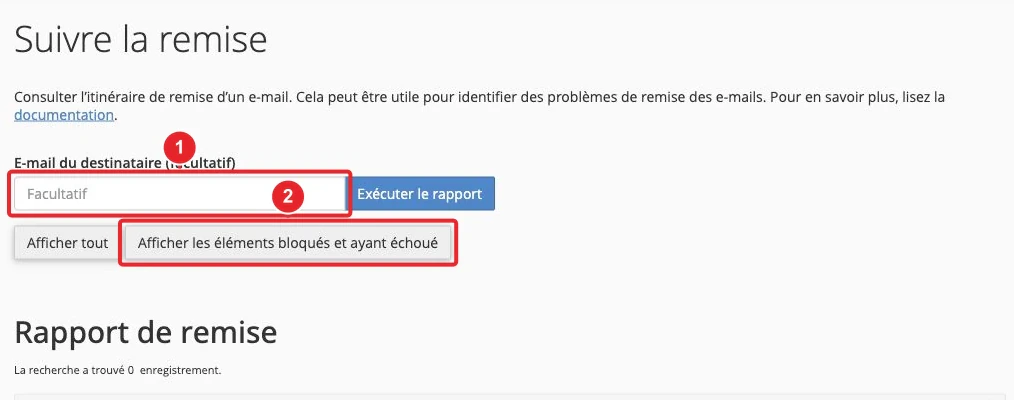
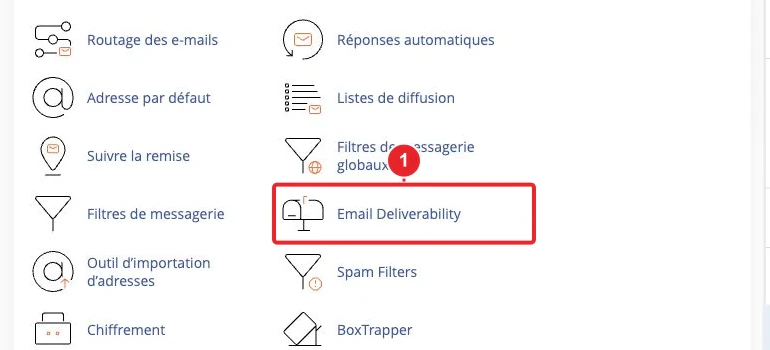
These tools are documented by cPanel: Track Delivery and Email Deliverability are the first places to check.
Quick diagnostic (checklist)
- Stop any bulk sending (campaign, WordPress plugin, PHP script) immediately to avoid making the situation worse.
- Open Track Delivery and look for recurring errors (codes and "Result" messages).
- Identify whether the errors are on the recipient side (e.g., 5.1.1 "user unknown") or on the sending side (SPF/DKIM authentication, relay refused, etc.).
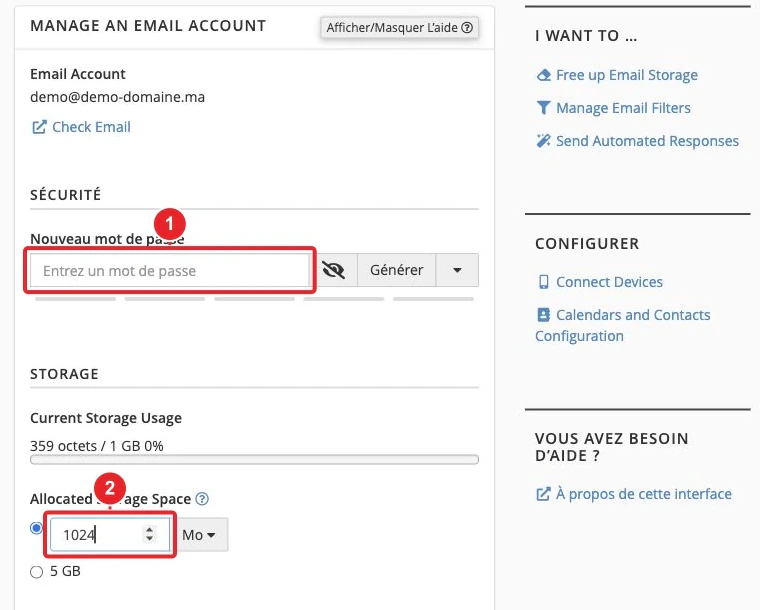
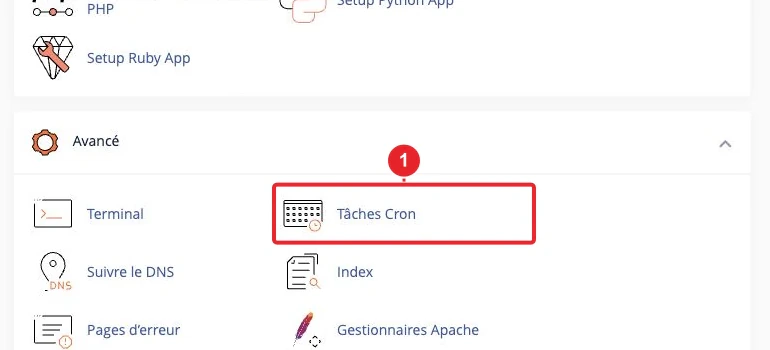
- If the account appears compromised: change the password (cPanel → Email Accounts), disable sending scripts and check Cron jobs.
- If necessary, prepare precise examples (3–10 Track Delivery entries with timestamps) before contacting support.
Step‑by‑step procedure to resolve the block
Step 1 — Gather evidence (10 minutes)
- Open cPanel → Email → Track Delivery. Run the report without filters, then filter by domain or recipient if necessary. Note the lines showing defer or fail and copy the exact text of the Result.
- Gather at least 3 examples: recipient address, date/time and error message. Attach a screenshot if you contact support.
Step 2 — Correct the immediate causes (15–60 minutes)
- Invalid addresses / 'dirty' lists: remove or flag addresses that return
user unknownuser unknown / 5.1.15.1.1— do not re‑send to these addresses. - Authentication issues (SPF / DKIM / DMARC): open Email Deliverability and apply the recommended records. Wait for DNS propagation (a few minutes to 48 hours depending on the TTL).
- Compromised account: change the mailbox password (cPanel → Email Accounts → Manage). See our guide if necessary.
- Sending plugins/scripts (WordPress, forms): disable them temporarily. Prefer sending via authenticated SMTP rather than the PHP function
mail()mail(). - Cron jobs: disable any suspicious task that could generate automatic emails.
- Queue: if you have WHM, inspect the “Mail Queue Manager” and remove unwanted items. On shared hosting, ask support to examine/clear the queue and attach your evidence.
Step 3 — Test after correction (1–2 hours)
- Wait: the rule is based on activity over the last hour; the protection is lifted automatically when the domain no longer meets both conditions (minimum number + percentage).
- Send a small test (a few messages) and monitor Track Delivery to confirm they are delivered.
- If the block remains active for several hours after the cause has been corrected, gather your examples and contact support (see the “What to do if the block persists?” section).
Hourly sending limit (hourly quota)
In addition to the 'defers/failures' rule, the server may apply an hourly quota which blocks sending when the total number of emails sent by a domain exceeds a configured value (often called Max hourly emails per domain). The message is different but results in the same symptom: inability to send emails.
How to distinguish this block?
- Defers/failures rule: you will see many 'defer' or 'fail' entries in Track Delivery and a message such as 'exceeded the max defers and failures per hour'. The issue stems from repeated delivery failures.
- Hourly quota: messages are delivered successfully, but their total exceeds the quota; Track Delivery will show successful deliveries while you may hit the overall sending limit.
If you have WHM (VPS / dedicated server)
- Log in to WHM.
- Go to Server Configuration → Tweak Settings → Mail and check the values related to controlling the number of emails (e.g. Max hourly emails per domain and the defers/failures detection settings). Only an administrator can change these settings.
- Check the mail queue (Mail Queue Manager) and the Exim statistics to see the number of emails sent per domain in the last hour.
- If you raise the limits, do so cautiously: this can make it easier for a compromised account to send abusive emails.
If you are on shared hosting
If you don’t have WHM access: contact support and attach 3–10 Track Delivery entries (lines), timestamps and the actions you have already taken. Support can inspect the mail queue and, if appropriate, temporarily adjust a server‑side limit.
Common causes and quick fixes
- Stale address lists — clean your lists, use double opt‑in, and do not resend to addresses that return rejects.
- Misconfigured plugin/form (WordPress) — disable the plugin and configure sending via authenticated SMTP. See our SMTP configuration guide.
- Compromised account — reset the password, disable sending scripts and scan files for backdoors.
- SPF/DKIM/DMARC issues — fix them via Email Deliverability (cPanel).
- High sending volume (campaigns) — use a dedicated solution (Email PRO, a dedicated server or a specialized sending service) rather than mailboxes on shared hosting.
Medium‑term prevention
- Implement and monitor SPF, DKIM and DMARC (use the Email Deliverability tool).
- Periodically clean your lists (remove hard bounces) and adopt double opt‑in.
- Limit the number of sends per process and use staggered (throttled) sending for campaigns.
- Enable 2FA for cPanel/client accounts and enforce strong passwords.
- Monitor Track Delivery and set up internal alerts to detect anomalies early.
Limitations and important points
- The block is temporary and is based on analysis of the last hour; the exact time before it is lifted varies depending on the server configuration.
- On shared hosting, plan‑specific limits are added on top of the server’s general settings; the host remains the arbiter of changes.
- Only a WHM administrator can modify certain global limits or clear the server‑side queue; prepare evidence before requesting support intervention.
What to do if the block persists?
- Gather: 3–10 Track Delivery examples (recipient, date/time, Result message), screenshots and the actions taken (password changes, disabled plugins, cleaned lists).
- Open a support ticket via your client area. Clearly state: affected domain, description of the symptom, Track Delivery examples and the actions already performed. Explicitly request verification of the mail queue and whether a server‑side rule is maintaining the block.
Useful internal links
- Track Delivery: How to track your emails in cPanel — Track Delivery user guide.
- Email Deliverability — correct SPF/DKIM/DMARC in cPanel.
- Change the password of an email address in cPanel — if an email account appears compromised.
- How to increase the number and quota of your Email PRO mailboxes? — solution for high-volume sending.
Official documentation cited
- How to Prevent Spam with Mail Limiting Features — cPanel & WHM Documentation
- Track Delivery — cPanel & WHM Documentation
- Email Deliverability in cPanel — cPanel & WHM Documentation
Quick summary: This message generally means the domain hit a combined threshold of defers and failures during the last hour. First fix the root causes (invalid addresses, authentication issues, compromised account), perform a small test send, then contact support with examples if the block persists. If your sending needs increase, consider an Email PRO plan or a dedicated sending service to avoid the limits of a shared hosting environment.
Reference documentation
- How to Prevent Spam with Mail Limiting Features | cPanel & WHM Documentation
- Track Delivery | cPanel & WHM Documentation
- Email Deliverability in cPanel | cPanel & WHM Documentation
Documentation consulted on 16 October 2026. Tools may vary depending on your hosting.