Introduction
cPanel provides a CalDAV (calendars) and CardDAV (contacts) service accessible from the Calendars and Contacts. Microsoft Outlook for Windows does not natively support CalDAV/CardDAV: to synchronize calendars and address books provided by cPanel you must install a third‑party connector (for example Outlook CalDav Synchronizer). The cPanel DAV server is managed by the daemon cpdavd cpdavd on the hosting provider's side.
What to expect
- From cPanel you retrieve the CalDAV/CardDAV server URL (Server URL), an Alternate Server URL (Alternate Server URL) and the expected username (generally your email address).
- Outlook will display the imported calendars and contacts in separate Outlook folders (select the target folder when configuring the connector).
- Synchronization is performed via the connector: modes (read‑only vs two‑way) and interface labels vary by plugin.
Prerequisites
- Access to your cPanel account and to the Calendars and Contacts. If the tool does not appear, your host may have disabled the service — contact support.
- An active email account (full address + password). Verify that the account exists in Email Accounts in cPanel.
- Microsoft Outlook on Windows (client installed on the machine).
- A CalDAV/CardDAV connector for Outlook (downloadable from the project's official page). We do not publish third‑party download links: install only from the plugin's official source and verify the publisher.
- If your email account uses two‑factor authentication (2FA), prepare an application password if your provider requires it.
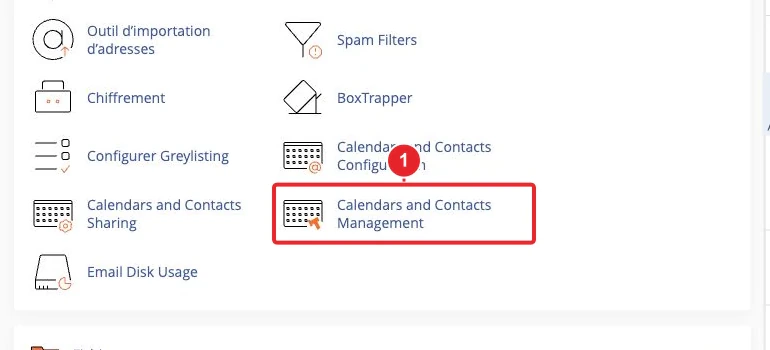
Step‑by‑step instructions
1) Retrieve information from cPanel
- Log in to cPanel, then open Calendars and Contacts (Email section).
- On the page, locate the configuration section: copy these details to a safe place:
- Server URL (primary CalDAV/CardDAV URL),
- Alternate Server URL (alternate URL often containing
/principals/useful if automatic discovery fails), - Username: the full email address (e.g.
user@votredomaine.tld), - Password: the mailbox password or an application password if 2FA is enabled.
- If necessary, create a calendar or an address book from this interface.
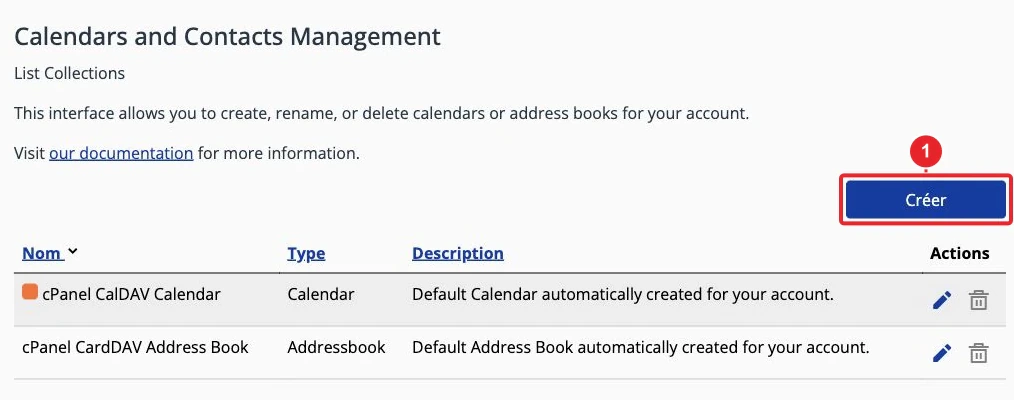
The page displays the existing collections and the connection URLs. - To create a collection (if you don't have one): use the create command and note the exact name of the calendar/address book created.
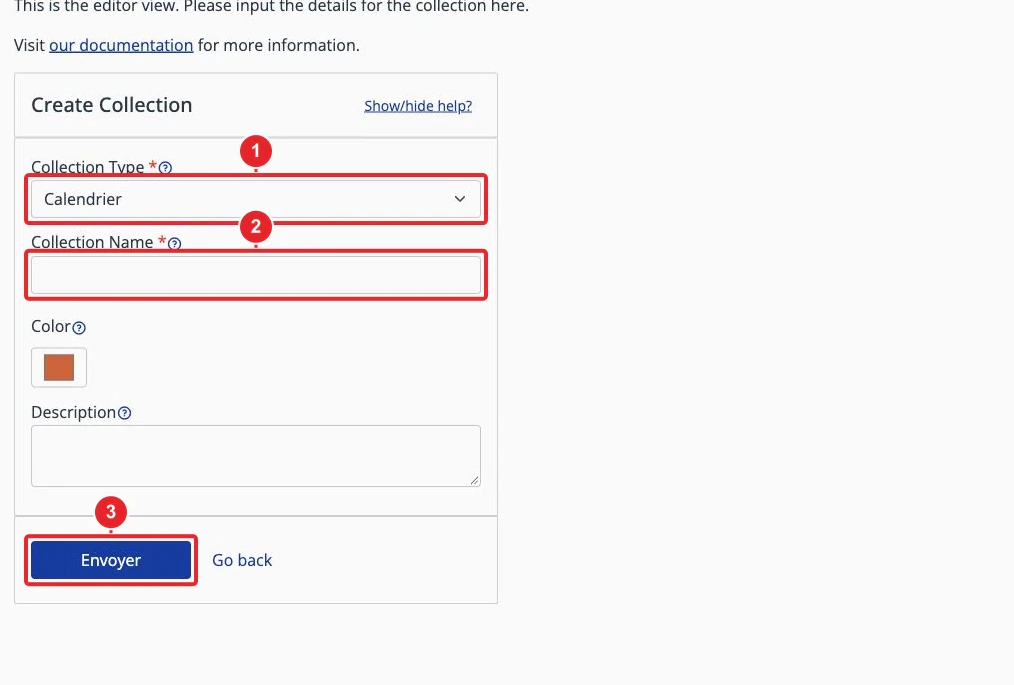
Example: creating a calendar from cPanel.
2) Install the connector in Outlook (Windows)
- Download and install a CalDAV/CardDAV connector compatible with Outlook from its official page (e.g., Outlook CalDav Synchronizer). Install only from the project's source or a trusted publisher.
- Restart Outlook after installation. The plugin will add a configuration entry or tab (the label depends on the plugin).
3) Configure synchronization — calendar (CalDAV)
- Open the connector panel in Outlook, then create a new profile / Synchronization Profile (or equivalent).
- Select the “CalDAV” type and enter:
- Server URL : paste the URL provided by cPanel (or the Alternate Server URL if automatic discovery fails),
- Username : the full email address,
- Password : mailbox password (or application password),
- Choose the Outlook folder that will receive the calendar (or create a new one).
- Save the profile and start a manual synchronization (“Synchronize now” or equivalent). During the first synchronization, remote events will be imported into the selected Outlook folder.
- Check the synchronization mode (read‑only or two‑way) and change it as needed — this setting depends on the plugin.
4) Configure synchronization — contacts (CardDAV)
- Create another profile in the connector, this time choosing “CardDAV” (Contacts).
- Enter the URL, username and password in the same way, then associate the CardDAV collection with the desired Outlook contacts folder.
- Synchronize and verify that the contacts appear in Outlook.
Example URLs (adapt as needed)
Serveur (HTTPS + port) : https://votredomaine.tld:2080
URL alternative : https://votredomaine.tld:2080/principals/user@votredomaine.tld/
Service en sous‑domaine (ex. proxy) : https://cpcalendars.votredomaine.tld (CalDAV)
                                   https://cpcontacts.votredomaine.tld (CardDAV)
Replace votredomaine.tld votredomaine.tld with your domain. If automatic discovery fails, always try the Alternate Server URL that contains the collection (/principals//principals/).
Limitations & security
- Outlook (Windows) requires a third‑party connector: neither cPanel nor your hosting provider supports these plugins or guarantees compatibility. Check the project's reputation before installation.
- The cPanel DAV service relies on the daemon cpdavd
cpdavdon the server side: if the feature does not appear in your cPanel, ask your hosting provider whether they have enabled it. - TLS certificates: if the server uses a self‑signed certificate, Windows/Outlook may refuse the connection. Ask your hosting provider for a valid certificate or install the root certificate locally (an operation to be handled with care).
- If your mailbox is hosted by an external service (Microsoft 365, Gmail, etc.), the CalDAV/CardDAV synchronization provided by cPanel is not available for that mailbox: the functionality depends on where the email account is hosted.
- If your email account requires an application password (common with 2FA), use it instead of your main password.
- Large volumes (very many contacts or events) can slow synchronization; test first with a small calendar or folder.
Quick troubleshooting
- Authentication failure : verify that you entered the full email address as the username and that you can sign in to webmail. If 2FA is enabled, use an application password (change the email password).
- Collections not found : in the connector profile, explicitly select the collection (calendar / addressbook) or try the Alternate Server URL provided by cPanel.
- TLS / certificate error : make sure the domain name in the certificate matches the URL you are using. If the certificate is self‑signed, ask your host for a valid certificate.
- Automatic discovery fails : replace the URL with the Alternate Server URL (containing
/principals/). - Plugin-specific issues : update the connector, restart Outlook and consult the plugin project's documentation/support — your host's support does not assist with third‑party plugins.
Quick summary
- In cPanel → Calendars and Contacts: note the Server URL / Alternate URL, username and password.
- Install a CalDAV/CardDAV connector for Outlook (official source), create a CalDAV profile for the calendar and a CardDAV profile for contacts by pasting the URL and your credentials.
- Test the synchronization and use the Alternate URL if automatic discovery fails.
Useful links
- How to Set Up Calendars and Contacts — cPanel Support
- Calendars and Contacts in Webmail — cPanel Documentation
- Service and Proxy Subdomains (example URLs) — cPanel Documentation
Would you like an illustrated step‑by‑step procedure for a specific connector (e.g. Outlook CalDav Synchronizer) with screenshots of the plugin interface? Specify the exact plugin name and we will prepare the detailed procedure by checking the interface labels. If the tool Calendars and Contacts does not appear in your cPanel, open a ticket specifying your hosting plan so we can check whether the service is activated.
Reference documentation
- How to Set Up Calendars and Contacts — cPanel Support
- Webmail — Calendars and Contacts | cPanel Documentation
- Service and Proxy Subdomains — cPanel Documentation
Documentation consulted on October 17, 2026. Tools may vary depending on your hosting.