Quick answer: From cPanel, open E‑mail → Email Accounts, click on Manage for the address in question, then in the Restrictions, change the controls Receiving Incoming Mail, Sending Outgoing Mail and Logging In to Suspend or Hold depending on the desired restriction. Some options may be hidden by the hosting provider.
Before you start — prerequisites
- cPanel login credentials. (See: How to access my cPanel account?).
- Permission to manage email accounts in cPanel. If you do not have this permission, contact support: full suspension of an account is performed server‑side (WHM).
- If your email is managed by an external service (e.g., Office 365, Email PRO), check the actual source of the emails (MX records / routing) before acting.
Recommended method — manage the email account via Email Accounts
- Log in to cPanel and open E‑mail → Email Accounts.
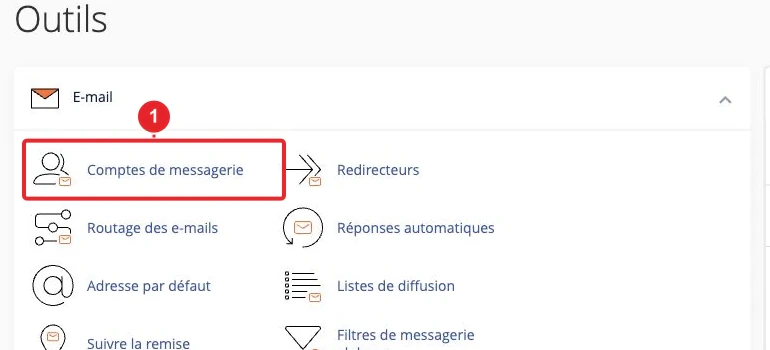
- In the list, click Manage for the address you want to block.
- On the page Manage an Email Account, scroll down to the Restrictions. You will find the following separate controls:
- Receiving Incoming Mail (receiving)
- Sending Outgoing Mail (sending)
- Logging In (authentication / login)
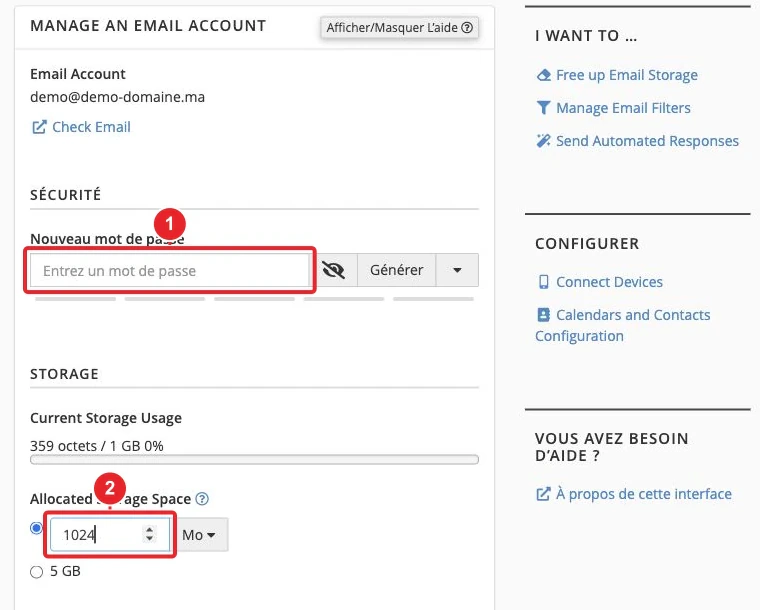
What do Allow / Suspend / Hold mean?
- Allow : normal operation — the server accepts connections and messages.
- Suspend : refuses new connections or rejects messages. For incoming mail, the sender generally receives a bounce (delivery rejection).
- Hold : (commonly used for outgoing mail) outgoing messages are held in the server queue; they will be processed if you switch back to Allow.
For more details on these controls, refer to the official cPanel documentation on managing email accounts.
Practical consequences to be aware of
- Suspending incoming mail: messages are not delivered to the mailbox and the sender generally receives a bounce.
- Suspending sending: email clients (mail applications) or webmail will not be able to send from this address. If you chose Hold, outgoing messages remain queued on the server.
- Suspending logging in: prevents IMAP/POP/SMTP authentication from a mail client or webmail.
- Changing the restrictions does not alter DNS (MX) records: routing remains unchanged.
- Check forwarders (redirects) and the default address (Catch‑All): depending on the configuration, a redirect to the suspended mailbox may generate bounces or be handled differently by the server.
Restoring sending / receiving
- Return to cPanel → Email → Email Accounts → Manage for the affected address.
- In Restrictions, switch the controls back to Allow.
- Click Update Email Settings. If messages were in Hold, the server will attempt to deliver them afterwards (according to the server's queue policy).
Block multiple mailboxes or suspend an entire account
Blocking multiple mailboxes at the same time, or fully suspending a cPanel account, is generally a server‑side operation (WHM) and requires administrator privileges. If you do not have these privileges, open a support ticket specifying the addresses to suspend and the reason.
Alternatives if you do not have access to cPanel
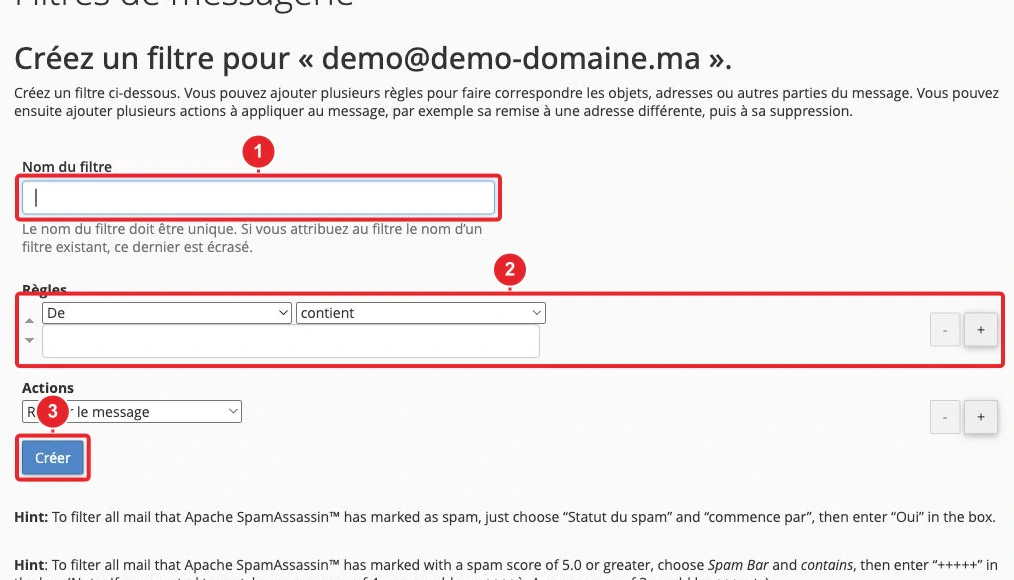
- Create an email filter to discard incoming messages : from cPanel → Email Filters (or Global Email Filters) create a rule targeting the address (e.g. a rule on the field To or Any Header) and choose the action Discard (discard on delivery). This method prevents reception without modifying DNS.
- Change the password : quickly prevents access from a configured client (SMTP/IMAP) until the client is updated with the new password.
- Modify routing / MX records : reroutes incoming mail (affects all mailboxes of the domain; allow for DNS propagation) — only use this option if you understand the impact.
Quick troubleshooting
- I don't see the Restrictions : your hosting provider may have disabled this feature — contact support via your client area (open a ticket).
- After switching back to Allow, emails are not sent : check Track Delivery to identify delivery failures or retries. (See: Track Delivery: How to Track Your Emails in cPanel).
- My filters are not working : test the rule with the Test Filter, check the order of filters and any global/server filters that may take precedence.
- Emails are still being sent : a web script (PHP mail, WordPress, form) or an external service may send messages bypassing the account. Check for sends originating from your site and contact support if necessary.
- Suspected mass sending or account compromise : immediate recommended actions — suspend the account's sending, change the password, open a ticket with support and, if possible, block the suspicious IPs (IP Blocker).
Useful internal links
- How to access my cPanel account?
- cPanel: How to configure email filters?
- How to configure MX records and email routing in cPanel
- Track Delivery: How to track your emails in cPanel
- Email sending issues: troubleshooting guide
Summary
The simplest method is to use the Manage page for an email account in cPanel and modify the Restrictions to Suspend or HoldIf you don't have access to cPanel, opt for a filter that Discard incoming messages or change the password; for large‑scale or server‑side blocks, ask support to intervene.
Reference documentation
- Manage Email Accounts — cPanel & WHM Documentation
- How to Configure Email Filters — cPanel & WHM Documentation
- Track Delivery — cPanel & WHM Documentation
Documentation consulted on October 17, 2026. Tools may vary depending on your hosting.