Introduction
Password‑protecting a directory (HTTP Basic Authentication) prevents files from being viewed in a browser by requiring a username and password. cPanel provides a simplified interface ("Directory Privacy") that automatically creates and manages the files .htaccess and .htpasswd. If this interface is not available, you can reproduce the same mechanism manually by editing those files.
Official references: Directory Privacy — cPanel Documentation · htpasswd — Apache.
Prerequisites
- Access to your cPanel account. (See: How to access my cPanel account?).
- Access to the File Manager in cPanel or SSH / cPanel Terminal access if you prefer the command line.
- Know the path of the directory to protect (for example
public_html/staging). - Show hidden files in File Manager to view
.htaccess(see: Display hidden files in the cPanel File Manager). - Note: some hosts may disable the Directory Privacy interface — in that case follow the manual method below.
Recommended method — Directory Privacy (cPanel interface)
When the option is available, use the interface: it automates the creation of the user file (.htpasswd) and the writing of directives into .htaccess.
- Log in to cPanel and open Files → Directory Privacy.
- In the list, locate and click the directory you want to protect (or use Edit in the Actions column).
- Check Password protect this directory (Password protection), enter a readable label for the zone and click Save.
- In the user management section, create an authorized account: enter a username and a strong password (or use the built‑in generator), then Create / Save.
- Test by opening the directory URL in a private/incognito browser window: an HTTP login prompt should appear.
Practical notes
- The protection applies to the selected directory and its subdirectories.
- Directory Privacy writes (or modifies)
.htaccessand creates a file.htpasswdoften placed in a secure directory of the account (path depends on the host). - If the interface refuses to create a user, check and try temporarily adjusting the directory permissions (e.g.
0700) then create the user.
Important note
If your site already uses rewrite rules (WordPress, frameworks), those rules in .htaccess .htaccess can prevent the authentication prompt from appearing. See the Troubleshooting below.
Manual method — create .htpasswd and .htaccess
Use this method if the Directory Privacy interface is not available or if you want precise control over the files.
1) Recommended location for .htpasswd .htpasswd
Place the .htpasswd file .htpasswd ideally outside of the public webroot (public_htmlpublic_html) so it cannot be downloaded. Example of a private directory:
/home/ACCOUNTUSER/.htpasswds/mondossier/passwd
Replace ACCOUNTUSER ACCOUNTUSER with the account name. If you cannot move the file out of the webroot, protect it afterwards with an Apache rule (see the Troubleshooting section).
2) Create the .htpasswd file .htpasswd
- With SSH or the cPanel Terminal: use htpasswd
htpasswd(tool provided by Apache). Example:
The -c optionhtpasswd -c /home/ACCOUNTUSER/.htpasswds/mondossier/passwd monuser-ccreates the file; omit it if you are adding an existing user. The command prompts for the password and records the encrypted linemonuser:hashedpasswordmonuser:hashedpassword. - Without SSH: create a local text file containing the encrypted line(s) in the format user:hash
user:hashand upload it via File Manager to the chosen location. If you don't know how to generate the hash, use the cPanel Terminal or ask support.
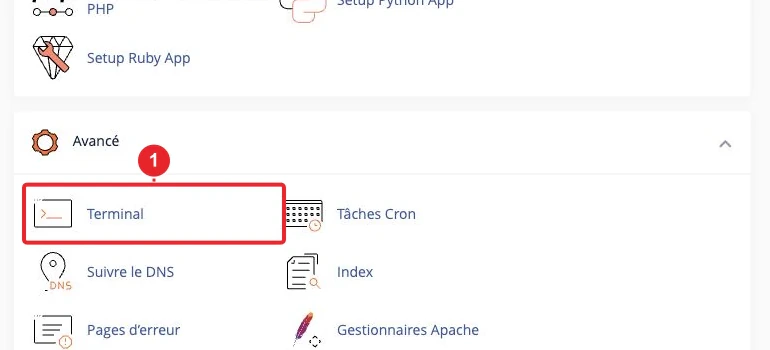
htpasswd if you don't have external SSH access.3) Create / edit the file .htaccess in the directory you want to protect
In the web directory you want to protect (e.g. public_html/staging), add or edit .htaccess with these directives (example):
AuthType Basic
AuthName "Zone protégée"
AuthUserFile /home/ACCOUNTUSER/.htpasswds/mondossier/passwd
Require valid-user
- AuthUserFile must contain the absolute path to your .htpasswd (replace ACCOUNTUSER and the path).
- Require valid-user authorizes all accounts present in .htpasswd. To limit to a single user: Require user monuser.
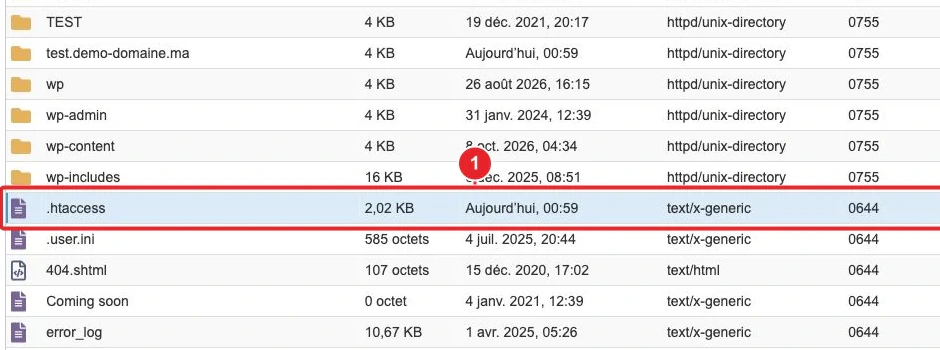
.htaccess from File Manager. Enable display of hidden files if necessary.4) Upload and verify
- Upload
.htpasswdto the chosen private location and verify the permissions (for example600for the file). - In File Manager, open the protected folder and verify that
.htaccesscontains the above directives. - Test in a private window: visit
https://votre‑domaine.tld/staging/and verify that the authentication prompt appears.
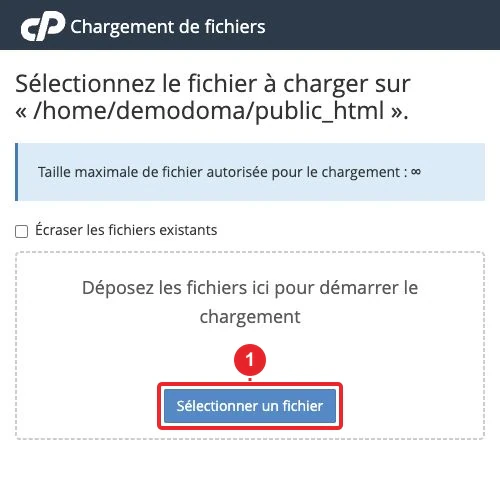
.htpasswd (if you cannot create the file via the Terminal).Tips and limitations
- HTTP protection (Basic Auth) protects access via HTTP/HTTPS in a browser. It does not protect FTP/SFTP access, direct Web Disk access, or access to the server-side filesystem.
- Place
.htpasswdoutside the webroot when possible: it's the best practice for security. - On some servers (e.g. LiteSpeed configurations or reverse proxies), a 404 error can replace the expected 401 response. A common workaround: create a page
401.htmland addErrorDocument 401 /401.htmlin the.htaccessprotected. - If your application uses rules
mod_rewrite(WordPress), place the authentication directives at the start of the.htaccessso they are executed before the rewrites.
Quick troubleshooting
- The login popup does not appear : clear the cache, test in a private window. Verify that a
.htaccesscontaining the authentication directives exists in the target folder. Look for other.htaccessin parent directories that could redirect or proxy requests. - Unable to create a user via Directory Privacy : check the permissions and owner of the target directory (try temporarily 0700
0700) then try again. - Credentials rejected : check the AuthUserFile path and ensure
AuthUserFilethe .htpasswd file.htpasswdcontains the user and that file permissions allow the web server to read it. - 404 instead of 401 : add a 401.html file
401.htmland the directive ErrorDocument 401 /401.htmlErrorDocument 401 /401.htmlin the.htaccessprotected .htaccess. - The .htpasswd file
.htpasswdis publicly accessible : move it outside public_htmlpublic_html; otherwise add a rule in your public web root to protect this file (Apache 2.4):<Files ".htpasswd"> Require all denied </Files> - Command-line test (advanced option):
The HTTP response should return 401 if the protection is active (before credentials are provided) or 200/302 after successful authentication.curl -I --user monuser https://votre-domaine.tld/staging/
Useful internal links
- How to access my cPanel account?
- Show hidden files in the cPanel File Manager (useful to see .htaccess
.htaccess). - How do I add files to my cPanel web hosting space?
Need help?
If the protection does not work after these checks, open a ticket attaching: the tested URL, the protected folder, the method used (Directory Privacy or manual) and screenshots of the contents of your .htaccess and the path AuthUserFile. How to contact support.
Reference documentation
- Directory Privacy — cPanel & WHM Documentation
- Can I password-protect a directory using the cPanel interface? — cPanel Support
- htpasswd — Apache HTTP Server documentation
Documentation consulted on October 17, 2026. Tools may vary depending on your hosting.