Introduction
If your recipients see a winmail.dat file attached to your e‑mails, the message was very likely encoded using Microsoft's proprietary TNEF (Transport Neutral Encapsulation Format) used by Outlook/Exchange. Clients that don't support TNEF display that binary file instead of the expected attachments or formatting. This guide provides concrete actions depending on your role: sender, Exchange administrator, or recipient (mailbox hosted on cPanel).
What is 'winmail.dat' (TNEF)?
TNEF is a proprietary container Microsoft uses to transmit Outlook‑specific elements (RTF formatting, OLE objects, meeting invitations, voting buttons, encapsulated attachments…). When a message is sent in Rich Text Format (RTF), Outlook may encapsulate this data in a file named winmail.datNon‑Microsoft clients don't always know how to decode TNEF and therefore display that raw file.
Prerequisites
- If you are the sender: access to your Outlook client (Windows/Mac/OWA) so you can change the sending format.
- If you are the administrator: access to the Exchange Admin Center (EAC) or to the Exchange Management Shell (PowerShell).
- If you are the recipient and your mailbox is hosted on cPanel: access to cPanel (to open Email → Track Delivery) or to Webmail to view the message source.
Actions — if you send email (Outlook)
- Send in HTML or Plain Text rather than RTF. This prevents Outlook from generating a winmail.dat for most recipients.
- In Outlook (Windows), for a message: open the compose window → tab Format Text → choose HTML or Plain Text.
- To change the default format (Windows): File → Options → Mail → "Compose messages in this format" → select HTML or Plain Text.
- In Outlook for Mac or Outlook on the web (OWA), use the formatting options in the compose window to switch to HTML or Plain Text (the exact label varies by version).
- Do not use RTF for messages intended for external recipients. If you occasionally need proprietary Outlook features (voting buttons, forms), send those messages separately in RTF and the rest in HTML.
- Advanced option (administration / Windows PC) : it is possible to disable TNEF on the client side via the registry. Microsoft documents a key
DisableTNEFunder the Outlook hive; always back up the registry and test before deploying widely.
Technical note
Outlook can retain per-contact behavior: even if the default format is HTML, certain contacts or domains may be configured to receive RTF and therefore TNEF.
Actions — if you administer Exchange (organization)
On Exchange (on‑premises or Exchange Online), manage TNEF usage per remote domain ("remote domains"): prefer disabling TNEF for external domains rather than disabling it globally if you have internal needs.
- Via the Exchange Admin Center (EAC): Mail flow → Remote domains → choose or create the entry for the external domain → disable the use of the Rich Text format (TNEF) for that domain.
- Example PowerShell command:
Then test by sending messages to an external address to verify the behavior.Set-RemoteDomain -Identity "NomDuDomaine" -TNEFEnabled $false - Alternative: use transport rules / content conversion to force conversion to MIME if necessary.
Actions — if you receive winmail.dat
- Ask the sender to resend the message in HTML or Plain Text (instructions above).
- Open the message in another mail client or in Webmail: some webmail interfaces/clients (Roundcube, Horde, and some mobile mail apps) will automatically extract attachments contained within a winmail.dat.
- If the sender cannot resend, use a TNEF extractor on your workstation to recover the attachments (choose a reputable, trusted utility for your operating system).
Verify and diagnose from cPanel (if the recipient’s mailbox is hosted on cPanel)
If the recipient mailbox is on cPanel, these tools help check delivery, authentication and server‑side processing:
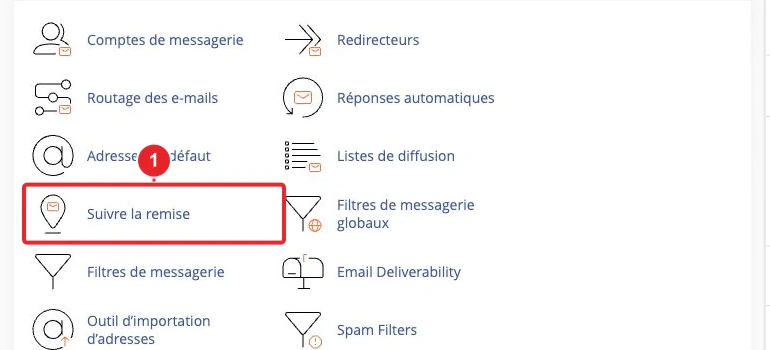
- Log in to cPanel → Email → Track Delivery. Search for the sender, recipient or Message‑ID. The report shows the transmission steps and may indicate delivery issues.
- To view the raw content or headers of the message, open it in Webmail (Roundcube/Horde) and view the source/headers to look for a line containing
Content‑Typewithtnefor the namewinmail.dat.
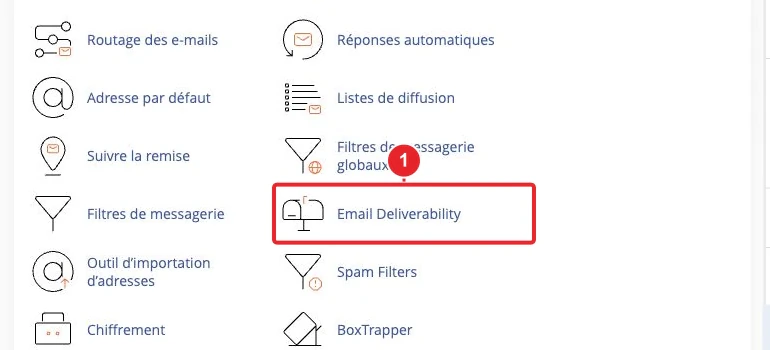
- Check the Email Deliverability tool to correct SPF/DKIM if necessary (improves deliverability but does not directly prevent the creation of a winmail.dat). Also consult the internal Email Deliverability documentation for actions from cPanel.
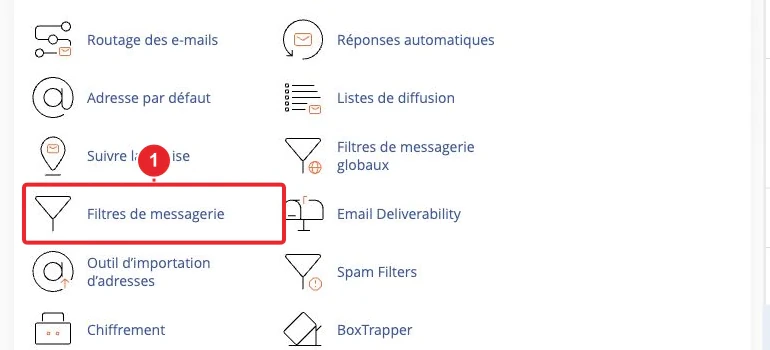
- Check Email Filters (cPanel) to check whether server-side processing (redirecting, encapsulating or modifying the message) affects the content. Learn more about filters.
Quick troubleshooting — checklist
- Ask the sender to send a test in HTML or Plain Text.
- If you administer Exchange, check the TNEF setting for the remote domain (EAC or PowerShell).
- In the recipient's mailbox, search for the message using Track Delivery (cPanel) and open the message source in Webmail to confirm the presence of TNEF (winmail.dat).
- If calendar invitations or voting buttons are essential, agree on a procedure (e.g., internal exchanges in RTF; external in HTML).
Limitations and notes
- Forcing messages to be sent in HTML or Plain Text removes Outlook‑specific features (voting buttons, forms, some embedded objects). This is the trade‑off between compatibility and proprietary advanced functionality.
- Changing Exchange behavior globally may affect delivery of internal features: prefer disabling TNEF per remote domain rather than applying a global block.
- If you install a TNEF extractor, choose open‑source or well‑known tools and test on a non‑sensitive message. Do not install software from unknown sources.
Useful internal links
Selected references
- How Message Format Affects Email Messages — Microsoft Learn
- Set-RemoteDomain (ExchangePowerShell) — Microsoft Learn
- Email Deliverability in cPanel — cPanel Documentation
Reference documentation
Documentation consulted on October 17, 2026. Tools may vary depending on your hosting.