To transfer a cPanel hosting account, prepare the access credentials or a full backup, migrate the files, databases and emails, then test the new service before changing the DNS. Keep the old account active until the migration is validated.
What CAP CONNECT offers
Our web hosting offer includes a free migration of web content, databases and mailboxes. After service activation, the technical team will organize the transfer with you. Timing and scope must be confirmed depending on account size, available access and configuration.
Hosting transfer is separate from domain transfer. You can keep the domain at its current registrar and change its DNS after the migration is validated. An EPP code is not required for a simple copy of the hosting.
Step 1: activate the new hosting and prepare the information
Choose an offer suited to the space used, the sites, the databases and the email accounts on your account. Activate the CAP CONNECT service before scheduling the switch.
- List the domains and subdomains to transfer.
- Record the PHP versions and any specific features used.
- Specify the mailboxes to keep, Cron jobs and any applications.
- Indicate whether the site receives orders or content that changes frequently.
Then open a ticket from your CAP CONNECT Customer Area with the subject “Migration cPanel” and the relevant service. The team will tell you the required access and the suitable way to transmit it. Do not publish the old account credentials in a screenshot or a link accessible to everyone.
Step 2: choose transfer by access or by backup
The old cPanel account is still accessible
Keep the account active until the new hosting and mail are validated. With the appropriate access, the team can check the configuration and choose the transfer method. A new synchronization may be necessary if data changes during the migration.
You have a full backup
A full cPanel backup is another option when the old account is no longer accessible. Indicate its date, size and location. An old archive does not contain data added since its creation.
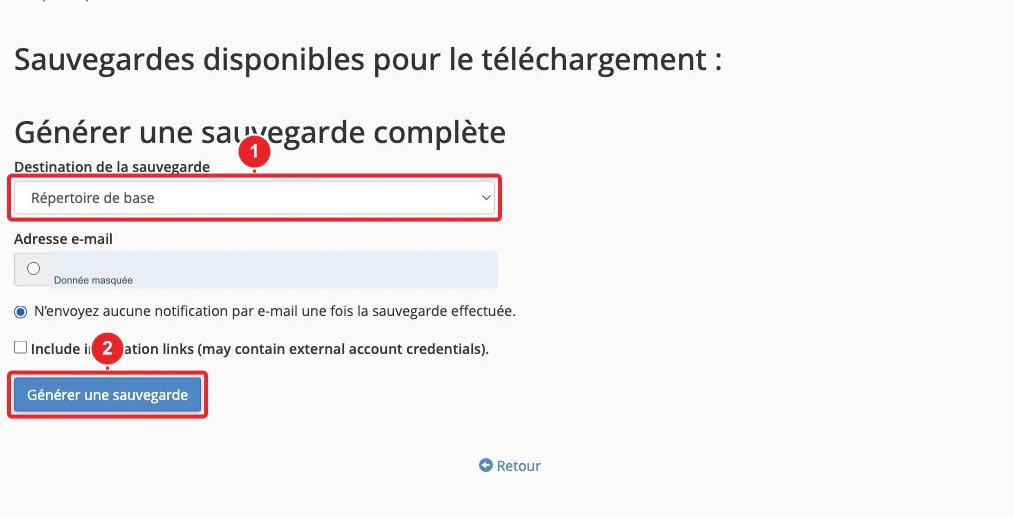
A full backup does not restore like a simple file backup from the cPanel account: its restoration usually requires intervention from the server team. If support asks you to upload the archive, use the indicated private location, outside of public_html.
Step 3: test before changing the DNS
Using the preview method provided by the team, verify pages, logins, forms and functions that use the database. Also check mailboxes, their contents, automated tasks and PHP compatibility.
For a shop or an active site, agree on a final synchronization time. Two parallel copies can receive different orders or messages.
Step 4: perform the switch and keep the old service temporarily
Use the DNS servers or records provided for your new service. Check mail records and any external services before modifying them. Visitors may reach either the old or the new server while changes propagate.
Check the site over HTTPS and test sending and receiving email. Do not cancel the old hosting until transfer confirmation and retrieval of any final needed data. If in doubt, reply to the migration ticket to keep the follow-up in the same place.
See also
Reference documentation
Documentation consulted on October 13, 2026. Labels and tools may vary depending on your cPanel version and your hosting options.