Short answer: Yes — phpMyAdmin (the third‑party tool integrated into cPanel) allows you to run SQL queries directly on your MySQL/MariaDB databases. Enter the query in the SQL then click Go. Before making any destructive changes, make a backup.
Before you begin — essential prerequisites
- Have access to your cPanel account and associated credentials. (How do I access my cPanel account?)
- Know the database name and have a MySQL user with the privileges required for the intended operation (SELECT, INSERT, UPDATE, DELETE, CREATE, DROP, ALTER, etc.).
- Make a prior backup (dump) — a “dump” is a .sql file containing the database structure and/or data. See: How to back up or restore my website on cPanel?.
- Understand the concept of a transaction: it’s a group of operations that can be committed (COMMIT) or rolled back (ROLLBACK) if the storage engine supports transactions (InnoDB, not MyISAM).
- For very large imports, prefer importing via SSH (mysql client) or the server backup tool instead of the web interface (PHP limits/timeouts).
Access phpMyAdmin from cPanel
- Log in to cPanel with your credentials.
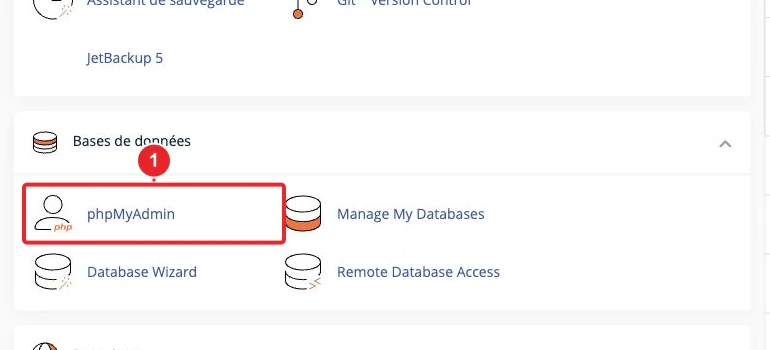
- On the cPanel home page, locate the Databases section (location varies by theme) and click phpMyAdmin. If you don’t see phpMyAdmin, your hosting provider may have disabled it — contact support.
Step-by-step instructions to run an SQL query
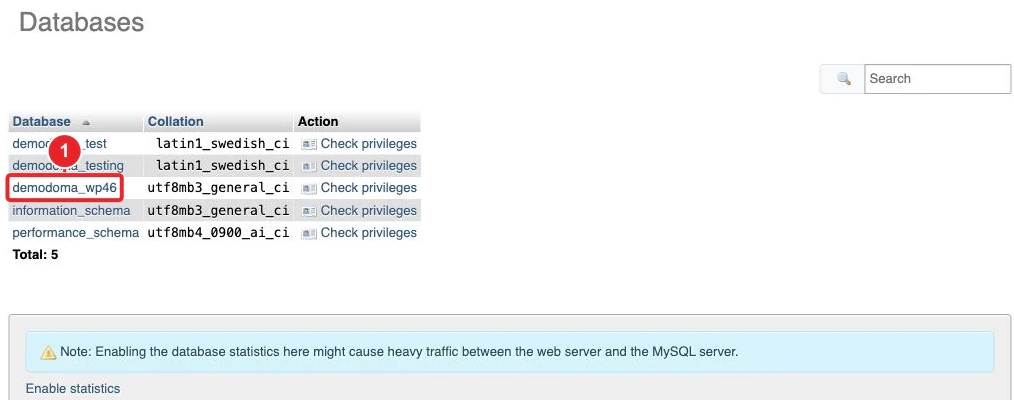
- Select the database in the left column; the main area will then display the tables and the SQL.
- Click the SQL to open the editor where you can type or paste a query.
- Enter the query and review it. Common examples: -- read the first 10 rows SELECT * FROM ma_table LIMIT 10; -- check rows before updating SELECT id, statut FROM ma_table WHERE id = 42; -- update (execute after verification) UPDATE ma_table SET statut = 'actif' WHERE id = 42; -- delete (always check the WHERE) DELETE FROM ma_table WHERE id = 123;
-- lire les 10 premières lignes
SELECT * FROM ma_table LIMIT 10;

-- vérifier les lignes avant mise à jour
SELECT id, statut FROM ma_table WHERE id = 42;

-- mise à jour (exécuter après vérification)
UPDATE ma_table
SET statut = 'actif'
WHERE id = 42;

-- suppression (toujours vérifier le WHERE)
DELETE FROM ma_table WHERE id = 123;- Click Go to execute it. phpMyAdmin displays the result (result set for SELECT; a message indicating the number of rows affected for UPDATE/DELETE).
- For risky changes: first test with an equivalent SELECT, then use a transaction if your table engine supports transactions: START TRANSACTION; -- UPDATE / DELETE here ROLLBACK; -- undo (useful for testing) COMMIT; -- commit
START TRANSACTION;
-- UPDATE / DELETE ici
ROLLBACK; -- annule (utile pour tester)
COMMIT; -- valide
Note: ROLLBACK does not undo changes on MyISAM tables. Verify the engine (InnoDB, MyISAM) before using transactions.
Import a .sql file (dump)
To import an export file (.sql, .sql.gz, .zip), use the Import. The interface generally accepts compressed files, but is still subject to PHP limits (max size, execution time).
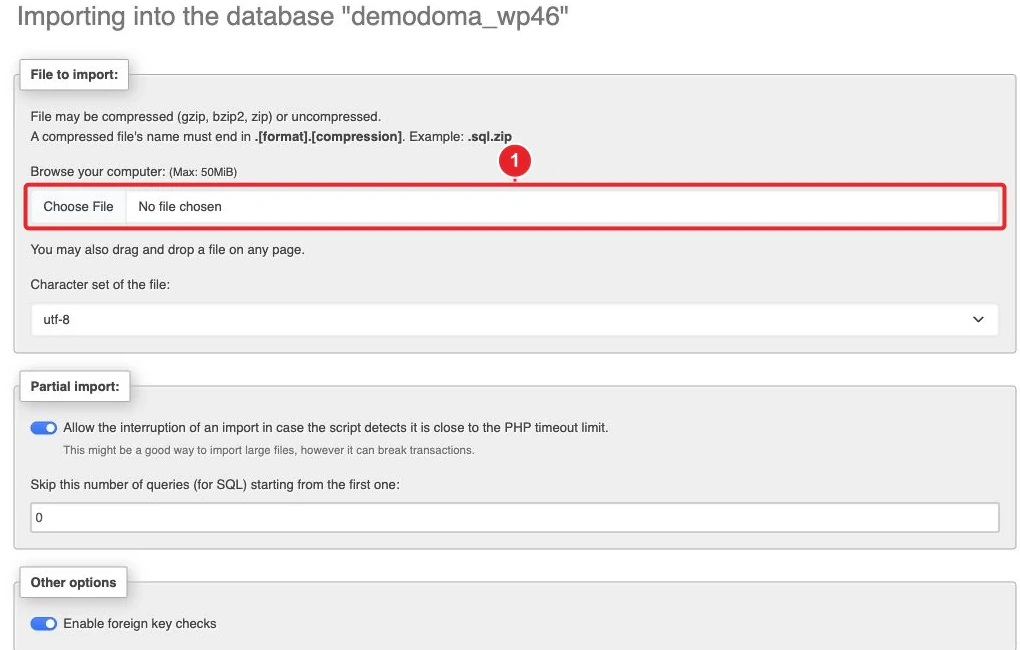
- Select the target database in the left column.
- Open Import, choose the file and start the import.
- If the import fails due to size or timeout, use import via SSH (see below) or restore using the panel’s backup tool.
Import via SSH (recommended for large dumps)
If you have SSH access, upload the file to the server then run: # import simple mysql -u dbuser -p nom_de_la_base < /chemin/vers/dump.sql # gzipped file gunzip < /chemin/vers/dump.sql.gz | mysql -u dbuser -p nom_de_la_base # or zcat /chemin/vers/dump.sql.gz | mysql -u dbuser -p nom_de_la_base
# import simple
mysql -u dbuser -p nom_de_la_base < /chemin/vers/dump.sql

# fichier gzipé
gunzip < /chemin/vers/dump.sql.gz | mysql -u dbuser -p nom_de_la_base
# ou
zcat /chemin/vers/dump.sql.gz | mysql -u dbuser -p nom_de_la_base
These commands bypass the browser’s PHP limits. You will need a shell account and sufficient privileges to write to the database.
Best practices
- Always back up the database before a risky operation (Backup Assistant / JetBackup).
- Test UPDATE/DELETE with an equivalent SELECT to verify the affected rows.
- Apply changes first on a test copy (staging) if possible.
- Prefer MySQL users with limited privileges rather than root for application operations.
- To create/delete databases or users on a cPanel account, use the MySQL® Databases to maintain compatibility with the panel’s backup/restore mechanisms.
Troubleshooting — common errors and solutions
- phpMyAdmin not found: The tool may be disabled by your hosting provider. Contact support or check your cPanel access.
- MySQL authentication error (#1045): Incorrect credentials or a user without privileges. Check the username/password and the privileges (see Change the MySQL password if necessary).
- Syntax error (#1064): Fix the SQL query; also check compatibility between MySQL and MariaDB (some syntax varies by version).
- Large import fails: PHP limits (upload_max_filesize, post_max_size, max_execution_time). Solution: import via SSH or restore from a full backup. See also the procedure for large databases.
- ROLLBACK does not work: Your tables may be using MyISAM (non‑transactional) — check the storage engine.
- Timeout/slow performance: Run the query via the CLI if possible, optimize indexes, or proceed in batches (UPDATE/DELETE in small batches).
Important limitations
- The web interface is subject to PHP limits and server execution time: it is not suitable for very large imports/queries.
- Transactions are possible only if the table engine supports them (InnoDB). MyISAM tables do not support ROLLBACK.
- phpMyAdmin strictly enforces the privileges of the connected MySQL account; if the user lacks privileges, the operation will be denied.
- To preserve compatibility with backups/restores managed by cPanel, create/delete databases and users via the cPanel tools (MySQL Databases / Database Wizard).
See also
- How do I access my cPanel account?
- How do I create a MySQL database in cPanel?
- How do I change the password for my MySQL database?
- How do I import or export my database from phpMyAdmin?
- How to import a large MySQL database into cPanel
- How to back up or restore my website on cPanel?
- phpMyAdmin: How to repair MySQL databases and tables
Need help? If you are unsure before running a destructive query (UPDATE/DELETE/ALTER), first create a copy of the database or open a support ticket and attach a dump plus the intended query.
Sources: official phpMyAdmin and cPanel documentation.
Reference documentation
- phpMyAdmin — Introduction (documentation)
- phpMyAdmin | cPanel & WHM Documentation
- Backup for cPanel | cPanel & WHM Documentation
- Manage My Databases | cPanel & WHM Documentation
Documentation accessed on October 14, 2026. Tools may vary depending on your hosting.