Introduction
This guide details a reliable method to deploy a Laravel application on hosting managed by cPanel (shared or VPS). It covers: PHP preparation, code upload, dependency installation (Composer), database configuration, setting the document root to public public, creation of a Cron for the scheduler and production checks. Some features (Terminal/SSH, MultiPHP Manager, integrated Composer) depend on server settings and your hosting plan.
Prerequisites
- Access to your cPanel account. See: How to access cPanel.
- SSH access or the integrated cPanel Terminal, or the ability to run Composer locally and then upload the vendor directory
vendor. Explanation: Composer = PHP dependency manager; Artisan = Laravel command-line tool (php artisanphp artisan); Cron = scheduled task. - A PHP version compatible with your Laravel release. Check
composer.jsonthe project's composer.json and, if necessary, change the version using MultiPHP Manager in cPanel. (MultiPHP Manager — cPanel Docs). - A MySQL database (or supported equivalent) and a user created in cPanel. (MySQL Databases — cPanel Docs).
- Access to the File Manager or FTP/SFTP to upload files, and sufficient disk space.
- Composer available on the server or the ability to run it locally (see the cPanel article on installing Laravel/Composer for specific cases). (How to install Laravel on cPanel — cPanel Support).).
Quick summary (procedure)
- Log in to cPanel.
- Check / set the PHP version (MultiPHP Manager).
- Create the MySQL database and user.
- Upload the code (Git / FTP / File Manager).
- Install dependencies with Composer (or locally and then upload).
- Configure the .env file
.envand generate APP_KEYAPP_KEY. - Point the domain's document root to /chemin/vers/projet/public
/chemin/vers/projet/publicor, if that's not possible, move/adjust publicpublic. - Set permissions (storage, bootstrap/cache) and create the Cron for the scheduler.
Detailed deployment (numbered steps)
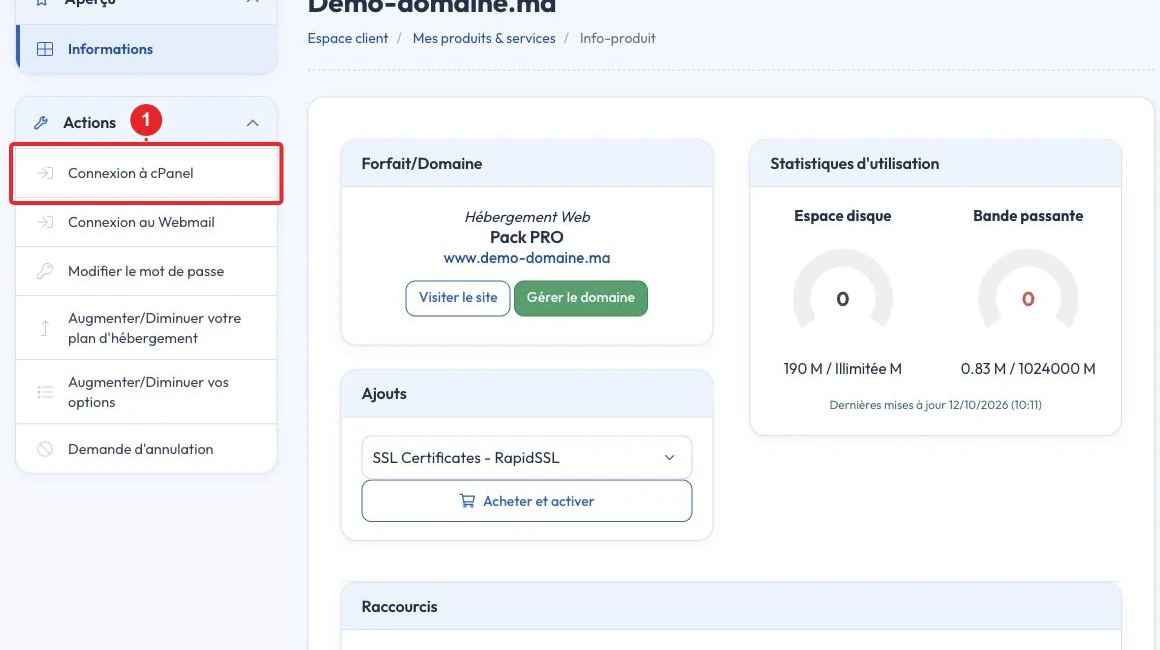
1) Connect to cPanel
Open cPanel with your credentials at the URL provided by your hosting provider.
2) Check / set the PHP version
Laravel requires a minimum PHP version depending on the release you’re using. In cPanel, open MultiPHP Manager and select the PHP version for the relevant domain.
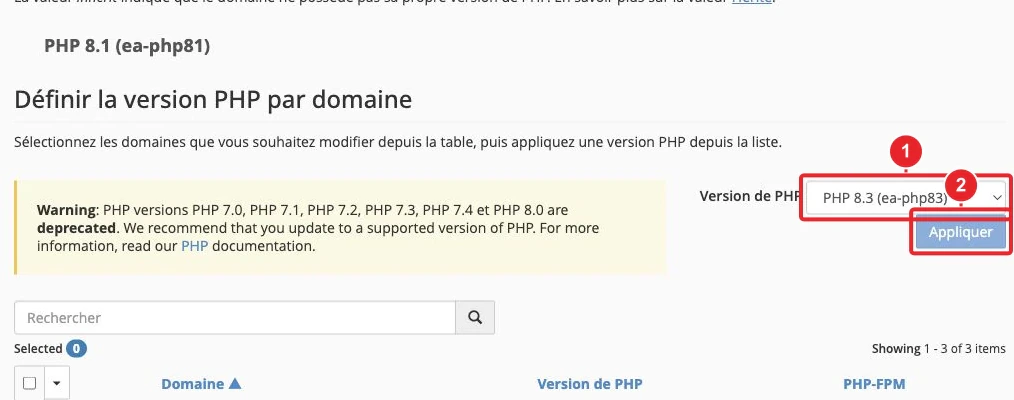
If you don't have the required version, contact support or migrate to a plan that provides it.
3) Create the MySQL database
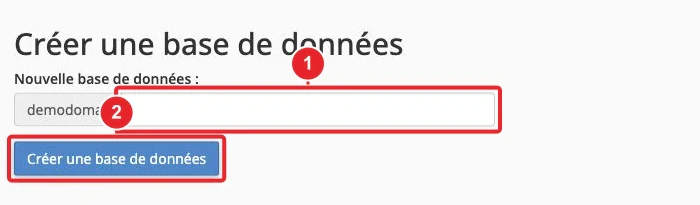
In cPanel, open MySQL Databases or the Database Wizard, create a database and a user, then assign the user to the database with the necessary privileges. Note the database name, the username and the password: they will be used in .envthe .env file.
4) Upload the code (Git / FTP / File Manager)
Common methods:
- Git: if Git or SSH access is available, clone the repository directly on the server.
- FTP/SFTP: upload a ZIP, then extract it using the File Manager.
- File Manager: upload the archive and use the option 'Extract'.
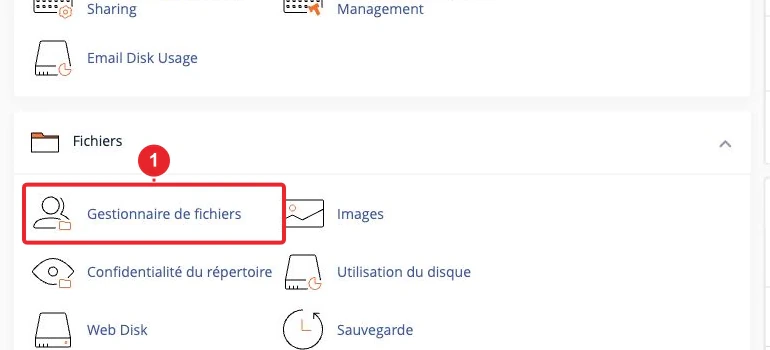
5) Install dependencies (Composer)
If you have access to the Terminal/SSH, change to the project directory then run:
composer install --no-dev --optimize-autoloaderTo create a project directly:
composer create-project laravel/laravel nom-du-projetTips if Composer is not available on the server:
- Run composer install
composer installon your local machine and upload the vendor directory and the composer.lock file.vendor+ the composer.lock filecomposer.lock. - Check the CLI version of PHP used by Composer: in the Terminal,
which phpandphp -v./usr/local/bin/ea-php82On some cPanel environments, use the EA-PHP wrapper (e.g.
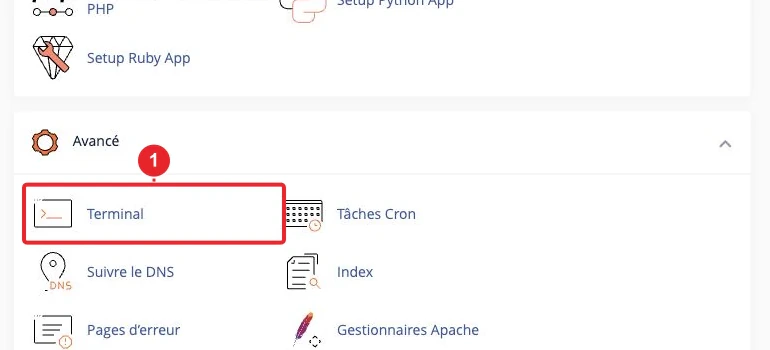
6) Configure .env and generate APP_KEY
Copy .env.example to .env then fill in the DB settings (DB_CONNECTION, DB_HOST, DB_DATABASE, DB_USERNAME, DB_PASSWORD). Generate the application key:
php artisan key:generate
php artisan migrate --force
If you don't have SSH:
- Generate the key locally:
php artisan key:generate --showthen paste the value into.env. - For migrations, export the database after migrating locally and import the SQL via phpMyAdmin if you cannot run
artisan migrateon the server.
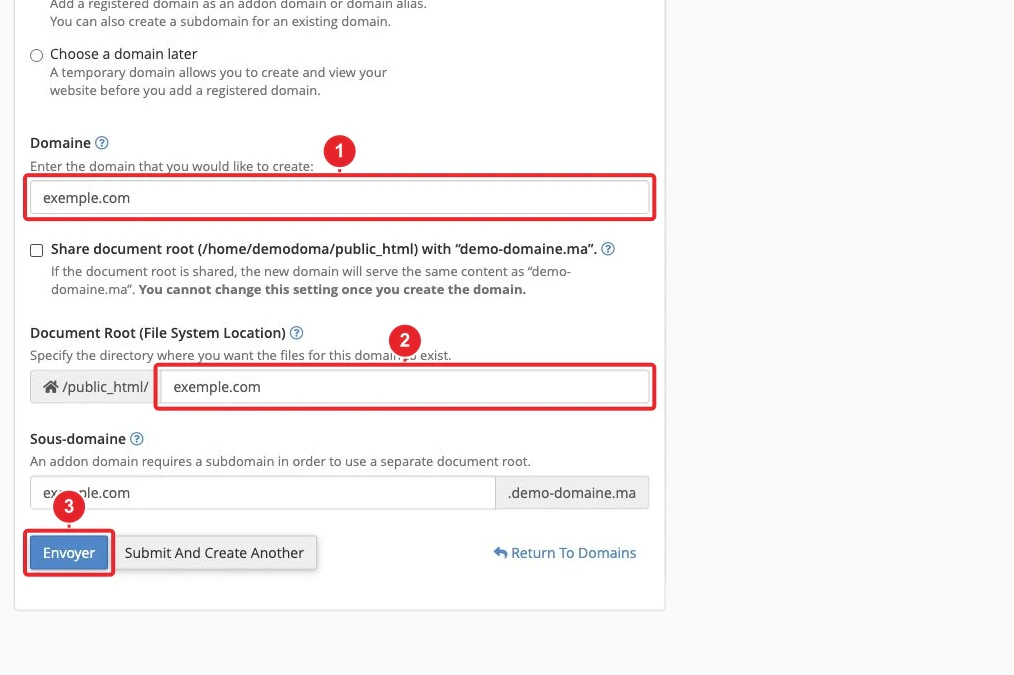
7) Document root: point to public
Laravel must be served from the folder project/public.
- Change the document root of the domain / subdomain in cPanel: Domains → Manage → New Document Root, and specify the path
/home/username/mon-projet/public. (Requires that the option be available for your hosting.) - If you cannot change the root, you can copy the contents of
publicintopublic_htmland adjust the paths inindex.php(less recommended for security). Inindex.phpreplace the relative paths with absolute paths to/home/username/mon-projet:require '/home/username/mon-projet/vendor/autoload.php'; $app = require_once '/home/username/mon-projet/bootstrap/app.php';
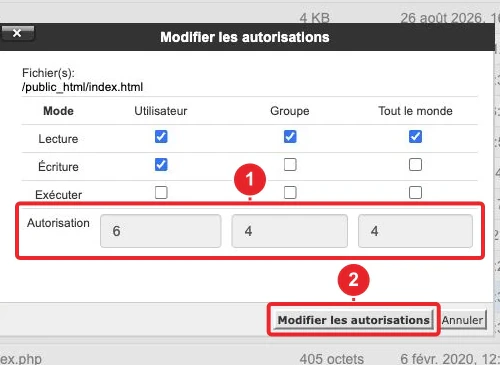
8) Permissions and storage
Grant write permissions to the folder storage and to bootstrap/cache. Prefer 0755 or 0775 depending on the environment. Avoid 0777.
chmod -R 775 storage bootstrap/cache
chown -R username:username storage bootstrap/cache
If you have SSH access: public/storage Create the symbolic link to
php artisan storage:link: public/storage If no Terminal: create manually
9) Scheduled tasks (scheduler)
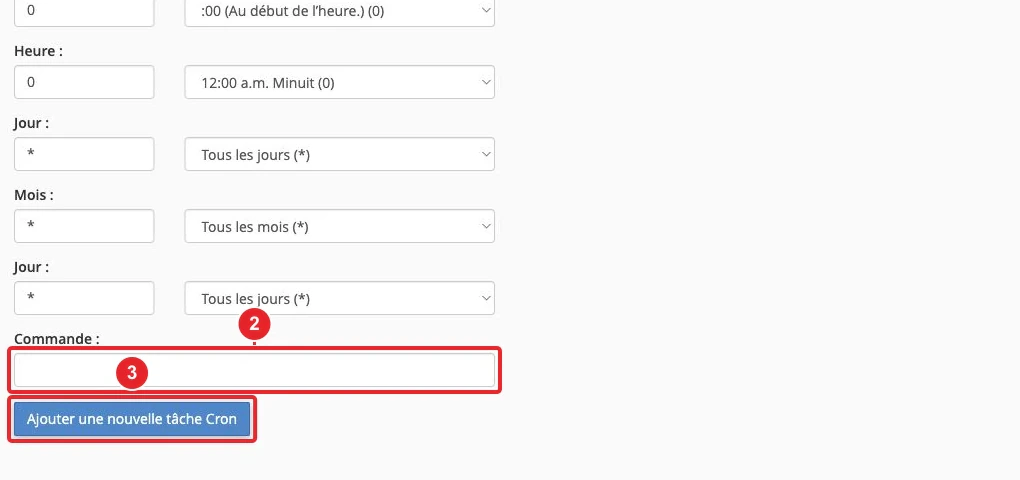
Laravel uses Artisan's scheduler: create a Cron job in cPanel (Cron Jobs) to run it every minute:
* * * * * /usr/local/bin/ea-php82 /home/username/mon-projet/artisan schedule:run >> /dev/null 2>&1Replace /usr/local/bin/ea-php82 /usr/local/bin/ea-php82 with the actual path to the PHP binary (verifiable with which php which php via SSH) and adjust the project path. Create the job via the Cron Job interface in our KB for more details.
10) SSL and production deployment
Install an SSL certificate via cPanel's SSL/TLS (Let's Encrypt or other). Compile and optimize assets for production:
composer dump-autoload -o
php artisan config:cache
php artisan route:cache
php artisan view:cache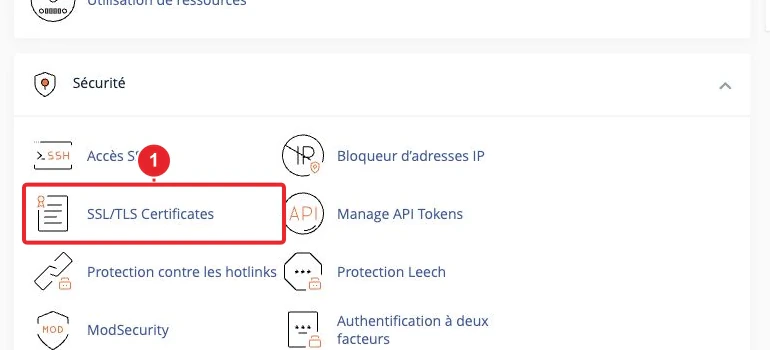
Common limitations and solutions
- No SSH/Terminal access: run Composer locally and upload the vendor directory
vendor; generate the APP_KEYAPP_KEYlocally and import the migrations via SQL if necessary. - MultiPHP Manager or certain missing extensions: if your domain does not display the required PHP version, contact support; some extensions (e.g.
fileinfofileinfo, mbstringmbstring) are required for Laravel. - Unable to change the document root of the primary domain: you can use a subdomain or an addon domain, or move the contents of
publictopublic_htmlby adjustingindex.php, but the safest solution is to change the document root. - Quotas / limited resources: shared hosting imposes limits (disk space, memory, CPU time). For large applications, prefer a VPS or a suitable plan.
Troubleshooting & common errors
- Error 500 : check
storage/logs/laravel.log(open via File Manager or tail via SSH) and the Apache logs. See also our internal guide on Error 500. - SoftException / permissions: messages like "File ... is writeable by group" or "Permission denied" → fix permissions/ownership (avoid 777); some PHP handlers (suPHP) are strict about file ownership.
- Composer reports that an extension is missing (e.g. fileinfo): enable the extension via PHP Selector / MultiPHP INI Editor if possible, otherwise contact support.
- Composer invoked with the wrong SAPI: message "Composer should be invoked via the CLI version of PHP not the CGI/FCGI SAPI" → use the CLI version of PHP (e.g.
/usr/local/bin/ea-php82 composer install). - Migrations failing: check the DB connection information in
.env, test the connection from phpMyAdmin and runphp artisan migrate --forcein production (or import the SQL if you don't have SSH). - Scheduler / Cron not working: Use the full path to PHP and to <code>artisan</code>
artisanin the Cron job and check the system or Cron logs.
Useful internal resources
- Create a MySQL database in cPanel
- Create a Cron job in cPanel
- Modify file and directory permissions
- Enable a free SSL certificate in cPanel
If you prefer us to handle the deployment (verify PHP, Composer, permissions, document root), open a ticket from your client area specifying the domain and the preferred deployment method.
Reference documentation
- How to install Laravel on cPanel — cPanel Support
- MultiPHP Manager for cPanel — cPanel Docs
- MySQL® Databases — cPanel Docs
Documentation consulted on October 17, 2026. Tools may vary depending on your hosting.