Meridian is a new presentation of cPanel that groups tools according to what you want to do: manage a site, check your email, find a file or administer a database. The main change is the navigation. Your hosting is not reinstalled when you change the theme.
Its display and features depend on the cPanel version, the options of your plan and the server settings. A compatible account therefore does not necessarily provide all the features described below.
What changes compared with Jupiter
In Jupiter, you generally look for a tool in a list of categories. Meridian favors entry by objective, with a dashboard that highlights useful actions for your account. To find a familiar tool, start with its function rather than its former location.
| Space in Meridian | What is it for? | Example of use |
|---|---|---|
| Websites | Track your sites and the functions available to manage them. | Find a domain or a site's settings. |
| Administer the messaging functions offered by your account. | Create a mailbox or check its settings. | |
| Files | Access file management tools. | Open the File Manager to find a document. |
| Databases | Manage databases and their administration tools. | Find the databases used by your site. |
| Security | View the available protection functions. | Find the account's security options. |
| Performance | View information and functions related to performance. | Understand an alert or consult the resources offered. |
The exact list of commands varies according to your account. If you cannot find a function, use the search before concluding that it has been removed.
A dashboard more focused on actions
Meridian's homepage gives an overview of the account and can highlight tasks to complete or useful next steps. A dashboard card is a shortcut to an action: review the information displayed before modifying a domain, a site or a mailbox.
For your usual tasks, keep these reference points:
- For a site problem, start with Websites.
- For an email address, open Email.
- For a file or folder, look in Files.
- For a database, use Databases.
Quick search to find a tool
The command palette allows you to search for a page, a tool or an action by name. It is useful when you already know the function to use, but its new location escapes you.
- Open the search offered in Meridian's header.
- Enter the function name or a word related to your need.
- Read the results then open the command that matches your objective.
For example, search for the File Manager to work on a file. To understand the full procedure, consult our guide on the availability and activation of the Meridian theme.
How to try Meridian when it is offered?
First log in to your cPanel account. If Jupiter displays an invitation to try Meridian, you can use it to open the new interface. The screenshot below shows this button on our demonstration account; its appearance depends on your hosting configuration.
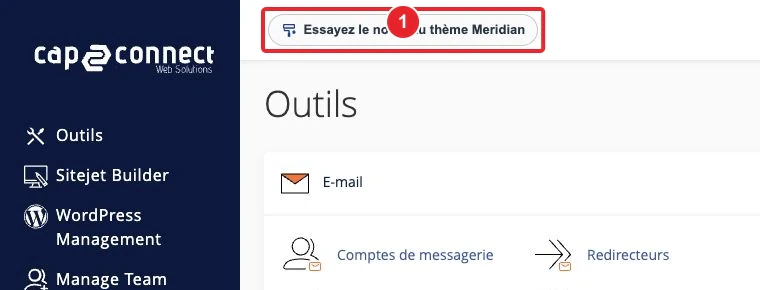
- Locate the invitation to try Meridian in cPanel.
- Open the new interface from that invitation.
- Find a common tool with search or the space corresponding to your need.
- Check the options offered before enabling an additional service.
If the button does not appear, it is not necessary to migrate your site or reinstall your hosting. Ask support if Meridian is available for your account.
Can you go back to Jupiter?
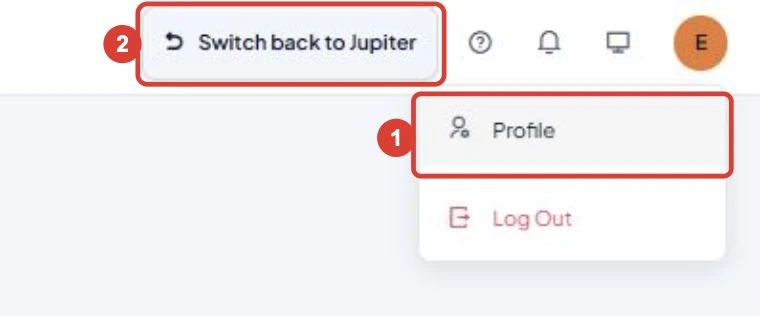
The return depends on server rules and account eligibility. When allowed, Meridian offers Classic cPanel Theme in the header. You can also open your avatar, choose Profile, then check the Theme section of account preferences.
If Jupiter is not among the choices offered, contact support. Do not assume that all accounts have the same selector.
Are artificial intelligence features included?
Meridian can provide access to assistance or creation features based on artificial intelligence. Changing the theme does not guarantee their availability: they depend on enabled features, the license and the hosting configuration.
If an assistant or generator appears on your account, read its terms of use and verify the result before modifying a site in production. Avoid sharing a password, a private key or an access token in a help request.
What to do if you cannot find a function?
- A tool has changed place: search for its name and check the space that corresponds to your need.
- A tool remains untraceable: verify the functions available on your plan, then ask support for help.
- The display looks different from a screenshot: check your interface theme and version; presentations evolve.
- You need Jupiter: look for the option to return when it is allowed for your account.
To facilitate diagnosis, provide the name of the tool you are looking for and the message displayed. You can attach a screenshot of the relevant area after masking private information, then open a support ticket.