In short: If an email seems suspicious, do not open any attachments or click any links. Check the sender and the URL (hover / long-press), copy the link address into a text editor to analyze it, and—for administrators—use cPanel (Email Deliverability, Track Delivery, Spam Filters) to check SPF/DKIM/DMARC and the delivery trace.
About this guide
This guide is intended for users and administrators: it explains how to spot a phishing email, how to verify a URL without clicking, which technical checks to perform (SPF, DKIM, DMARC, headers) and which cPanel tools to use to analyze and reduce the risk.
Prerequisites
- Computer or smartphone with access to your email (webmail or client).
- For administrators: access to cPanel. See How to access my cPanel account.
- If you need assistance: access your client area to open a ticket. See How to contact support.
Common signs of a phishing email (practical examples)
- Displayed sender different from the actual address: display name "Customer Service" but address service@service-client-alertes.com
service@service‑client‑alertes.com. - Request for urgent action or threat ("your account will be closed", "payment required within 24 hours").
- Link text and destination that do not match (text: monbanque.com
monbanque.com→ real link: http://compromis-example.com/loginhttp://compromis‑example.com/login). - Unexpected attachments or executable files (.exe, .scr) and .zip archives containing executables.
- Significant spelling mistakes, generic greetings ("Dear user") or poorly reproduced logos.
Verify a suspicious link without clicking — quick method (user)
- Do not click. On a computer, hover the cursor over the link — the browser or webmail will display the real address (often in the bottom-left corner). On mobile, long-press to preview the URL. If the displayed URL differs from the link text, do not click.
- Copy the URL without opening it. Right-click → "Copy link address" and paste it into a text editor. Isolate the domain name: the part between "//" and the first "/" (e.g.
example.com). Verify only the domain, not the path. - Check for signs of spoofing: deceptive subdomains (
service.paypal‑secure.example.comis notpaypal.com), punycode (domains starting withxn--) or an IP address instead of a domain name (http://192.0.2.1/…). - Type the domain manually into the address bar (do not follow the link). Then check the padlock and the certificate information (click the padlock): the certificate confirms encryption and the name shown, but it does not automatically prove legitimacy if the domain is fraudulent.
- If you are unsure: contact the organization via an independent channel (official phone number, known website); do not reply and do not provide sensitive information.
Technical checks (advanced users and administrators)
The following checks help confirm whether a message actually originates from a legitimate domain.
1) Check SPF / DKIM / DMARC with cPanel (Email Deliverability)
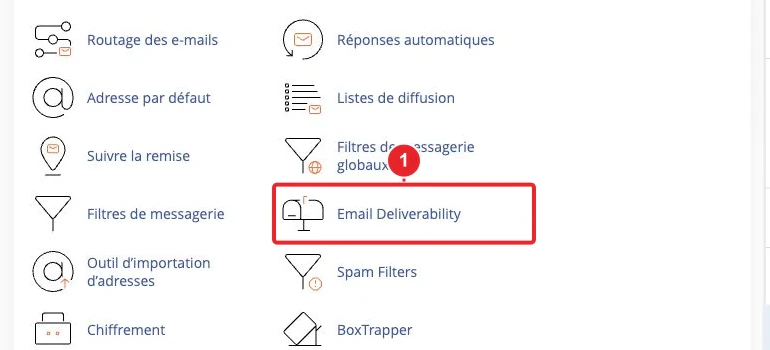
- Log in to cPanel (see how to access cPanel).
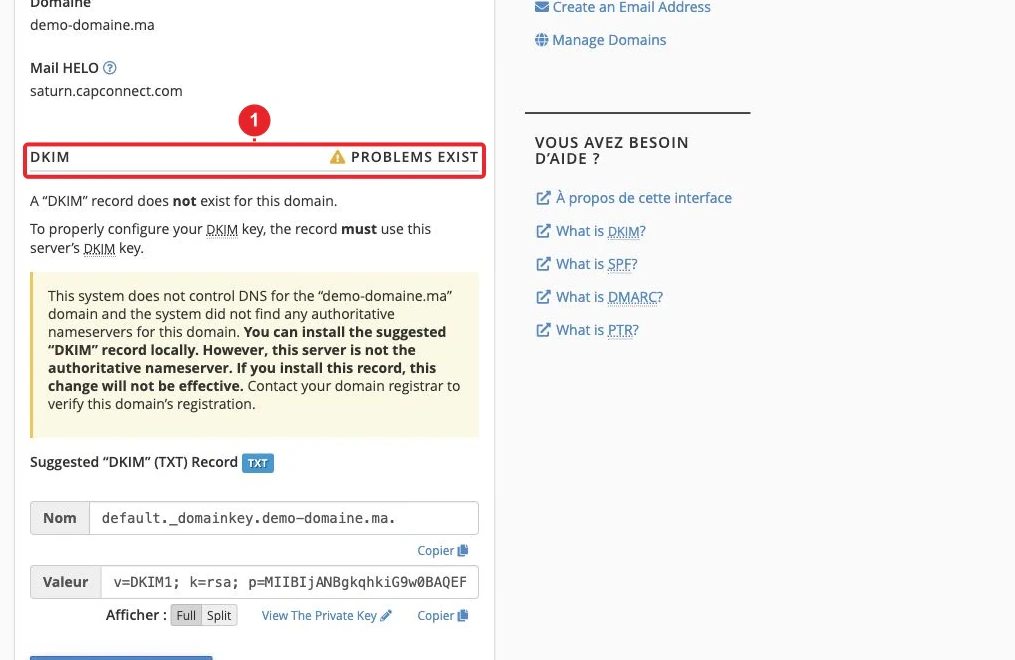
- Open Email → Email Deliverability and choose the relevant domain. The tool indicates whether SPF/DKIM are present or invalid and provides the record text to add if necessary. See also: Email Deliverability in cPanel or the official documentation.
- If your DNS is managed by a third party, copy the recommended records (TXT for SPF/DMARC, DKIM key) and add them at your DNS provider or via cPanel’s Zone Editor if the domain is managed there.
Reminders:
- SPF (Sender Policy Framework): a TXT record listing the servers authorized to send mail for your domain.
- DKIM : a cryptographic signature attached to emails that allows verification of the message’s integrity.
- DMARC : a policy (DNS TXT) instructing receivers how to handle messages that fail SPF/DKIM and where to send reports.
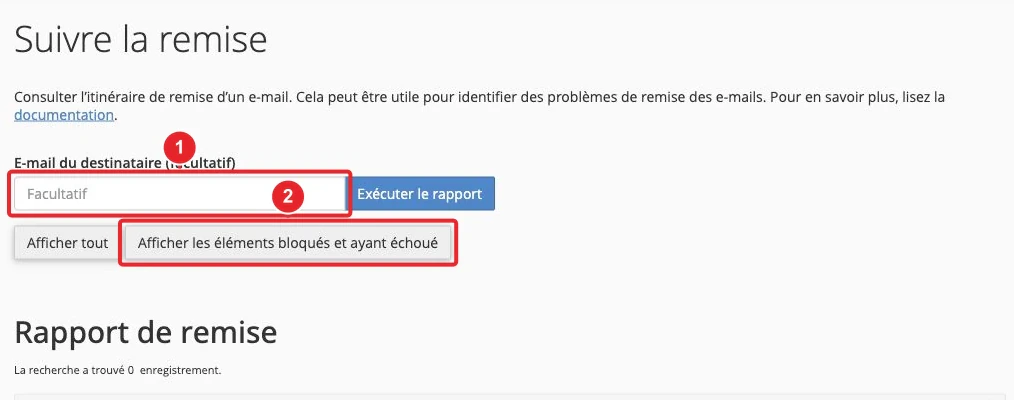
2) Track delivery and examine the trace (Track Delivery)
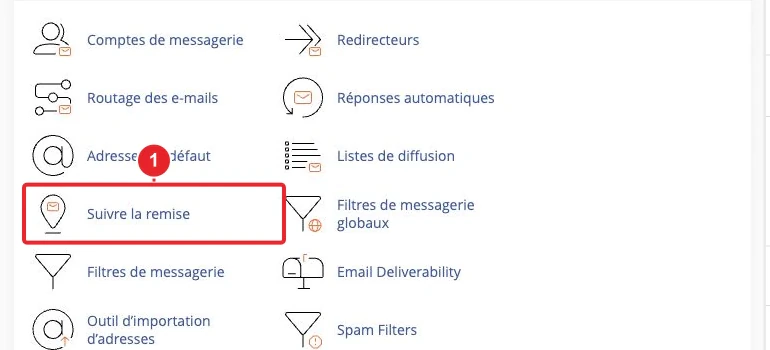
- In Track Delivery, search by sender address, recipient or message‑ID. The report shows the routing steps (the 'Received:' lines
Received:) and any refusals or blocks. - Interpret the result: successful delivery, temporary refusal (greylisting), rejection by an external server, SPF/DKIM failure, etc. These details help determine whether the message was spoofed.
3) Examine the message headers
- View the full source / 'View original' of the message in your webmail (Roundcube, Horde) or client (Gmail: three dots → 'Show original').
- Search for
Authentication‑Results,Received:,Return‑PathandMessage‑IDto track the routing and verify SPF/DKIM results. - For a step‑by‑step guide related to cPanel, see: Track Delivery: How to Track Your Emails in cPanel.
4) Enable / configure anti‑spam filtering (SpamAssassin)
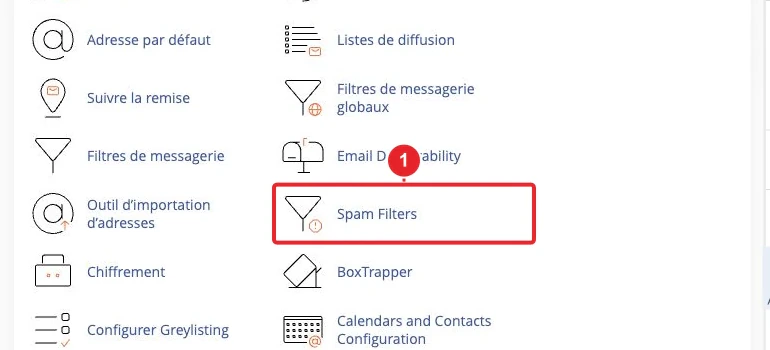
- Enable SpamAssassin if it is not already active and adjust thresholds and actions to suit your needs. For details: SpamAssassin: How to enable or disable SpamAssassin in cPanel.
- Use whitelists to allow legitimate senders and the blacklist to block known addresses.
What to do if you clicked a link or entered information
Immediate actions (short list):
- Change the password for the affected account and enable two‑factor authentication (2FA) if possible. 2FA guide: How to configure 2FA in cPanel.
- If you provided banking information, contact your bank immediately.
- Scan the device with up‑to‑date antivirus software; if an infection is suspected, isolate the machine and consult a professional.
- Open a ticket with our support (open a ticket)
and attach the original email with full headers, as well as the Email Deliverability and Track Delivery results if you have them.
Quick troubleshooting
- Unable to display headers: use Roundcube/Horde webmail and the 'View Source' function, or contact support to retrieve the headers.
- A legitimate message lands in the spam folder: check SPF/DKIM/DMARC (Email Deliverability), adjust the SpamAssassin configuration and consider whitelisting the sender if necessary.
- A link opens a site with a certificate error: never enter credentials there and report it to support.
Limitations
- No check is infallible: validated DKIM/SPF/DMARC increase confidence but do not guarantee that a third‑party service has not been compromised.
- Some legitimate emails are sent via external relays/platforms (marketing, notifications) and may appear suspicious — prioritize independent verification.
Selected resources
- Email Deliverability — cPanel documentation (DKIM / SPF / DMARC)
- Spam Filters / Apache SpamAssassin — cPanel documentation
- Phishing — definition and common forms (Wikipedia)
Need help: If you doubt a message and want our team to analyze it, open a ticket via the client area attaching the email (full headers). For administrators, provide the results of Email Deliverability and the logs for Track Delivery.
Reference documentation
- Email Deliverability in cPanel — cPanel & WHM Documentation
- Spam Filters — cPanel & WHM Documentation
- Phishing — Wikipedia
Documentation consulted on 16 October 2026. Tools may vary depending on your hosting.