The Email Forwarder feature allows you to automatically redirect emails sent to one email address to one or more destination email addresses. This is useful when you want to receive emails without creating or managing a full mailbox, or when multiple recipients need to receive the same messages.
An email forwarder does not store emails. It simply passes incoming messages to the specified destination address(es).
This service is available for all domain names using our nameservers :
ns1.capconnect.com
ns2.capconnect.com
ns3.capconnect.com
ns4.capconnect.com
Key Definitions
Email Forwarder
A rule that redirects incoming emails from a source address (e.g. info@yourdomain.com) to one or more destination addresses (e.g. contact@gmail.com).
Source Address
The email address on your domain that will receive incoming messages and forward them.
Destination Address
The external or internal email address where forwarded emails will be delivered.
Mailbox vs Forwarder
Mailbox : Stores emails on the server and requires login credentials.
Forwarder : Does not store emails; it only redirects them.
Common Use Cases
Forwarding contact@yourdomain.com to a personal Gmail or Outlook address
Sending copies of emails to multiple team members
Using professional domain emails without purchasing mailbox storage
Redirecting old email addresses to new ones
Prerequisites
Before creating an email forwarder, ensure that:
Your domain name is active and properly configured.
Your domain is using our nameservers
The destination email address is valid and able to receive emails.
Create an email forwarder in the client area
- Sign in to your client area and open My Domains.
- Select the domain and open its management page.
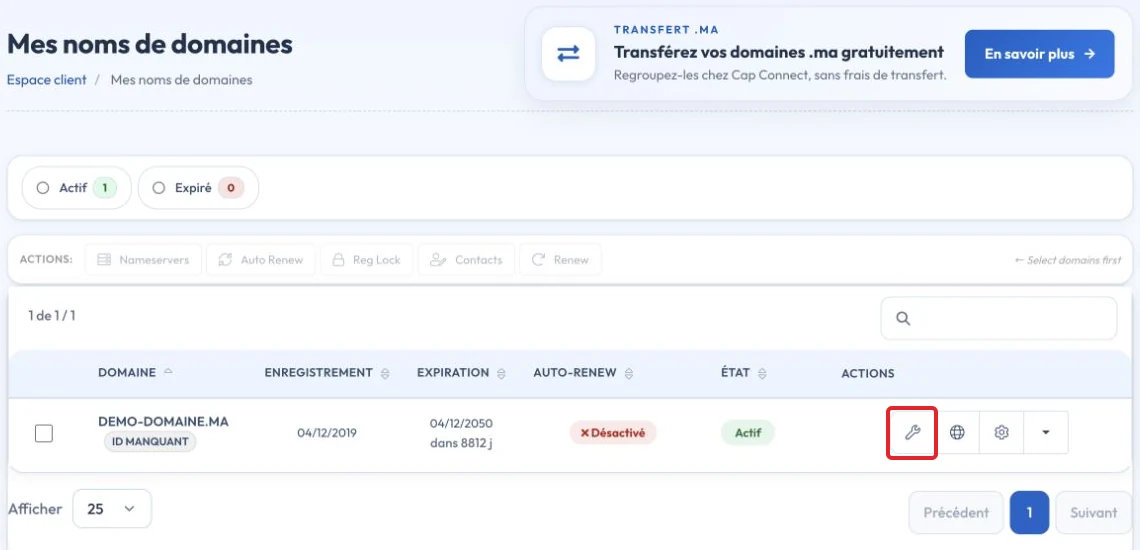
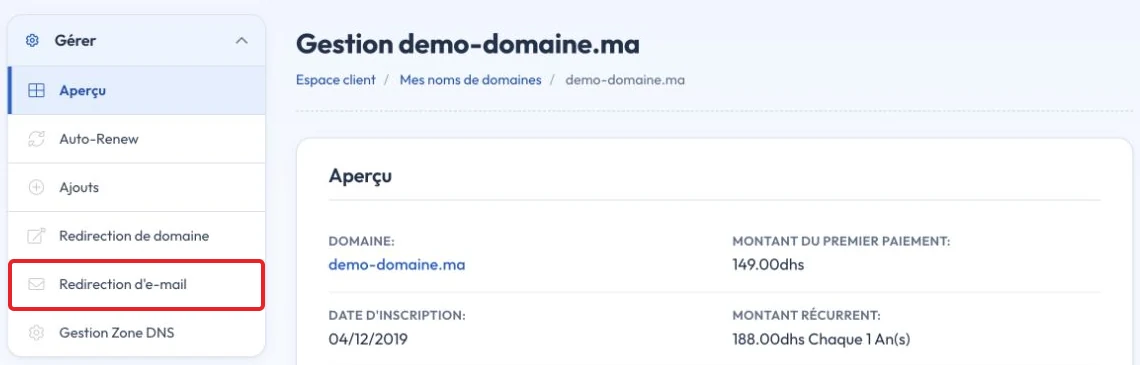
Select Email Forwarding, labelled Redirection d’e-mail in the French screenshots.
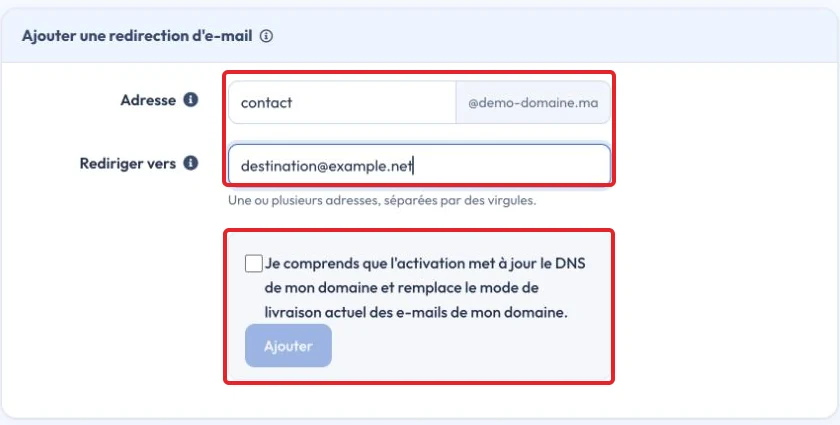
3. Under Address, enter the part before @, such as contact. The interface adds the selected domain.
4. Under Redirect to, enter the complete destination email address. Separate multiple addresses with commas.
Confirm the effect on email delivery
The interface states that activation updates DNS and replaces the domain’s current email delivery mode. Check your existing email service before continuing: this is more than adding a copy to an existing mailbox.
Once the addresses and the effect of the change have been checked, select the acknowledgement and click Add (Ajouter in French). Check the rule under Email Forwarders, then send a test message from an external address. The screenshot shows an unsaved example.
Check the result and troubleshoot
Forwarding is not a backup. Local retention depends on the source mailbox's existence and configuration. Send an external test and check the recipient's Spam folder; authentication checks can affect forwarded mail.
Reference documentation:
Sources accessed on October 11, 2026. Available features depend on your hosting version and options.