Introduction
A 403 (Forbidden) error means the server received the request but refuses to respond: access to the resource is forbidden by configuration or a security rule. For a technical definition, see MDN — 403 Forbidden.
This guide provides an ordered investigation procedure: quick checks, common fixes via cPanel (File Manager), inspection of the .htaccess, security rules (WAF / ModSecurity), permissions and logs. Follow the steps one by one and attach the requested items if you open a support ticket.
Prerequisites
- Access to cPanel (or FTP/Terminal) to read/modify files and permissions. See: How to access cPanel.
- Recent backup of the web folder (
public_html) before any modification. - Ability to copy/paste command outputs and log lines if you contact support.
Quick checks (checklist)
- Open the page in a private/incognito window to eliminate browser cache.
- Test from another network (4G or a VPN) to rule out a local or ISP IP block.
- Confirm the HTTP status code from your workstation:
curl -I -L https://votredomaine.tld/chemin.HTTP/1.1 403(orHTTP/2 403), the server is indeed returning 403. - Check for the existence of an index file (index.php, index.html) in the requested directory: its absence combined with
Options -Indexesoften leads to a 403.
Diagnostic steps and fixes (recommended order)
1) Confirm the exact HTTP status code
- Run
curl -I -L https://votredomaine.tld/cheminfrom a terminal. The option-Idisplays the headers,-Lfollows redirects. - Note the first line (e.g.
HTTP/1.1 403 Forbidden) and the requested URI. If the page returns another code (404, 500...), adapt the diagnosis.
2) Test the browser and the IP address
- Clear the cache or open a private/incognito window.
- Test from another network (mobile) or over a VPN to check whether your IP address is blocked.
3) Check for an index file and test with a simple file
Absence of an index + Options -Indexes prevents display and returns 403. To check from cPanel:
- Log in to cPanel → File Manager.
- Open the folder
public_html(or the site root). Locate the index files (index.php, index.html).
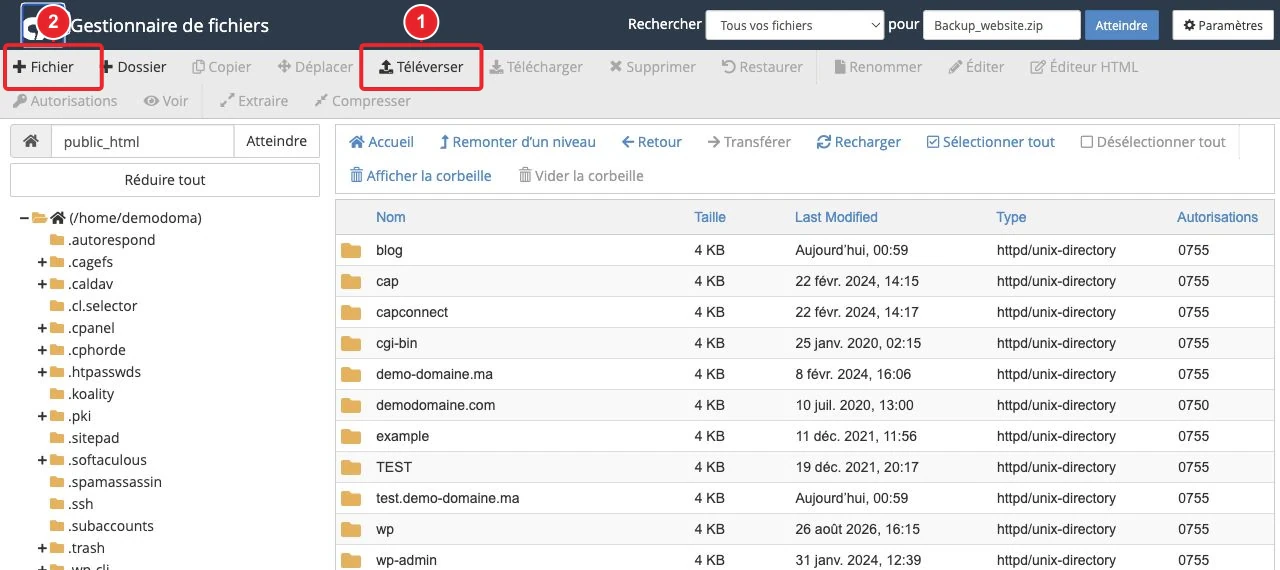
public_html (cPanel – File Manager).If no index exists, create a temporary test file:
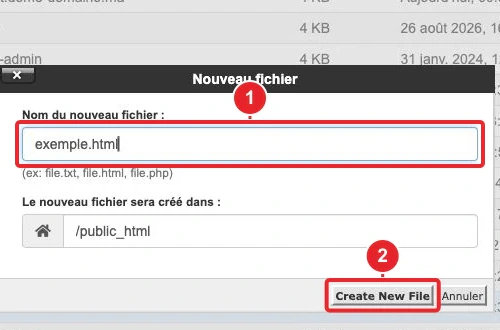
- In File Manager: New File → name
index.html→ edit and add<h1>OK</h1>→ save. - Reload the URL in your browser. If the test page appears, the 403 was related to the absence of an index or to an indexing rule.
4) Check and correct permissions (files and folders)
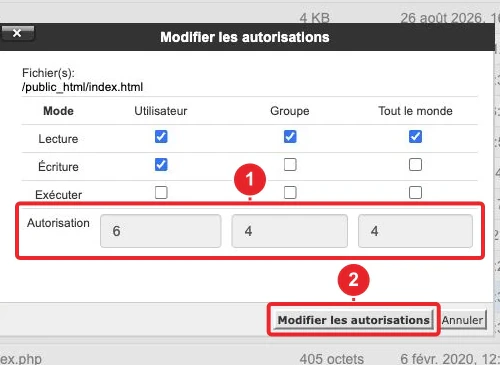
Incorrect permissions are a common cause of 403 errors. Recommended procedure via cPanel:
- cPanel → File Manager → navigate to the affected file/folder.
- Select the item → click on Permissions (or Right‑click → Change Permissions) → choose the numeric value.
Practical rules:
- Files:
644(rw-r--r--). - Directories:
755(rwxr-xr-x). - Some hosting providers require 750
750for public_htmlpublic_html— contact support if you are not sure.
For advanced users with Terminal/SSH (or the cPanel Terminal):
cd ~/public_html
find . -type d -exec chmod 755 {} \;
find . -type f -exec chmod 644 {} \;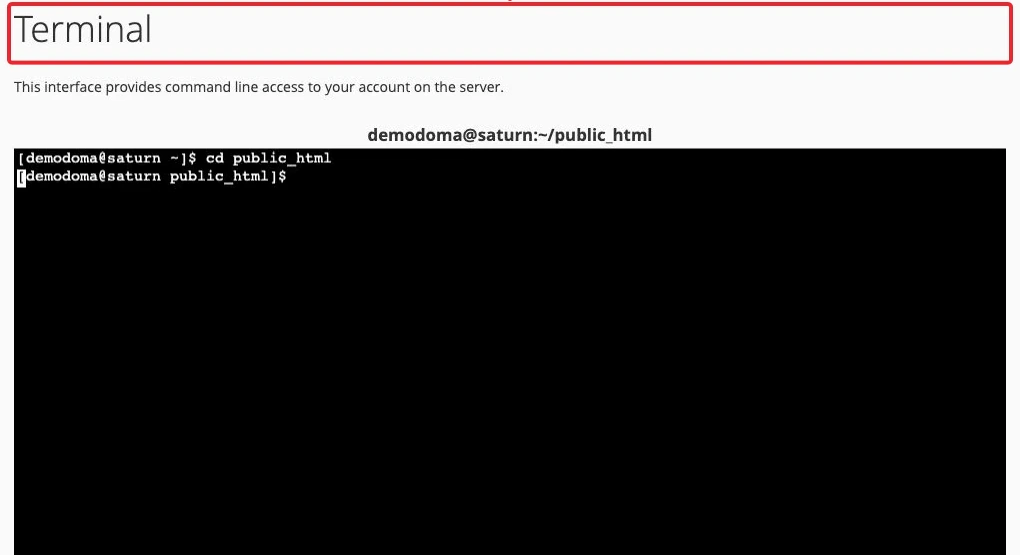
Warning: do not run chown yourself; chown Changing ownership often requires root privileges and can break access. Contact support if you suspect an ownership issue.
5) Check the .htaccess file .htaccess
The .htaccess file .htaccess can block access via directives Denysuch as Deny, Require or rewrite rules that force an F (Forbidden) state. Require or rewrite rules that force an 'F' state F (Forbidden).
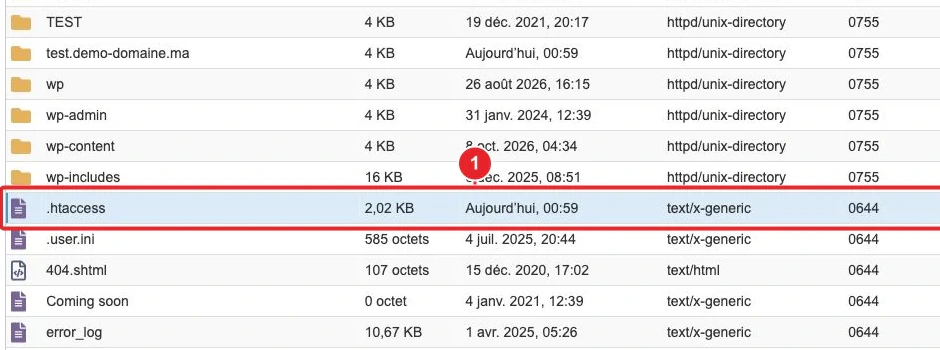
.htaccess at the site root.- Show hidden files in File Manager (dotfiles) → locate
.htaccess. - Download a copy first (backup), then open it in Code Editor / Edit.
- Search for and temporarily comment out suspicious lines by adding
#in front (e.g.#Require all denied) → save and test the page.
Lines often responsible for a 403:
Require all denied(blocks all access under Apache 2.4+).Deny from(old Apache syntax).RewriteRule .* - [F](forces a Forbidden response on patterns).Options -Indexes+ absence of an index → 403 for directory listing.
If the site returns after modification, restore the necessary rules properly and fix the logic rather than removing protections.
6) Check for a WAF / ModSecurity block
An application firewall (ModSecurity, Imunify360…) can block legitimate requests as false positives.
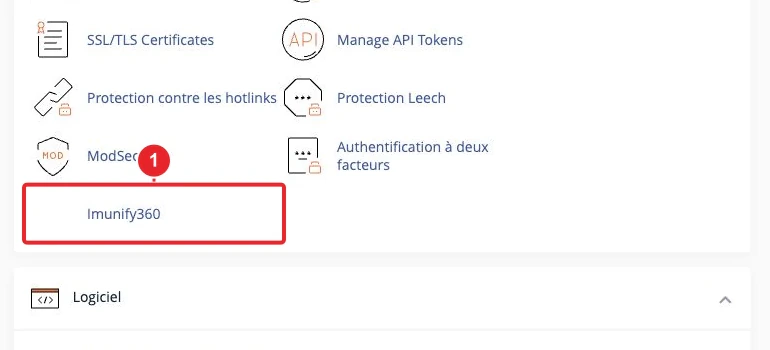
- Open the WAF tool (Imunify360, ModSecurity interface) via cPanel if present and look for recent blocks.
- Check the ModSecurity audit logs (extract
modsec_audit) or the Apache error log around the timestamp. - If a rule is blocking your request, attach the audit excerpt to your support ticket — ask the support team to debug or relax the specific rule rather than disabling it globally.
Important: do not disable the WAF globally without justification — this exposes the site to unnecessary risk.
7) Check for an IP block / firewall
An IP address block (IP Blocker, fail2ban, Imunify360, or an external CDN) can cause a 403.
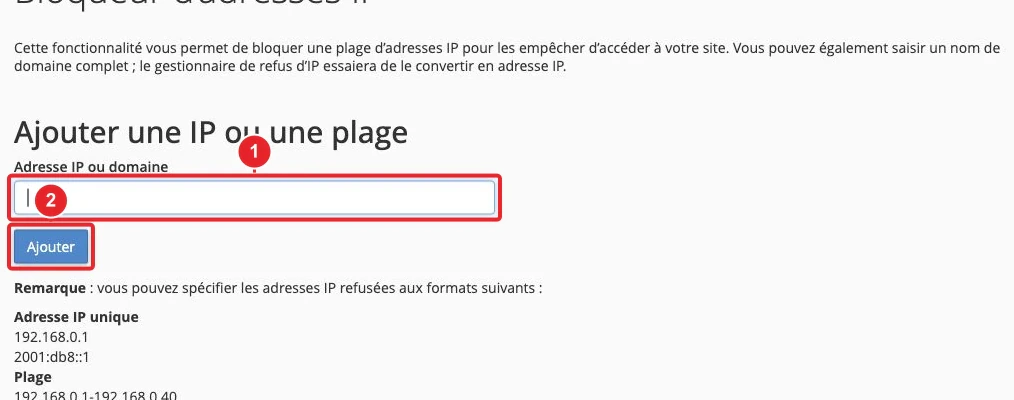
- cPanel → IP Blocker: search for your IP address (or the affected visitor’s IP) and unblock it if necessary.
- If you use a CDN (Cloudflare, etc.), also check its configuration (firewall rules or IP restrictions).
8) WordPress: plugins and security rules
A security plugin, or a misconfigured plugin, can return a 403. Quick test:
- cPanel → File Manager → open
wp-content<code>wp-content</code>. - Rename <code>plugins</code>
pluginsto <code>plugins.disabled</code>plugins.disabled(this disables all plugins) → test the page. - If the error disappears, restore the name and deactivate/reactivate the plugins one by one to isolate the culprit.
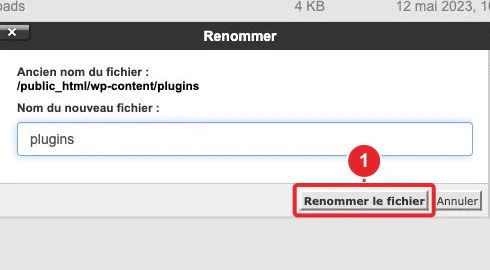
plugins allows you to quickly disable all plugins.9) File ownership issues (suEXEC, PHP-FPM)
If files are not owned by the expected cPanel user, execution via suEXEC / PHP-FPM may be refused and produce a 403. Confirm with the logs (suexec_log, Apache error log).
Fix: restoring ownership (<code>chown</code>chown) is a server-side operation that requires administrator rights; open a support ticket if you suspect this is the case.
Advanced troubleshooting and useful commands
- Confirm the HTTP headers:
curl -I -L https://votredomaine.tld/chemin - Test with a simple user-agent:
curl -I -A "curl" https://votredomaine.tld/ - Capture the server error (if you have access to the Terminal):
tail -n 200 /var/log/apache2/error_log— log paths vary depending on the configuration; ask support for the exact path if necessary. - Obtain the ModSecurity event: attach the excerpt from the audit file (modsec_audit) that corresponds to your timestamp.
When to contact support — what to provide
If after these checks the page still returns 403, open a ticket and attach the following items:
- The exact URL that returns 403.
- Time(s) and time zone of the incident.
- Output of curl -I -L https://votredomaine.tld/chemin
curl -I -L https://votredomaine.tld/chemin(copy/paste). - Excerpts from error logs and/or ModSecurity (if available) around the same timestamp.
- Screenshot of the File Manager showing the permissions and the .htaccess file
.htaccess(without confidential information). - Indicate whether you have recently modified plugins, themes, permissions, or the
.htaccess.htaccess file.
If you don't know how to retrieve these items, ask support to extract the logs for the indicated period; provide the URL and the exact time to speed up the search.
Limitations and precautions
- Do not disable ModSecurity / WAF globally without a diagnosis; instead request that a targeted rule be reviewed.
- Do not change file ownership (
chownchown) unless you have root access or are instructed by support. - Always make a backup before modifying .htaccess
.htaccessor applying chmodchmodin bulk. - On shared hosting, some actions (accessing server logs, chown) require administrator intervention; prepare a support ticket if necessary.
Quick summary (if you're in a hurry)
- Confirm 403:
curl -I -L https://votredomaine.tld/chemincurl -I -L https://votredomaine.tld/chemin. - Check index: temporarily create an index.html
index.htmlvia File Manager to test access. - Permissions: files 644
644, directories 755755(fix via File Manager). - Inspect .htaccess
.htaccess(look forRequire all deniedRequire all deniedDeny from, Deny from[F], [F] in the RewriteRule). - Check logs / ModSecurity; if a rule is blocking the request, attach the relevant audit excerpt to your support ticket for review.
Useful internal links
- cPanel: How to change file and directory permissions?
- cPanel: How to show hidden files in the File Manager
- Configure rules and redirects via the .htaccess file
- How to block or unblock an IP address in cPanel
- How to contact support (open a ticket)
Public references
- MDN — 403 Forbidden (explanation of the HTTP status code)
- cPanel — File Manager: change permissions
- cPanel — Log file locations (modsec_audit, suexec_log…)
Need help preparing the message to include with your support ticket (e.g.: URL + output curl -I + actions already tested)? I can generate a ready-to-paste support ticket template if you provide the URL and the output of curl -I (without sharing passwords).
Reference documentation
- MDN — 403 Forbidden (HTTP status)
- cPanel — File Manager (Change Permissions)
- cPanel — The cPanel & WHM Log Files (modsec_audit, suexec_log)
Documentation consulted on October 16, 2026. Tools may vary depending on your hosting.