Introduction
Connecting to a VPS over SSH with a key pair (public/private) is more secure than using a password. The private key stays on your machine; the server will accept you only if your client presents the corresponding key. This guide explains, in clear numbered steps, how to generate a key pair, install the public key on the VPS (from your terminal, via your provider's control panel or via cPanel), and connect from Linux, macOS or Windows.
Prerequisites
- Public IP address or VPS hostname and the username to use (e.g.
root,ubuntu,centosor the user created by your image). - SSH port (default 22). If your VPS uses a custom port, note it.
- Access to an SSH client on your machine: Terminal on macOS/Linux, PowerShell/Windows Terminal (OpenSSH built-in) on Windows 10+, or PuTTY if you prefer a graphical interface.
- If you can no longer connect by password: access to the provider’s serial/web console (or the client area) to inject the public key.
- Never share the private key. Keep an encrypted backup of the private key.
Quick summary
- Generate a public/private key pair on your machine (Ed25519 recommended).
- Copy or import the public key to the VPS (command
ssh-copy-id, manual copy, provider console or via cPanel). - Connect via SSH by specifying the private key if it is not in the default location.
Step 1 — Generate a key pair
Choose Ed25519 if possible: a more compact, modern key. If you need to ensure maximum compatibility, use RSA 4096.
Linux / macOS (Terminal)
# paire Ed25519 (recommandée)
ssh-keygen -t ed25519 -C "votre-email@example.com"

# ou, si vous avez besoin de compatibilité maximale
ssh-keygen -t rsa -b 4096 -C "votre-email@example.com"
Accept the default path (e.g. ~/.ssh/id_ed25519) or specify a different file if you manage multiple keys. Enter a passphrase when prompted (strongly recommended).
Windows
Two options:
- PowerShell / Windows Terminal (Windows 10+ with OpenSSH): run the same command
ssh-keygenas above. - PuTTY / PuTTYgen: open PuTTYgen, choose Ed25519 (or RSA 4096), Generate, save the private key in PuTTY format (.ppk) and copy the displayed public key. If you generated the key elsewhere in OpenSSH and want to use it with PuTTY, import the private key into PuTTYgen then save it in .ppk format.
Verify and protect the private key
# droits conseillés sur Linux/macOS
chmod 700 ~/.ssh
chmod 600 ~/.ssh/id_ed25519   # ou id_rsa
chmod 600 ~/.ssh/authorized_keys
Never share the private key file (id_ed25519id_ed25519, id_rsa id_rsa, or the PuTTY .ppk). Back it up encrypted if necessary.
Use ssh-agent so you don't have to re-enter the passphrase
To keep the key in memory during a session:
# Linux / macOS
eval "$(ssh-agent -s)"
ssh-add ~/.ssh/id_ed25519

# Windows PowerShell (si OpenSSH est installé)
Start-Service ssh-agent
ssh-add C:\Users\VotreNom\ .ssh\id_ed25519
On macOS, follow Apple's documentation if you want to integrate the key into the system keychain.
Step 2 — Install the public key on the VPS
Several methods: choose the one that matches your situation.
Method A — Automatic (if password-based login is still possible)
# remplacez user@IP par votre utilisateur et l'IP du VPS
ssh-copy-id -i ~/.ssh/id_ed25519.pub user@IP
This command creates ~/.ssh on the server side (if necessary), adds the key to authorized_keys and sets the permissions.
Method B — Manual copy from your local machine
cat ~/.ssh/id_ed25519.pub | ssh user@IP "mkdir -p ~/.ssh && chmod 700 ~/.ssh && cat >> ~/.ssh/authorized_keys && chmod 600 ~/.ssh/authorized_keys"
This single line copies the public key and sets the correct permissions on the server.
Method C — Via the web console or the provider's control panel
- Open your provider's control panel and look for 'Console', 'SSH Keys', 'Access' or a similar option.
- Paste the contents of
~/.ssh/id_ed25519.pubinto the designated field and save.
If your provider offers key injection during instance creation, add the public key during creation so it is configured at boot.
Method D — From a cPanel account (shared hosting or cPanel on the VPS)
cPanel provides the standard tool SSH Access / Manage SSH Keys to import and authorize a public key:
- Import the key (paste the contents of
id_xxx.pub) then Authorize if the interface requests it. - You can then open the Terminal in cPanel to verify that
~/.ssh/authorized_keyscontains the authorized key.
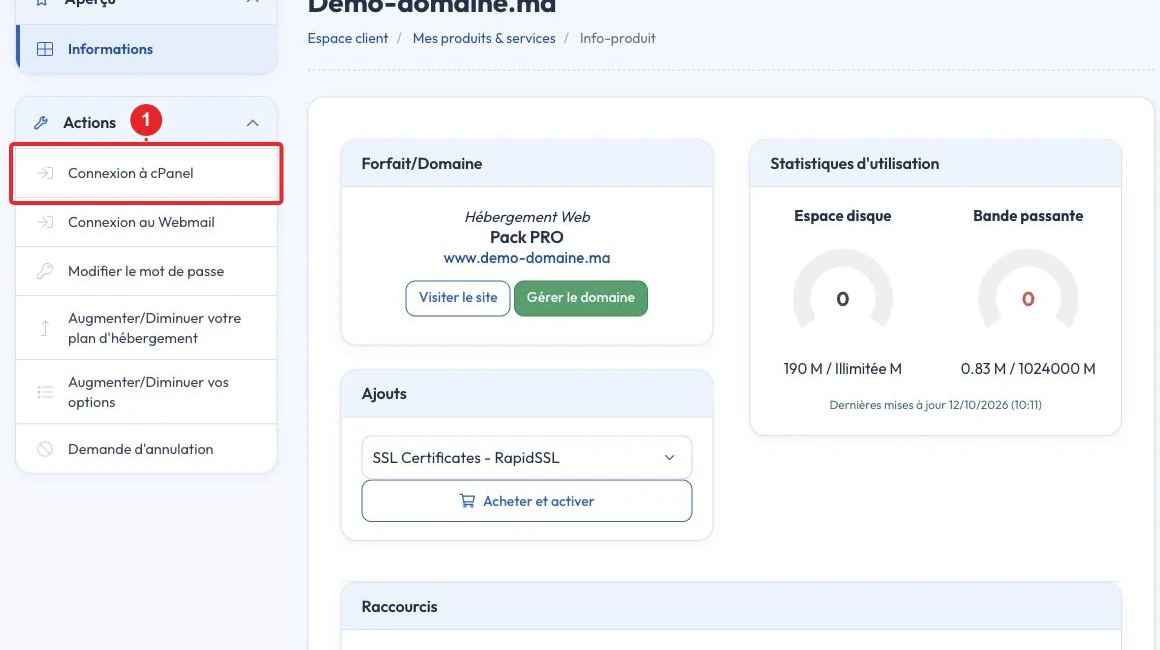
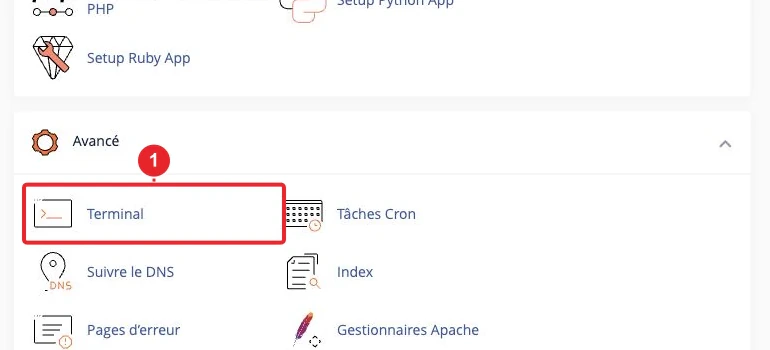
~/.ssh/authorized_keys after import.Note: The “Manage SSH Keys” interface may be disabled by your hosting provider. If you don’t see it, contact support and provide the instance IP, the target username and the public key to add.
Step 3 — Connect from your machine
Linux / macOS / PowerShell (Windows with OpenSSH)
# connexion simple (clé par défaut)
ssh user@IP

# spécifier explicitement une clé
ssh -i ~/.ssh/id_ed25519 user@IP

# port SSH personnalisé
ssh -i ~/.ssh/id_ed25519 -p 2222 user@IP

# mode débogage (utile en cas d'erreur)
ssh -vvv -i ~/.ssh/id_ed25519 user@IP
Use an SSH configuration file (~/.ssh/config)
Host mon-vps
  HostName 203.0.113.10
  User root
  IdentityFile ~/.ssh/id_ed25519
  Port 22
  IdentitiesOnly yes
Then: ssh mon-vps makes access simpler and reproducible.
PuTTY (Windows)
- If you have an OpenSSH key, open PuTTYgen then Load to import your private key. If necessary, save it in the format
.ppk.ppk - Open PuTTY: in Session enter the host (IP). In Connection → SSH → Auth, specify the .ppk file
.ppkwith Private key file for authentication. Return to Session and click Open.
Troubleshooting — common errors and solutions
- Permission denied (publickey)
- Verify the exact username (some cloud images create users named
ubuntu,centos,ec2-user, etc.). - Ensure the public key is exactly present in
~/.ssh/authorized_keys(no line breaks). - Check server-side permissions:
chmod 700 ~/.sshandchmod 600 ~/.ssh/authorized_keys. - Run the diagnostic command:
ssh -vvv -i ~/.ssh/id_ed25519 user@IPto obtain the exchange details and pinpoint where authentication fails.
- Verify the exact username (some cloud images create users named
- Connection timed out
- The SSH port is likely blocked by a firewall (iptables/ufw) or by a network rule at the provider. Quick test:
nc -vz IP 22ortelnet IP 22from another machine to verify connectivity. - Check the network rules in the client panel (Security groups, VPS firewall).
- The SSH port is likely blocked by a firewall (iptables/ufw) or by a network rule at the provider. Quick test:
- Host key verification failed
- If the server fingerprint has changed (reinstallation, migration), remove the old known entry:
ssh-keygen -R IPor edit~/.ssh/known_hostsmanually, then reconnect.
- If the server fingerprint has changed (reinstallation, migration), remove the old known entry:
- The key is not accepted by PuTTY
- Make sure you have converted the key to the format
.ppkvia PuTTYgen.
- Make sure you have converted the key to the format
- You cannot add the public key
- Use the serial/web console provided by your hosting provider to add the key manually if password-based SSH access is disabled.
- If you have no access, open a support ticket attaching the public key and specifying the targeted IP and user (see the 'When to contact support' section).
- Server logs
- If you have root access: check the logs for diagnostics — e.g. Debian/Ubuntu :
tail -n 200 /var/log/auth.log, RHEL/CentOS :tail /var/log/secureorjournalctl -u sshd.
- If you have root access: check the logs for diagnostics — e.g. Debian/Ubuntu :
Security best practices
- Protect the private key with a passphrase and use
ssh-agentso you don't have to retype it on every connection. - Regularly remove obsolete public keys from the file
authorized_keyson your servers. - Do not disable password authentication (
/etc/ssh/sshd_config → PasswordAuthentication no) until you have confirmed that all legitimate connections work by key and that you retain a fallback access method (provider console). - Limit SSH access (firewall) to the necessary IP ranges where possible.
- Avoid storing the private key in unencrypted or shared locations (unencrypted cloud storage, public spaces, etc.).
When to contact support
Open a ticket if:
- You have no access to the web console/serial console and cannot add the public key.
- You cannot start the SSH service after a configuration change and you have no other means of access.
- You want the provider to add the public key for you (attach only the public key : contents of the file
id_xxx.pub). Never attach the private key.
In the ticket: specify the instance IP, the target username and paste the complete public key. Never send the private key.
Internal resources
- How to order an SSD VPS? — check access options and whether a console or key‑injection option is available during instance creation.
- How to access my cPanel account? — if you use cPanel to import/authorize an SSH key.
Conclusion
SSH key‑based authentication is simple to set up and significantly improves your VPS security. In practice: generate a key pair (Ed25519 recommended), install the public key on the VPS (command line, provider console, or cPanel), test the connection, then follow best practices (use a passphrase, run ssh‑agent, remove obsolete keys). Contact support if you have no fallback access to inject the key.
Documentation consulted on October 17, 2026. Tools may vary depending on your hosting.