Before you begin
Sign in to your Client Area and check the selected service or domain before changing its settings.
To order a VPS SSD server from CAP CONNECT, follow these steps:
Order a VPS SSD server
Visit the VPS SSD Servers.
Move the selector, choose your VPS and click "Order".
3. On the VPS SSD configuration page, select your billing cycle: monthly, quarterly, semiannually or annually.
4. Enter the hostname and root password, and supply the nameserver prefixes, such as ns11 and ns12.
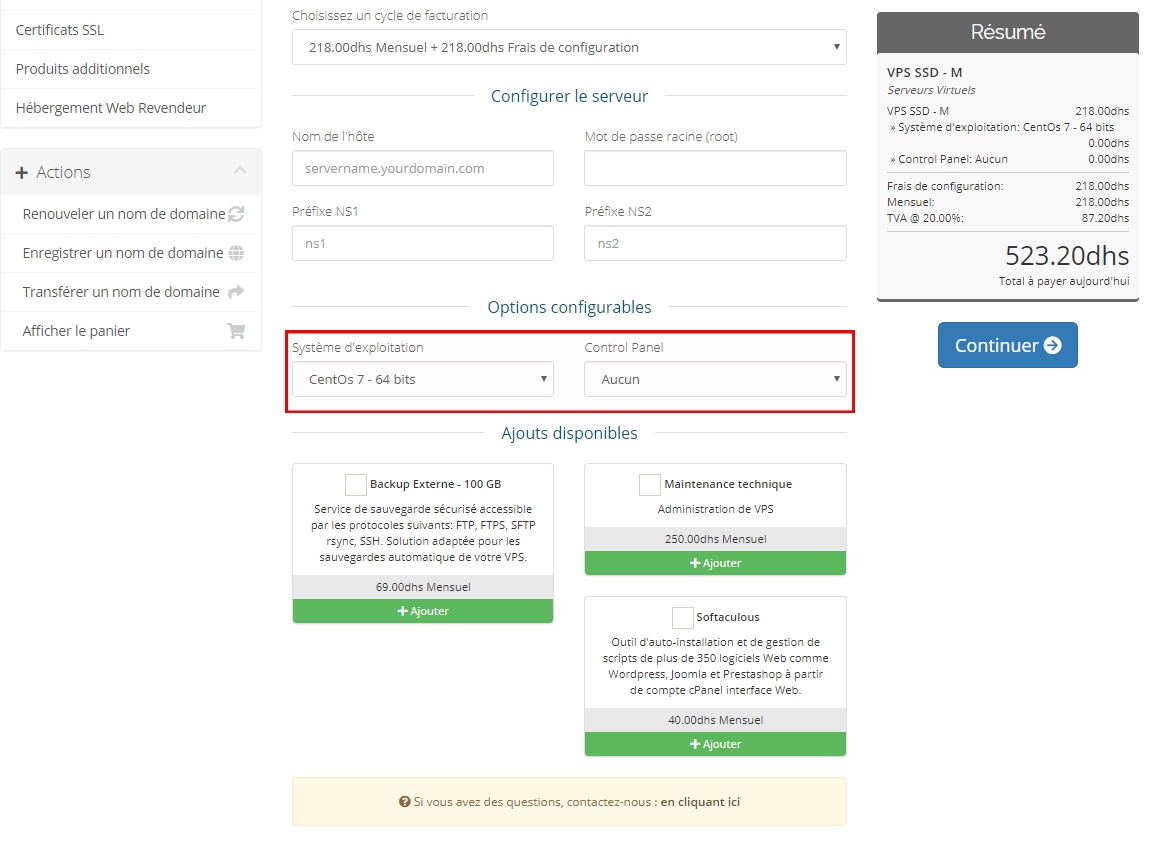
5. Choose the operating system and control panel for managing the server.
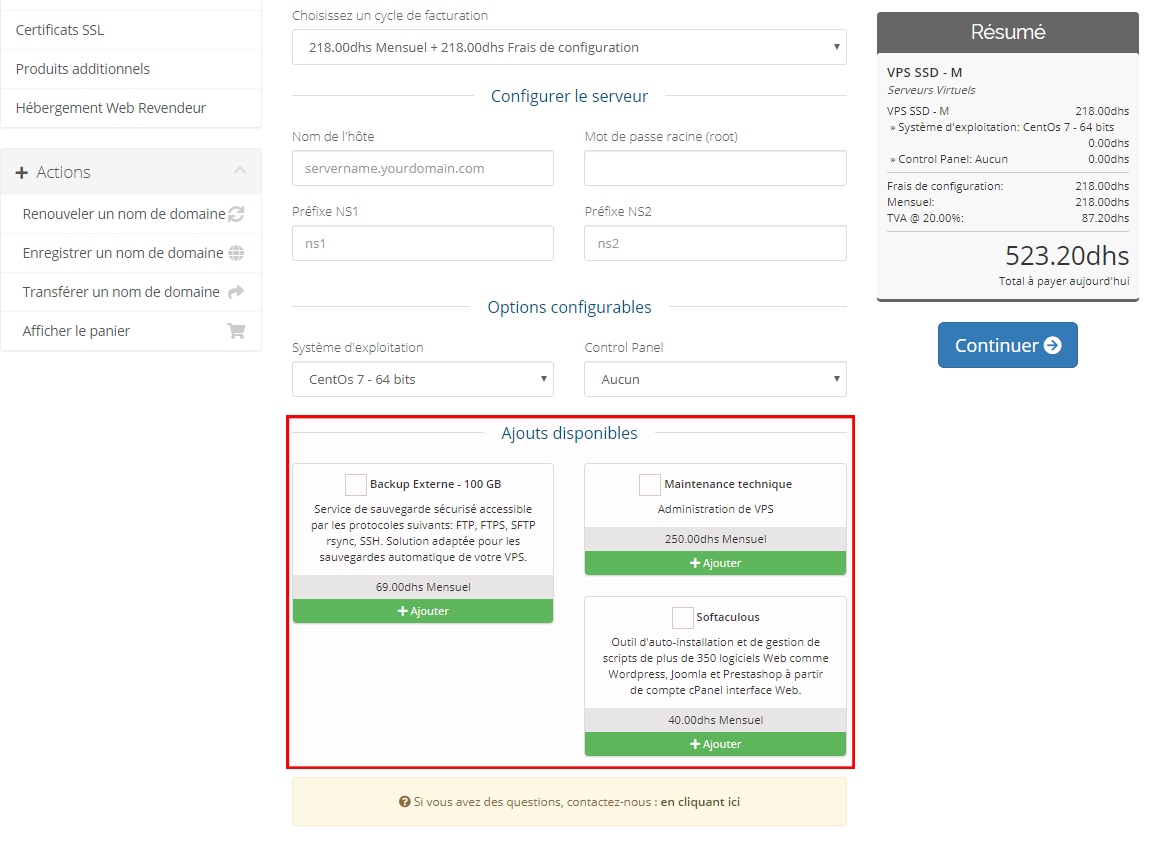
6. You can add options such as external backup, technical maintenance and Softaculous.
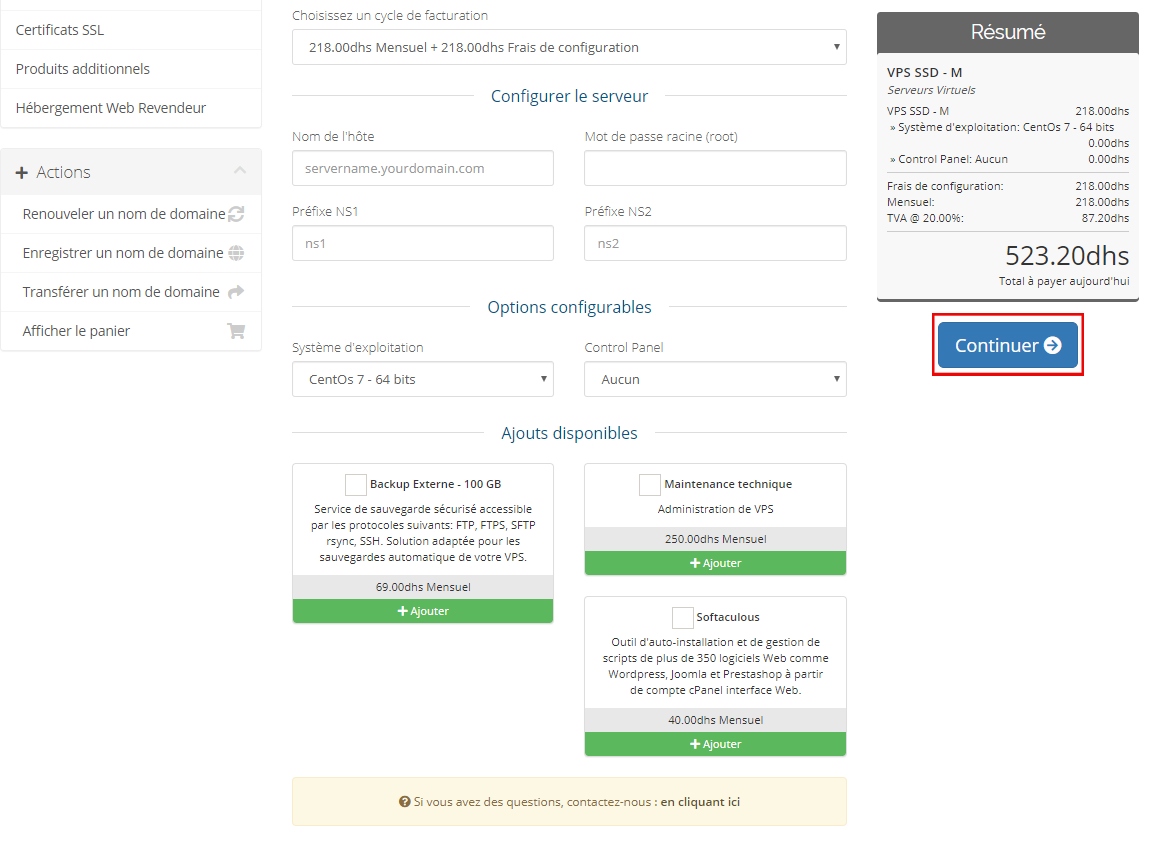
7. When finished, click "Continue".
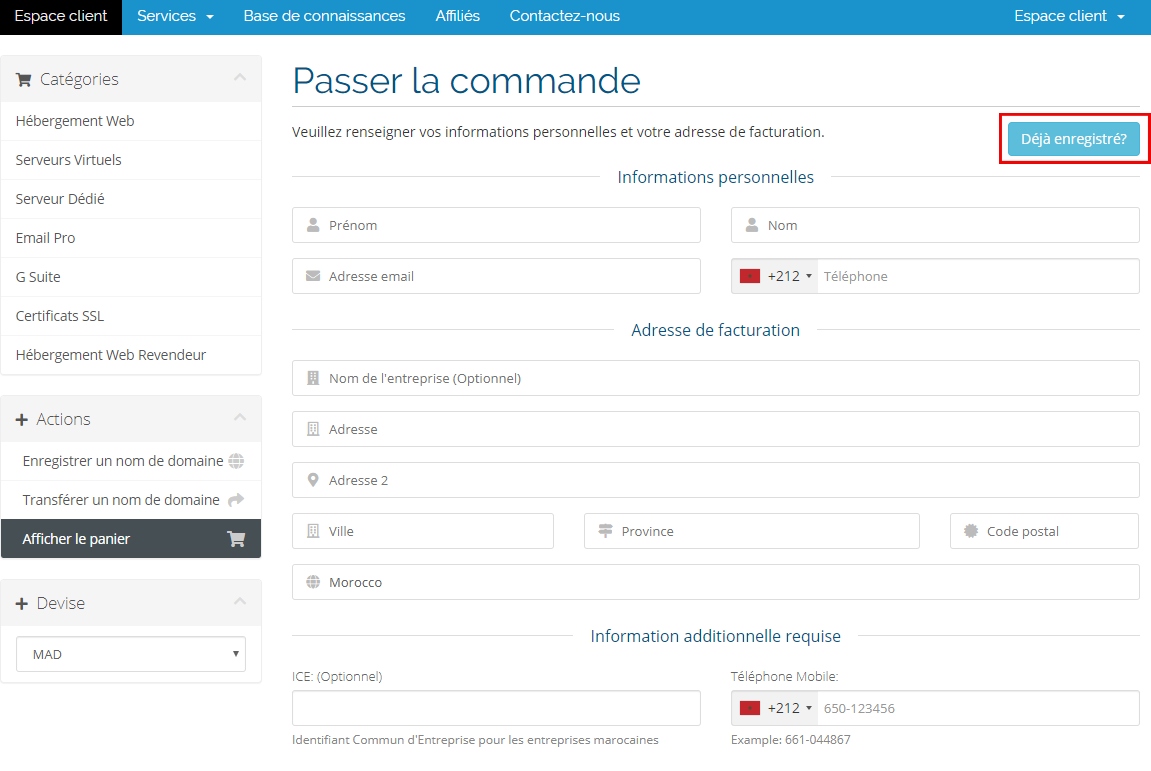
8. If you are an existing CAP CONNECT customer, click "Already registered" and sign in with your email address and password.


If you are a new customer, enter your personal details to create a Client Area account.
9. Choose the payment method, confirm acceptance of the terms of use and click "Complete Order". Once payment is confirmed, your server is prepared according to the activation time.
Check the result and troubleshoot
After confirming, check the service status or confirmation message. If the option is unavailable, open a ticket identifying the service and expected result, without sending a password.