To block an IP address from cPanel, use IP Blocker. To reserve a folder for certain addresses, add rules Require ip in its file .htaccess, if your server supports them. Save this file and keep a fallback cPanel access before testing.
Choose the method and keep a fallback access
Use IP Blocker to add a simple block from cPanel. Use a .htaccess file in the target folder for more granular restriction. An IP restriction applies to web requests; it does not replace authentication and does not by itself protect SSH or email access.
Note your public IP address and back up the existing .htaccess file. Keep cPanel open: its File Manager will allow you to remove a rule if it blocks you.
Block an address with IP Blocker
- In cPanel, open Security > IP Blocker.
- Enter the IP address to block, after verifying its origin.
- Confirm, then test the site's behaviour from another network access.
- To cancel the block, remove the corresponding entry from the list shown.
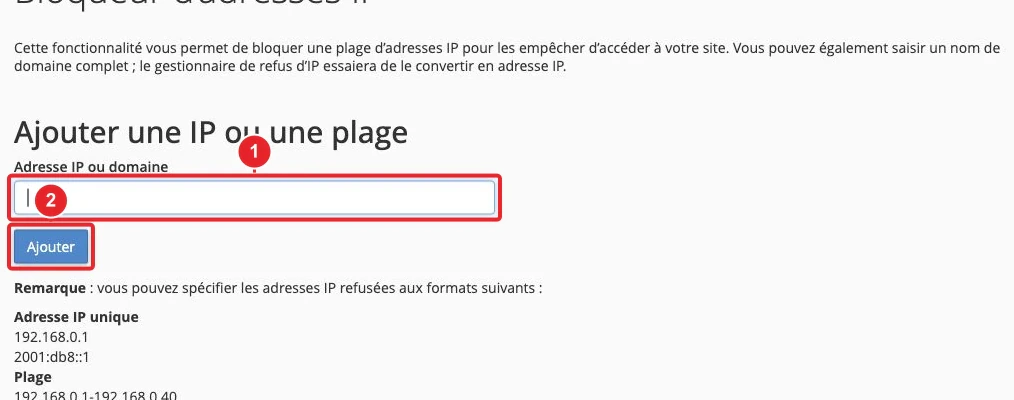
Avoid overly broad ranges: an address can be shared by multiple users or belong to a proxy. Check the actual scope applied to the domain and its subfolders before adding multiple rules.
Edit the .htaccess file in the correct folder
In the File Manager, enable showing hidden files if needed. Open the site's root folder or the subfolder to protect, then the file .htaccess. Do not erase existing WordPress, redirect or hosting rules.
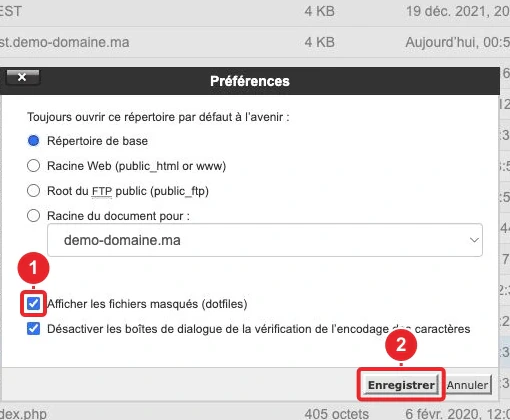
Block a single IP address
For a configuration compatible with Apache 2.4 directives, the following example allows other addresses and excludes the one indicated. 192.0.2.10 is a sample address to replace:
<RequireAll>
    Require all granted
    Require not ip 192.0.2.10
</RequireAll>
Allow only your team's addresses
In the folder to reserve, a rule like this limits access to the listed addresses:
Require ip 192.0.2.10 198.51.100.20Replace these fictitious addresses with the actual public addresses used. A changing IP or an unplanned IPv6 access can prevent a team member from connecting.
Test the restriction and revert in case of error
Test from an authorized address and from a different address. An expected denial usually returns a response 403. An error 500 after the change may indicate an unsupported directive or a syntax error: revert to the backup, then consult the error log.
If a CDN or proxy sits in front of the site, check with support how the server identifies the visitor's address. Blocking the proxy's address can block all visitors. The effective rules depend on the server and other folder directives; you can open a ticket with CAP CONNECT if you cannot confirm this context.
Also read
Reference documentation
Documentation consulted on October 13, 2026. Labels and tools may vary depending on your cPanel version and hosting options.