JetBackup can restore items from the backups available to your account. Dates, contents and functions depend on the hosting configuration.
Choose the backup
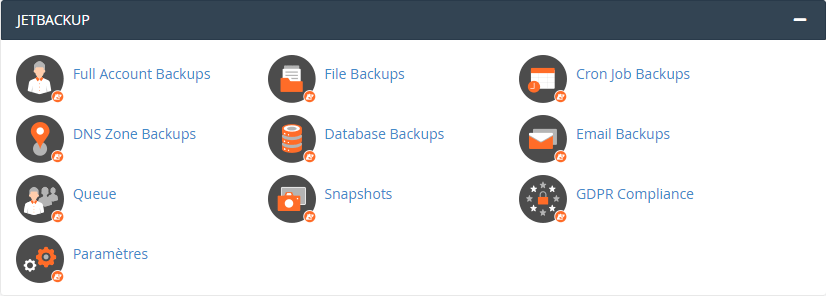
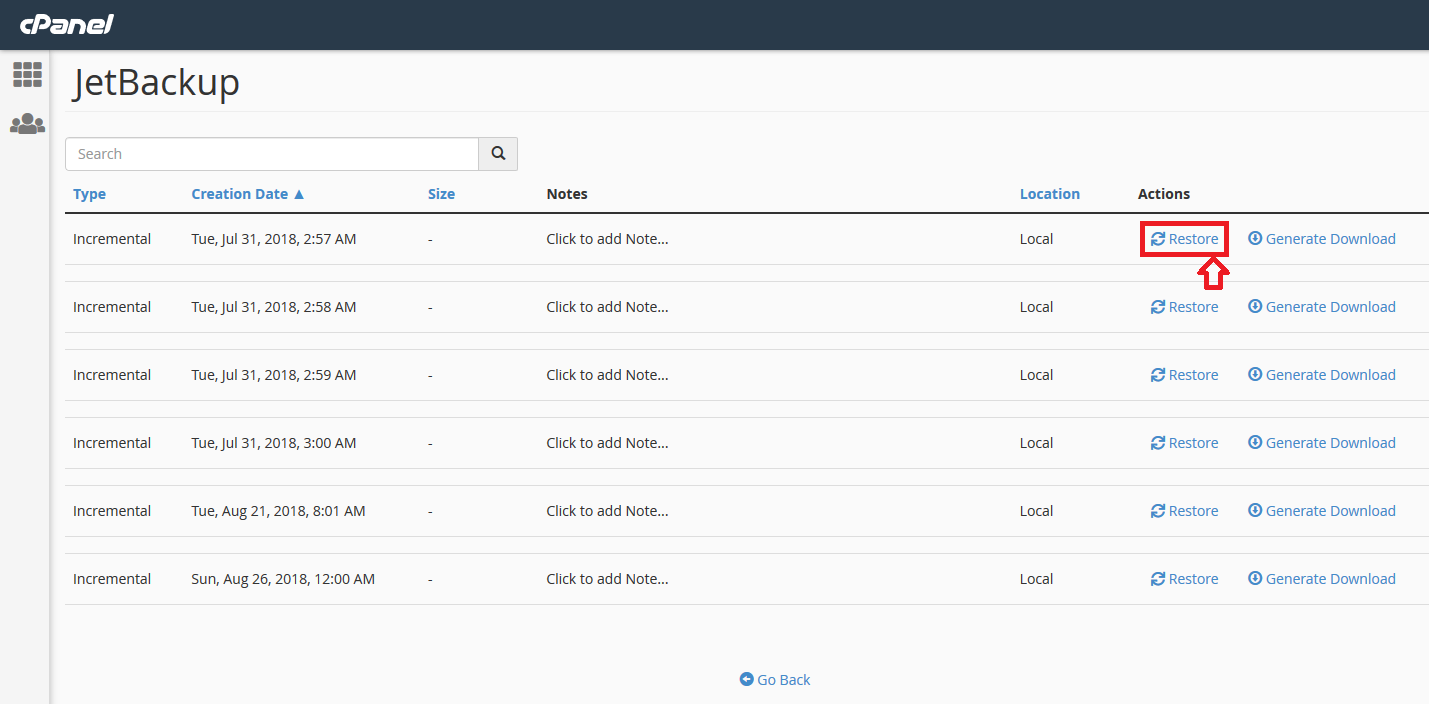
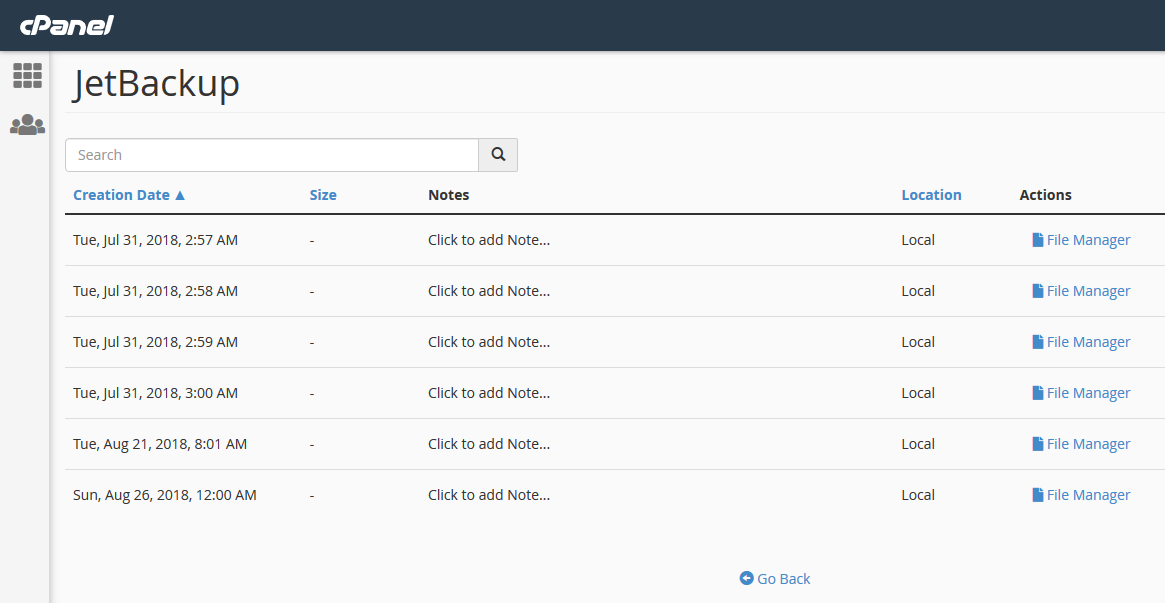
Open JetBackup in cPanel and find a backup from before the problem. Check its scope: files, databases, email or a full account, depending on available options.
Prepare restoration
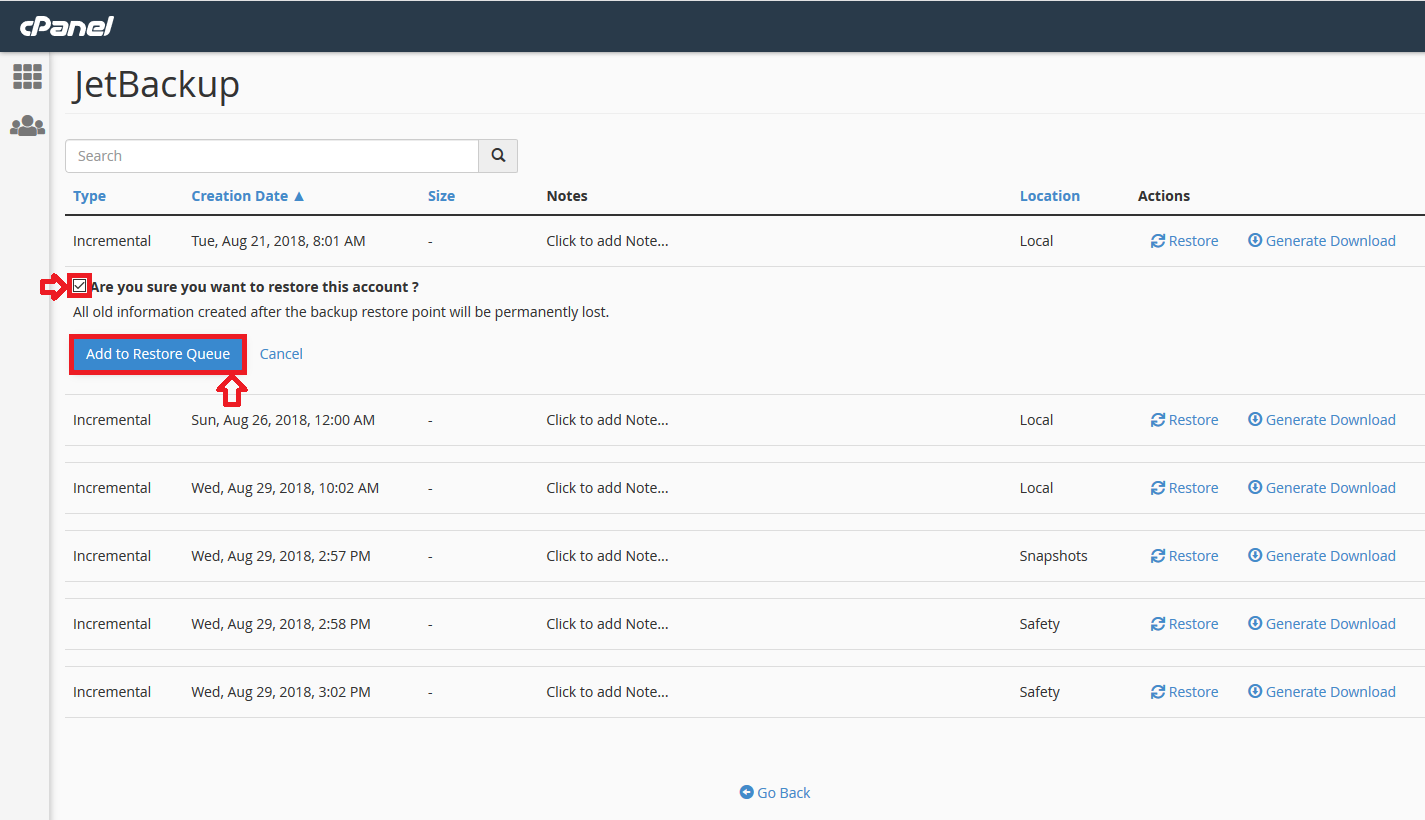
Restoring can overwrite data created after the selected date. Export newer changes you need to preserve, especially orders and messages. For a dynamic site, files and the database must represent a consistent state.
Start and monitor the operation
- Select the backup and relevant items.
- Review the JetBackup summary.
- Confirm only the intended restoration scope.
- Monitor the request in the queue and wait for its result.
Check the result
Test pages, administration and site functions. If email was restored, check the affected mailboxes. Do not launch several simultaneous restores for the same problem.
If the required backup is missing
Contact support with the desired date and service. Do not assume a backup exists or a fixed retention period applies. Keep your own important copies outside the account.
Interface illustrations
These screenshots show the versions used when the original article was written. Labels may differ in your current version; follow the written procedure and your account settings.

Related guides
Reference documentation:
Sources accessed on October 11, 2026. Available features depend on your hosting version and options.