To check a MySQL database in cPanel, open Manage My Databases, select the database and start the check. Back up your data before repairing: MyISAM and InnoDB tables are not handled the same way.
Before you begin: keep a backup
Note the exact message, the database name and, if indicated, the affected table. If the database remains accessible, export it from phpMyAdmin. Also keep a healthy backup made before the problem: an export performed after the error appeared is not necessarily a usable copy to restore the site.
An “Access denied” error or an incorrect credential should first be handled by checking the application configuration. Repair does not replace a missing password or removed privileges.
Step 1: open database management in cPanel
- Log in to cPanel from your Client Area.
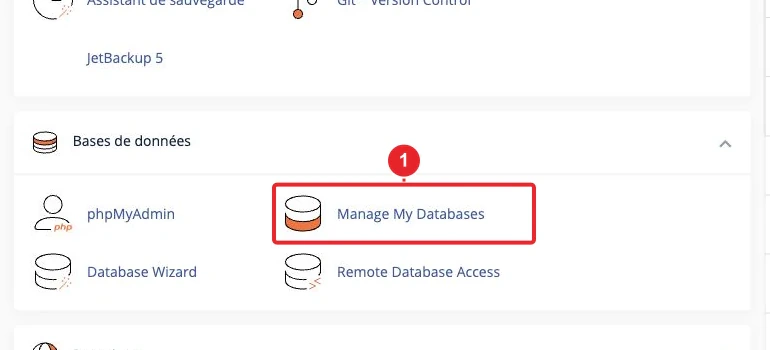
- In the Databasessection, open Manage My Databases / Manage My Databases. An older version may show “MySQL Databases.”
- Scroll down to Modify Databases.
Step 2: verify the correct database
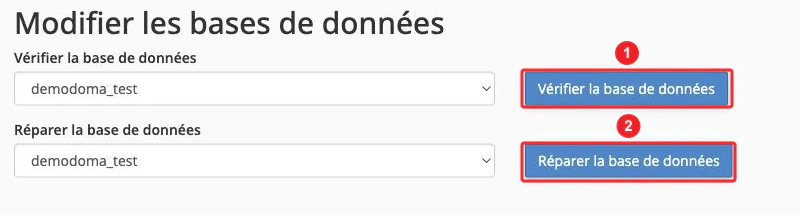
- In the check menu, choose the full database name, including any prefix.
- Click Check Database.
- Read the report and keep the displayed errors before returning to the previous screen.
If the check reports no anomaly, continue diagnosing on the application side: it would be pointless to run repairs on a database the tool considers correct.
Step 3: repair only when the engine allows it
For a compatible table (for example MyISAM), select the database in the repair menu then click Repair Database. Wait for the result and check the returned report.
Warning about the InnoDB engine
An InnoDB table is not repaired with a simple REPAIR TABLE command. If the error concerns this engine, or if cPanel indicates the operation is not supported, avoid random table conversions and recovery commands found online. Depending on the situation, restoring from a backup or support intervention may be necessary.
After the operation: test the site functions
Open several pages and test a function that uses the database, for example a login or a search. If the error returns, you can open a ticket with CAP CONNECT specifying the domain, the database, the table and the exact message. Do not attach the MySQL password.
Additional guides
Reference documentation
Documentation consulted on October 13, 2026. Labels and tools may vary depending on your cPanel version and your hosting options.